
Monthly Services
Summary
The Monthly Services Report is a great report to view a quick snapshot of customers due during a certain date range, and how many have been completed so far.
It is limited to the customer’s next service date (won’t forecast past a customer’s next service) and does not include potential customers (customers who are active but have never received a service).
Important Points:
- This report only considers customers on a recurring service and services attached to a subscription.
- Export this report by selecting “Export to CSV”.
Accessing the Monthly Services Report
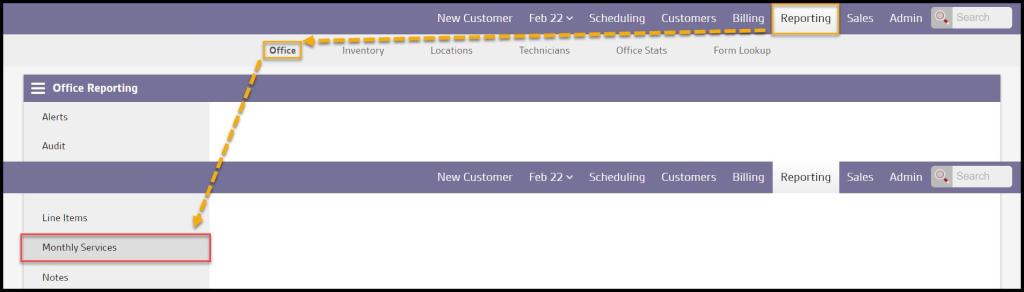
To access the Monthly Services report,
Reporting > Office Reporting > Monthly Services.
Filtering the Monthly Services Report (Basic)
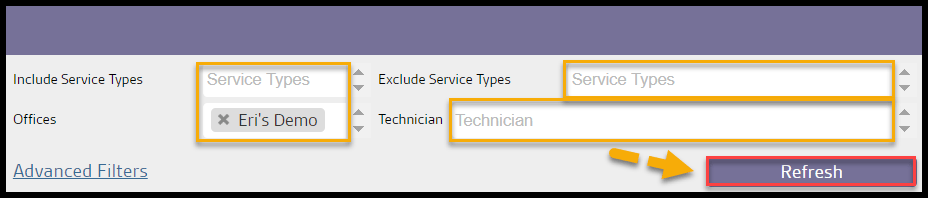
Filter the Monthly Services Report using these filters.
- Include Service Types: Include certain service types for monthly services.
- Exclude Service Types: Exclude certain service types for monthly services.
- Offices: Limit the services to a certain number of offices, if there is more than one.
- Technician: Limit the services displayed by technician.
Select Refresh when finished with the filters to load any changes.
Filtering the Monthly Services Report (Advanced)
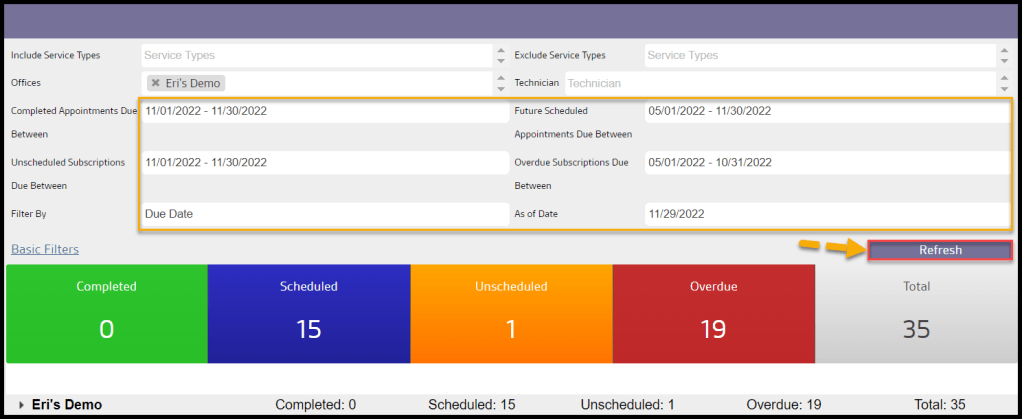
Filter the Monthly Services Report further using these filters.
- Completed Appointments Due Between: Limit results to services with completed appointments due between certain dates.
- Unscheduled Appointments Due Between: Limit results to services with unscheduled appointments due between certain dates.
- Filter By: Order the results by the date they were due or by the date the appointment was scheduled.
- Due Date: Order the monthly services by their due date.
- Appointment Date: Order the monthly services by their appointment date.
- Future Scheduled Appointments Due Between: Limit results to services with appointments scheduled in the future between certain dates.
- Overdue Subscriptions Due Between: Limit results to services with overdue subscriptions due between certain dates.
- As of Date: Limit results to services that occur by a certain date.
Select Refresh when finished.
Viewing the Monthly Services Categories
There are several categories within the Monthly Services report:
- Completed: Customers that had a service due within the specified date range, and the appointment has since been completed in PestRoutes.
- Scheduled: Customers with a due date within the selected date range, and have a pending appointment in PestRoutes.
- Unscheduled: Customers that are due within the selected date range, and have not been scheduled for an appointment.
- Overdue: Customers that have been due for service up to six months in the past and do not currently have a scheduled appointment in PestRoutes.
- Total: The total number of customers due within the date range selected.

Viewing the Monthly Services Categories: Completed
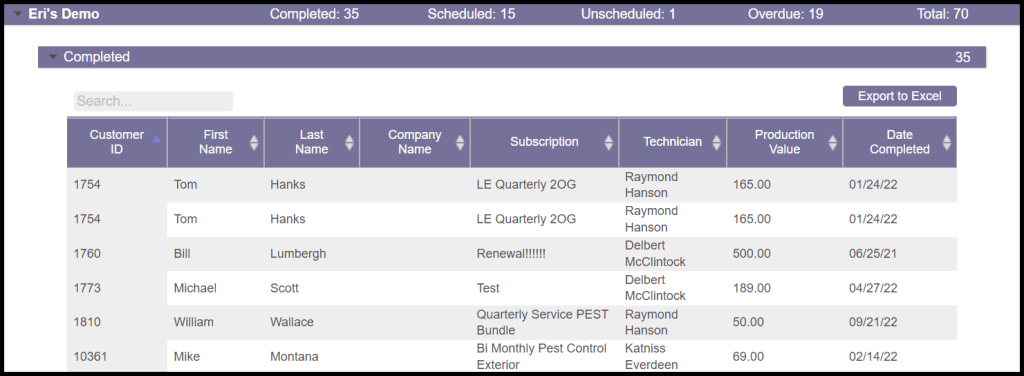
Completed Monthly Services include customers that had a service due within the specified date range, and the appointment has since been completed in PestRoutes.
- Customer ID: View the unique identification number for the customer with the completed service.
- First Name: View the customer’s first name.
- Last Name: View the customer’s last name.
- Company Name: View the name of the customer’s company, if applicable.
- Subscription: View the name of the subscription.
- Technician: See the name of the technician who completed the service.
- Production Value: See the production value of the service, displayed on the completed appointment card.
- Date Completed: View the date that the service was completed.
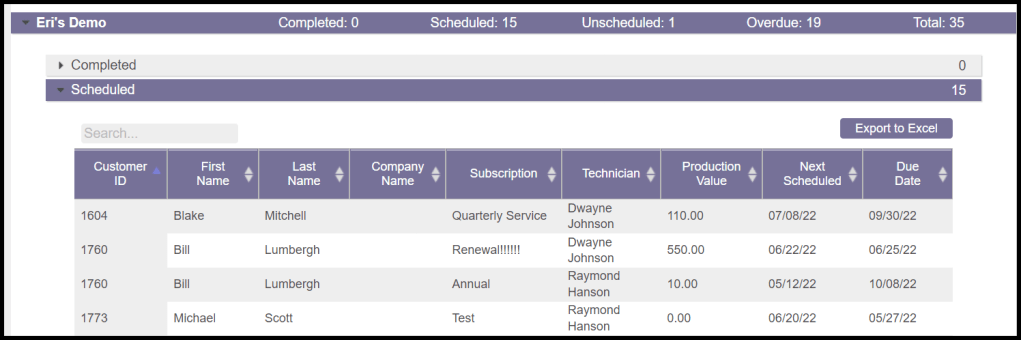
Viewing the Monthly Services Categories: Scheduled
Scheduled Monthly Services include customers with a due date within the selected date range and have a pending appointment in PestRoutes.
- Customer ID: View the unique identification number for the customer.
- First Name: View the scheduled customer’s first name.
- Last Name: View the scheduled customer’s last name.
- Company Name: View the name of the scheduled customer’s company, if applicable.
- Subscription: View the name of the subscription for the scheduled customer.
- Technician: See the name of the technician who is assigned to the service if applicable.
- Production Value: See the production value of the service, displayed on the scheduled appointment card.
- Next Scheduled: View the date that the next appointment is scheduled.
- Due Date: View the date that the appointment was due.
Viewing the Monthly Services Categories: Unscheduled
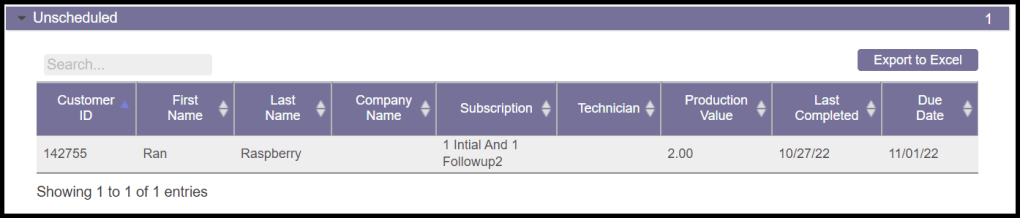
Unscheduled Monthly Services include customers that are due within the selected date range, and have not been scheduled for an appointment.
- Customer ID: View the unique identification number for the unscheduled customer.
- First Name: View the unscheduled customer’s first name.
- Last Name: View the unscheduled customer’s last name.
- Company Name: View the name of the unscheduled customer’s company, if applicable.
- Subscription: View the name of the subscription.
- Technician: See the name of the preferred technician for the subscription.
- Production Value: Shows the production value of the subscription.
- Last Completed: View the date that the service was last completed.
- Due Date: View the date that the appointment was due.
Viewing the Monthly Services Categories: Overdue
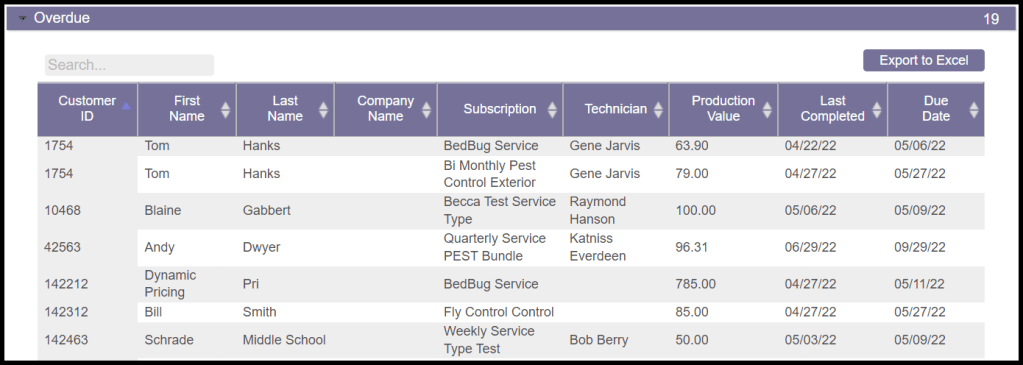
Overdue Monthly Services include customers that have been due for service up to six months in the past and do not currently have a scheduled appointment in PestRoutes.
- Customer ID: View the unique identification number for the customer.
- First Name: View the customer’s first name.
- Last Name: View the customer’s last name.
- Company Name: View the name of the customer’s company, if applicable.
- Subscription: View the name of the subscription.
- Technician: See the name of the preferred technician for the subscription.
- Production Value: See the production value of the subscription.
- Last Completed: View the date that the service was last completed.
- Due Date: View the date that the appointment was due.
Exporting a Monthly Service Report
To export a Monthly Service Report to an Excel File, select the desired category and select Export to Excel.

 Moxie Pest Control Office Guide