
Manage Stored Cards Report
Summary
This guide explains the purpose and details of the Manage Stored Cards report under the Billing area of the web application.
Use this report to review the status details of payment cards stored within the customer database. In addition, those using the FieldRoutes Payments service may bulk-remove expired, stolen, or otherwise unusable cards to increase prompt payment and avoid fees charged when storing unusable cards.
Contents:
- Open the Managed Stored Cards Report
- Filter the Report Results
- Details Returned by the Report
- Export the Card List
- Card Removal Option (FieldRoutes Payments Only)
Important Points:
- This report is available to all customers to review stored payment cards, but only FieldRoutes Payments users can bulk delete expired or unusable cards from here.
- The report results will be broken into multiple pages if the list of cards is over 100 results.
Access the Manage Stored Cards Report
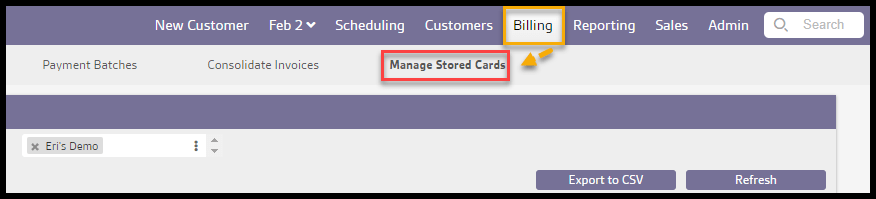
To access the Manage Stored Cards report, navigate to:
Billing > Manage Stored Cards.
Filter the Report Results
Four filter settings are available to customize the report:
- Expires: Filter the report according to the expiration date:
- Expires in the Next Three Months
- Expires This Month
- Already Expired
- All (default) – lists all cards regardless of expiration status
- Unused: Filter the report according to the last date used:
- Never Used
- Not Used Prior Three Months
- Not Used This Month
- All (default) – lists all cards regardless of last use
- Customer Status: Filter the report results based on the account status of the customer
- Pending Cancel
- Frozen
- Active
- All (default) – lists all cards regardless of the Customer’s Active/Frozen status
- Offices: Limit to the specific office(s) – NULL (default) = all offices will be included.

Details Returned by the Report
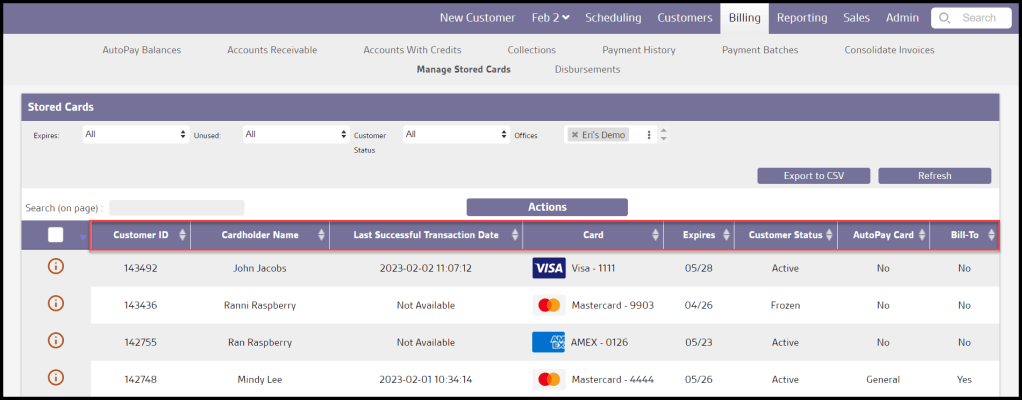
Once the filters are set, select the Refresh button to update the report results. The following data is returned on each applicable card:
- Customer ID: Shows Account associated with the card.
- Cardholder Name: Displays the name on the payment card. This may be different from the customer’s name.
- Last Successful Transaction Date: Displays the date the card was last used for a successful payment.
- Card: Displays the Card Type and last four digits of the card number.
- Expires: Shows the currently listed expiration date.
- Customer Status: The Status of the Customer account.
- Frozen
- Active
- AutoPay Card: This shows whether the card is set up as an AutoPay source
- Bill-To:
- Yes = this payment card belongs to another account that is the Responsible Payer for this account
- No = the card was supplied as a payment method by the account holder
Export the Card List
There are two main benefits to reviewing the payment card list regularly:
- Ensure Prompt Payment: Expired cards prevent autopay and bulk manual pay from receiving payment. Using this report allows them to be caught early and updated to prevent delays.
- Avoid Unnecessary Bank Fees: A small monthly charge is assessed for each payment card stored by any merchant. While each fee is small, these charges add up as the number of cards increases. This report can identify extra cards that are not in use and remove them to reduce these fees.
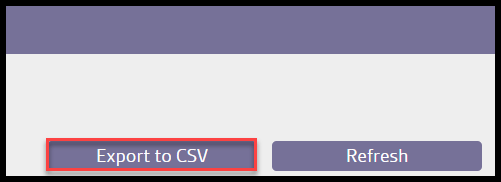
This report allows the user to identify any expired/lost/stolen cards that will interrupt payment processing and also unused cards that are generating unnecessary fees. Use the Export to CSV feature to download the list of flagged cards for further analysis or action.
Bulk Card Removal (FieldRoutes Payments Only)
In addition to creating a list to individually address problematic cards individually through the Customer Cards, an additional option to bulk-remove cards from here in the report is available for FieldRoutes Payments customers.
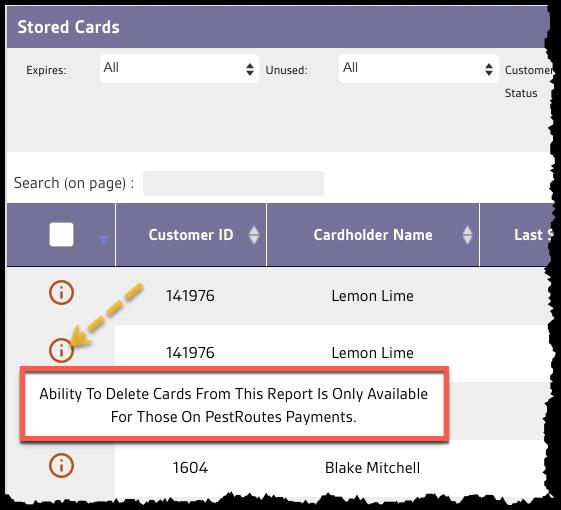
Customers using other payment processors will notice a red information symbol at the beginning of each record in the list. Hovering over them indicates that these cards cannot be deleted through the report here.
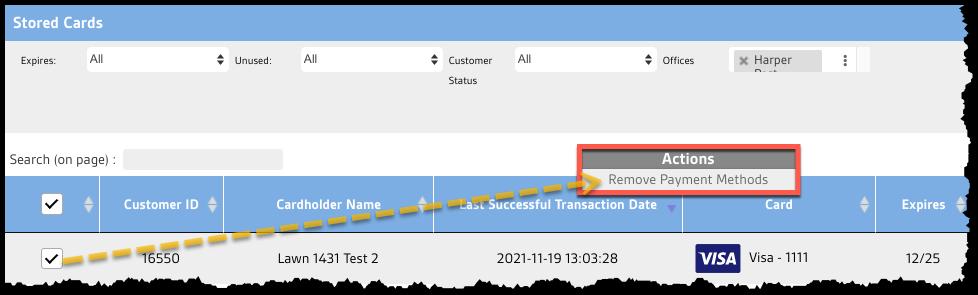
FieldRoutes Payments customers will have a checkbox next to each card on the list. Select either individual cards or the entire list by checking the box in the header to indicate the payment cards to be removed.
To remove them, mark the cards, and then select Remove Payment Methods from the Action menu.
Confirm the removal in the dialogue box that appears to complete the process.
 Moxie Pest Control Office Guide