
Line Items
Summary
The Line Item Report will allow the user to see which line items (Add-Ons) are used most within a given date range. This report is accrual-based and records ticket and invoice items based on the date the ticket is created, not the date the item was added. It also itemizes charges where the revenue by service types report groups all item charges with the main service of the ticket.
Important Points:
- This report is also useful to forecast how much inventory the users may need to purchase in the future.
- The Line Item report includes line items added from the desktop and the mobile applications.
- Export this report by selecting “Export to CSV”.
Accessing the Line Items Report
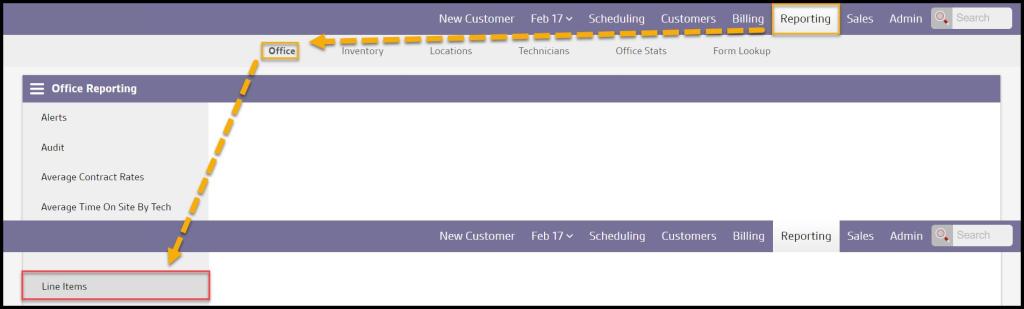
To access the Line Items report, go to:
Reporting > Office Reporting > Line Items.
Filtering the Line Items Report
To filter the Line Items report, toggle these filters:
- Date: Filter the line items between certain dates.
- Show Add-on Codes: Display the code for the line item / Add on.
Select Refresh to filter the report.

Viewing the Line Items Report Data Columns
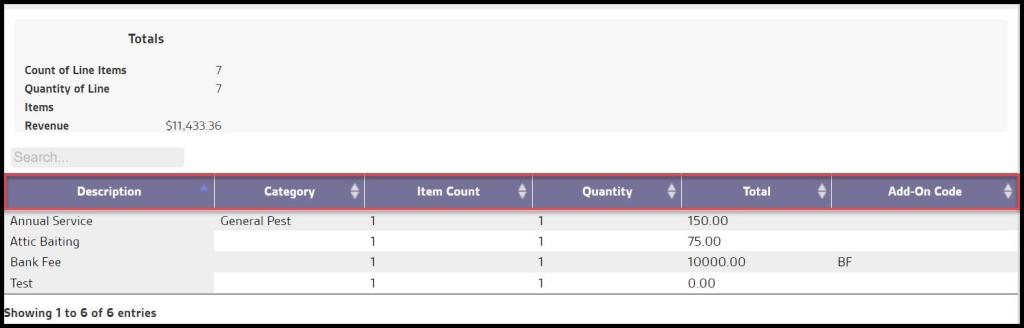
Several data columns can be displayed for Line Items Report.
- Description: Name of the line item (Add-on).
- Category: Shows the category for the line item.
- Item Count: Shows the number of invoices with a line item added within the date range.
- Quantity: Shows the actual number of line items attached to invoices within the date range.
- Total: Shows total revenue generated from the line items.
- Add-on Codes: If the Show Add-on Codes filter was selected, this will display a code for the Add-on. This is the ONLY place in the entire UI that the Add-on Code is seen besides in the Add-on Preference field itself where these are added.
Exporting the Line Items Report
A CSV file can be exported by selecting the Export to CSV.
Note:
The Add-on Code will also be exported, and pivot tables, etc can also use it for analysis and organization (grouping Add-ons with the same code of “WDO” for example, or listing them in alphanumeric order.

 Moxie Pest Control Office Guide