
Leads Report
Summary
The Leads Report tracks all in-process sales leads through each stage of the sales funnel/process. With this report, the user can see all of the open or closed leads, see how many customers are in a specific lead stage, and even see the date the customer was last contacted about the lead.
This report is beneficial for businesses that gain access to sales leads through advertising and other marketing efforts.
Important Points:
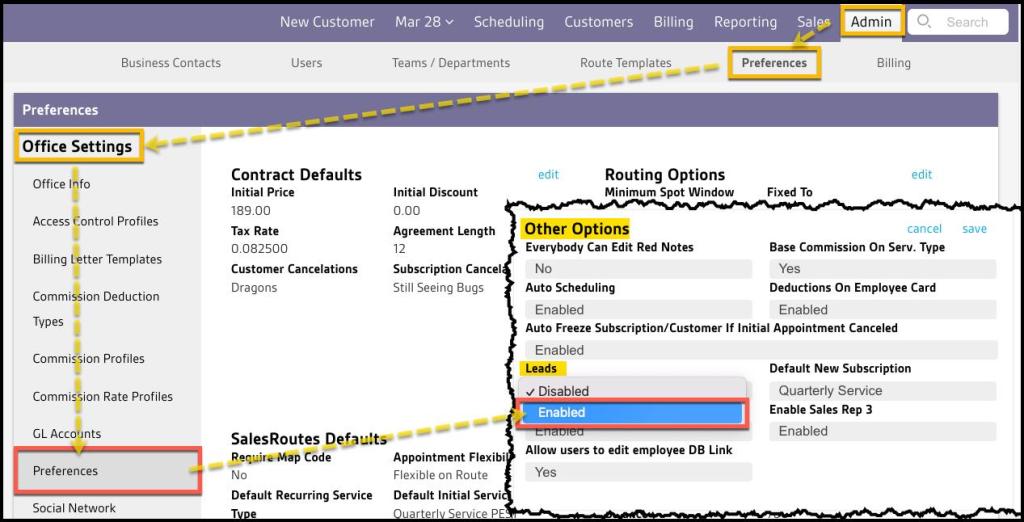
- If the Leads Report is not visible as a sub-menu under the Customer area, check that the Leads feature is enabled in Admin > Preferences > Office Settings > Preferences > Other Options > Leads.
- There is a Leads tab in every customer card that makes it easy to personalize leads for potential customers.
- Please see the guide on Leads in the Customer Card for more details on that Customer Card tab.
- A lead cannot be edited after it has been closed.
Confirm Leads Feature is Enabled
If the Leads report sub-menu is not available under the Customer area, it most often means the Leads feature is not enabled in the system preferences. To turn on the Leads feature, go to:
Admin > Preferences > Office Settings > Preferences > Other Options > Leads
If the Leads setting shows Disabled, select the Edit button for the Other Options section, select Enabled from the Leads drop-down menu, and then select Save.
NOTE:
Even if the Leads feature was not enabled, there might be actual Leads available in the system from various sources that are hidden. Enabling the Leads feature will then make these existing leads visible in the Customer Card > Leads tab and as well as the Customer > Leads report.
Accessing the Leads Report
To access the Leads report:
Go to Customers > Leads.

Filtering the Leads Report
To filter the Leads Report, toggle these filters. The user can assign the information for these filters to customers in the Leads tab of the Customer Card.
- Assigned to Any Rep: Show leads from a desired sales rep, but by default, the filter will show leads from all reps.
- Include Offices: Filter leads from multiple offices, but by default, the filter will show one office.
- Lead Status: Filter the report by the status of the lead.
- Lead Stages: Filter by lead stage. Configure the lead stages under Admin > Preferences > Lead Stages. See the Lead Stages guide for more einformation.
- Team: Filter by the sales team.
- Group By: Group the Leads in different ways. See the Grouping the Leads Report below.
- Date Assigned: Filter the report by the date the lead was assigned.
- Property Type: Filter the report by the type of property.
- Service Type: Filter the report by the service type.
Select Refresh to run the report.

Grouping the Leads Report
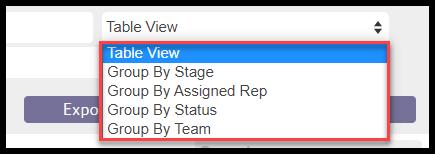
This report allows the user to change the way the report is grouped. The different ways are detailed below.
- Table View: This view will put the data in a report format, shown in the screenshot below. Filtering by specific offices will make this the only view available.
- Group By Stages: This option will group each customer by their lead stage.
- Group By Assigned Rep: Group the report by the assigned rep.
- Group By Status: Group the data by lead status. Set the lead status in the customer card under the Leads tab.
- Group By Team: Group the report by the sales team.
Continue filtering the report, and select Refresh when finished.
Viewing the Leads Report’s Data Columns
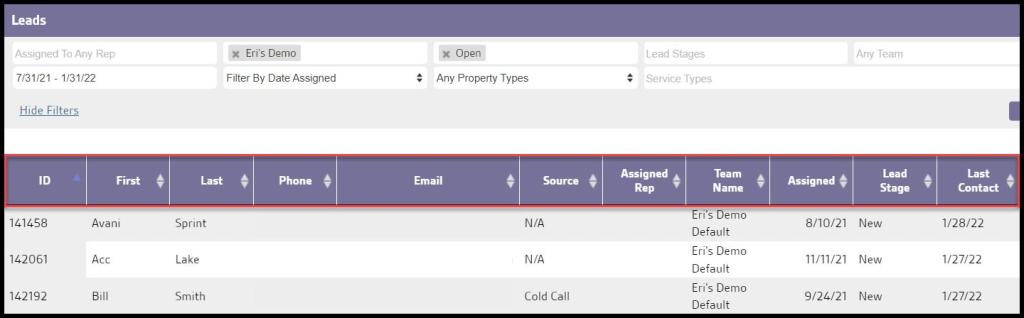
The Leads Report can display several data columns.
- ID: Displays the customer’s account ID.
- First: Shows customer’s first name.
- Last: View the customer’s last name.
- Phone: Display the customer’s phone number.
- Email: Shows the customer’s email address.
- Source: Identifies the source for the customer. This can be set under the Leads tab in the customer card.
- Assigned Rep: Shows the sales rep assigned to the customer, if applicable. Set this under the Leads tab in the customer card.
- Assigned: Displays the date the lead was assigned to a sales rep.
- Lead Stage: Shows the stage that has been set for the lead. Set this up in the Leads tab of the customer card. See our guide on Lead Stages for more information.
- Last Contact: See the date the customer was last contacted about the lead.
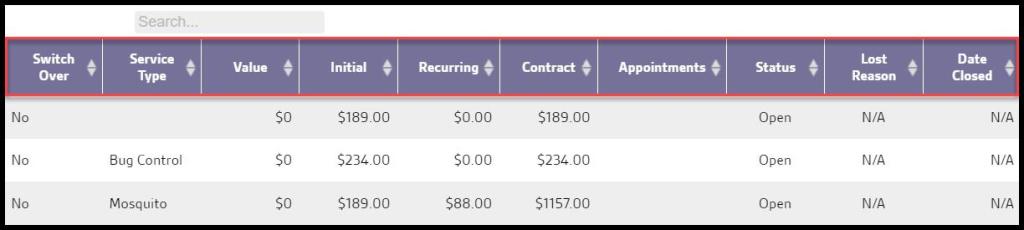
- Switch Over: The user can flag customers that have switched from another company to theirs in the customer’s card under the flags tab. If the flag is set to “no”, then the customer is not considered a switch over.
- Service Type: Shows the service type assigned to the lead.
- Value: Displays the value assigned to the lead. Set this up under the Leads tab of the customer card.
- Initial: Shows the price of the initial service.
- Recurring: Displays the price of the recurring service.
- Contract: Shows the contract value of the subscription once it has been converted from a lead. It pulls information from the subscription frequency, initial ticket template, and recurring ticket values.
- Appointments: Shows the last significant standalone appointment event that occurred while the lead was open. Pending (dark blue), serviced (green), not serviced (red)
- Status: Displays the lead status. This can be set under the Leads tab of the customer card.
- Lost Reason: Shows the lost reason. This can be selected under the Leads tab of the customer card. See the Leads Lost Reasons guide for more information.
- Date Closed: Displays the date the lead was closed.
Displaying Leads
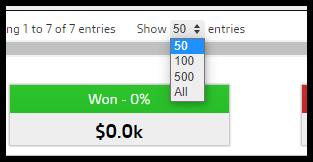
If the report has more than 50 leads, the user can choose whether to display 50, 100, 500 or All leads.
Exporting a Leads Report
To export a Leads Report as an Excel File, select Export to Excel.

 Moxie Pest Control Office Guide