
Knocking Reports
Summary
The Knocking Report is used to see all the knocks sales users have made in the mobile apps.
Accessing the Knocking Report
To access Knocking Report, go to:
Sales > Knocking Reports.

Filtering the Knocking Report
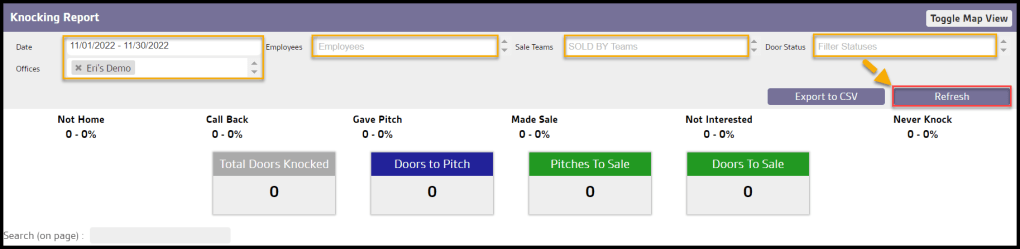
To filter the Knocking Report, toggle the filters.
- Date: Choose the date range for the knocks made. The range is limited to one month at a time.
- Employees: Filter the report by specific sales users.
- Sales Teams: Designate results by members of specific sales teams.
- Door Status: Filter the report by specific knocking status.
- Offices: Filter the report by specific offices.
Select Refresh to load the report with the filters.
Viewing the Knocking Report Overview
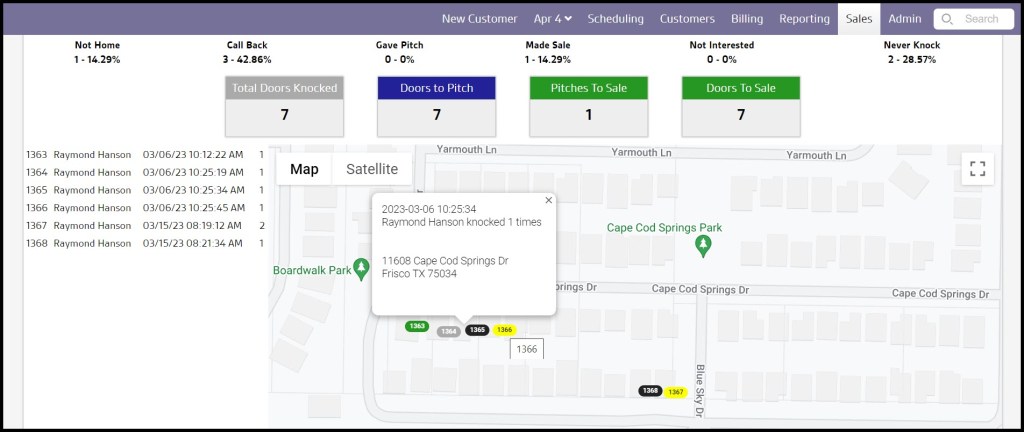
Once the report is generated for the Knocking Reports, the top will have an overview of the knocks made within the selected date range.
Four summaries will appear, each percentage of each different knocking status, total doors knocked, doors to pitch, pitches to sale, and doors to sale.
- Total Doors Knocked: Shows the total number of doors knocked over the month.
- Doors to Pitch: View the number of Knocks / number of Given Pitches (includes sales made)
- Pitches to Sale: See how many Given Pitches + Sales / Sales.
- Doors to Sale: View the number of Knocks/number of Sales.

View the Knock Report’s Data Columns (Tech/Sales)
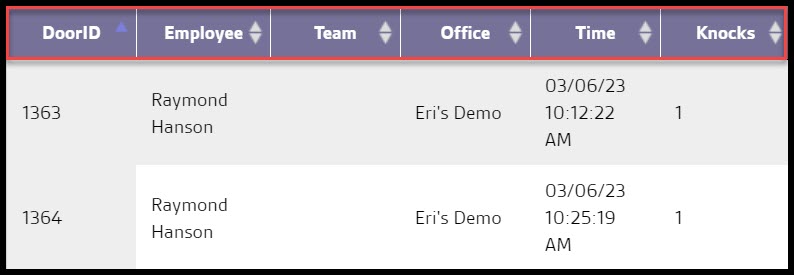
The data columns for the Knocking Report are detailed below.
- Door ID: Displays the unique identification number assigned to the individual knock.
- Employee: Shows the employee’s name that logged the knock.
- Team: Shows the sales team the employee is on.
- Office: Display the name of the office the user is located in.
- Time: View the date and time the knock was made.
- Knocks: Shows the number of times a knock has been made on this customer’s door.
Select the up and down arrows to rearrange the report.
View the Knock Report’s Data Columns, Continued (Customer)
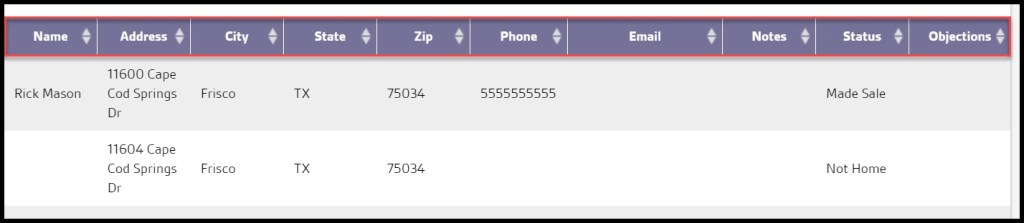
- Name: Displays the customer’s first and last name.
- Address: See the customer’s address.
- City: Show the city the customer is located in.
- State: View the state the customer is located in.
- Zip: See the customer’s zip code.
- Phone: Shows the customer’s phone number.
- Email: View the customer’s email.
- Notes: Displays any additional notes regarding the knock on the customer’s door.
- Status: Shows the knock status.
- Objections: Shows any objections made to the knock.
Select the up and down arrows to rearrange the report.
Exporting the Knocking Report
To export the Knocking Report as a CSV file, select Export to CSV.

Viewing the Knocking Report’s Map View
To view the Knocking Report in map view, select Toggle Map View.
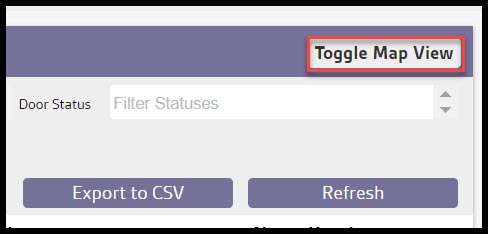
This allows the user to view all the knocks filtered by the Knocking Report.
 Moxie Pest Control Office Guide