
How to Set Up a Roaming Rep User
Summary
A Roaming Rep User is used for employees who serve in multiple office locations, such as a Sales Manager who works with Sales Reps selling in multiple company branches.
Important Points:
- The benefit of creating a Roaming Rep user is their data can be consolidated across multiple offices in Sales Reports.
- The benefit of updating a profile photo allows an office to use a standard photo for all users, avoid outdated photos, or to have a standard photo for users who don’t have a profile picture yet.
Setting Up a Roaming Rep User
Please ensure you are first signed into the default office of the Sales User before beginning. Then navigate to:
Admin > Users > Select the User who will be selling in other branches to bring up their User Card.
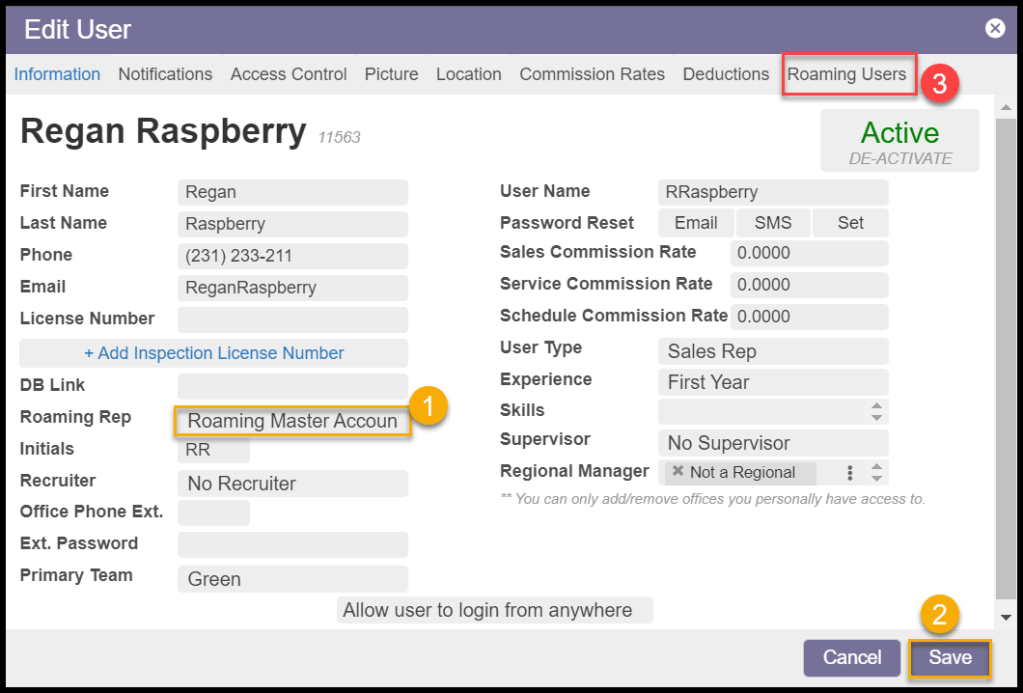
- Change the Roaming Rep field to say Roaming Master Account.
- Save. This tells the system that the User being edited is the main account for your sales user.
- This adds a new tab on the User Card titled Roaming Users.
Open the Roaming Users tab.
Creating a Roaming Rep in Another Office
To Create a Roaming Rep in another Office:
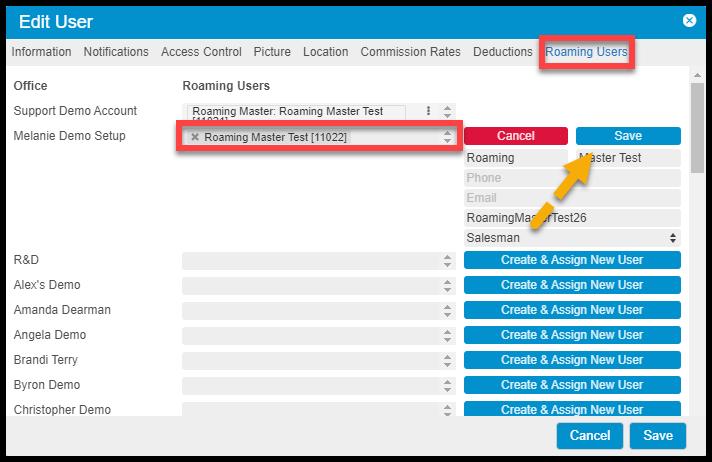
- Click on the Roaming Users tab.
- Find the office to which the Rep needs access. Select Create & Assign New User.
- A small window will appear into which the Roaming Rep’s information may be entered.
- When complete, select Save. This will add the new User to the other office.
- A Username and Password for the new account must then be created locally at the new office.
Applying a Default Profile Picture for a Roaming Rep
- To apply a photo to a Rep for one office, go to:
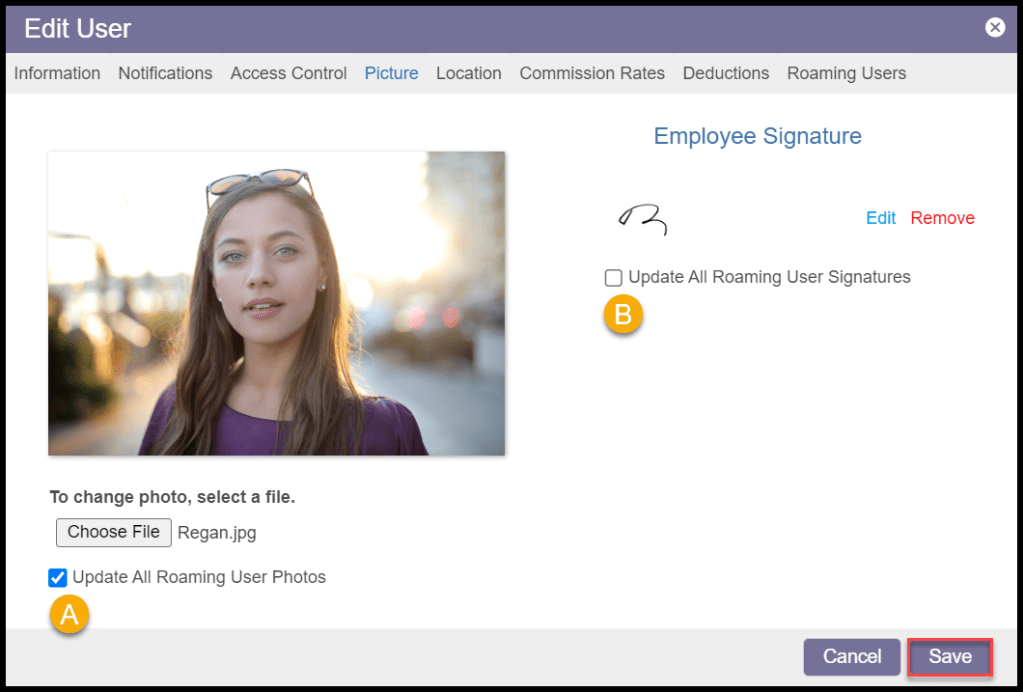
- Click the Picture Tab.
- Select the Choose File button,
- Upload a profile picture from your computer.
There will be two options for Roaming users:
- Update All Roaming User Photos: Bulk updates the user’s photo across all accounts. Not checking will only the current Office Profile picture.
- Update All Roaming User Signature: Bulk updates the user’s signature across all related accounts. Not checking will only the current Office Profile signature.
Select Save when finished.
What Account Does the Sales User Use for PestRoutes Sales
When logging into PestRoutes Sales, ensure the Sales User is logged into the branch for which they are currently selling.
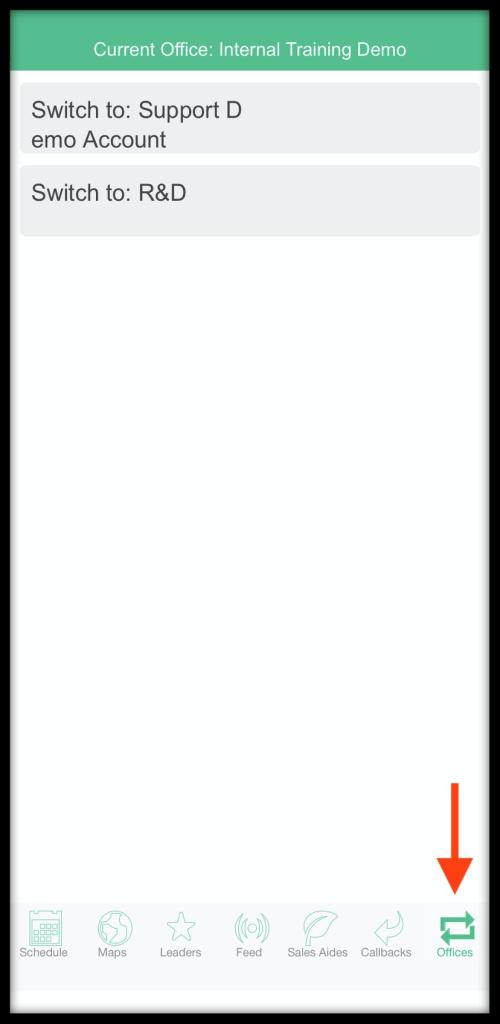
To change offices without logging out and back in, select Offices along the bottom banner, and all of the Rep‘s available offices will display for the option to switch over.
What Account Does the Sales User Use for FieldRoutes Mobile
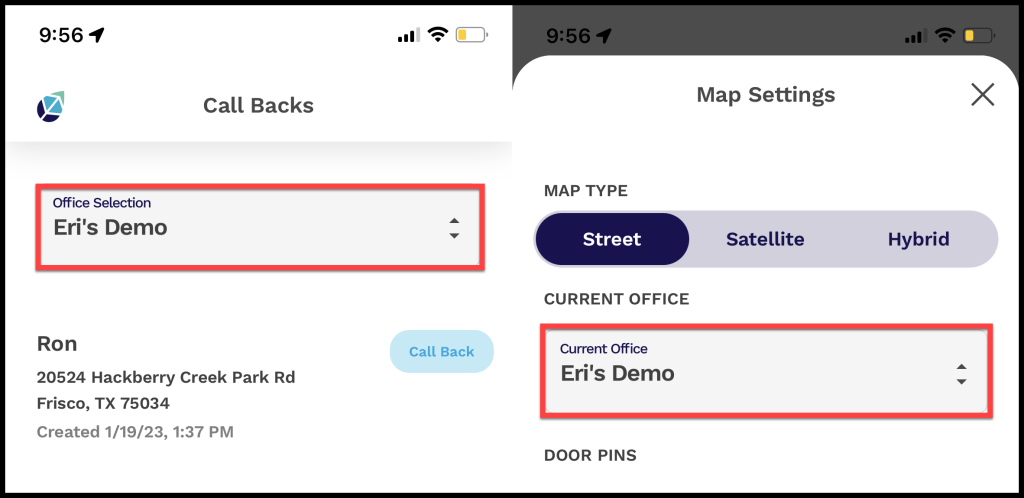
When logging into FieldRoutes Mobile, ensure the Sales User is logged into the branch for which they are currently selling.
The user can toggle views and results from the available offices on the applicable screens.
 Moxie Pest Control Office Guide