
How to Create a Paid In Full Payment
Summary
FieldRoutes can create Paid in Full payments. They are used for customers who want to completely pre-pay for their services in advance.
It will act as a credit towards the customer’s subscription, and once a service is completed for that subscription it will deduct from that credit. The customer does not have to worry about making payments on their services for as long as the payment is covered.
Important Points:
- It is very important to limit the Paid in Full payment to the correct subscription, as the payment can be applied to other subscriptions if this step is skipped.
Adding a Payment
Adding a Paid in Full payment is similar to applying a regular payment to a customer’s account.
To apply a Paid in Full payment to a customer’s account, go to:
Customer Card > Invoices > + Add Payment
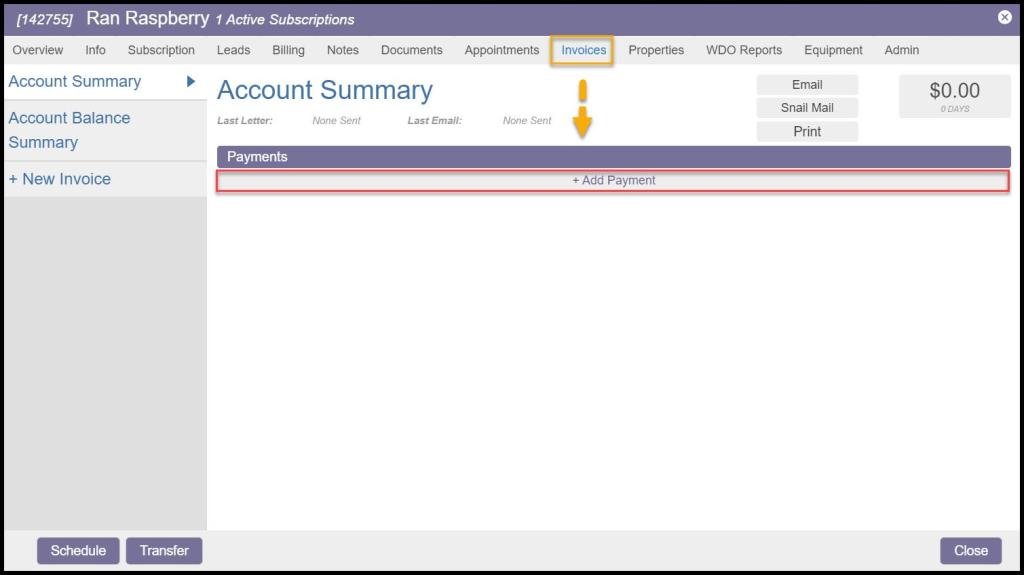
Adding Payment Details
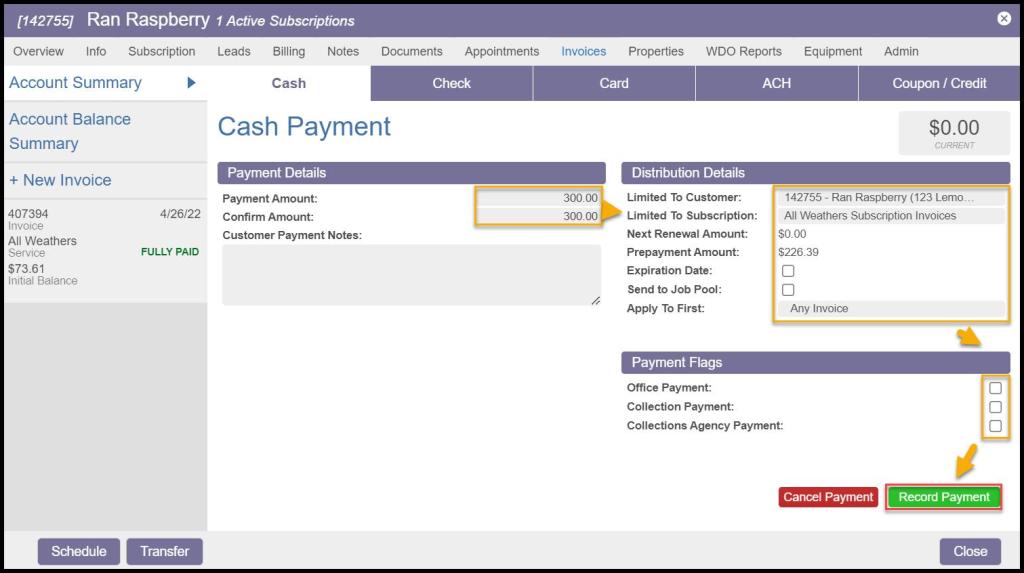
Once + Add Payment is selected, the user will have the option to select the payment method being used to make the payment. Cash was selected for this example.
Payment Details
- Payment Amount: Enter in the amount the customer is paying in advance.
Distribution Details
- Limited to Customer: Enter the customer that the payment will apply to.
- Limited to Subscription: Enter the subscription that the payment will apply to.
Warning:
Limited to Subscription is very important, especially if the customer has multiple subscriptions, as the payment can be applied to other invoices if this step is skipped.
- Next Renewal Amount: Displays the amount for the next renewal.
- Prepayment Amount: Shows the total available prepayment amount available.
- Expiration Date: Check this box if the payment has an expiration date.
- Send to Job Pool: Select a date to send to the job pool.
- Apply to First: Enter the invoice or invoices that the payment will apply to.
Payment Flags
- Office Payment: Check this box if the payment was received in the office.
- Collection Payment: Check this box if the payment was for an account in collections.
- Collections Agency Payment: Check this box if the payment was received from a Collections Agency.
Select the record button. This button will say different things depending on the payment method selected.
Confirming Payment
Next, a screen will be displayed to show if the transaction was successful.
Select Save to go back to the customer’s account summary.

Payment Added: Things to Notice
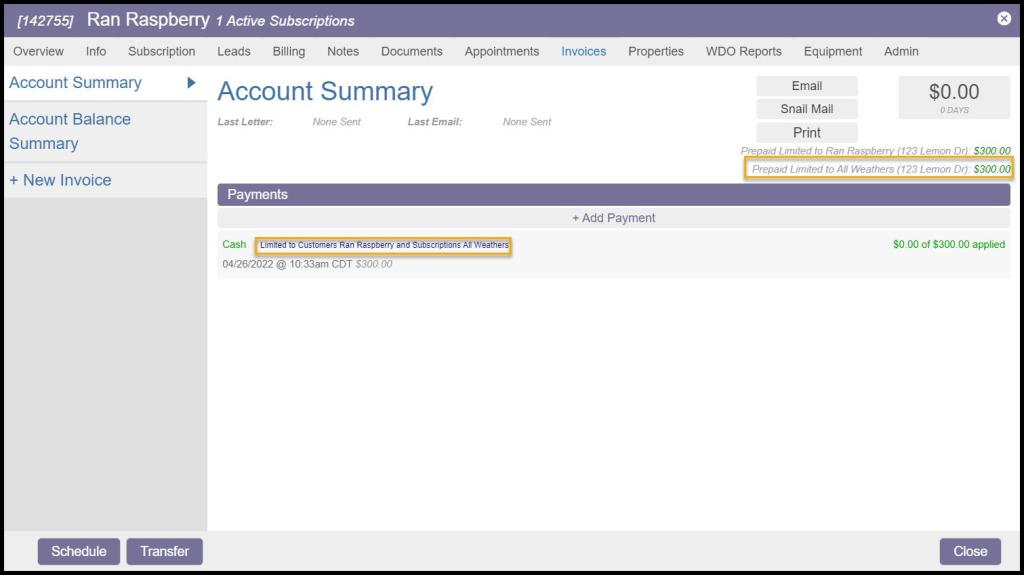
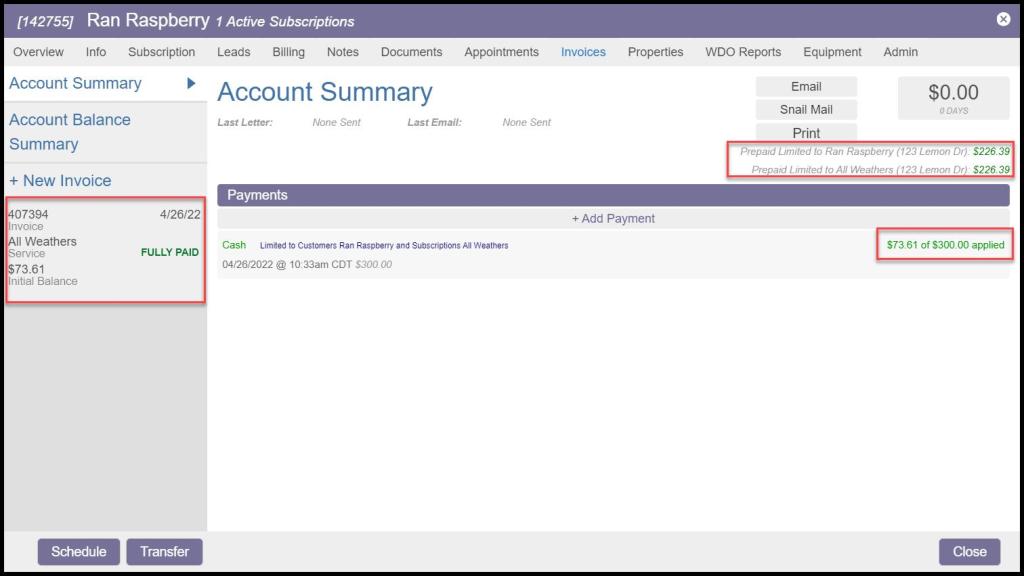
Once the payment has been added to the account, it will be posted under the “Payments” section.
NOTE:
The total amount of the prepaid subscription is displayed in the upper right corner of the customer card. This is how to tell that the Paid in Full payment was applied successfully.
Subscription payment not limited to subscription
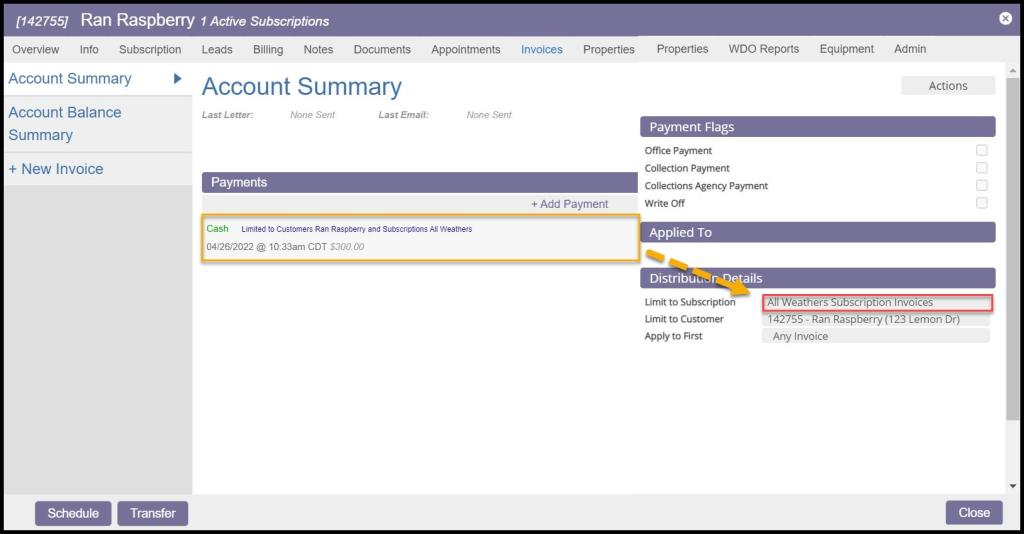
If the customer’s balance displays a credit in the grey box in the upper right, the payment may not be limited to a specific subscription.
To correct that, select the payment under the “Payments” section. Once the user views the payment details, the user should see an option to limit the payment to a specific subscription. Once that is saved, it should be corrected.
Payment Deduction for Service
When a service is completed for the customer’s subscription, an invoice will automatically be generated for the customer.
The web application will automatically deduct the invoice charge from the prepaid amount and keep track of the total.
Flagging a Customer as Paid in Full
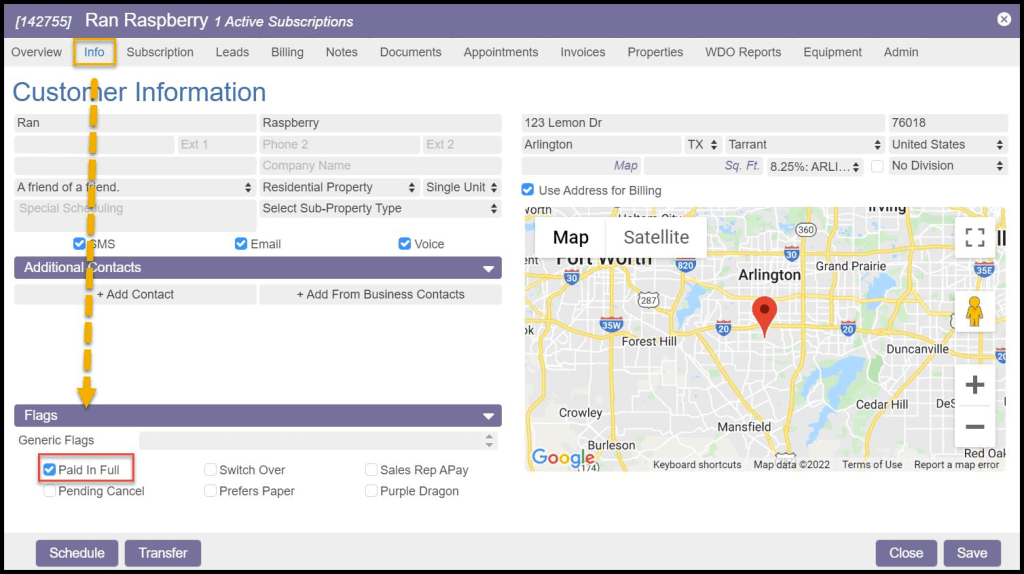
To flag the customer as Paid in Full, go to
Customer Card > Info > Flags > Select the Paid in Full checkbox.
This marks the customer as Paid In Full. It will allow the user to pull reports for customers flagged as Paid in Full, such as the Expiring Paid in Full report. Please see the guide on the Expiring Paid in Full report for more information.
 Moxie Pest Control Office Guide