
How to Cancel Appointments
Summary
Canceling an appointment is useful when an appointment cannot be completed for various reasons. After an appointment is canceled on the desktop application, the customer will automatically be placed back in the Job Pool or Intelligent Routing to be scheduled again.
Important Points:
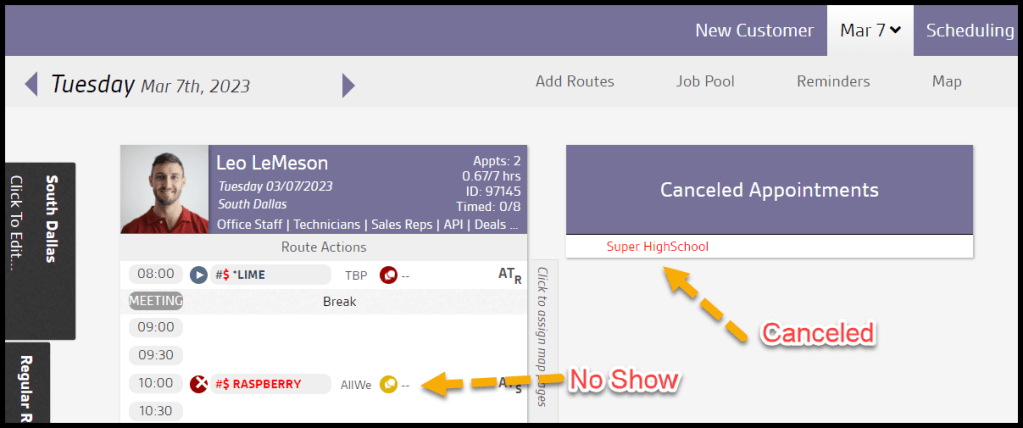
- Marking an appointment as a no-show will leave the appointment on the route, but the customer’s name will turn red. Canceling an appointment will remove it from the route and put it in the Canceled Appointments column.
- Appointment Cancellation Reasons can be edited under Admin > Preferences > Service Related > Appointment Cancellation Reasons.
Canceling a Specific Customer Appointment on a Route
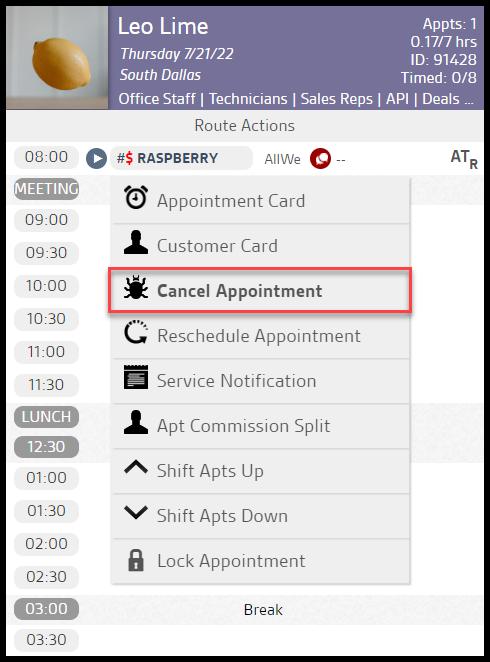
Go to the route view for the day the customer is scheduled on, and select the customer’s name on the route.
In the drop-down that appears, there are several actions. To cancel the appointment, select Cancel Appointment.
Using the Cancel Appointment Modal
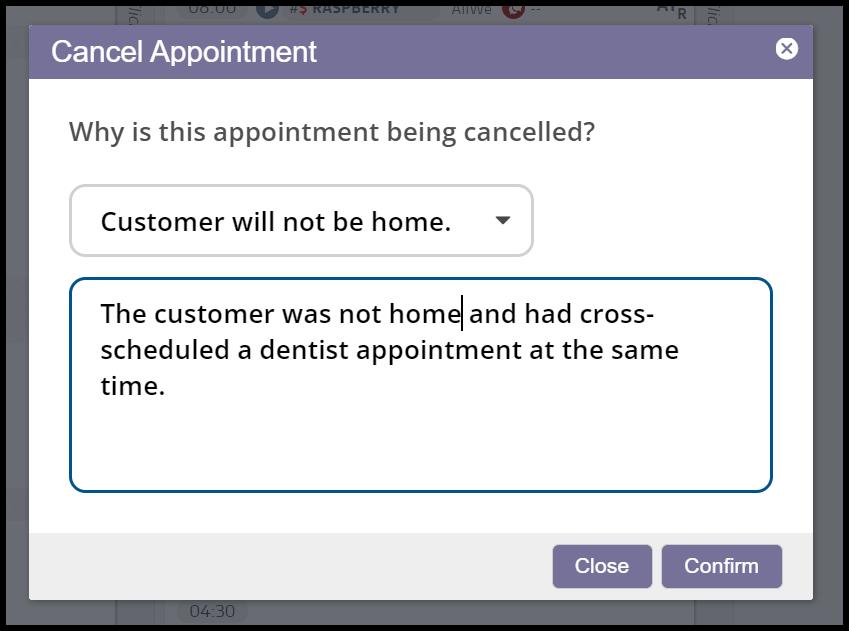
Once Cancel Appointment is selected, a Cancel Appointment window will appear. It has two options.
- Appointment Cancellation Reason: Choose the category for why the customer canceled their appointment. See the Appointment Cancellation Reason guide for more details on these reasons.
- Appointment Cancellation Notes: This will leave a Cancellation Note in the customer card with additional notes on why the customer canceled.
Select Confirm to cancel the appointment when finished.
Where does the canceled appointment go?
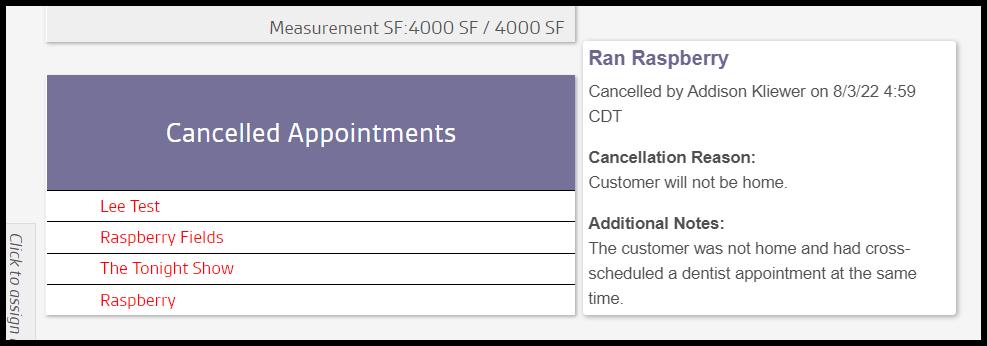
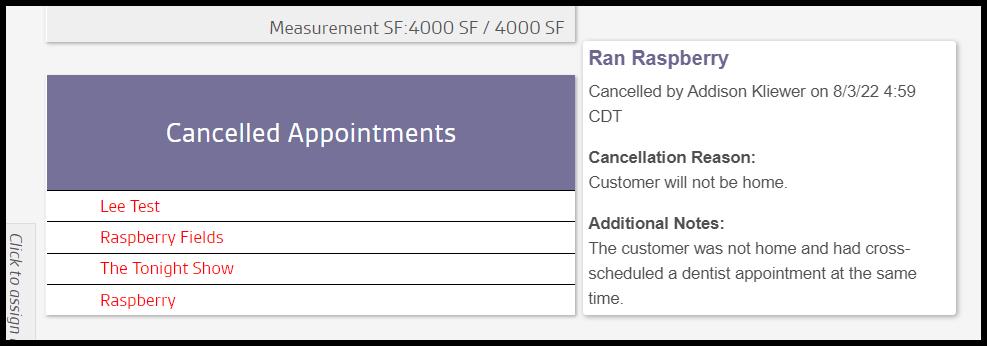
The canceled appointment will go under the route called Cancelled Appointments. Hovering over the customer will show the following details:
- Cancellation Reason: Displays the category for why the customer canceled their appointment. See the Appointment Cancellation Reason guide for more details on these reasons.
- Additional Notes: This will show any additional details the user entered when canceling the appointment.
Canceling multiple or all Customer Appointments on a Route
To cancel multiple or all appointments on a route, go to:
The route view for the day the customer is scheduled on, and select the customer’s name on the route.
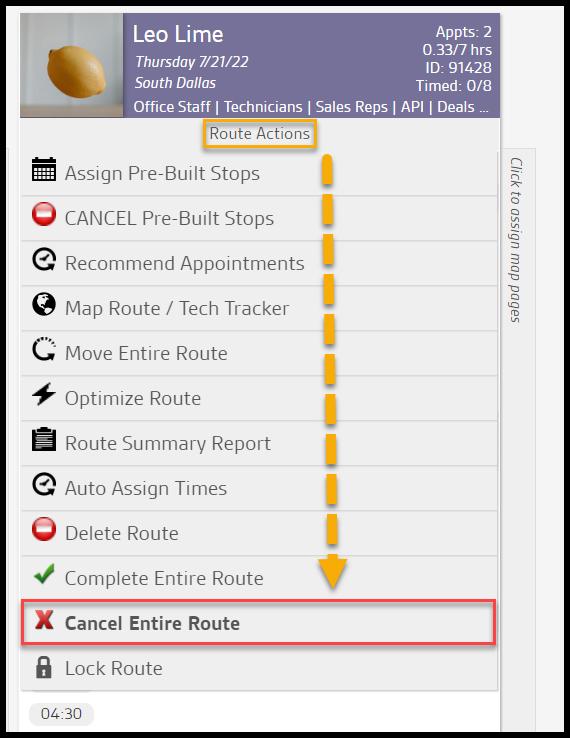
In the drop-down that appears, there are several actions. To cancel the appointment, select Route Actions > Cancel Entire Route.
Using the Cancel Multiple Appointment Windows
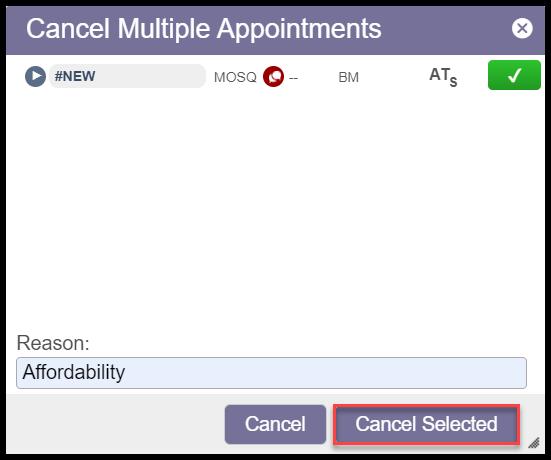
Once Cancel Entire Route is selected, a new window will appear, allowing the user to check and uncheck appointments for cancellation and choose an Appointment Cancellation Reason.
NOTE:
Appointment Cancellation Reasons can be edited under Admin > Preferences > Service Related > Appointment Cancellation Reasons.
Select Cancel Selected when finished.
This will leave a Cancellation Note in the customer card with the cancellation reason.
Where do the canceled appointments go?
The canceled appointments will go under the route called Cancelled Appointments. Hovering over the customer will show the following details:
- Cancellation Reason: Displays the category for why the customer canceled their appointment. See the Appointment Cancellation Reason guide for more details on these reasons.
- Additional Notes: This will show any additional details the user entered when canceling the appointment.
What is the difference between marking an appointment as a no show versus canceling it?
There are differences between marking an appointment as a no show and canceling it.
Marking an appointment as a no show will leave the appointment on the route, but the customer’s name will turn red. Canceling an appointment will remove it from the route and put it in the Cancelled Appointments column.
A no show appointment counts against a technician, whereas a canceled appointment does not.
 Moxie Pest Control Office Guide