
How the Job Pool Works
Summary
The Job Pool allows visibility to all customers due for service during a specific date range.
The Customers in the Job Pool are ones due for a service within a given date range and do not have a future scheduled Appointment. Once the customer has a pending scheduled Appointment, they will be removed from the Job Pool until that service is completed.
Important Points:
- Under the Info tab of the customer card is a Special Scheduling field, and if you input something in that area, the customer will need to be manually scheduled. The Job Pool will allow you to see all special scheduling customers in one place.
- If someone’s appointment is missed completely, when the next day comes around, that missed appointment automatically goes back into the job pool.
Important Points:
- Under the Info tab of the customer card is a Special Scheduling field, and if you input something in that area, the customer will need to be manually scheduled. The Job Pool will allow you to see all special scheduling customers in one place.
- If someone’s appointment is missed completely, when the next day comes around, that missed appointment automatically goes back into the job pool.
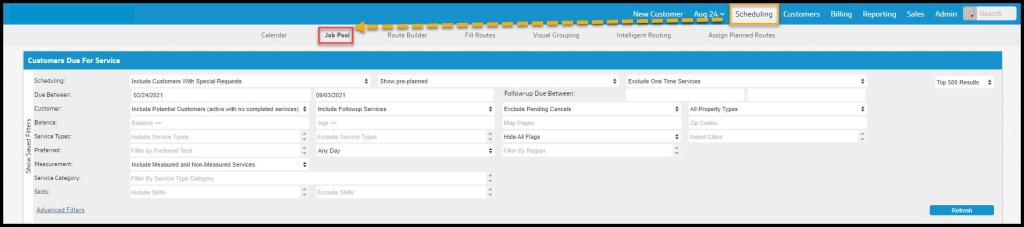
When looking at the routes for the given day, the icon for Job Pool will be located in the same banner as it is under the Scheduling tab.
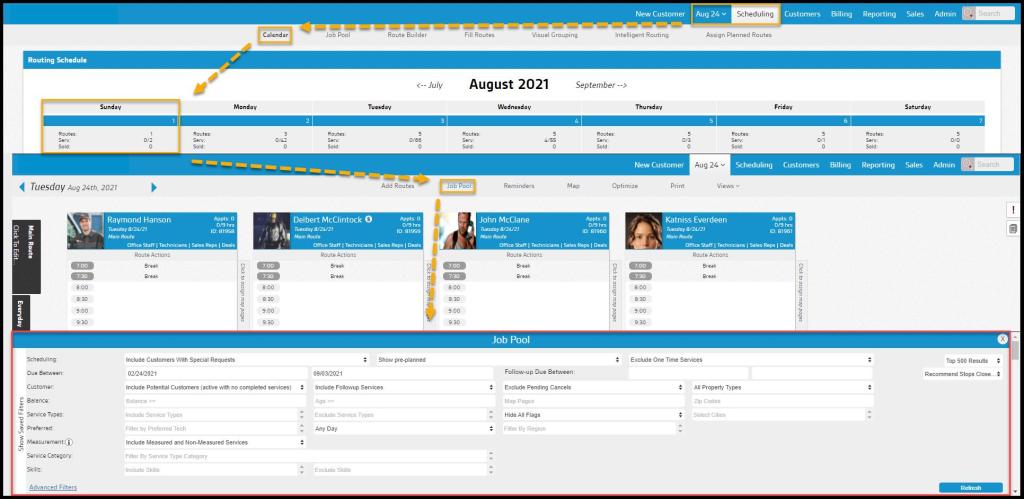
Using the Job Pool Filters
The Customers Due For Service section provides a lot of filters to sort through customers due for a specific service.
- Scheduling: Include or exclude Customers based on the following parameters:
- Exclude One Time Services: Default = Exclude any non-repeating subscription stops. Options are to Include One Time Services or Only One Time Services.
- Show pre-planned: Default = Include Customers Intelligent Routing has already placed on a pre-planned route, but has not yet scheduled. Toggle to exclude this group. NOTE: If Customers on pre-planned routes are scheduled here, they are removed from those routes.
- Include Customers with Special Requests: Shows all results regardless of any requests listed on the Special Scheduling field on the Customer Card Info tab.
- Due Between: These fields allow you to filter by customers that have a service due between a specific date range.
- Follow-up Due Between: Start and End Dates that allow Follow-up appointments with a different date range to be included in the search results. Overrides the Include Follow-up Services field setting.
- Customer: Multiple parameters are available to narrow the results based on the information provided on the Info tab in the Customer Cards.
- Map Pages: Limit results to specific Map Pages using Map Page Codes
- Zip Codes: Limit results to specific Zip Codes
- Select Cities: (see below) Limit to Customers in specific cities
- Include/Exclude/ONLY Potential Customers
- Include/Exclude/ONLY Followup Services
- Exclude/Include Pending Cancels
- All/Residential only/Commercial Only Properties
- Balance: The Balance row will consider the balance on the customer’s account. If you do not schedule customers that owe a previous balance, utilize the Balance section to filter those customers out. You can exclude balances or account ages greater than a desired value.
- Balance is <=: Specify the Account Balance upper limit
- Age is <=: Specify the age of the account balance upper limit in days
- Service Types: Include or exclude a list of specific Service Types in the results
- Preferred: Filter results further by:
- Preferred Tech: Specify those Customers that prefer a particular technician.
- Preferred Day: Specify appointments that have a preferred day of the week.
- Filter by Region: Limit to the neighborhood, county, etc.
- Customer Flags: Provide any Customer Flags to specifically include or exclude
- Subscription Flags: Provide any Subscription Flags to specifically include or exclude
- Measurement: Use for Dynamically Priced, measurement-based Service Types, allows the inclusion or exclusion of these based on square feet or linear feet measurements.
- Include Measured and Non-Measured Services: Default setting
- Only Non-Measured Services: Excludes all measurement-based services
- Only Measured Services: Exclude all non-measurement-based services
- Only SF Measured Services: Limit to only those measurement-based services in square feet
- Only LF Measured Services: Limit to only those measurement-based services in linear feet
- Service Category: Filter results for specific Categories of Service Type, such as Lawn or Pest
- Skills: Include or Exclude appointments with specific skill requirements.
Once your desired filters are set, select Refresh to generate the results for the Job Pool. By default, the Job Pool is limited to 500 results. Select Top 500 Results to change that.

Using the Job Pool Actions Button
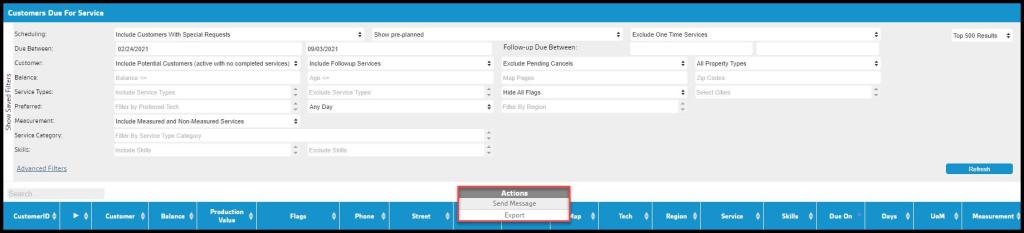
The Actions button on the Job Pool will give the user the ability to send a message to all the customers in the report, or export the report to Excel.
When the user selects Send Message, a new window will appear, allowing the user to specify the message to send to the customers. The user can send an SMS, voice, or email message. There is a table for available placeholders that can be used as well.
Viewing the Job Pool Columns
The columns in the Job Pool detail important information regarding a customer’s service, making it easy to schedule customers.
- Customer ID: The customer’s account ID.
- Play Button: This button brings up the Recommended Routes window to schedule the customer for service. See below for more information.
- Customer: The customer’s first and last name.
- Balance: This column will display the balance the customer currently owes on their account.
- Production Value: This column will display the production value associated with the service.
- Flags: This column will include any special scheduling flags the customer may have on their account. If anything is input in the Special Scheduling field under the Info tab of the customer card, that information will be displayed here. That information will also show here if the customer has a preferred day or time set under the subscription’s scheduling options.
- Phone: The customer’s phone number.
- Street: The service street address in the Info tab of the customer card.
- City: The city the service address is located.
- Zip: The customer’s zip code.
- Map: The map page on the customer card.
- Tech: The customer’s preferred technician. This can be set up under the Subscription tab of the customer card.
- Region: The region assigned to the customer. This can be configured under the Subscription tab of the customer card or with Visual Grouping.
- Service: This will display the service type that is due for service.
- Skills: Displays the skills required for the service.
- Due On: The due date for the service type.
- Days: The number of days overdue the customer is for service.
- UoM: The Unit of Measure listed for measurement-based services
- SF: Square feet
- LF: Linear feet
- Measurement: The total units for the measured service reflect the number of square or linear feet.

Scheduling with the Job Pool
Click the Play button next to the customer’s name, opening the Recommended Routes window. Recommended Routes suggests routes to schedule the customer based on distance.
Selecting a route on the Recommended Routes window will take you to the route view for that day. You can select an open spot on the route to schedule the customer’s appointment.

Dragging and Dropping onto the Daily Route
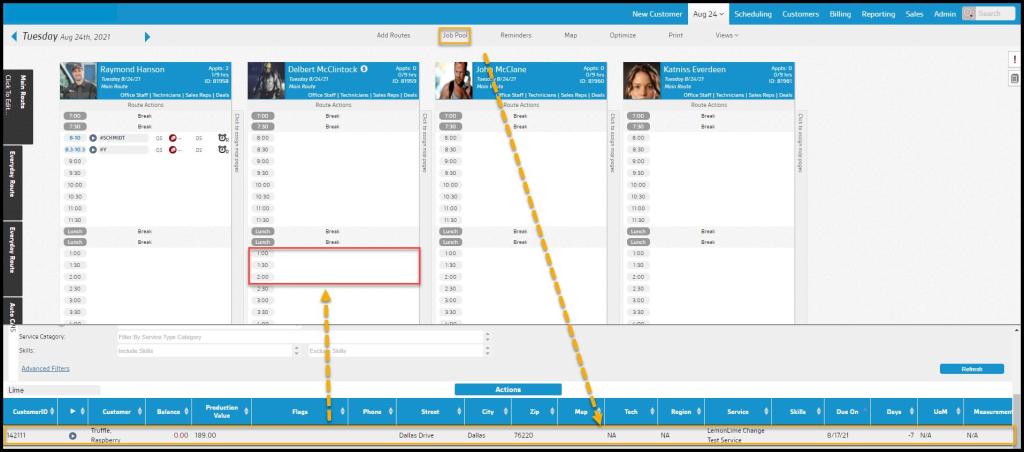
Open the daily routes, select the job pool, and refresh. A user can be dragged from the job pool onto the technician’s route. A warning will appear if the technician’s skills do not match the appointment.
NOTE:
If a route is scheduled and the technician’s skills do not match the appointment, that will be noted in the details about the appointment. If only one technician’s skillsets match the appointment, then it will still show up as a match.

Dragging and Dropping onto the Daily Route (No Technician)
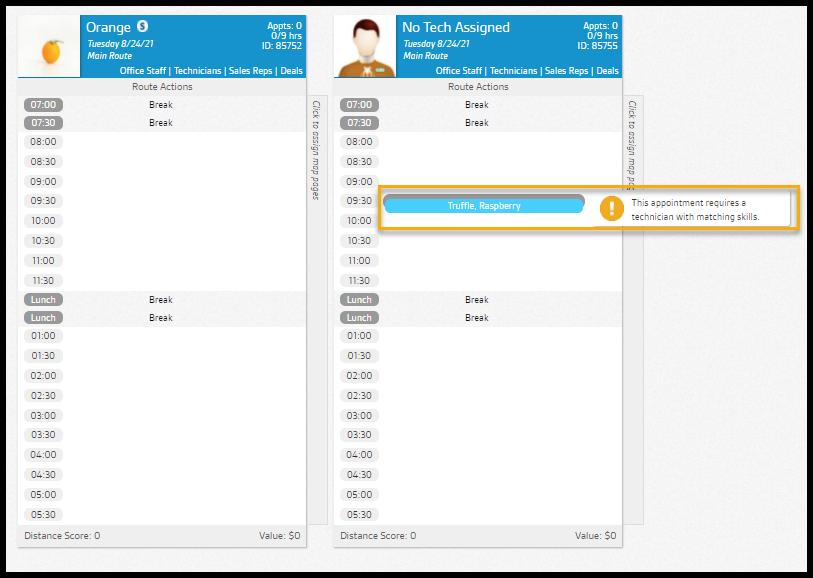
If the appointment is dragged and dropped to the route No Tech Assigned, it will automatically say that the skills do not align with the appointment. This will add a Tech Skills Required For This Route icon, showing the skills required for the No Tech Assigned route.
 Moxie Pest Control Office Guide