
Generic Flags
Summary
This preference is used to create Generic Flags that can be used to flag customers.
This is beneficial when flagging customers that meet specific criteria. The Customers Report can be used to pull customers flagged with the generic flags that are created here.
Important Points:
- Generic flags cannot be removed, but they can be disabled from being visible.
- When creating a new generic flag, the “code” is the flag’s name in the customer card.
Accessing the Generic Flags Preference
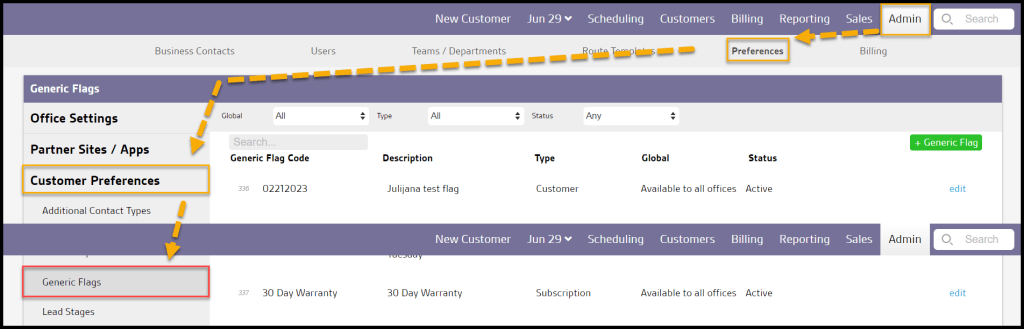
To access this preference, go to:
Admin > Preferences > Customer Preferences > Generic Flags.
Filtering the Generic Flags Preference
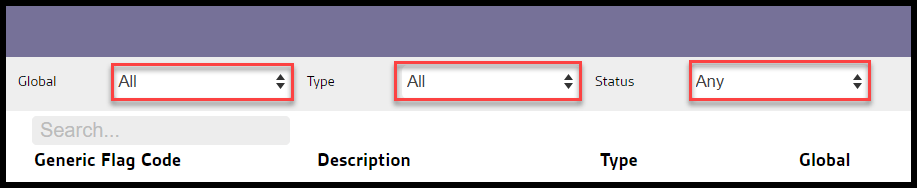
There are multiple ways to filter the Generic Flags preferences.
- Global: Display flags by their availability to all offices.
- Type: Display flags by their type.
- Status: Display Active, Inactive or All flags.
Choosing a filter option will refresh the results.
Creating a New Generic Flag Preference
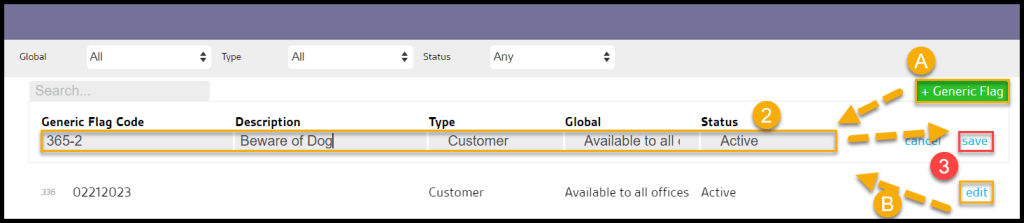
Click the green + Generic Flag button to add a new flag. There are a few different fields to enter in the flag’s details:
- Generic Flag Code: This is the flag’s code. This will be the flag’s name when selecting it within the Customer Card.
- Description: Describe the purpose of the flag.
- Type: Choose the flag type.
- Customer Flag: This flag type is used for flagging customers. Customer Flags can be applied in the Info section of the Customer Card, using the Customers Report actions or a trigger rule.
- Appointment Flag: This is a flag specifically for appointments. There is a field in the appointment card to apply appointment flags.
- Equipment Flag: This is a flag for equipment types. There is a field for equipment in the mobile apps when using the barcode scanning tool.
- Subscription Flag: This is a subscription-specific flag. Apply this flag to subscriptions in the Customer Card under the Subscription tab.
- Region Flag: This is a flag for regions in Area Management. Area Management is under the Sales tab.
- Global: Designate if this flag can be used with all offices in the company or just this specific office.
- Status: Choose if the flag is active or inactive. Active means the flag is enabled to be used, while Inactive indicates the flag can no longer be used.
Select Save when finished with the flag.
Using Generic Flags
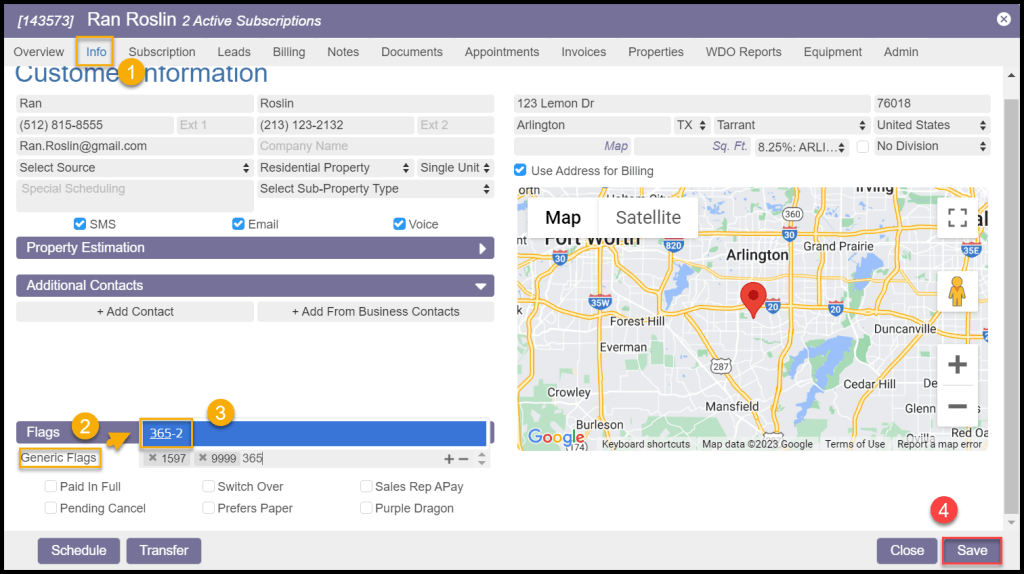
To flag a customer with a generic flag, go to
Customer Card > Info tab > Flags section > Generic Flags field.
Generic Flags can also be added to and removed from customers in bulk using the Action button in the Customers Report and the Accounts Receivable Trigger Rules. See the guide on Trigger Rules to learn more.
 Moxie Pest Control Office Guide