
Form Templates
Summary
The Form Templates preference provides a mechanism to create customized forms that can be used within the Operations Suite. Many companies use these forms for wood-destroying insect reports. It allows technicians to fill out the necessary forms on-site via the mobile applications. Form Templates can be added and modified here. Before creating a form template, know that:
- The user is responsible for the user-created content that they generate and upload.
- The top box is the default CSS for the form template. This cannot be edited. Use inline CSS for any additional CSS rules.
- Please do not add <style> or <script> tags to the HTML. The tags and their contents will be removed.
Important Points:
- These templates are only available in the Operations web app and the FieldRoutes mobile app. They are not accessible in PestRoutes Sales.
- It is recommended that the HTML template be designed to be responsive and tested in both the Customer Card and FieldRoutes mobile.
Accessing the Forms Templates Preference
To access the Form Templates navigate to:
Admin > Preferences > Customer Preferences > Form Templates
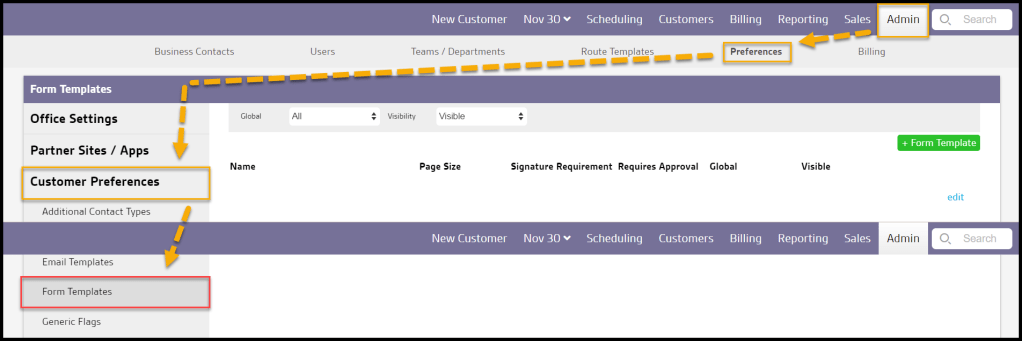
Filtering the Form Templates
The Form Templates preferences can be filtered by availability to the office or visibility.
- Global
- All: Show all form template preferences.
- Specific to Office: Show only template preferences specific to the user’s office.
- Available to Office: Show only hidden form template preferences available to the user’s office.
- Visibility
- All: Show all form template preferences.
- Visible: Show only visible form template preferences.
- Hidden: Show only hidden form template preferences.
Selecting a different option will refresh the displayed results.
Adding a New Form Template
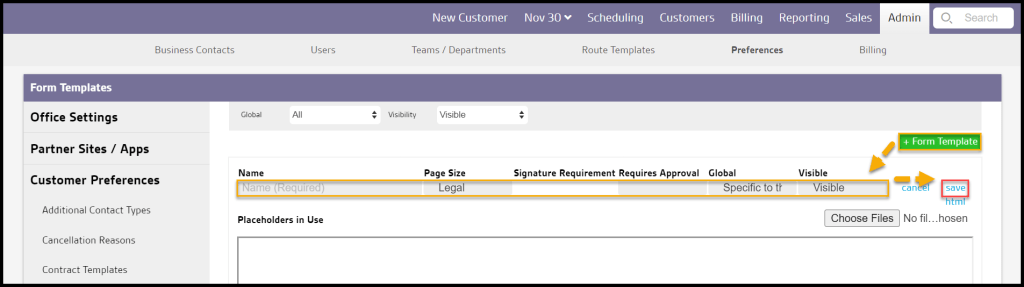
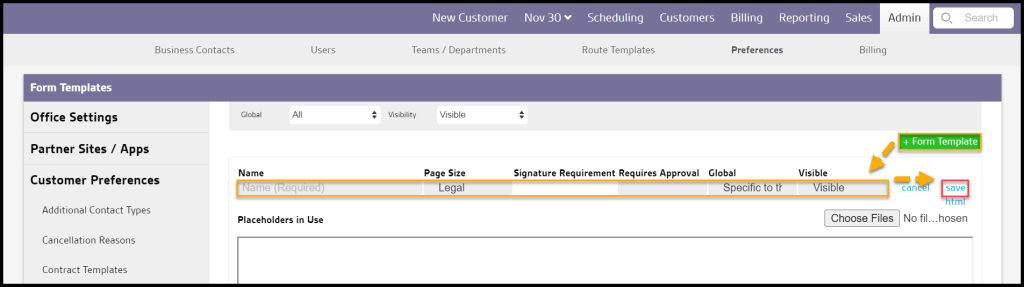
To add a new form template, select + Form Template, which will cause several fields to appear.
- Name: Enter the form template name here.
- Page Size: Select whether the form will be legal or letter size.
- Signature requirements: Options include None, Customer Only, Employee Only, and Employee and Customer. (This field will populate on its own depending on whether a signature picker is inserted into the HTML.)
- Requires Approval: Determines whether or not this form needs to be approved before it can be sent to the customer for signature.
- Global: Select whether the form is available to a specific office or all offices can access the form.
- Visibility: Choose whether the form will show or be hidden.
The top box is the default CSS for the form template. This is not permitted to be edited. The user must use inline CSS for any additional CSS rules. Select the HTML toggle to open the second box. This allows the user to edit the HTML for the form template.
Select Save to save the Form Template.
How Do I Access the Form Templates in the Operations Web App?
Pre-built Form Templates can be used to generate new customer forms in the:
Customer Card > Documents tab > + New Form
Once a Form Template is selected, a PDF version can be printed, a signed form can be created, or the form can be emailed to the customer for a signature.
How Do I Access the Form Templates in FieldRoutes Mobile?
In FieldRoutes mobile, forms can be accessed by going to the
Customer’s Appointment > Docs > Add a new Item > Forms
Once the form is opened, the technician can fill it out and save it to the Customer Card.
 Moxie Pest Control Office Guide