
Forecast Report
Summary
The Forecast Report projects the next services and next recurring billing charges within the start and end dates. For the projection, the date the report uses is the biggest date between Last Completed, Next Schedule or Customer Created date and then applies the proper frequency that is set in the Subscription Card.
Important Points:
- If there is more than one overdue service before the start date, only one overdue service will be considered for each subscription.
Accessing the Forecast Report
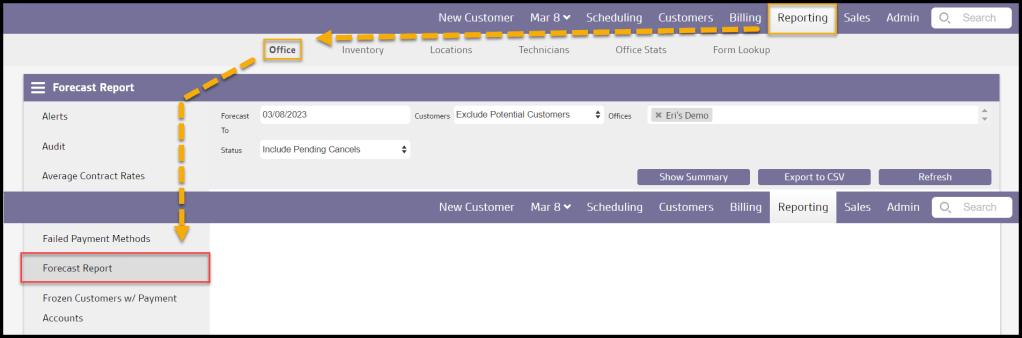
To access the Forecast Report:
Reporting > Office Reporting > Forecast Report.
Filtering the Forecast Report
These filters determine which services will be included in the forecast.
- Forecast To: Specify the future end date for the projections to be made to. Forecasts cannot be made in the past.
- Customers: Determine if potential customers will be considered in each month’s projections.
- Offices: For companies with multiple offices, this determines which offices are included in the forecast.
- Status: Include, exclude, or only show charges with pending cancel statuses in the revenue and service counts.
Select Refresh when finished with the filters to load any changes.

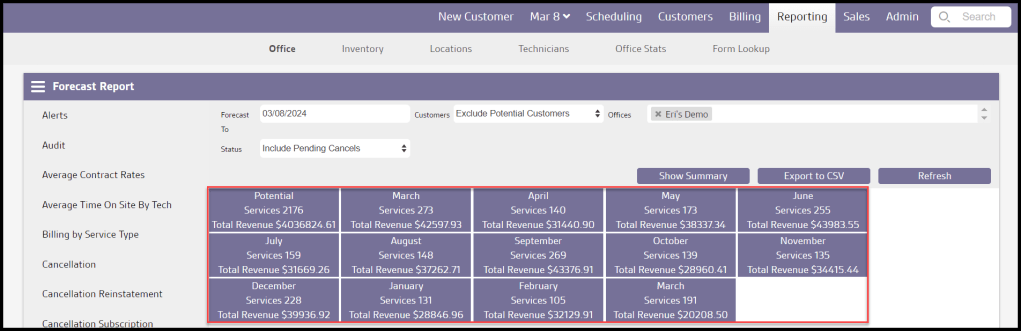
Month Card View: Buttons
These buttons show specific details about the forecast. Try toggling the Show Month Card/Show Summary option if they are not visible.
- Potential Services: This will show all forecasted potential services + overdue services within the start and end dates.
- A Specific Month: This will show the forecasted services + overdue services for that given month.
- Services: Total scheduled services + forecasted services + overdue services for that specific month.
- Total Revenue: All the revenues from scheduled services + forecasted services + overdue services + recurring billing charges for that specific month.
Month Card View: Potential and Monthly Summary
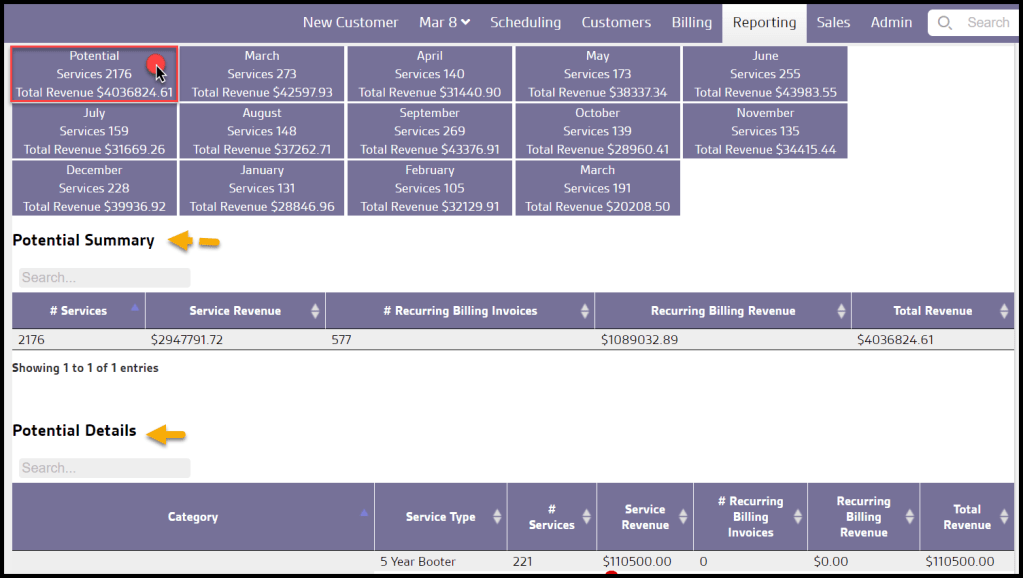
Click on the desired month button to see more details about the forecasted services.
You will find the total of scheduled services + forecasted services + overdue services as well as revenues for that specific month grouped by service type.
- # Services: Shows the number of forecasted potential services.
- Service Revenue: Shows the potential service revenue.
- # Recurring Billing Invoices: Shows the number of forecasted Recurring Billing Invoices.
- Recurring Billing Revenue: Shows the potential forecasted Billing revenue.
- Total Revenue: Shows the potential forecasted total revenue. Recurring billing charges are not considered here.
Select the up and down arrows to order the report.
Month Card View: Potential and Monthly Details
- Category: Shows the service category for each service for the forecast services.
- Service Type: Shows the Service type for each service for the forecast services.
- # Services: Shows the number of services for the service category and type during the forecast period.
- Service Revenue: Shows the forecasted service revenue for the service category and type during the forecast period.
- # Recurring Billing Invoices: Shows the number of Recurring Billing Invoices for the service category and type during the forecast period.
- Recurring Billing Revenue: Shows the revenue from Recurring Billing for the service category and type during the forecast period.
- Total Revenue: Shows the total forecasted revenue for the service category and type during the forecast period.
Select the up and down arrows to order the report.

Forecasted Services
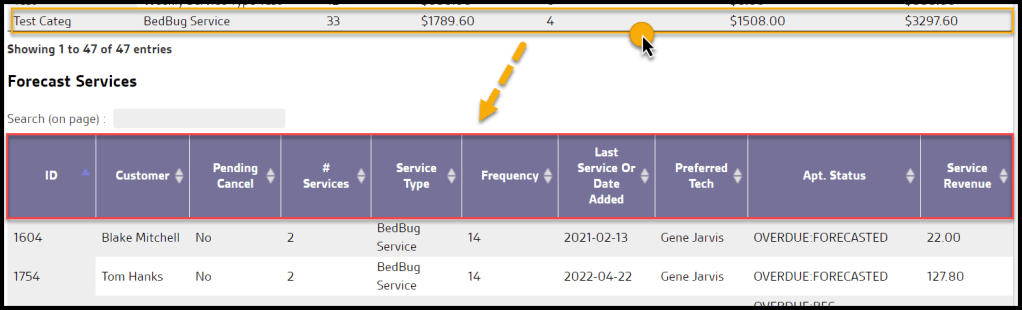
In this section, you will find the total of scheduled services + forecasted services + overdue services, as well as revenue for that specific month grouped by subscription. This means that if the customer has two different subscriptions forecasted for the same month, the customer will show up twice.
For all the non-potential subscriptions (which means they have a completed service), the column Last Service Or Added Date will have the date of the Last Service. However, if it is a potential subscription, the column will use the date that the subscription was created instead.
Apt Status will show the status of the forecasted services in that month. The column will show both if there is more than one status message. If the subscription is set up as recurring billing, the text REC BILLING will be added to the status message.
Charge is the sum of the recurring charge for the forecasted services in that month; however, if the subscription is set up as recurring billing, the value will be set to 0.
- ID: Shows the customer’s unique identification number.
- Customer: Shows the customer’s first and last name.
- Pending Cancel: Shows if the customer has a Pending Cancel status.
- # Services: Shows the number of services for the forecasted service.
- Service Type: Shows the service type for the forecasted service.
- Frequency: Shows the frequency of the forecasted service.
- Last Service or Date Added: For all the non-potential subscriptions (which means they have a completed service), the column Last Service Or Added Date will have the date of the Last Service. However, if it is a potential subscription, the column will use the date that the subscription was created instead.
- Preferred Tech: Shows the first and last name of the preferred technician for the forecasted service.
- Apt. Status: Shows the appointment status for the forecasted service.
- Service Revenue: Shows the total forecasted service revenue for the customer.
Select the up and down arrows to order the report.
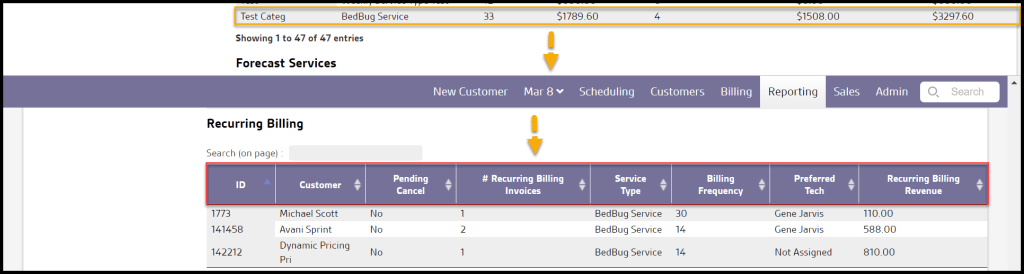
Recurring Billing
In this section, you will find the total of recurring billing invoices for that specific month, grouped by subscription. This means that if the customer has 2 different subscriptions with recurring billing for that month, the customer will show up twice.
The billing frequency will show what is set up in the subscription card; however, if it is using a custom schedule, it will show the text CUSTOM SCHEDULE.
- ID: Shows the Customer ID for the recurring billing invoices.
- Customer: Shows the recurring billing customer’s first and last name.
- Pending Cancel: Shows if the customer has a Pending Cancel status.
- # Recurring Billing Invoices: Shows the number of Recurring Billing Invoices for the forecasted service.
- Service Type: Shows the service type for the recurring billing invoice.
- Billing Frequency: Shows the frequency that the Recurring Billing will occur.
- Preferred Tech: The preferred technician for the forecasted service
- Recurring Billing Revenue: Shows the total forecasted service revenue for the customer.
Select the up and down arrows to order the report.
Exporting the Forecast Report
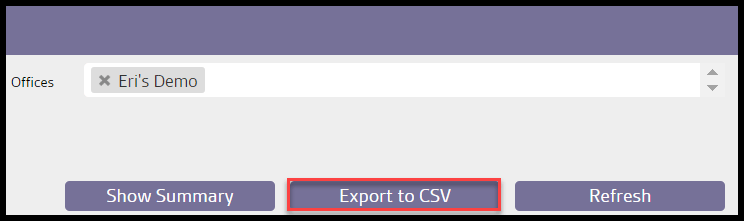
To export the Forecast Report as a CSV file, select Export to CSV.
 Moxie Pest Control Office Guide