
Fill Routes
Summary
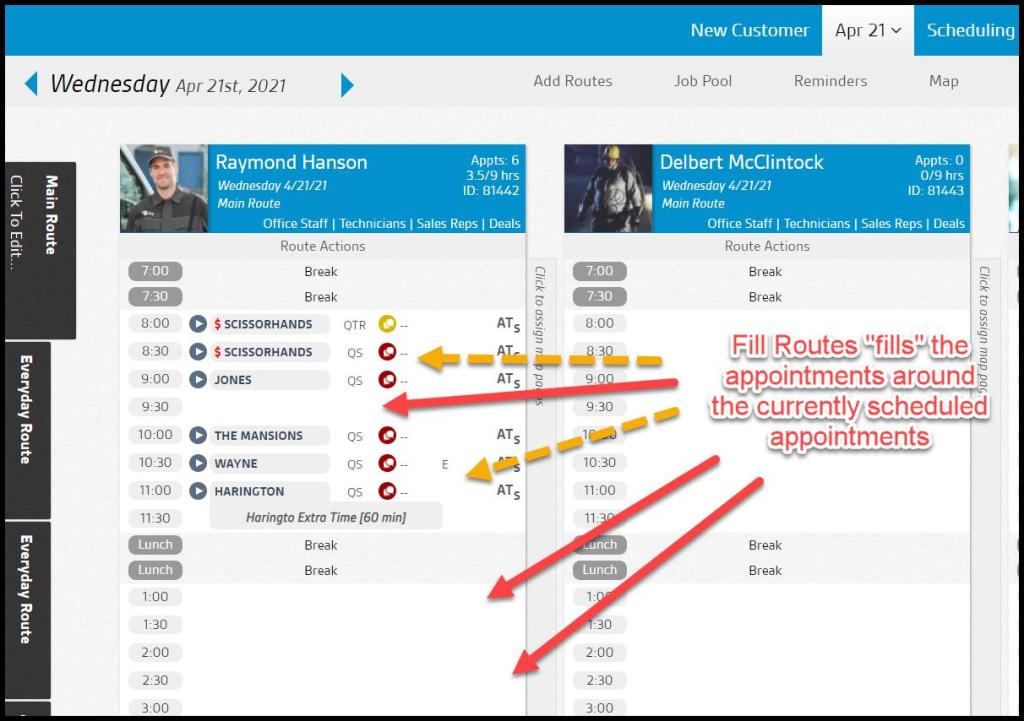
Fill Routes is used to create optimized routes (like Intelligent Routing) for the user to reach customers. It is unique, however, in that it also schedules the routes while considering both existing appointments and jobs that are due when finding the most optimal routes, all in one step. It essentially “fills” the routes around the appointments in the most optimal way.
Fill Routes also offers the ability to force a preferred technician for the user’s customers. Please see the attached video for a Fill Routes demonstration.
Important Points:
- What’s different about Fill Routes vs Intelligent Routing? Fill Routes schedules the route for the user, optimizes existing appointments and newly scheduled jobs in one step, and can force a Preferred Tech for the customer.
- To save a Filter Set, select Show Saved Filters to add custom searches.
- Existing appointments will always stay on their respective routes and never be canceled or overbooked. As such, please ensure the instructions the user is placing on the routes (such as Max Minutes) and the appointments (such as Time Windows) are not too restrictive to the point that Fill Routes cannot find a solution. Doing so will allow the user to avoid the most common optimization errors.
Understanding the Purpose of Fill Routes
Fill Routes essentially “fills” the routes with unscheduled appointments around the existing appointments in the most optimal way.
Accessing Fill Routes
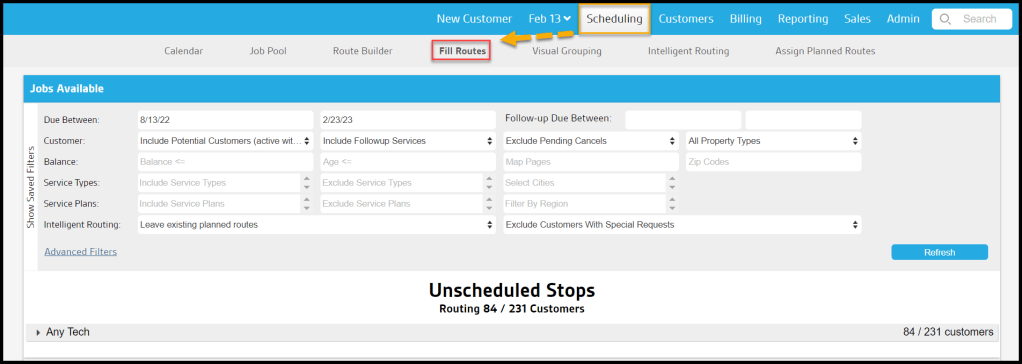
To navigate to Fill Routes, go to:
Scheduling > Fill Routes.
Selecting from Available Jobs
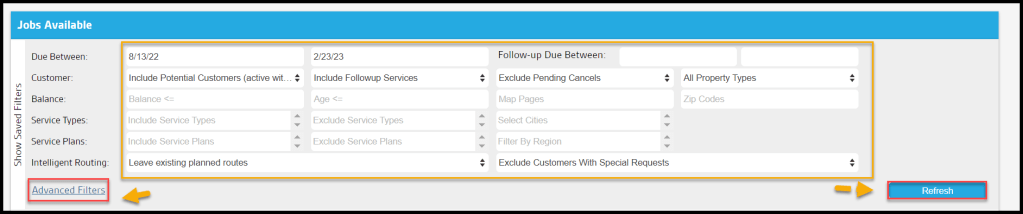
Once the user has navigated to Fill Routes, the user will find a familiar section at the top labeled Jobs Available. This section has mostly the same filters the user sees in the Job Pool. After the user has selected the desired filters and clicked Refresh, the user can select from the available jobs the ones the user wishes for Fill Routes to schedule.
- Due Between: Filter by customers with a service due between a specific date range.
- Follow-up Due Between: Choose Start and End Dates that allow Follow-up appointments with a different date range to be included in the search results. Overrides the Include Follow-up Services field setting.
- Customer: Multiple parameters are available to narrow the results based on the information provided on the Info tab in the Customer Cards.
- Map Pages: Limit results to specific Map Pages using Map Page Codes
- Zip Codes: Limit results to specific Zip Codes
- Select Cities: (see below) Limit to Customers in specific cities
- Include/Exclude/ONLY Potential Customers
- Include/Exclude/ONLY Followup Services
- Exclude/Include Pending Cancels
- All/Residential only/Commercial Only Properties
- Balance: The Balance row will consider the balance on the customer’s account. If you do not schedule customers that owe a previous balance, utilize the Balance section to filter those customers out. You can exclude balances or account ages greater than the desired value.
- Balance is <=: Specify the Account Balance upper limit.
- Age is <=: Specify the age of the account balance upper limit in days.
- Service Types: Include or exclude a list of specific Service Types in the results.
- Service Plans: Include or exclude a list of specific Service Plans in the results.
- Intelligent Routing: Choose to leave existing planning routes as they are or reroute existing planning routes.
Select Advanced Filters to filter further or Refresh to show the jobs.
Advanced Filters
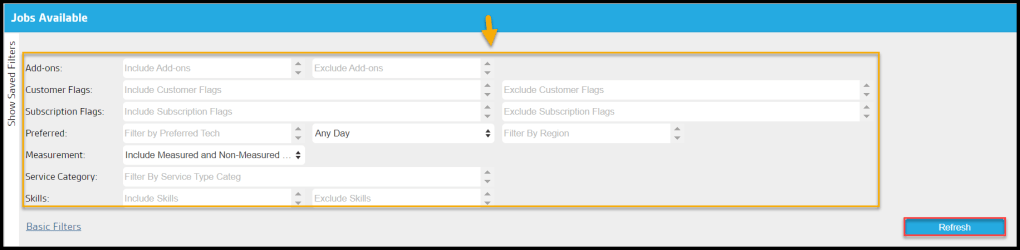
There are some additional filters to include.
- Add-Ons: Provide any Add On services to specifically include or exclude.
- Customer Flags: Provide any Customer Flags to specifically include or exclude
- Subscription Flags: Provide any Subscription Flags to specifically include or exclude
- Preferred: Filter results further by:
- Preferred Tech: Specify those Customers that prefer a particular technician.
- Preferred Day: Specify appointments that have a preferred day of the week.
- Filter by Region: Limit to the neighborhood, county, etc.
- Measurement: Use for Dynamically Priced, measurement-based Service Types, allows the inclusion or exclusion of these based on square feet or linear feet measurements.
- Include Measured and Non-Measured Services: Default setting.
- Only Non-Measured Services: Excludes all measurement-based services
- Only Measured Services: Exclude all non-measurement-based services
- Only SF Measured Services: Limit to only those measurement-based services in square feet.
- Only LF Measured Services: Limit to only those measurement-based services in linear feet.
- Service Category: Filter results for specific Categories of Service Type, such as Lawn or Pest
- Skills: Filter results based on the appointment’s skills requirements. If the preferred technician does not have the matching skills in the requirement, the Routes To Fill request cannot include the appointments.
Select Refresh when finished with filtering the jobs available.
Results
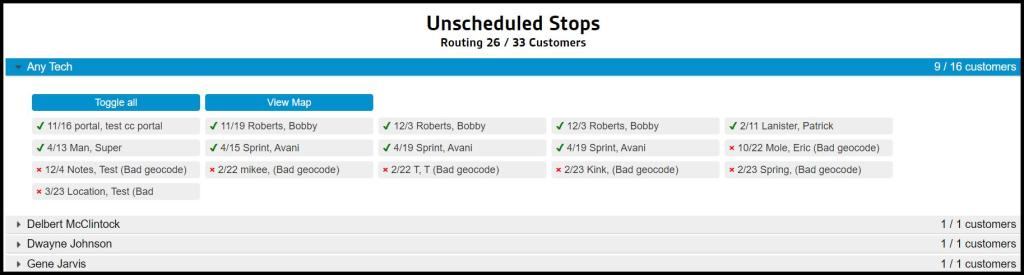
The results will show the technician’s unscheduled appointments available above in the Unscheduled Stops, and the routes where the customers are going to get scheduled or “filled” on each route under the Routes to Fill.
Saving Fill Routes Filters
To save time when working Fill Routes, save filter sets by clicking Show Saved Filters. Add the name of the filter, the visibility level, and default or not default.
Select Save as New to have preset the filters.

Unscheduled Stops
The results will be grouped by Preferred Technician. The user can toggle individual jobs (customers due for service) by clicking on them. A green checkmark or red X will appear next to the job indicating whether it will be included in the Fill Routes request. By default, all available jobs in the result will have a green checkmark (customer will be included), except for those customers who have a missing or invalid geocode (these customers cannot be included until the user adds a valid geocode for them).
To ensure the desired results have a green checkmark, ensure that all customers have a valid and existing geocode for their address. Additionally, ensure that the customer has a preferred technician with the correct skills for the appointment. If the appointment does not have a preferred technician with matching skills, it will have a note and a red X, and cannot be scheduled in the fill routes request.
Filtering Routes to Fill
The routes that will be filled can be filtered to specific routes.
- Options: Include all routes, only empty routes, or only routes with pre-existing appointments. This is useful for targeting full, partially full, or empty routes.
- Filter Techs: Choose specific technicians that will have their routes filled. This is useful for scheduling one technician at a time.
- Date Range: Choose a date range for routes that will be filled by Fill Routes.
Select refresh when finished to see the new results take effect.

Using Routes to Fill (Continued)
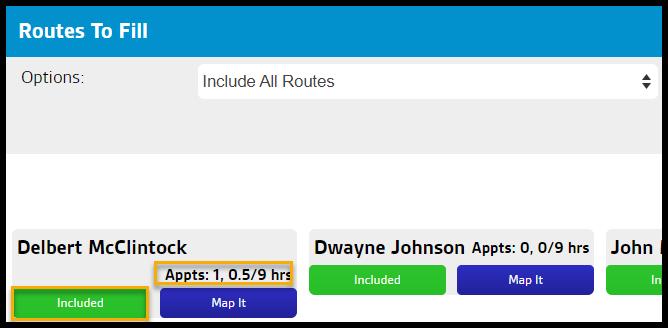
Each route will show the technician’s name, the number of hours and how many are full for that day.
Toggle Included/Excluded to include or prevent a technician’s route from being “filled” with unscheduled stops. This is useful if a technician is going to be out of the office for several days.
To schedule a pre-built stop onto a technician’s route that already has scheduled appointments, you can easily view the maps for both routes and determine if that pre-built route fits the technician’s current route. To view the map for a technician’s existing route, select “Map It” under the technician’s name.
Choosing from Available Routes
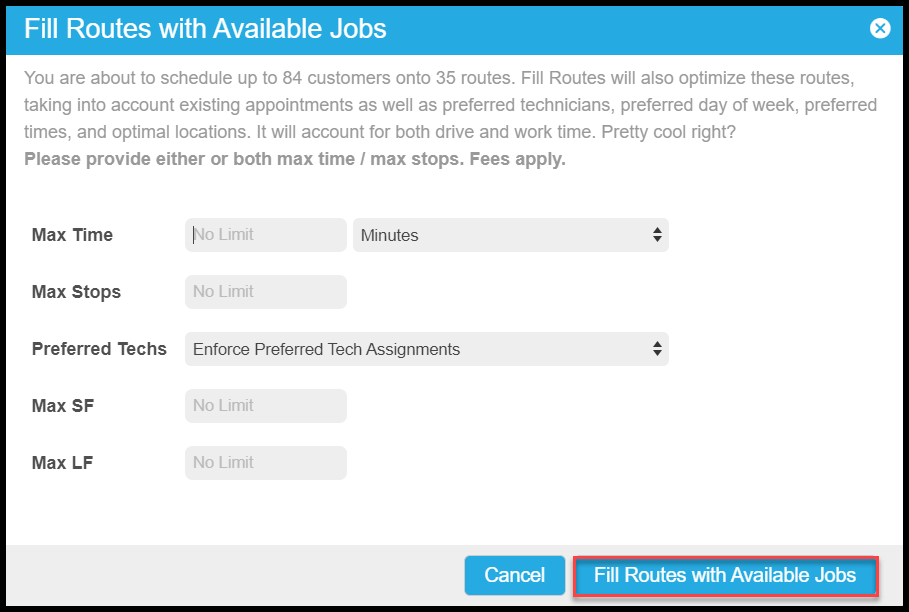
Once finished, click Fill Routes and choose additional options from the dialog box that opens. the user must choose either or both max minutes/max stops**.

- Fill Routes with Available Jobs
- Max Time: Choose the maximum time to fill per route, up to 9 hours. Exceeding 540 minutes will cause Fill Routes to fail for these routes.
- Max Stops: Choose the maximum stops per route, up to 9 hours. Exceeding 540 minutes will cause Fill Routes to fail for these routes.
- Preferred Techs: Choose whether or not to enforce the customer’s preferred technician.
- Max SF: Choose the maximum in square feet per route.
- Max LF: Choose the maximum in linear feet per route.
Select Fill Routes with Available Jobs to finish.
NOTE:
**Keep in mind if the user sets max minutes or max stops too low, routes that have existing appointments that exceed the criteria will not be filled, and the user will receive an error for the problem routes. For example, filling a route that already has 10 stops and choosing a max of 8 stops OR filling a route that already has 8 stops that are an hour each and setting max minutes to 480 (8 hours). Both of these scenarios will cause Fill Routes to fail for these routes.
 Moxie Pest Control Office Guide