
Failed Payment Methods
Summary
The Failed Payment Methods Report shows all AutoPay customers whose last payment failed.
Customers appear in this report any time a transaction is declined, or if they do not have a payment method on file. If the user attempts to run the payment method again and it’s successful, the customer will be removed from the report.
Important Points:
- This report only includes customers on AutoPay.
- Once a successful payment is made on the customer’s account, the customer will be removed from this report.
Accessing the Failed Payment Methods Report
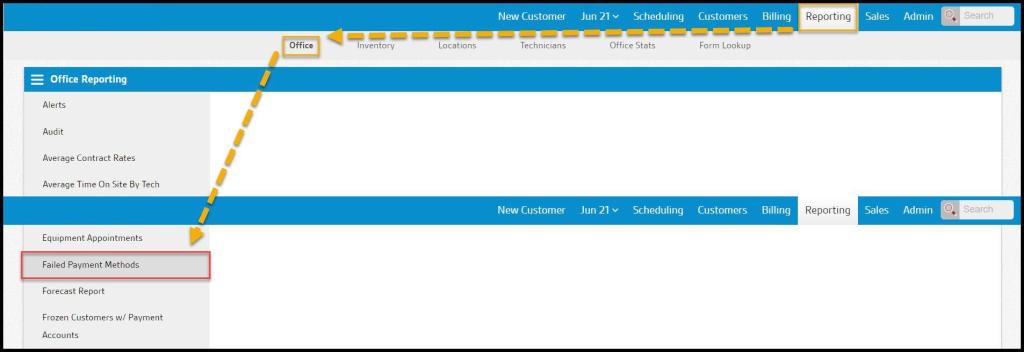
To access Failed Payment Methods report, go to:
Reporting > Office Reporting > Failed Payment Methods.
Filtering the Failed Payment Methods Report
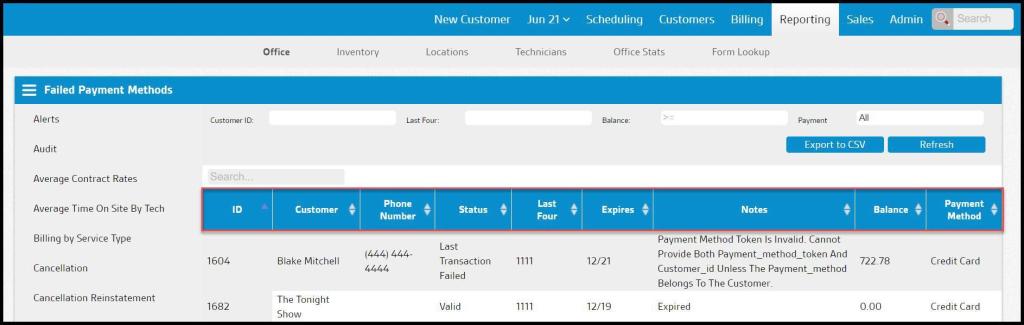
To filter the Failed Payment Methods, toggle these filters.
- Customer ID: Limit results between specific dates in the Failed Payment Methods.
- Last Four: Search for the last four of the payment card number.
- Balance: Filter the report by customers that owe balances greater than a certain value.
- Payment Method: Filter the report by a specific payment method.
Select Refresh to run the report.

Viewing the new Failed Payment Methods Report’s Data Columns
The Failed Payment Method Report can display several data columns.
- ID: The customer’s unique identification number.
- Customer: The first and last name on the customer card.
- Phone Number: The phone number on the customer card.
- Status: The status of the payment method on file.
- Last Four: The last four numbers of the payment card on file.
- Expires: The expiration date for the payment card on file.
- Notes: Any billing-related notes applicable to the last transaction. This may include an error message returned from the payment processor.
- Balance: The balance on the customer’s account.
- Payment Method: The payment method on Autopay with the customer.
Select the up and down arrows to order the report.
Exporting a Failed Payment Method Report
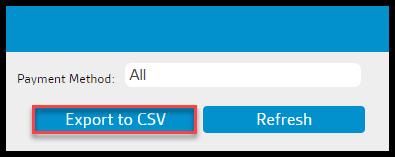
To export a Failed Payment Method Report as a CSV File, select Export to CSV.
 Moxie Pest Control Office Guide