
Exporting Customer Information
Summary
Many companies want to re-use their customer data outside of the Operations Suite system for various reasons or to keep backup copies in case of unforeseen circumstances.
FieldRoutes believes that customers have a right to their own customer data. Therefore it is easy to export this data whenever and as often as desired using the Customers Report.
Important Points
- Customer data is always available for export using the Customer Report.
- By default, the customer list provides Customer ID, First Name, and Last Name. Additional info can be added to the Export from the Select Columns to Display field.
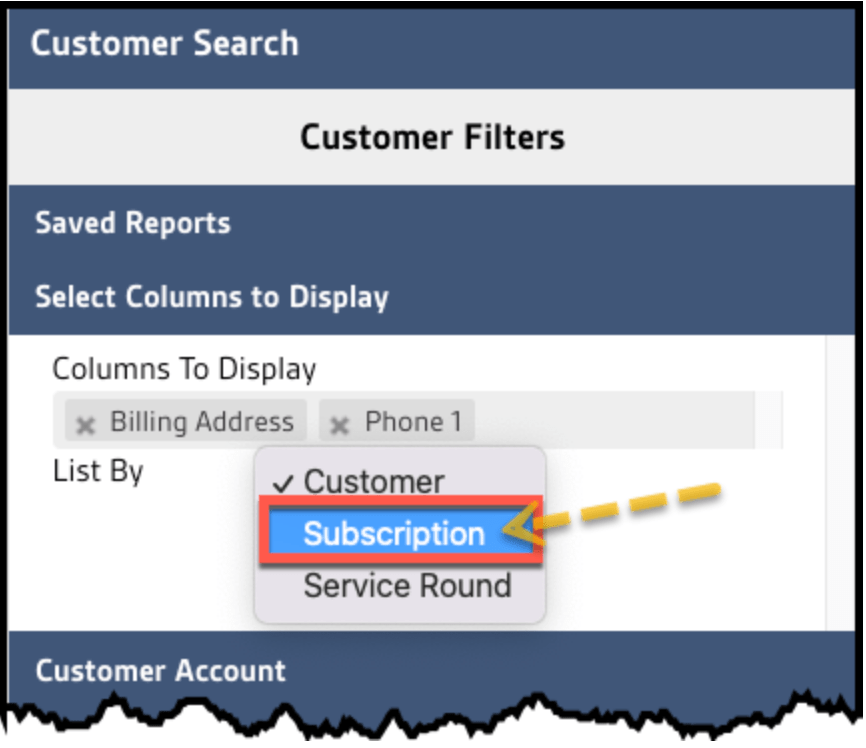
- The information is grouped by Customer ID by default. Use the Select Columns to Display > List By drop-down to choose Subscription as an alternative.
Open the Customer Tab
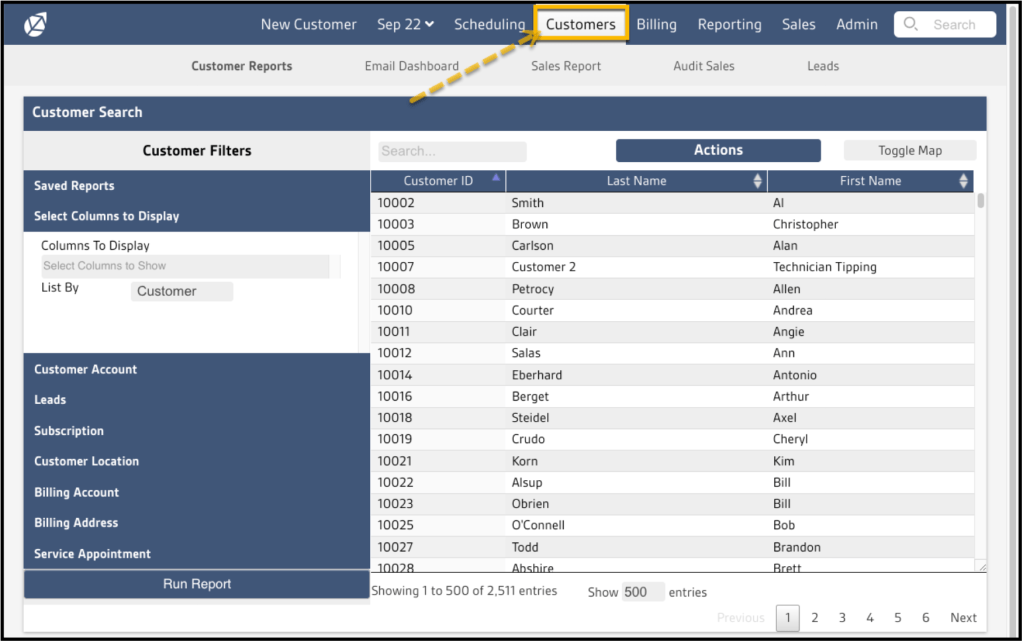
Select the Customer tab on the top navigation bar to open the default Customer Report list.
Update the Entries Count
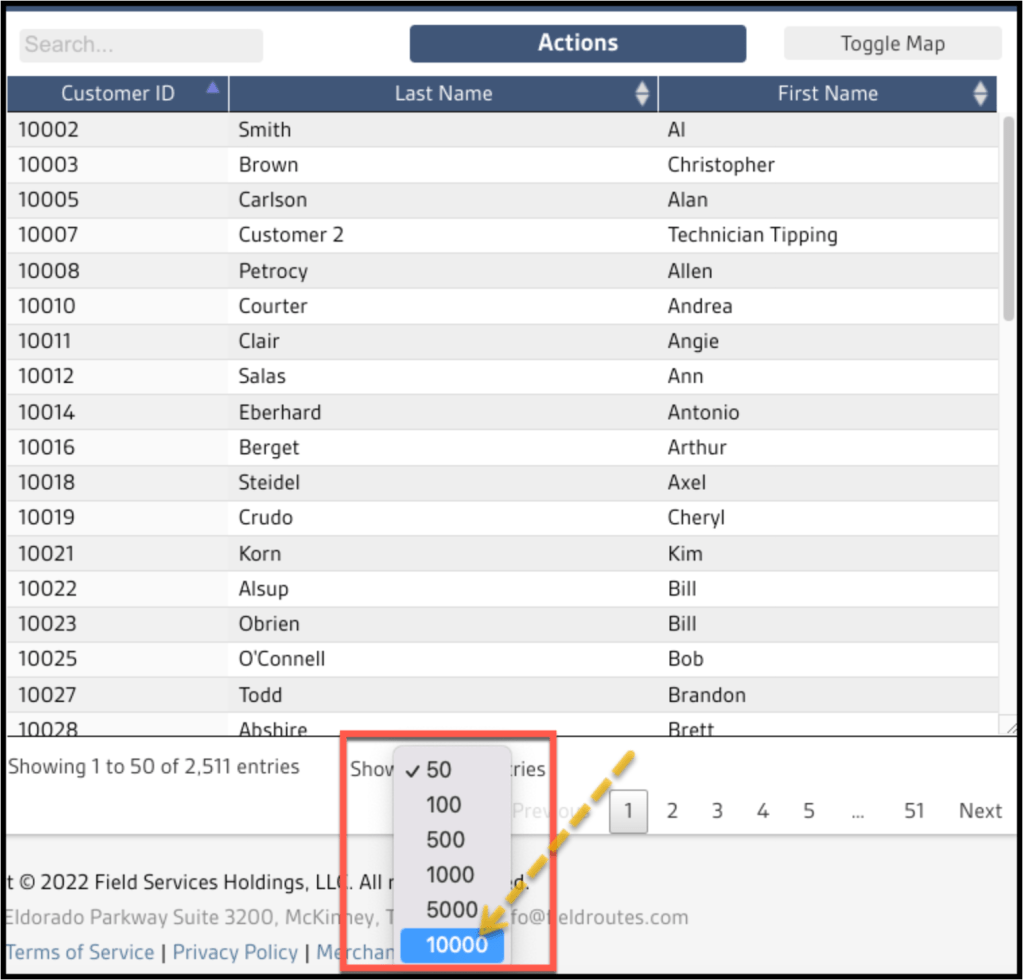
At the bottom of the Customer list, find the Show xxx entries field. Change the default value by selecting 10,000 from the drop-down menu.
Click Run Report to update the list.
NOTE:
This process assumes fewer than 10,000 total customer files are in the database. If there are more than 10,000 in total, this process will need to be repeated in batches of 10,000 or less.
Choosing the Data to Include
By default, three fields are included in the list:
- Customer ID
- First Name
- Last Name

To add additional fields to your customer data:
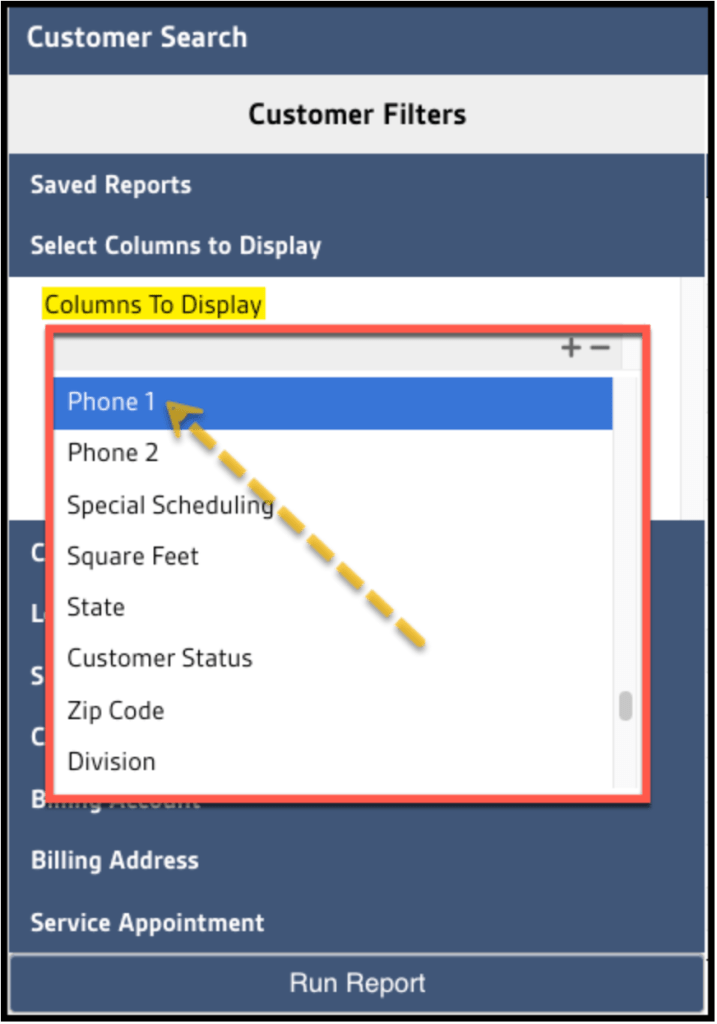
- Locate the Select Columns to Display filter to the left of the list.
- Click in the field and select an additional data point to include.
- Repeat as many times as necessary to include all desired data.
- Commonly used fields include:
- Phone 1
- Phone 2
- Email Address
- Address
- City
- Zip Code
- Account Balance
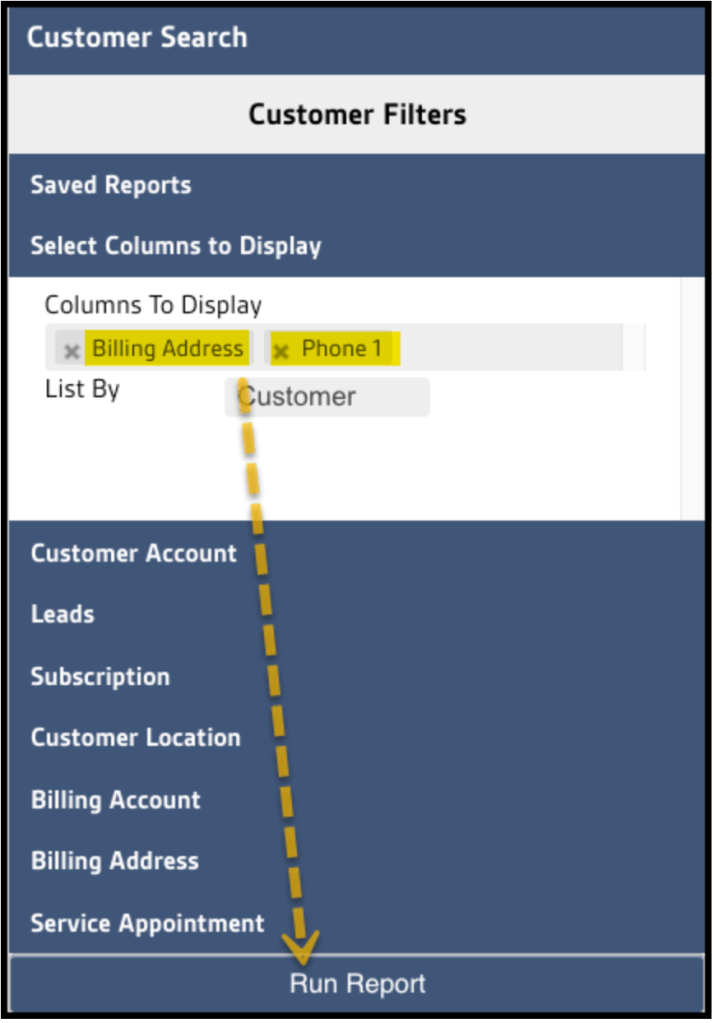
5. Click the Run Report button at the bottom of the filters to refresh your data.
Group by Subscription Instead of Customer
The list is grouped by Customer by default. To view all by Subscription instead:
- Find the Select Columns to Display > List By field ( default = Customer).
- Select Subscription from the drop-down menu instead.
- Click the Run Report button to refresh the list.
Export the Customer Data to a CSV File
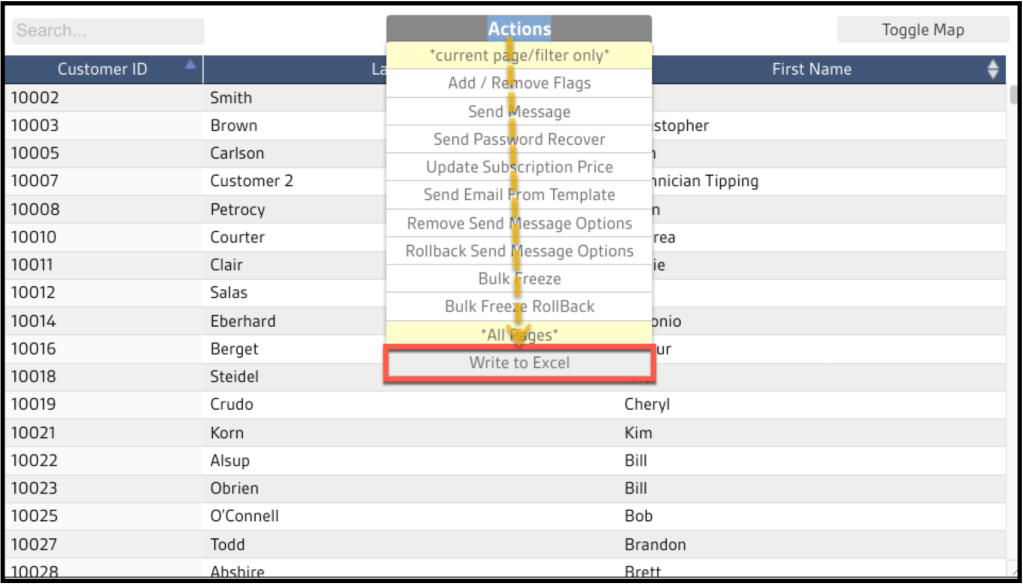
Finally, once the list in the Customers Report contains the desired data organized by either Customer or Subscriptions, export the data to a CSV file.
This is done by:
- Drop down the Actions menu
- Select the Write to Excel option
A CSV file containing the Customer data will be downloaded to the default Downloads location configured on the local system.
For Additional Details:
Refer to the full Customers Report user guide to learn how to filter the customer data further.
 Moxie Pest Control Office Guide