
Expiring Paid in Full
Summary
The Expiring Paid in Full Report makes it easy to keep track of the customers who pre-paid for their service. This report shows customers flagged as paid year in full, which are nearing the end of their pre-paid balance.
Important Points:
- For a customer to appear in this report, the Paid In Full flag in the customer card must be turned on, and the balance on the customer’s account must be less than the total of the last invoice.
Accessing the Expiring Paid In Full Report
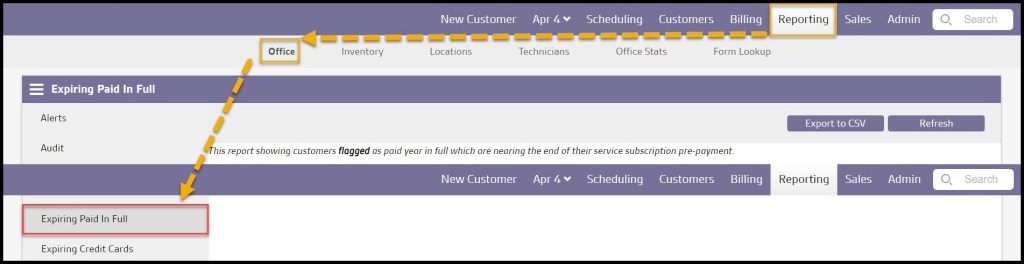
To access the Expiring Paid In Full Report, go to:
Reporting > Office Reporting > Expiring Paid in Full.
Viewing the new Expiring Paid In Fulls Data Columns
The Expiring Paid In Full Report can display several data columns.
- Customer: Shows the customer’s first and last name.
- Subscription: Displays the name of the subscription nearing the end of their pre-paid balance.
- Phone number: See the customer’s phone number.
- Remaining Pre-Payment: Shows the customer’s current pre-payment is left on their account.
- Recurring Price: How much their recurring invoice/ticket is set to generate.
Select Save when finished editing the Expiring Paid In Full.

Exporting an Expiring Paid In Full Report
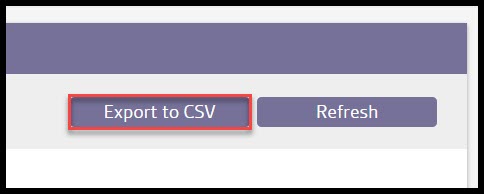
To export an Expiring Paid In Full Report as a CSV File, select Export to CSV.
 Moxie Pest Control Office Guide