
Equipment Appointments Report
Summary
The Equipment Appointments Report allows a user to see all of the equipment scanned by technicians using the mobile app Barcode Scanning tool.
This report shows details regarding when Equipment was scanned, any applicable Equipment Notes the technician may input or Flags applied, and to see other detailed activity regarding the Equipment.
Please see the user guide on mobile applications Barcode Scanning for more information on the barcode scanning tool.
Important Points:
- Go to Admin > Preferences > Equipment Types to configure the Equipment Types.
Accessing the Equipment Appointments Report
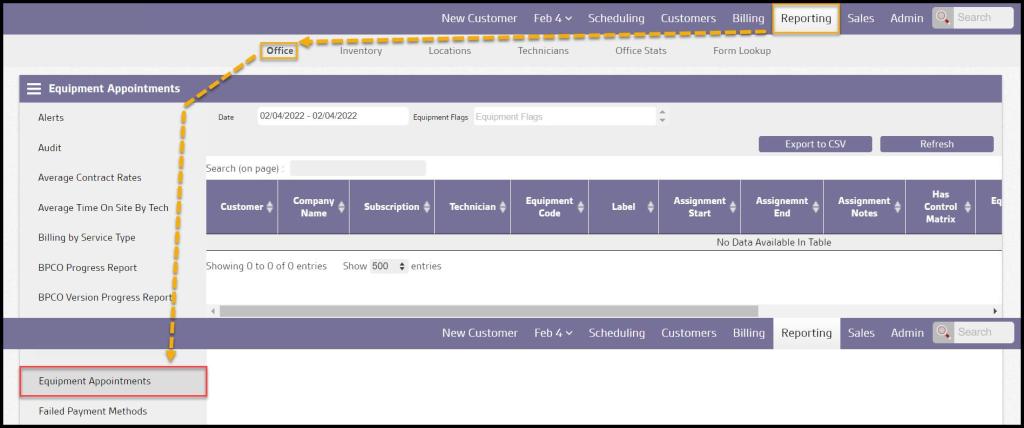
To access the Equipment Appointments report, navigate to:
Reporting > Office > Equipment Appointments
Filtering the Equipment Appointments Report
The following filters are available to customize the Equipment Appointments report results:
- Start Date: Designate the beginning of the Date range for the report results
- End Date: Designate the end of the Date range for the report results
- Equipment Flags: Limit the results to a list of specific Equipment Flags
Once the Dates and any Flag filters are specified, select Refresh to generate the results.

Viewing the Equipment Appointments Report’s Data Columns
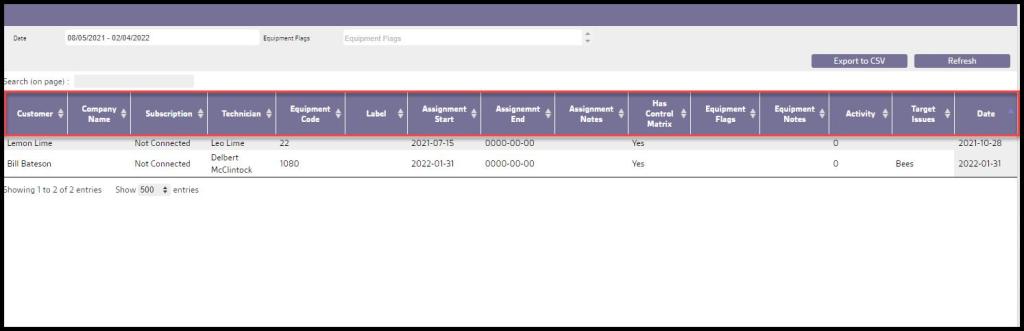
The Columns for the Equipment Appointments report are detailed below:
- Customer: The name of the customer the equipment is attached to.
- Company Name: The company name for commercial properties.
- Subscription: The subscription the equipment is attached to. When scanning new equipment in the mobile apps, the technician can determine if the equipment is specific to a customer’s subscription, or attached to the account as a whole. If the equipment is not subscription specific, this column will say Not Connected.
- Technician: The Tech who last serviced this equipment.
- Equipment Code: The equipment code. This is configured under Admin > Preferences > Service Related > Equipment Types.
- Label: This is the “Description” the technician added to the equipment in the mobile apps.
- Assignment Start: This is the date the equipment was first scanned and save to the customer’s account.
- Assignment End: Technicians can remove equipment in the mobile apps by selecting “Remove Equipment”. The assignment end date will display the date the equipment was removed. If the equipment is currently assigned to the customer, the date will display as “0000-00-00”.
- Assignment Notes: This is the “Location Description” the technician input in mobile apps while scanning the equipment.
- Has Control Matrix: This designates if this equipment has scannable bait associated.
- Equipment Flags: Equipment Flags applied to the Appointment
- Equipment Notes: This is the “Scan Notes” the technician input in mobile apps for the equipment.
- Activity: This is the “Activity Level” established by the technician in mobile apps.
- Target Issues: Displays the issues the technician input under the “Activity Found” field.
- Date: Shows the date the equipment was most recently scanned.
Exporting the Equipment Appointments Report
To export a Leads Report as a CSV File, select Export to CSV.

 Moxie Pest Control Office Guide