
Email Templates
Summary
Email Templates are used to build templates for emails sent in FieldRoutes. This guide covers adding and editing Email Templates in Preferences.
Important Points:
- Email Templates can be found in the Preferences.
Accessing the Email Templates in Preferences
To access the Email Templates in Preferences, go to:
Admin > Preferences > Customer Preferences > Email Templates.
Filtering the Email Templates
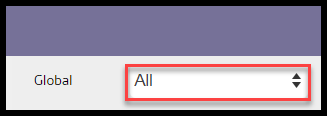
To filter the Email Templates, toggle this filter.
- Global
- All: Display all Email Templates.
- Specific to Office: Display only Email Templates flagged to be specific to the user’s office.
- Available to all offices: Display only Email Templates flagged as open to all offices.
The Email Templates will refresh after different options are selected.
Adding or Editing an Email Template
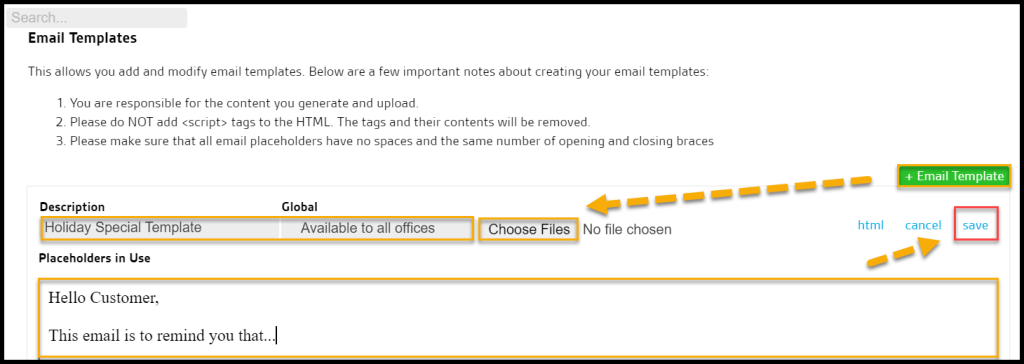
To add a new Email Template, select + Email Template or Edit to change an existing Email Template.
- Description: Name the Email Template.
- Global: Determine if the Email Template will be shown to specific or all offices.
- Choose Files: Choose HTML files to add to the template.
Select Save when finished editing the Email Template.
Email Template Placeholder Key
The below key is a description of all the placeholders you can use for dynamic information in your template.
{{officeName}} – the office/company name
{{officePhone}} – the office phone
{{officeEmail}} – the office email
{{officeWebsite}} – the office/company website
{{officeAddress}} – the office address
{{officeCity}} – the office city
{{officeState}} – the office state
{{officeZip}} – the office zip
{{logo}} – the office image logo url Note: <img> tag required
{{licenseNumber}} – the office license number
{{lname}} – the customer last name
{{fname}} – the customer first name
{{customerName}} – the customer’s first and last name
{{customerAddress}} – the customer service address
{{customerCity}} – the customer service city
{{customerState}} – the customer service state
{{customerZip}} – the customer service zip
{{customerPhone}} – the customer’s phone 1
{{customerPhone2}} – the customer’s phone 2
{{customerEmail}} – the customer’s email address
{{customerID}} – the customer id
{{customerNumber}} – the customer number
{{customerPhone}} – the customer’s phone 1
{{billingAddress}} – the customer’s billing address
{{billingCity}} – the customer’s billing city
{{billingState}} – the customer’s billing state
{{billingZip}} – the customer’s billing zip
{{billingPhone}} – the customer’s billing phone
{{billingEmail}} – the customer’s billing email
{{billingFName}} – the customer’s billing first name
{{billingLName}} – the customer’s billing last name
{{billingName}} – the customer’s billing first and last name
 Moxie Pest Control Office Guide