
Electronic Consent Agreements
Summary
In recognition of federal and state laws regarding electronic consent signatures, some companies require a signed Electronic Consent Agreement (ECA) before their customers can sign any other document electronically. This system preference requires each customer to sign an ECA and stored a PDF copy in the Customer Card and Customer Portal before electronically signing any other documents.
Important Points:
- When the ECA preference is enabled, a customer must sign the ECA before electronically signing any other agreements.
- The content of the ECA message must be determined and provided by each company – there is no standard message or copy provided.
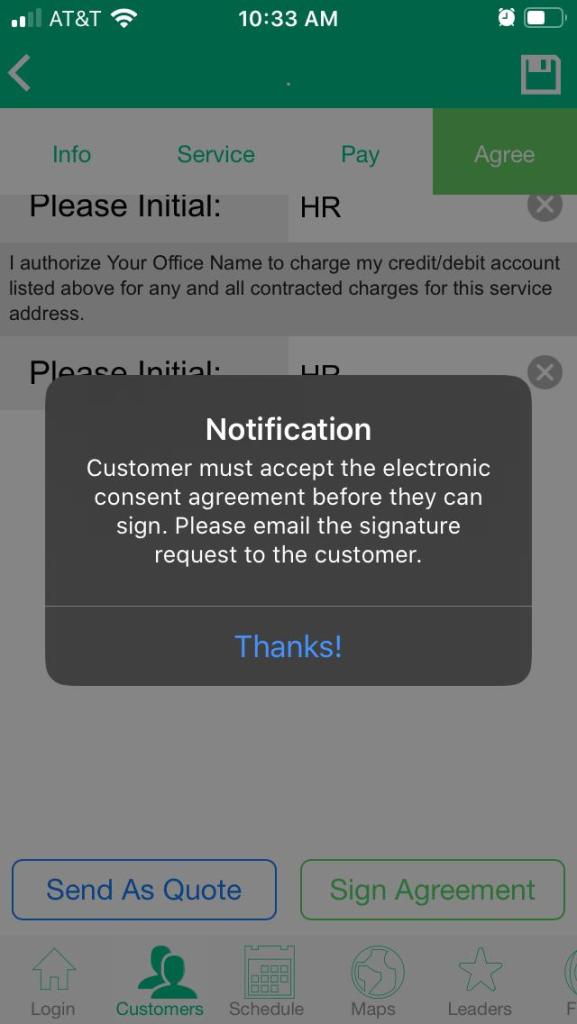
- A customer’s first attempt to electronically sign a document triggers a pop-up in all mobile apps informing the user that a signed ECA is required before the current document can be signed electronically. Emailing the unsigned document to the customer will include a link prompting them to sign the ECA in their Customer Portal, allowing them to then sign the emailed document electronically.
- A PDF of the signed ECA is stored in the Customer Portal and the Customer Card under Documents.
Enabling the ECA Requirement in Preferences
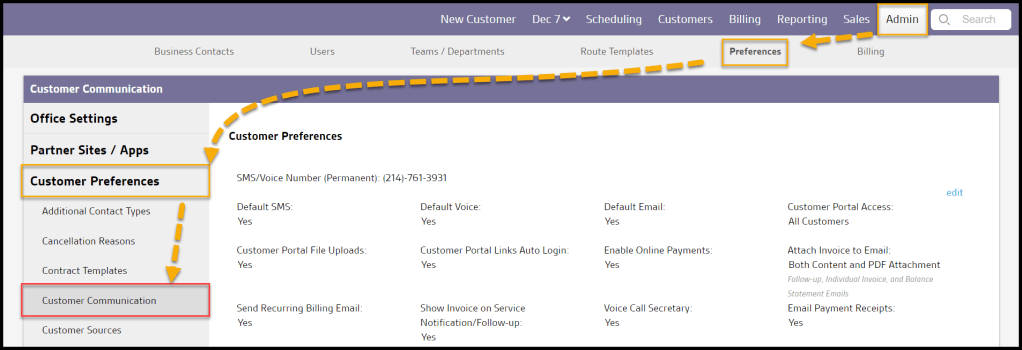
To enable the ECA requirement in the system, go to:
Admin > Preferences > Customer Preferences > Customer Communication
The Require Electronic Consent Agreement preference checkbox is here.
Adding ECA Message Content
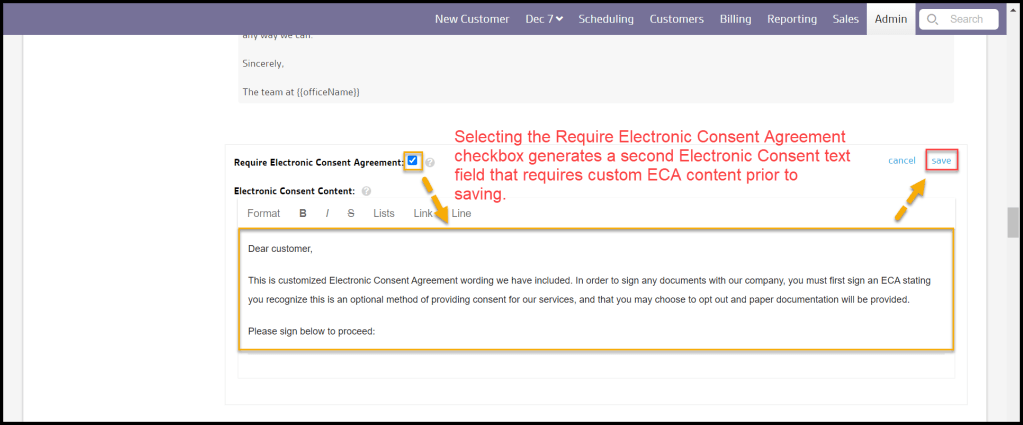
When the Require Electronic Consent Agreement checkbox is selected, a related text-entry field appears below it entitled Electronic Consent Content. Enter the content of the ECA agreement in this field. Save then enables the ECA requirement.
Warning:
There is no standard ECA message provided. Each company must provide custom content for its customers. The example below does not represent FieldRoutes’ endorsed or approved legal content.
Warning in Mobile Apps
A warning dialogue will appear when a salesperson or technician requests a customer’s first electronic document signature on a mobile device. In this case, the user emails the unsigned document to the customer, and the email contains a link to the Customer Portal where they sign the ECA. Then the document itself is available for review and signing.
The customer will not be eligible to sign electronically until the ECA agreement is signed and on file in the system.
ECA Signature in the Customer Portal
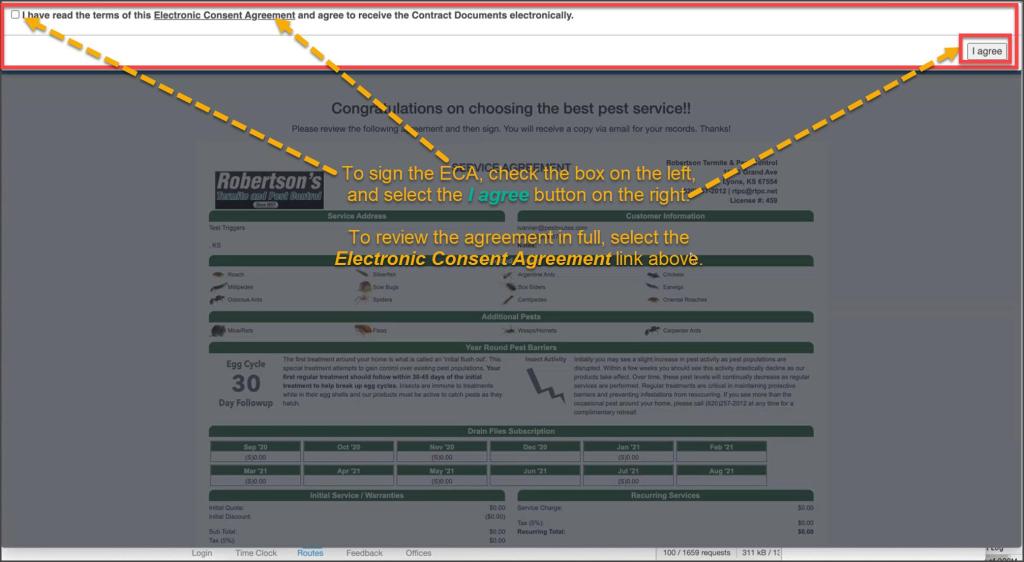
When the user emails the unsigned document to the customer following the ECA warning, the document email contains a link to the Customer Portal. This link redirects the customer to a copy of the document to be signed in the Customer Portal.
However, before the document is accessible, a dialogue requesting Agreement to the ECA appears. To comply, the customer checks the box and agrees to the ECA. A link to the full ECA agreement is available for review. Selecting the I agree button releases the request window and allows access to the new document for signature.
PDF Copy of ECA in the Customer Portal
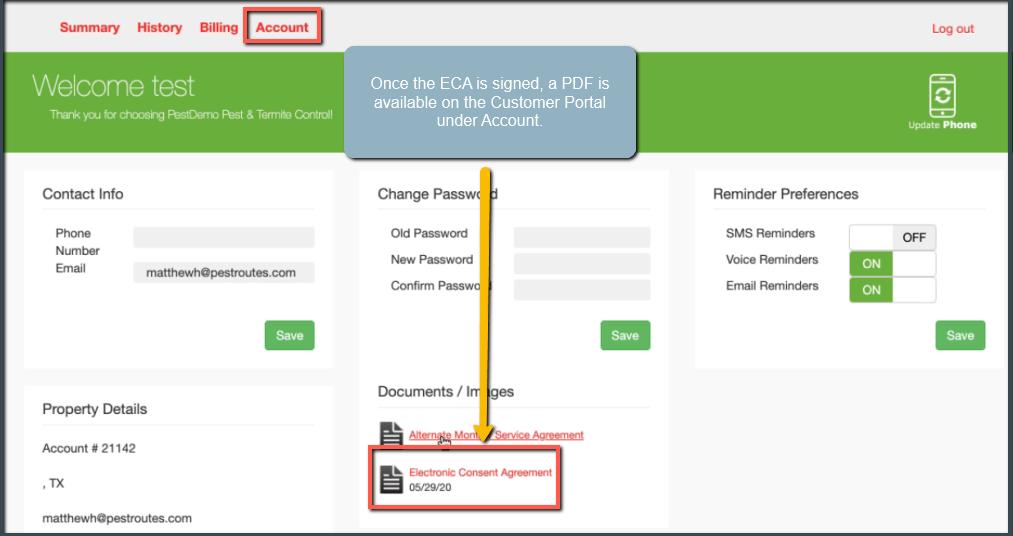
Once the customer signs the ECA, a PDF copy is available in the Customer Portal for reference. It is stored in the Documents/Images area under Account.
PDF Copy of ECA in the Customer Card
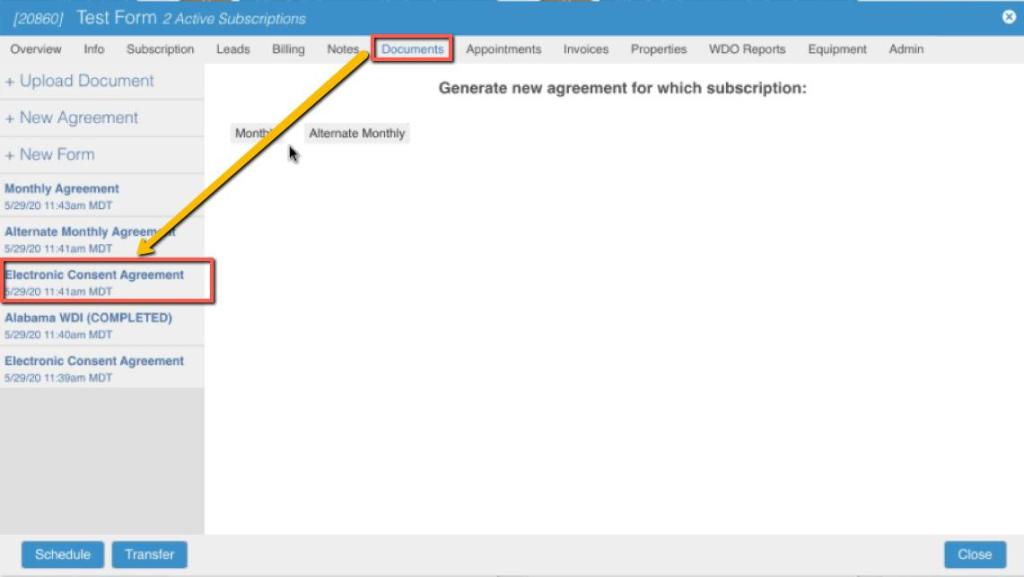
Users may also access a PDF of the ECA in the Customer Card under Documents.
Reset the ECA
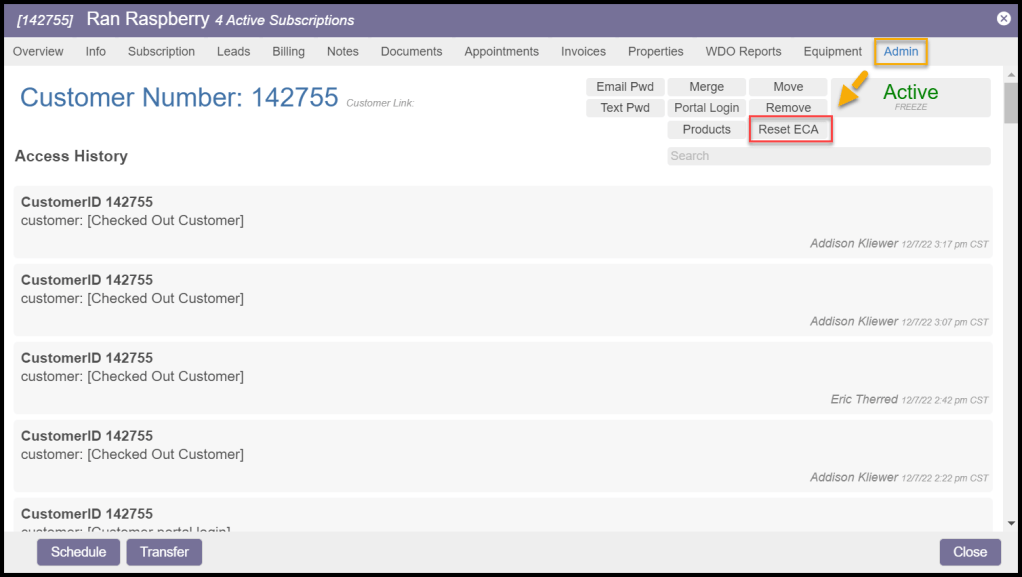
Once a customer has signed an ECA, they can sign documents electronically without repeating the process. If the user wishes for the ECA process to repeat, a Reset ECA function is available:
Customer > Customer Card > Admin
On the Customer Card, under the Admin tab, a Reset ECA button is available. Select this button, and the next time the customer attempts a digital signature, the ECA requirement process will re-launch.
Reporting on ECA Authorization and Email
ECA on the Customer Reports
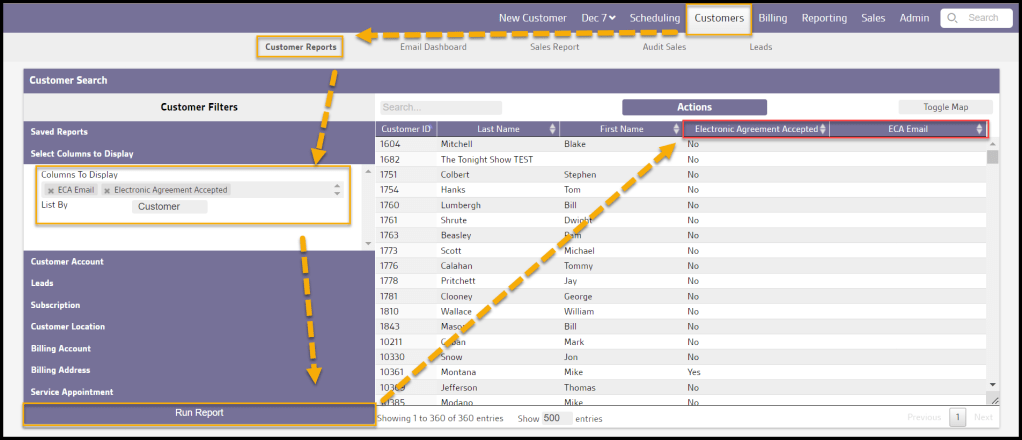
To provide transparency on customer ECA agreements and provide information on the eConsent process, two new columns are available on the Customers > Customer Reports:
- Electronic Agreement Accepted: Defaults to No – changes to Yes once customer signs ECA
- ECA Email: Displays the authorizing email address under which the ECA agreement was signed
This data can be compared to the customer’s contact email for any concern about fraudulent authorizations or other discrepancies.
These columns are displayed by choosing them from the Columns to the Display list.
Filtering Customer Reports by Signed ECA
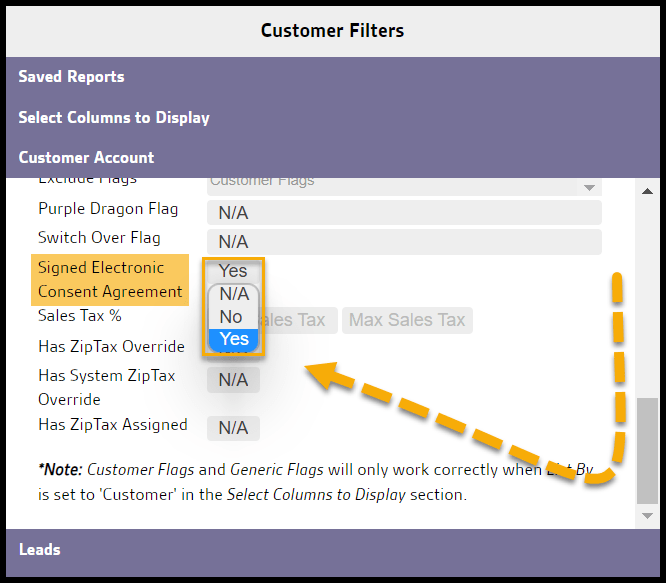
The user can filter the Customer Reports on only those who have signed an ECA.
Under the Customer Account menu, set the Signed Electronic Consent Agreement filter to Yes and Run Report. The report will automatically add the ECA Email address column to the results and show only those customers who have signed an ECA.
ECA on the Customer Sales Report
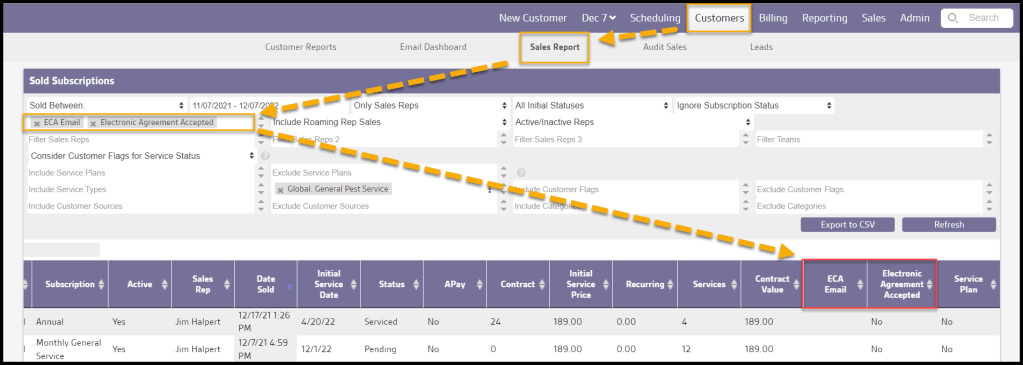
Likewise, the Customer > Sales Report can show ECA information.
In the Additional Columns field, select either one or both of the ECA-related Columns to Display:
- Electronic Agreement Accepted: Default = No – changes to Yes when the customer signs an ECA
- ECA Email: Default = Null – displays the authorizing email address for customers who have signed an ECA
 Moxie Pest Control Office Guide