
Diagram Markers
Summary
FieldRoutes provides a diagramming tool that is great for creating diagrams for termite quotes and history.
The Diagram Markers preference is for creating and managing the diagram markers available in the Diagramming Tool. The Diagram Markers allow the user to create custom codes that are shown on the diagram, as well as custom descriptions that are shown within the Diagram Legend (contact support for information on how to get a custom form made that allows the user to add the diagram image and legend (descriptions and square feet of the structures and the descriptions of the flags).
Important Points:
- Please see the guide on the Diagramming Tool for more information about diagramming.
Accessing the Diagram Marker preferences
To access Diagram Marker preferences, go to:
Admin > Preferences > Mobile > Diagram Markers
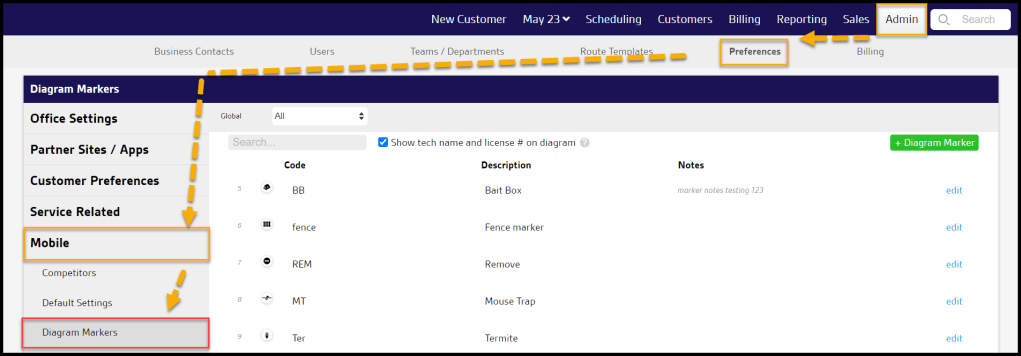
Filtering the Diagram Marker preferences
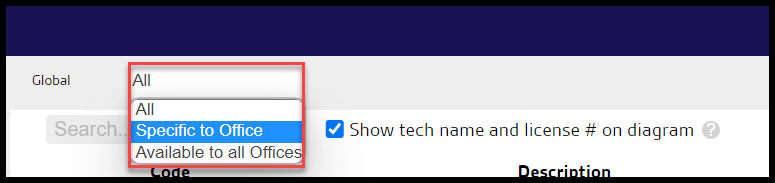
To filter the Diagram Markers, toggle the Global filter.
- Global
- All: Display All Diagram Markers.
- Specific to Office: Display only Diagram Markers that are flagged to be specific to the user’s office.
- Available to all offices: Display only Diagram Markers that are flagged as available to all offices.
Show tech name and license # on diagram
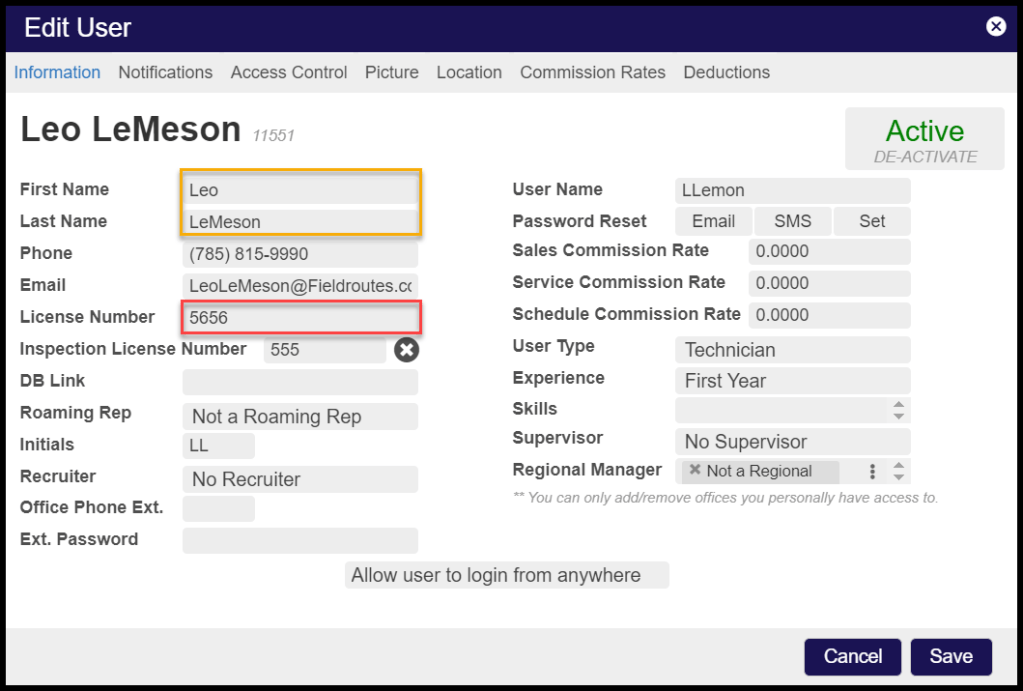
To show the technician name and license number on the diagram, select Show tech name and license # on diagram.
Note:
The user must have a license number on their User Card to show a license number.

Adding a new Diagram Marker
Once “+ Diagram Marker” is selected, several fields for the new diagram marker can be filled.
- Code: Displays as the “name” of the marker.
- Global: For companies with multiple offices, if a diagram marker is “specific to this office” it will only be available to the office in which the diagram marker was created. If the diagram marker is “available to all offices” then every branch can see the new diagram marker.
- Description: A description of the diagram marker.
- Most Used: If a diagram marker is marked as “most used”, it will be conveniently located in the Diagramming Tool for easier access. Please see below for more details.
- Notes: Input notes for the diagram marker here.
- Icon Image: Select an applicable image for the diagram marker.
To save the diagram marker, select Save.

Viewing the Most Used Diagram Markers
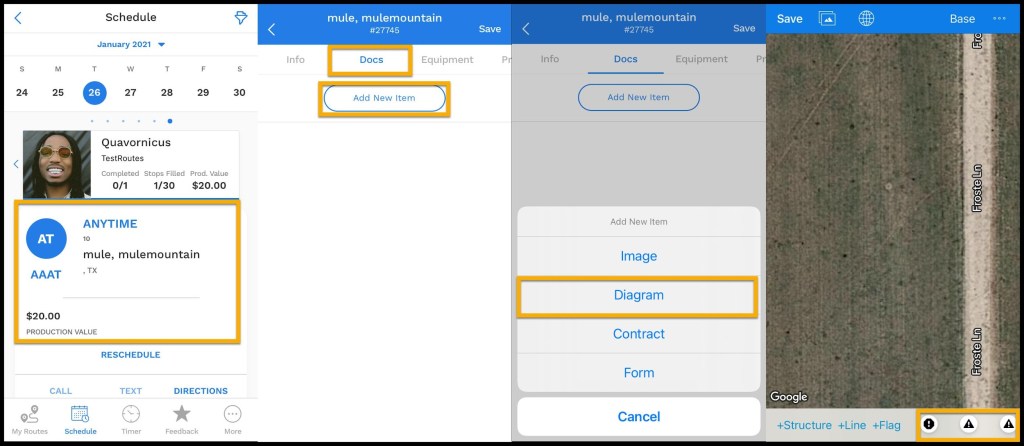
Diagram Markers marked as “most used” will be conveniently located on the lower navigation bar in the Diagramming Tool.
If a diagram marker is not marked as “most used“, but should be, then use “+ Flag” to access it.
 Moxie Pest Control Office Guide