
Device Exception
Summary
When a device is marked as an exception: the technician marked the equipment as removed, replaced, or skipped during the service, it will be recorded in the Device Exception Report.
Important Points:
- This report can be exported in a variety of ways.
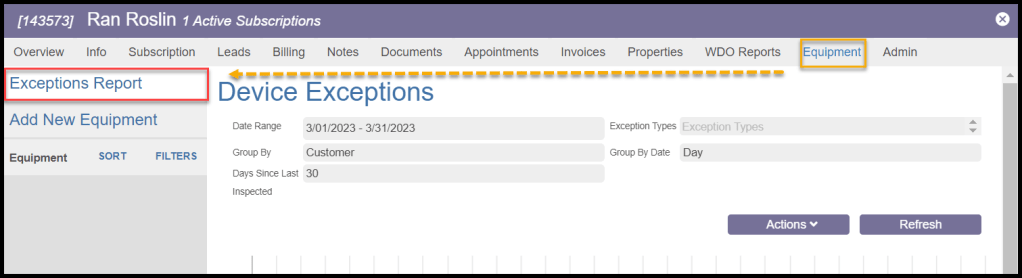
- A variation of this report can be found under the Customer Card > Equipment tab.
Accessing the Device Exception Report
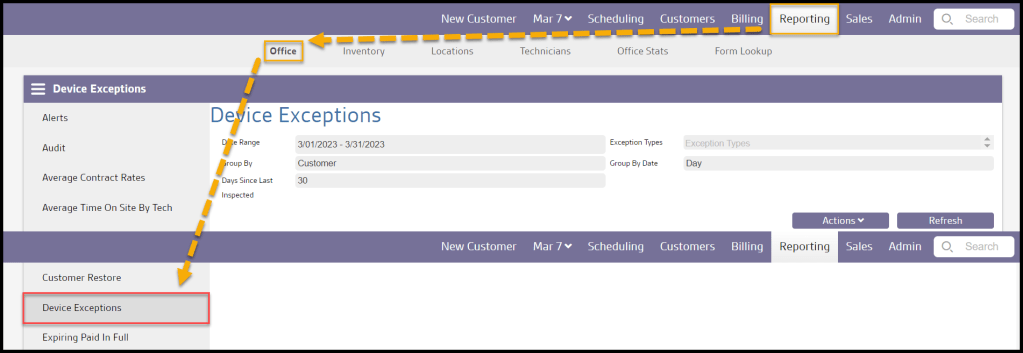
To access the Device Exception Report, go to:
Reporting > Office Reporting > Device Exception Report.
Filtering the Device Exception Report
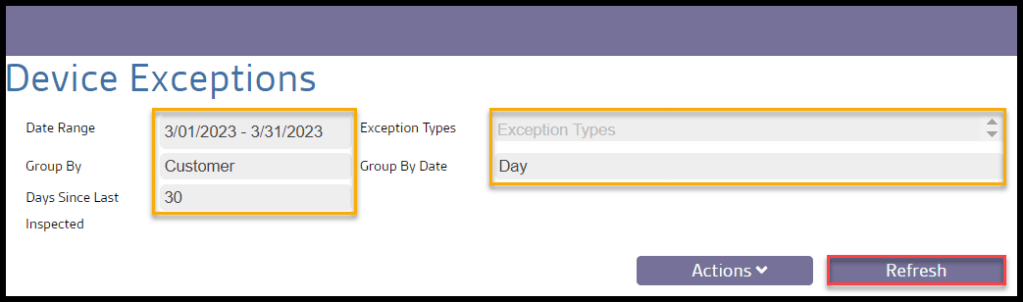
To filter the Device Exception Report, toggle these filters.
- Date Range: Limit results between specific dates in the report.
- Exception Types: Limit the types of exceptions, such as not scanned, replaced, removed, or skipped.
- Days Since Last Inspected: The number of days since the last inspection.
- Group By: Groups the report by attributes, such as customer, structure, and device.
- Group By Date: Groups the report by attributes, such as day, month, year.
Select Refresh to reset the report with the chosen filters.
Viewing the Device Exception Report’s Data Columns
The Device Exception Report can display several data columns.
- Customer: Displays the name of the customer.
- # Inspected: Shows the number of devices inspected for the customer.
- # Scanned: Displays the number of devices scanned for the customer.
- % Scanned: Shows the percentages of devices scanned for the customer.
- # Not Scanned: Shows the number of devices that were not scanned for the customer
- # Skipped: Shows the number of devices that were marked as skipped for the customer
- # Replaced: Displays the number of devices that were marked as replaced for the customer.
- # Removed: Shows the number of devices that were marked as removed for the customer.
- Activity: View any activity reported for the devices.

Exporting a Device Exception Report
To export a Device Exception Report, select the actions button.
- Export to PDF: Download the report as a PDF file.
- Export to Excel: Download the report as an Excel file.
- Email to Customer: Email the report to customers.

The Exceptions Report in the Customer Card
The Exceptions Report in the Customer Card shows Device Exceptions for that particular customer of that customer card. For more information, please see The Customer Card: Equipment Tab (Exceptions Report) guide.
 Moxie Pest Control Office Guide