
Default Settings
Summary
The mobile applications used by FieldRoutes technicians and sales reps to manage their daily assignments in the field have a number of settings that may be customized with pre-set default values to save time and effort and require certain information. These are used to complete new sales or complete a service appointment using our mobile apps, including PestRoutes Sales, PestRoutes Tech, and the FieldRoutes Mobile app.
Important Points:
- Default Settings > Sales will set the default settings for any sales-related activity on either PestRoutes Sales or the FieldRoutes Mobile app.
- Default Settings > Service will set the default settings for any service-related activity on either PestRoutes Tech or the FieldRoutes Mobile app.
Open the Mobile Default Settings Preference
To open the Default Settings preference, navigate to:
Admin > Preferences > Mobile > Default Settings
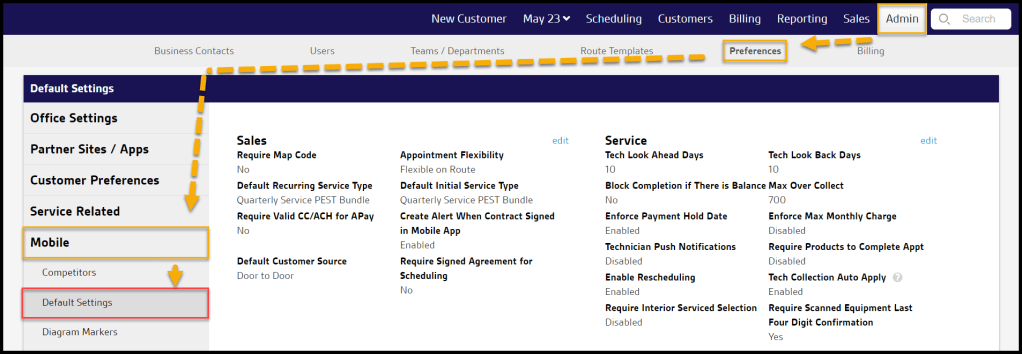
Default Settings for SALES
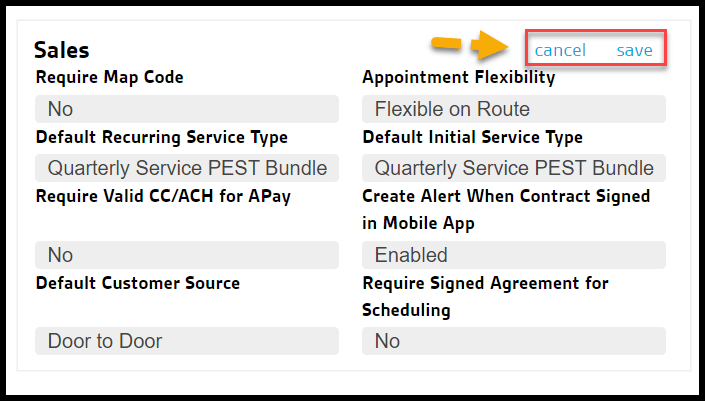
The following settings determine the default sales-related settings in both PestRoutes Sales and the FieldRoutes Mobile app. Select the Edit button to make changes:
- Require Map Code: When set to Yes, the sales rep must input map codes for customer addresses when their office utilizes this feature.
- Appointment Flexibility: Allows a default for appointment scheduling from the options below. See the article Flexible on Route versus Fixed to Spot for details of this feature.
- Flexible on Route
- Fixed to Spot (only initial Service Type)
- Fixed to Spot (all Mobile Sales scheduling)
- Default Recurring Service Type: Designate a default from the office’s list of Service Types that will be pre-selected for new customers for recurring service subscriptions scheduled via the sales apps
- Default Initial Service Type:Designate a default from the office’s list of Service Types that will be pre-selected for new customers for their initial service scheduled via the sales apps
- Require Valid CC/ACH for APay: If turned to Yes the mobile sales app will require a valid payment source (payment card or ACH bank account) on file on the Customer Card if they choose to use the AutoPay option
- Create Alert When Contract Signed in Mobile App: If Enabled generates a system Alert when a new service contract is signed by the customer in the mobile sales app
- Default Customer Source: Select a default Customer Source from the drop-down menu that will be pre-selected when adding new customers in the mobile sales app. This list can be customized using the Customer Sources preference.
- Require Signed Agreement for Scheduling: When set to Yes the customer must sign their new Service Agreement before the sales rep is allowed to schedule their service appointment
- Recurring Payment Method: This controls when users are allowed to change the Recurring Payment Method field on the Customer Card subscription
- Always editable: The default setting allows the user to update the Recurring Payment Method selection on the Customer Card at any time
- No changes after completed appointment: This option prevents users from changing the Recurring Payment Method value after an appointment on the subscription has been completed

Once the settings are complete, select the Save button to update them, or the Cancel button to restore the previous settings.
Default Settings for SERVICE
The following settings determine the default service-related settings in both PestRoutes Tech and the FieldRoutes Mobile app. Select the Edit button to make changes:
- Tech Look Ahead Days: To aid in app performance, the number of days of route information available to the mobile user is limited. Use this setting to customize the number of days PAST the current date the mobile user is allowed to see route information.
- Tech Look Back Days: Use this setting to customize the number of days PRIOR to the current date the mobile user is allowed to see route information.
- Block Completion if There is Balance: Used to prevent mobile users from completing appointments for customers who have existing balances on their accounts. Options are:
- No – (default) Appointments may still be completed with existing balances
- Yes – No appointment may be completed if the customer account has an existing balance
- Residential Only -No appointment may be completed for Residential customer accounts with existing balances
- Commercial Only -No appointment may be completed for Commercial customer accounts with existing balances
- Max Over Collect: Sets the transaction dollar amount limit that may be charged via the mobile app
- Enforce Payment Hold Date: When Enabled, prevents charges on payment cards with a Payment Hold Date listed on the Customer Card > Billing > Credit Card record
- Enforce Max Monthly Charge: When Enabled, prevents transaction charges that exceed the Max Monthly Charge amount listed on the Customer Card > Billing > Billing Info area
- Technician Push Notification: Enable or Disable notifications from the mobile apps
- Require Products to Complete Appt: When Enabled, the mobile user must add at least one chemical Product used in order to Complete the appointment
- Enable Rescheduling: When Enabled, allows the mobile user to Reschedule an appointment from the mobile app
- Tech Collection Auto Apply: When Enabled, cash and check payments will automatically apply to the customer account once the appointment is Completed
- NOTE: The mobile user must have the Transactions > Apply Payments access control enabled
- Require Interior Serviced Selection: When Enabled, the mobile user must select either Yes or No in the Interior Serviced? field for each appointment before completing
- Require Scanned Equipment Last Four Digit Confirmation: When set to Yes, requires the mobile user to manually confirm the last four digits of scanned barcode values
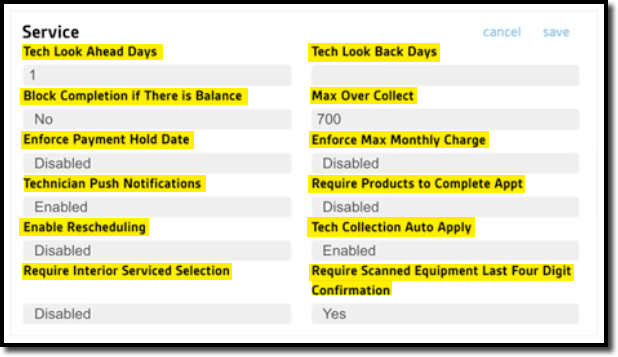
Once the settings are complete, select the Save button to update them, or the Cancel button to restore the previous settings.
 Moxie Pest Control Office Guide