
Customer Restore Report
Summary
The Customer Restore Report displays customers that are eligible for being restored. This report is useful if a customer was deleted by accident.
Important Points:
- Select the Restore button to restore the customer.
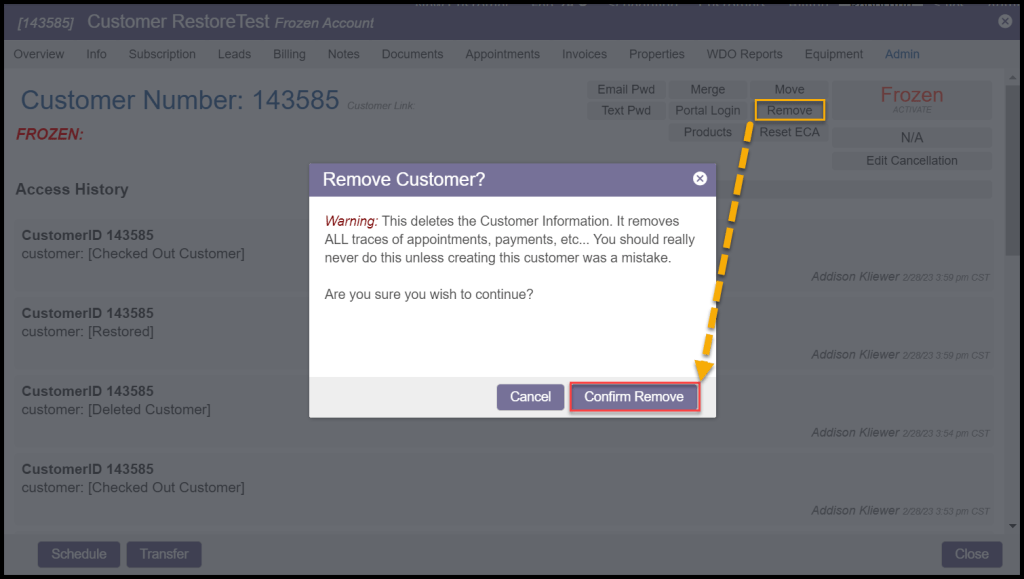
- Customers that have been removed via their Customer Card end up on the Customer Restore Report.
How does a Customer end up on this Report?
Customers that have been removed via their Customer Card end up on the Customer Restore Report
Accessing the Customer Restore Report
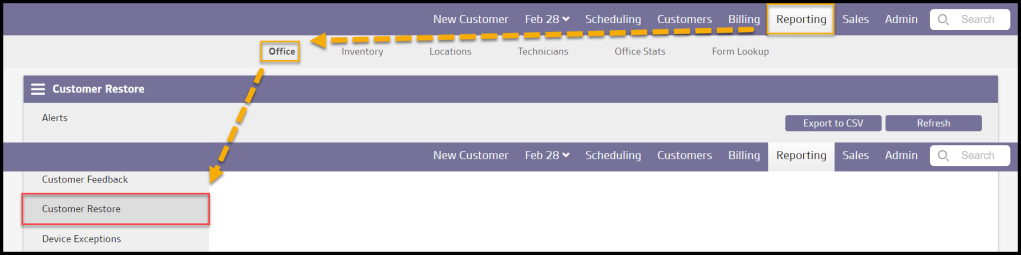
To access the Customer Restore Report, go to:
Reporting > Office Reporting > Customer Restore Report.
Viewing the Customer Restore Report’s Data Columns
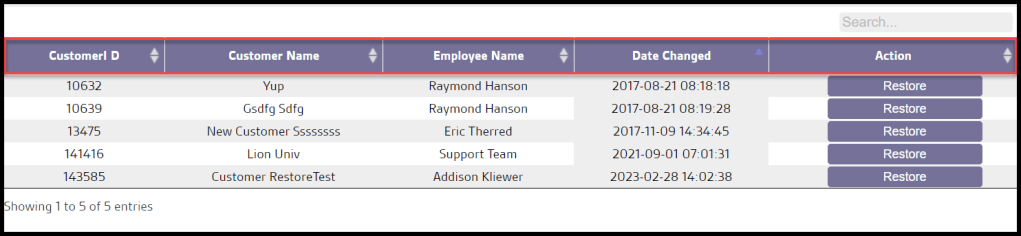
The Customer Restore Report can display several data columns.
- Customer ID: Show the unique identification number for the customer.
- Customer Name: Show the full name of the customer.
- Employee Name: Show the full name of the assigned employee.
- Date Changed: Show the date that the customer was changed.
- Action: Displays an action button that restores the customer, when selected.
How to Restore a Deleted Customer
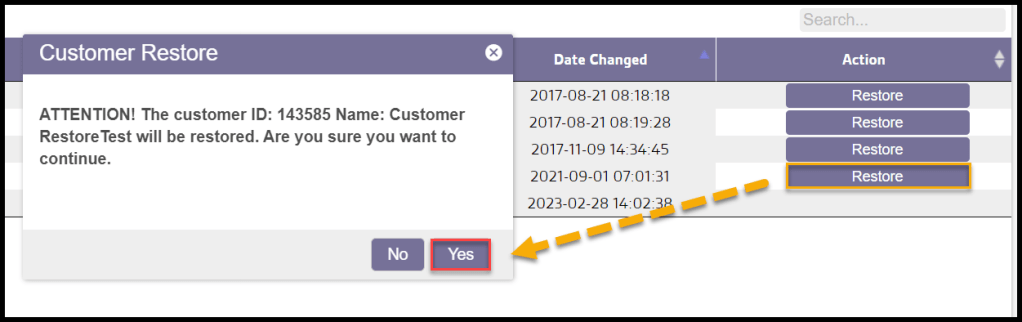
To restore a removed/deleted customer, select the Restore button next to the customer, then select yes to confirm the restoration.
Exporting a Customer Restore Report
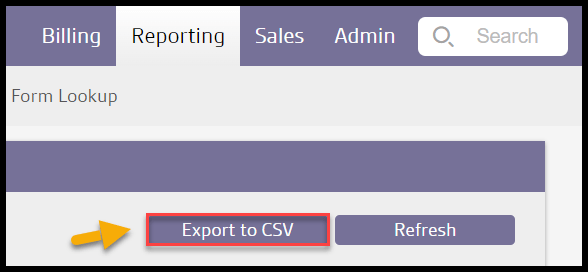
To export a Customer Restore Report as a CSV File, select Export to CSV.
 Moxie Pest Control Office Guide