
Customer Feedback
Summary
The Customer Feedback Report shows all of the feedback left on the Customer Portal after the customer has been serviced. It can run the report based on date range and be filtered by the number of stars the customer rated their service. This report showcases the feedback customers leave after they’ve been serviced. It can be searched using a date range and utilizing the search bar to find specific information.
Important Points:
- Seeing Customer Feedback in one location.
- Ability to filter feedback by date and the number of stars.
- Ability to get directly to customer card from report.
- Organize Customer Feedback by favorite choices, such as actionable feedback.
Accessing the Customer Feedback Report
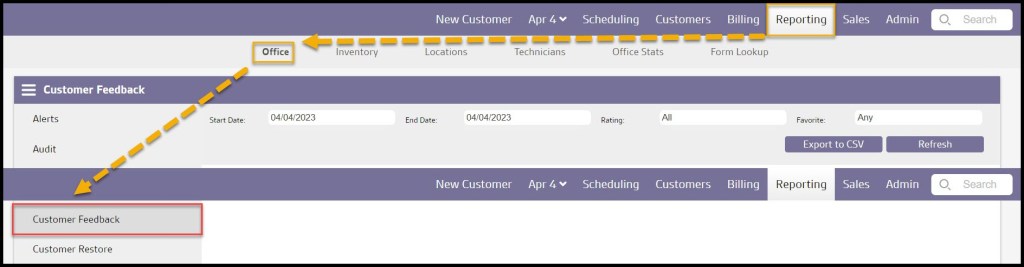
To access the Customer Feedback report, go to:
Reporting > Office > Customer Feedback.
Using Customer Feedback Report Filters
There are three filters:
- Start and End Date: Limits results between a specific starting and ending date.
- Rating: Limit results to the feedback of a specific star rating.
- Favorite: Shows if the customer feedback was marked as favorited or not using the report’s buttons.
- Any: Show all results regardless of the selection in the favorite data column.
- Yes: Show only results toggled as Unfavorite.
- No: Show only results toggled as Mark Favorite.
Select Refresh when finished with the filters to load any changes.

Searching the Customer Feedback Report
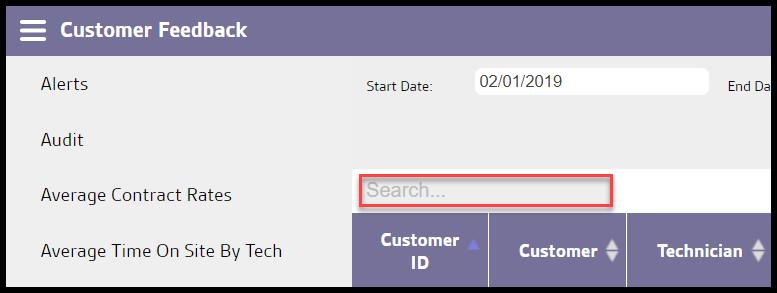
Search the report by using the Search bar.
Viewing the Customer Feedback Report’s Data Columns
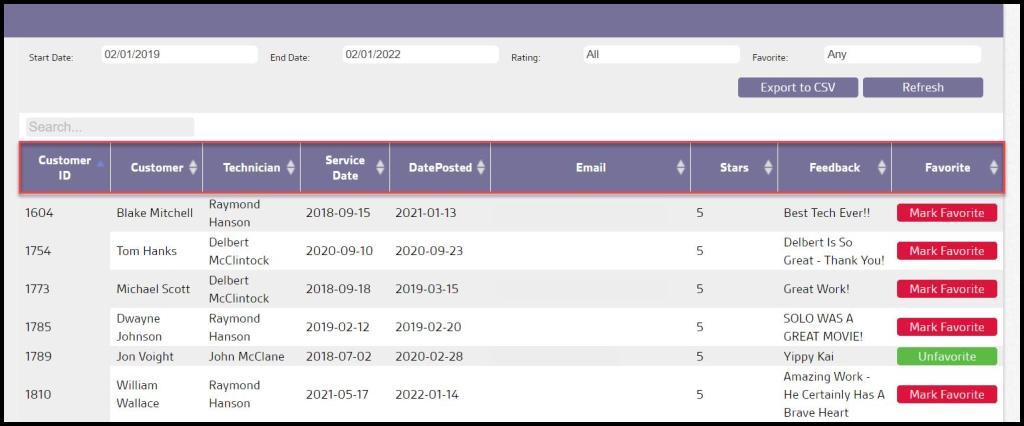
View these options here:
- Customer ID: View the unique identification number of the customer that rated the service.
- Customer: View the name of the customer that rated the service.
- Technician: View the name of the technician for the service.
- Service Date: View the date the customer’s service was completed.
- Date Posted: View the date the feedback was posted.
- Email: View the customer’s email address.
- Star rating: View the rating the customer gave the service technician.
- Feedback: View any feedback from the customer.
- Favorite: Toggle if feedback was favorited or not.
Use the up and down arrows to order the report.
Using the Favorite Data Column’s buttons
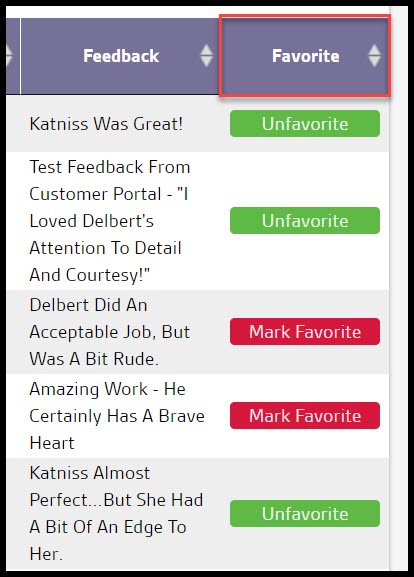
The Favorite Data Column has two options.
- Mark Favorite: Mark the feedback to be recorded as a Favorite.
- Unfavorite: Keep the feedback as a regular option. It will no longer show up as a Favorite feeback.
These options allow a user to identify highly informative feedback or customers that might serve as a customer reference
Exporting the Customer Feedback Report
Export the Customer Feedback Report as a CSV file by selecting Export to CSV.
 Moxie Pest Control Office Guide