
Customer Emails with Salutations
Summary
Certain emails that get sent to customers via our software will contain a salutation, whereas others do not. This is a list of all the customer email options with and without salutations.
Important Points:
- If an email includes a salutation already, avoid adding one to the customer communication preferences so there are not two salutations in the customer’s email.
Completed Service Follow Up Email (No Automatic Salutations)
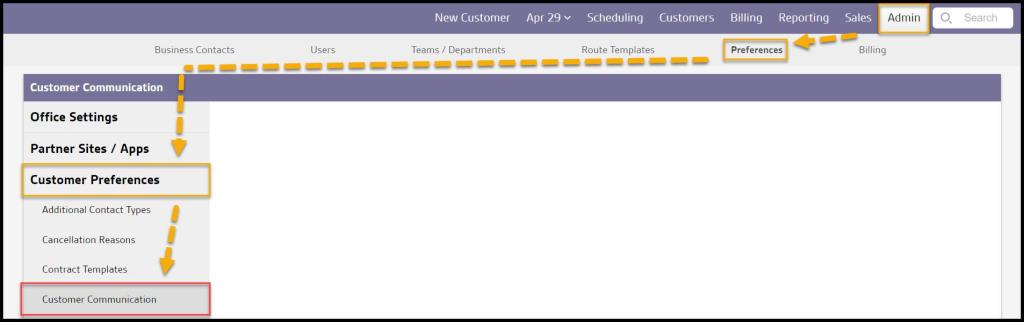
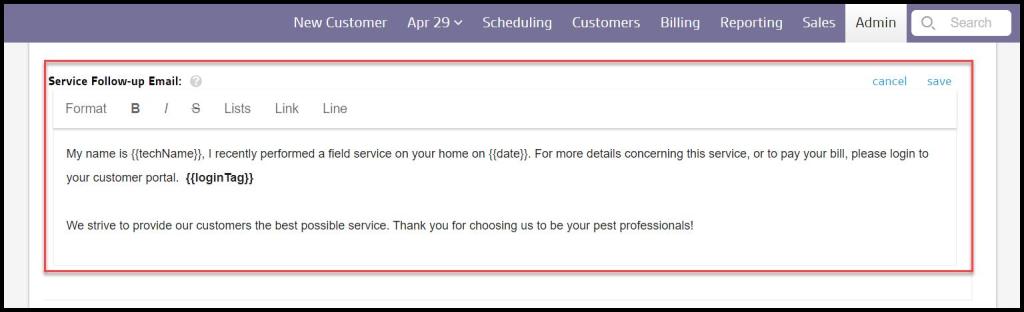
The completed service follow-up email does not automatically have a salutation. Go to
Admin > Preferences > Customer Preferences > Customer Communication, and enter the salutation in the Service Follow-Up Email field.
Send Email via Notes Tab (No Automatic Salutations)
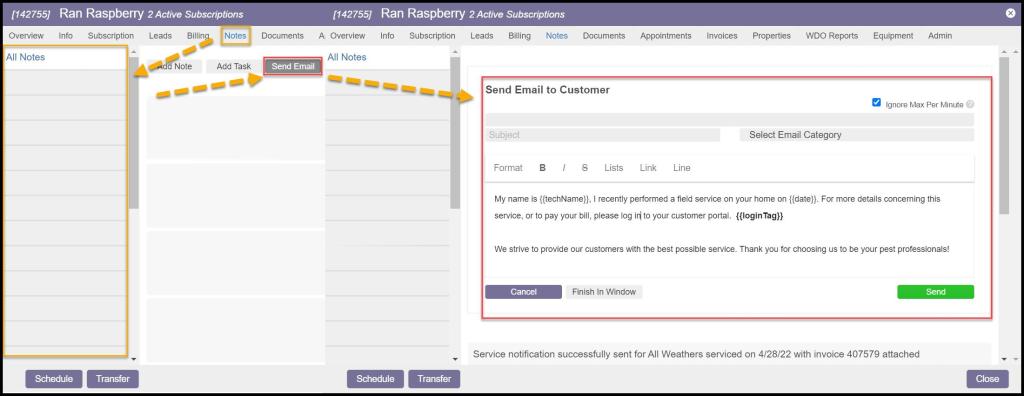
In the customer card, under the Notes tab, when the user selects Send Email, that email does not automatically include a salutation. Include the salutation when the note is created.
Balance on Account Email (Automatic Salutations)
The account balance email sent to customers does use the customer’s first name as the salutation. It can be reached by opening the customer card, going to the Invoices tab, and selecting Email next to Account Summary does use the customer’s first name as the salutation.
Balance on Account Email (Automatic Salutations)
The account balance email sent to customers does use the customer’s first name as the salutation. It can be reached by opening the customer card, going to the Invoices tab, and selecting Email next to Account Summary does use the customer’s first name as the salutation.
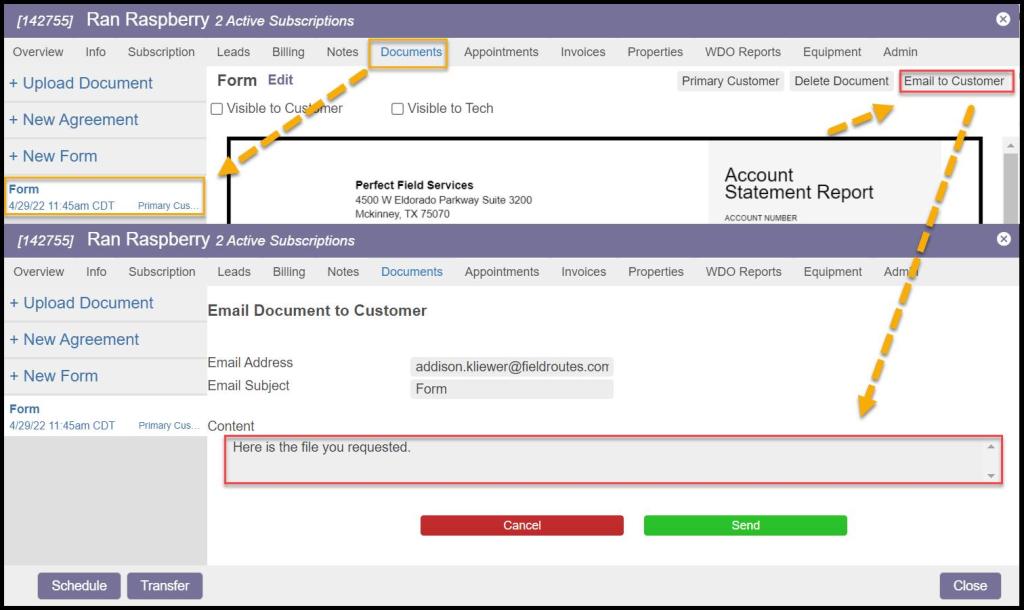
Agreement Sent via Email (Automatic Salutations)
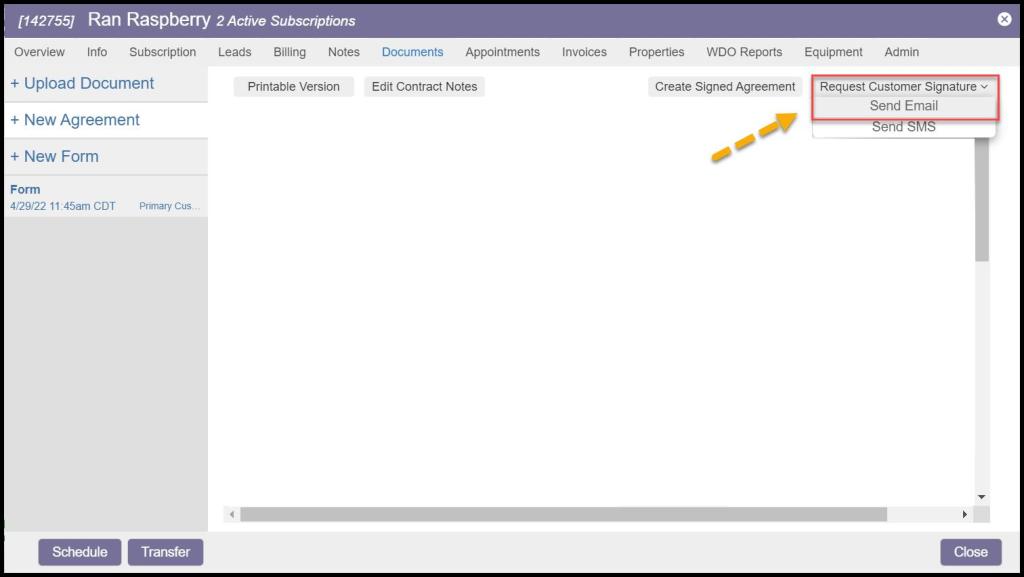
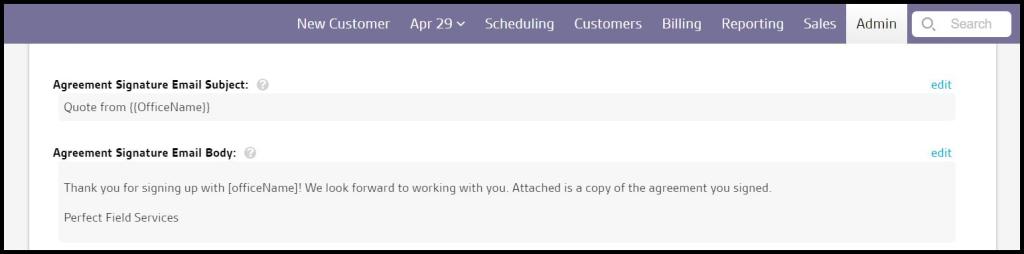
When an unsigned agreement is sent to a customer via email, it does automatically include a salutation. Go to Admin > Preferences > Customer Communication under the Agreement Signature Email Body to edit the paragraph that displays below the salutation.
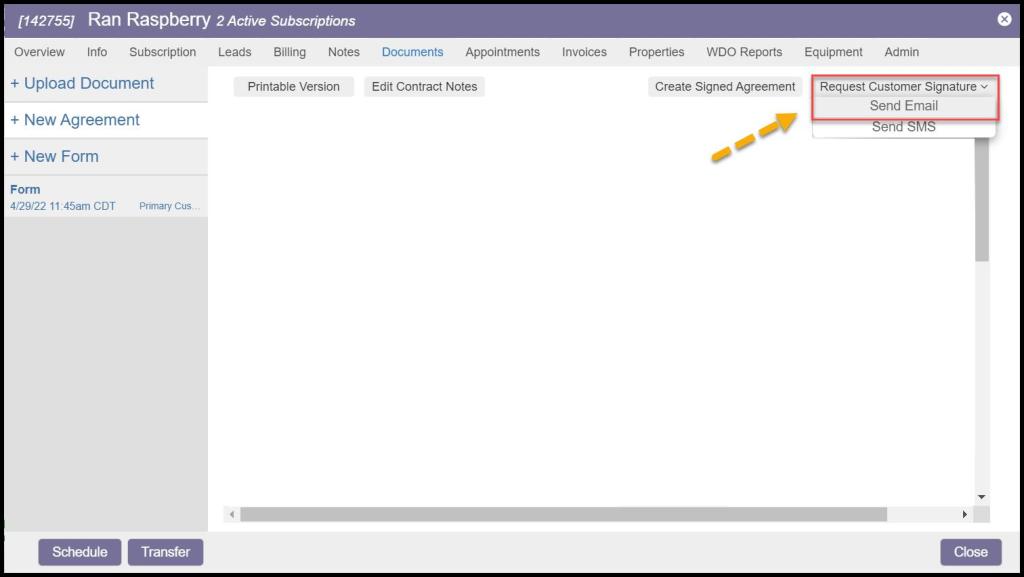
Go to
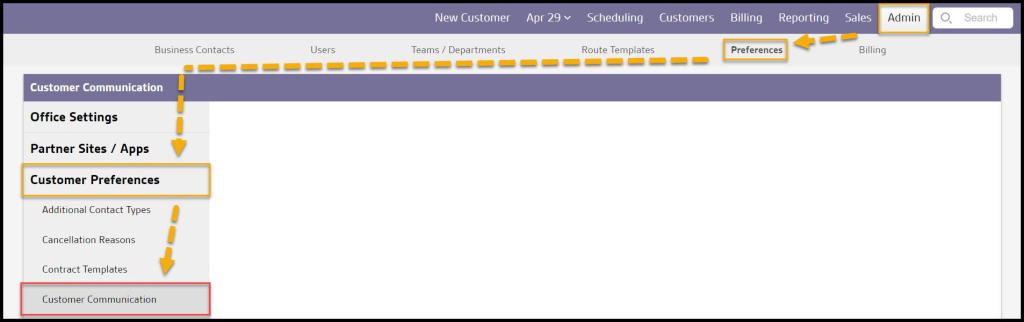
Admin > Preferences > Customer Preferences > Customer Communication > the Agreement Signature Email Body to edit the paragraph that displays below the salutation.
Agreement Welcome Letter (Automatic Salutations)
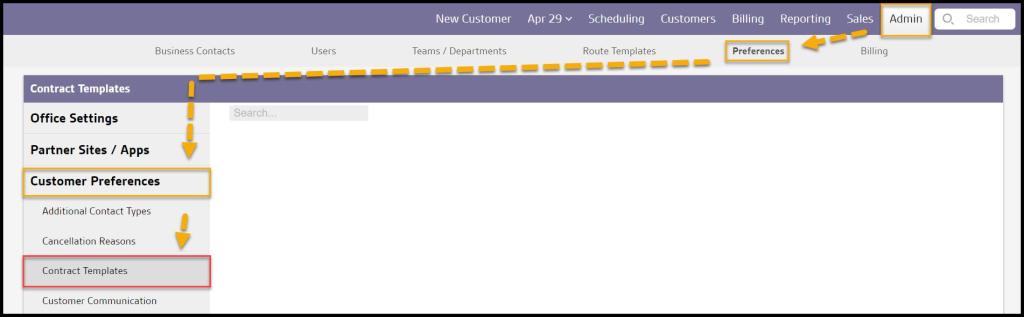
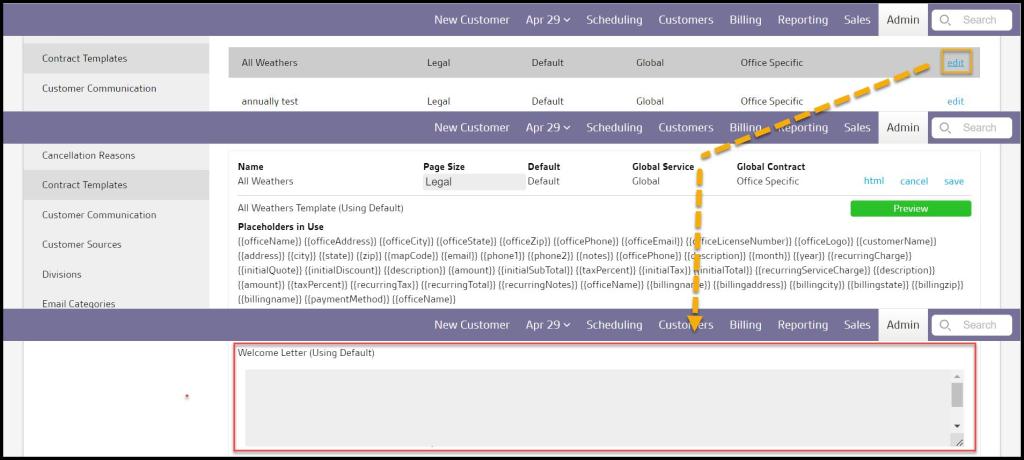
After a customer signs an agreement, they will receive a copy of that agreement along with the Welcome Letter. The Welcome Letter includes the salutation. The Welcome Letter can be edited under:
Admin > Preferences > Customer Preferences > Contract Templates > Open a contract template > Welcome Letter.
Customers Report Email (Automatic Salutations)
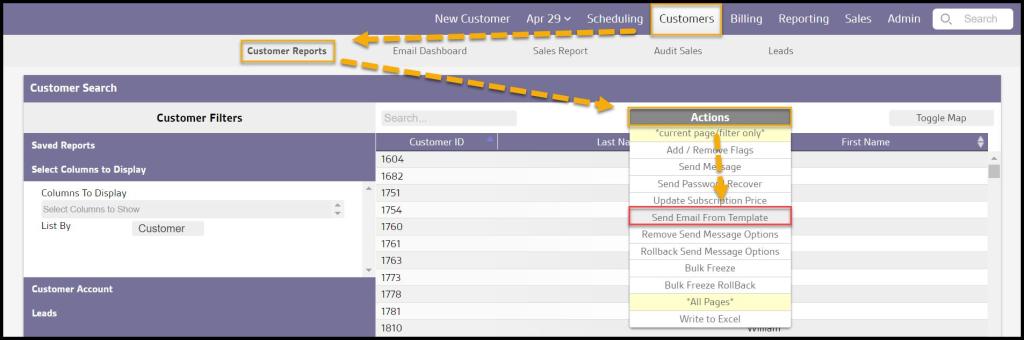
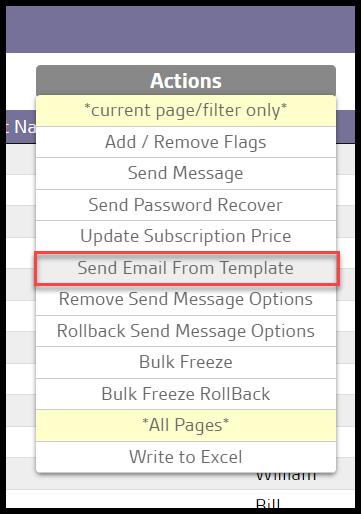
When the user sends an email via the Customers tab, it will automatically include a salutation. Do not include this in the body of the email.
 Moxie Pest Control Office Guide