
Customer Communication
Summary
The Customer Communication preferences allow the user to configure the settings for many different types of communications that can be sent out to customers via the desktop application.
These settings have several important features. The user can control customer access in the Customer Portal, the accounts receivable hold time, and create templates for all SMS, email, and voice appointment reminders the user can send to customers via our software.
The user’s preferences will be set as their customers’ default preferences. This makes it easy for the user to set one default template for all their customers.
Important Points:
- As of August 31,2023 all companies must have registered their FieldRoutes business profile with our messaging partner Twilio in order to send SMS (text) messages. More information about Twilio can be found later in this article.
- The SMS appointment reminder template has a 1600-character limit, including dynamic placeholders. See FAQ for pricing details.
- The default Invoice Footer Text note is the National Pest Emergency Poison Control phone number because some state laws require it to be there. Consult state laws before removing them.
- The dynamic placeholders will only work within the Customer Communications preference, and the user can only use the placeholders specific to the communications they fall under.
- If the user does not upload a voice appointment reminder, a robot voice will speak in the voice reminders by default.
Accessing the Customer Communications in Preferences
To access the Customer Communications preferences, go to:
Admin > Preferences > Customer Preferences > Customer Communications.
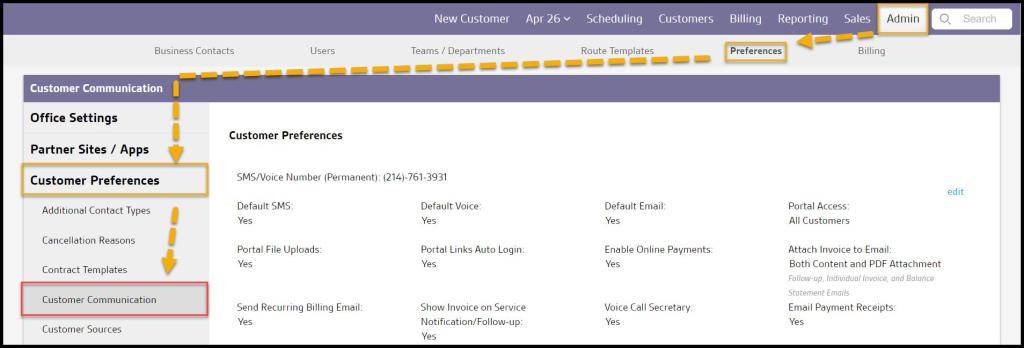
Editing Customer Preferences
The Customer Preferences section allows users to configure communication settings that will apply to all customers, such as SMS and voice message time windows, enabling online payments and recurring billing emails.
- Default SMS: Set the default SMS appointment reminder to be on or off for all customers. This preference does not retroactively turn the appointment reminder on or off for all of the user’s customers but will set the default preference for new customers.
- Default Voice: Set the default voice appointment reminder on or off for all customers. This preference does not retroactively turn the appointment reminder on or off for all customers but will set the default preference for new customers.
- Default Email: Set the default email appointment reminder on or off for all customers. This preference does not retroactively turn the appointment reminder on or off for all customers but will set the default preference for new customers.
- Portal Access: This determines which customer status can log into the customer portal. The “ActiveCustomers” option only allows active customers to log into the customer portal, “AllCustomer” allows both frozen and active customers to have access to the portal, and “Disabled” does not grant any customers access to the customer portal.
- Portal File Upload: This determines if a customer can upload files through the Customer Portal. Customers cannot upload files when this is turned off.
- Portal Links Auto Login: Determine if any links to the customer portal will automatically log the customer into the portal, or prompt them to log into the portal with their ID and password.
- Enable Online Payments: Allows customers to make online payments via the Customer Portal.
- Attach Invoice to Email: When customers receive the completed service notification, they can receive a PDF invoice for the service attached to the email. “OnlyContent” means the customer will only receive the completed service notification, and “both content and PDF attachment” will include a PDF invoice.
- Send Recurring Billing Email: Choose to automatically email invoices when the web application generates invoices for recurring billing customers. Many recurring billing customers are on AutoPay, but for those who are not, this small reminder that they have a balance will help the user’s accounts receivable.
- Show Invoice on Service Notification: Determines whether the invoice detail is included at the bottom of each Service Notification.
- Voice Call Secretary: If set to Yes, the following will play at the end of all voice messages and reminders, “If you have any questions or need to speak to our secretary, press three.” When the called party presses 3, they are transferred to the office phone number listed under Admin -> Preferences -> Office Info. When set to “HiddenMenu Option,” the called party will still be transferred upon pressing 3, but will not hear the prompt at the end of voice messages and reminders. If set to “No,” pressing 3 will do nothing.
- Email Payment Receipts: Determine whether a receipt is emailed to the customer when a payment is made.
- SMS Reply Auto Response: Toggle whether customers will receive automatic responses to their SMS replies and also the ability to edit 2 templates (the response when the customer replies “Yes” and the response when the customer replies with some other message).
- Include Appointment Notes on Service Notification: Determines whether appointment notes will be displayed on each Service Notification.
- Service Followup Email: Specify how and when Service Notification emails are sent
- Upon Approval: Turns on the Service Notification Approval report and requires manual review, approval, and distribution of Service Notifications by an Approver with the Reports > Service Notification Approval access control activated on the User Card.
- Don’t Send Automatically: Requires a manual step to email or snail-mail the Service Notification to the customer following service completion.
- Upon Service Completion: Auto-sends the Service Notification to the customer immediately upon Appointment Completion
- 30 Minutes After Completion: Auto-sends the Service Notification to the customer thirty minutes after Appointment Completion
- 1 Hour After Completion: Auto-sends the Service Notification to the customer one hour after Appointment Completion
- Voice Reminder Confirmation: At the end of a voice reminder, the customer can be given the option to press 1 to confirm their appointment.
- Show Service Notification on Follow-Up: Default = Yes, a PDF copy of the Service Notification is included as an attachment on the Follow-Up Email. Change value = No to exclude this attachment.
- VOIP Service:Shows whether or not the customer is using digital voice over internet protocol for voice calls.
- N/A (default) – customer is not using VOIP service
- Voice for Pest: customer is using this VOIP service
- VOIP Host URL: If customer is using VOIP, the specific URL for their account should be placed here.
- Send Bad Payment Method Notification:If a payment card or ACH payment method on file has expired or become invalid for other reasons and an attempted payment failed, automated communications may be sent to the customer to request an updated payment method via email, SMS message, or both:
- Yes (SMS & Email)
- Yes (SMS Only)
- Yes (Email Only)
- No
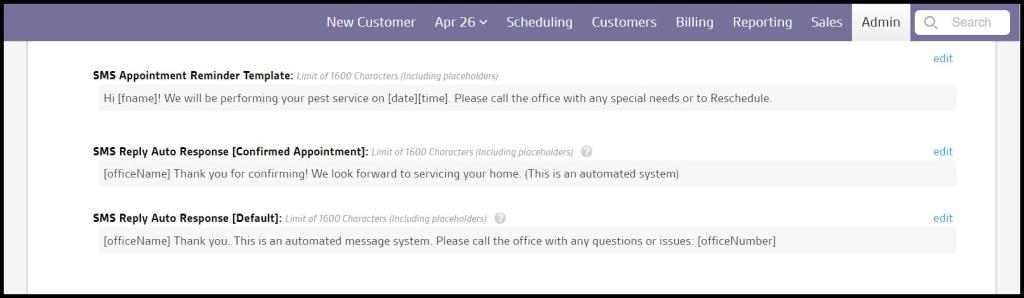
- FieldRoutes Payment Language: Default language that appears on service agreements and payments to protect the C1 customer in payment disputes with C2 customers. This default language may be edited if desired.
To make changes to these preferences, select Edit and Save to save the changes.
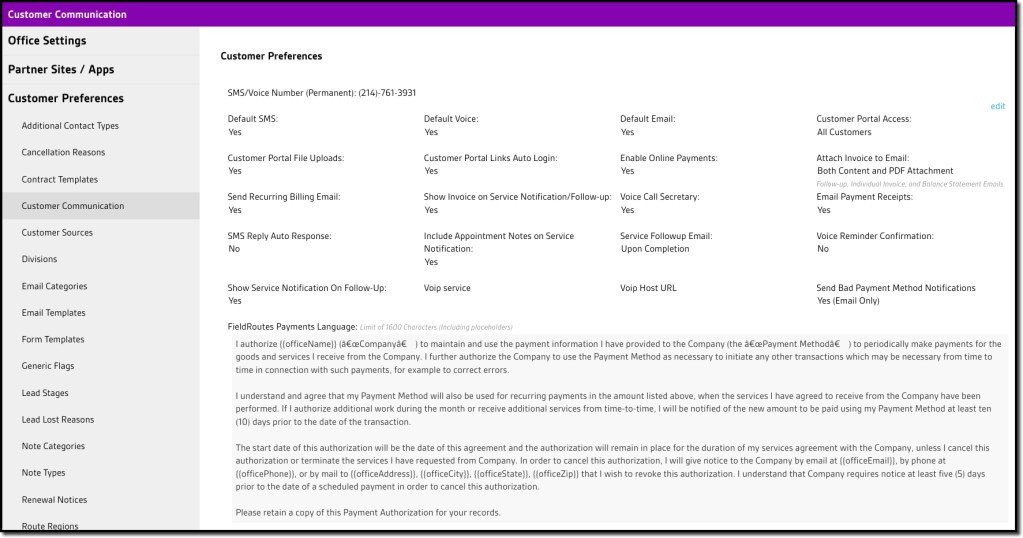
Editing Delivery Settings (SMS, Voice and Email)
These windows allow the user to set a specific time window for communications of a specific type. This prevents customers from getting SMS, Voice, or Email messages at the wrong time.
- SMS Window: Set a specific time window for the web application to send SMS communications to customers.
- Voice Window: Set a specific time window that the web application will allow the voice communications to be sent to customers.
- Email Window: Set a specific time window that the web application will allow email communications to be sent to customers.
- Max SMS Per Minute: This will limit the number of SMS messages to be sent per minute to help the front office delay the number of replies during a busy time. 20 is the maximum per minute.
- Max Voice Per Minute: This will limit the number of Voice messages sent per minute to help the front office delay the number of replies during a busy time. 20 is the maximum per minute.
- Max Email Per Minute: This will limit the number of SMS messages sent per minute to help the front office delay the number of replies during a busy time.
- Blocked Days for Sending Text Triggers: Trigger rules will not send messages on the days selected to be blocked.
- Blocked Days for Sending Phone Triggers: Trigger rules will not send out voice messages on the days selected to be blocked.
Account Statement Tear Sheet and Accounts Receivable Hold Time
The Enhanced Answering Machine Detection will allow the user to leave voice messages more effectively. When the user leaves a voice mail, it will wait until it detects the “Beep” after the answering machine greeting to start playing the user’s recording. Each voice message will cost an additional $.01 with this feature turned on.
The Account Statement Tear Sheet preference includes a tear sheet with an invoice summary in both printed and Snail Mail account statements. Snail Mail statements will also include a return envelope, and an additional charge of $0.20 per statement applies.
If the user sends a statement to a customer in the Accounts Receivable report, the green action button will turn red for 15 days by default. The Accounts Receivable Hold Time preference prevents the software from sending another communication to that customer for the specific time set here.
- Residential Customers: The accounts receivable hold time for residential customers.
- Commercial Customers: The accounts receivable hold time for commercial customers.
To determine if a customer is residential or commercial, open the customer card and look under the Info tab.
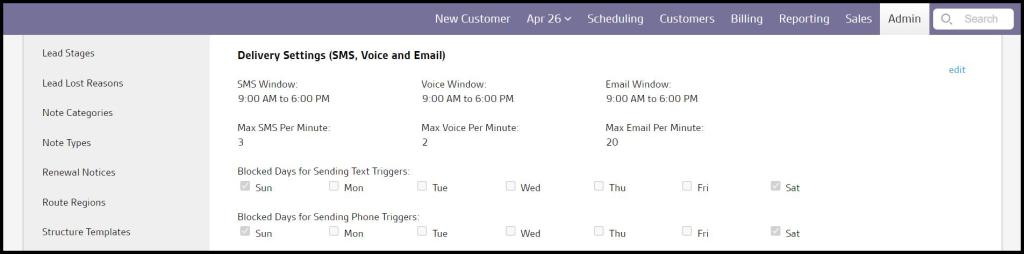
SMS Appointment Reminder Template
The SMS Appointment Reminder Template allows the user to configure exactly what the SMS customers receive as an appointment reminder. Use the SMS Placeholder Key at the bottom of the page to input dynamic placeholders within the SMS Appointment Reminder. This field has a 1600-character limit, including dynamic placeholders. For example, if the user includes the placeholder for the customer name and the customer’s name is long, the SMS Appointment Reminder could be cut off if it exceeds 1600 characters total.
The SMS Reply Auto Response [Confirmed Appointment] will send this automated SMS response when replying YES to an SMS Appointment Reminder. If left blank, this field will be replaced with a default message. The user can also use placeholders here; the character limit is 1600 Characters.
The SMS Reply Auto Response [Default] is what the customer receives when a reply to an SMS is sent to the office with anything other than YES, SUBSCRIBE, STOP, QUIT, or HELP. If left blank, the field will be replaced with a default message. The user can use placeholders here also, and the character limit is 160 Characters.
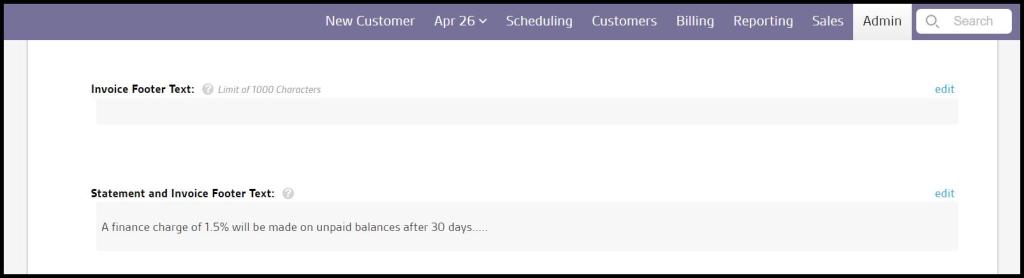
Invoice and Statement Footer Text
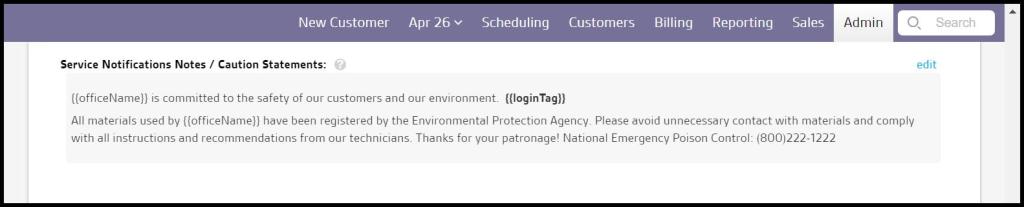
The default Invoice Footer Text note is the National Pest Emergency Poison Control phone number because some state laws require it to be there. Consult state laws before removing them.
The Invoice and Statement Footer Text fields allow users to apply a default note to the invoices and account statements sent to customers.
Email Appointment Reminder Template
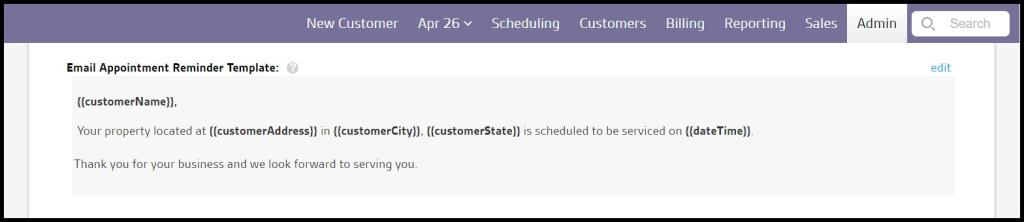
The Email Appointment Reminder Template allows the user to configure what the email says when a customer receives an email appointment reminder.
Use the Email Reminder Placeholder Key at the bottom of the page to input dynamic placeholders within the email appointment reminder.
Electronic Consent Agreement
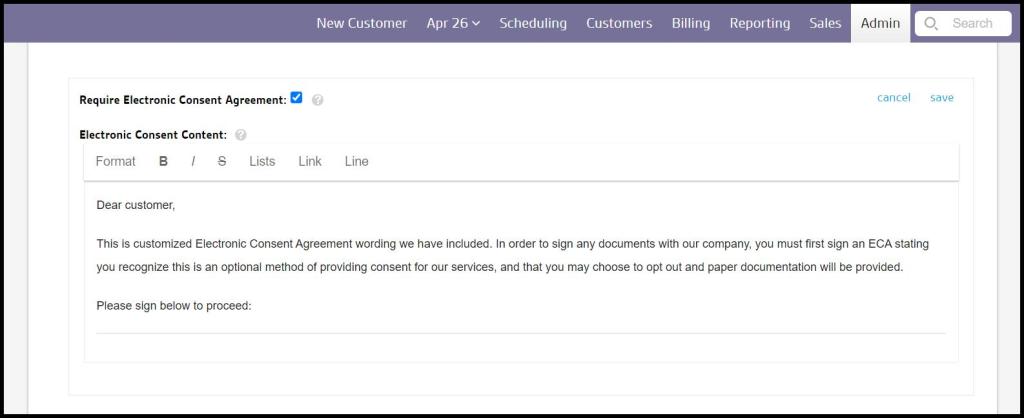
Some regulations require an Electronic Consent Agreement (“ECA”) to be acknowledged before electronically signing other service agreements or contracts. The user can create and send Electronic Consent Agreements to their customers.
When Require Electronic Consent Agreement is enabled, and a new agreement is sent to a customer, they will be required to acknowledge the ECA before viewing or accepting the new agreement or contract. This applies to all new agreements sent to the customer when this feature is enabled.
The verbiage input in the text field under Electronic Consent Content will display for the customer to acknowledge.
Agreement Signature Email Subject and Body
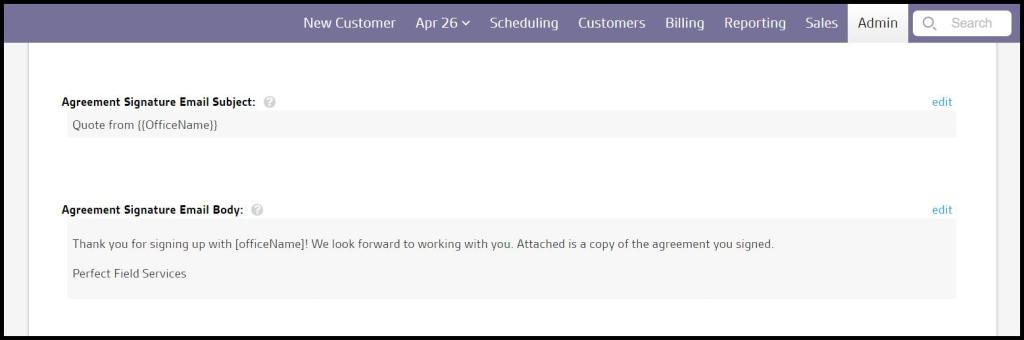
When a customer signs an agreement, they will be emailed a copy of the signed agreement. The Agreement Signature Email Subject and Body will allow the user to customize the subject and body of that email.
Allow Contracts via SMS Texts
In addition to emails, SMS text messages may also be enabled to send a Customer Portal link inviting customers who receive SMS communication to provide an electronic signature authorization on contracts. When set to Yes, this preference provides the option on the Customer Card > Documents > Request Customer Signature action; the Send SMS option will appear in the drop-down menu.
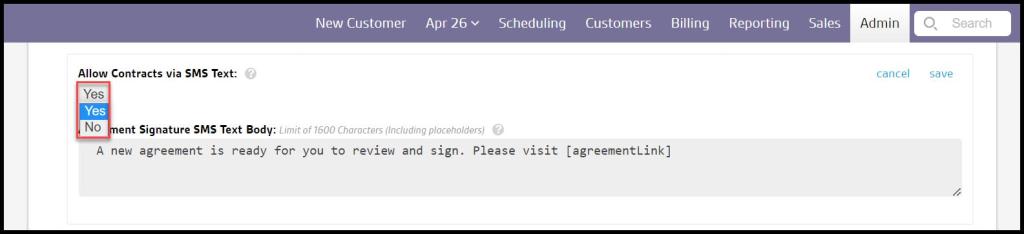
SMS placeholders have a special link for use in this SMS Contract Signature message:
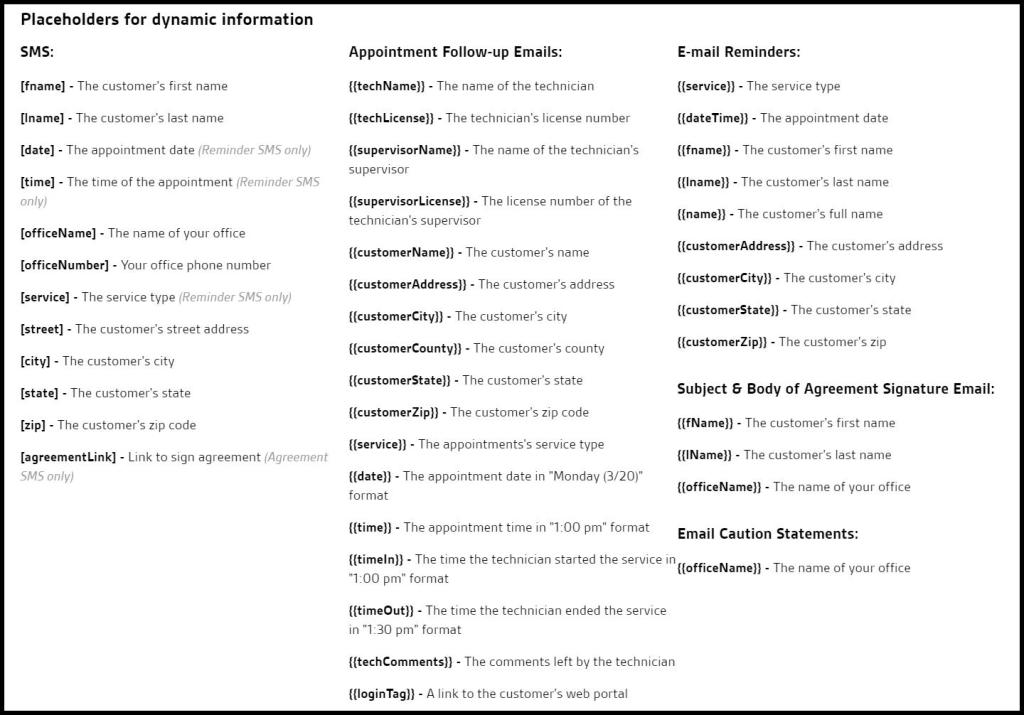
[agreementLink]
This will take the customer who selects it in their SMS message to their Customer Portal, where they will have the option to sign it electronically. The Electronic Consent Agreement (ECA) will apply to this process upon the initial electronic signature agreement incident.

Service Follow-Up Email
When a scheduled service is completed for a customer, they receive a completed Service Follow-up Email. This field allows the user to customize what’s in the body of that email.

Service Notifications Notes / Caution Statements
Anything in the Service Notification Notes / Caution Statement field will display at the bottom of the completed service notification customers receive when a service is completed.
Custom Reviews
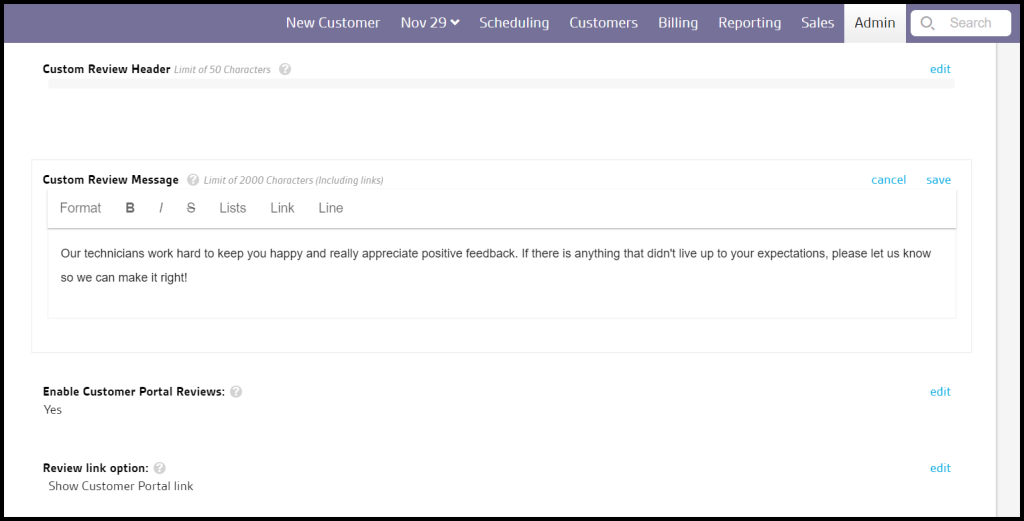
- Custom Review Header: Use this to customize the header that will appear in the “Let Us Know How We Did” section of the service followup-emails.
- Custom Review Message: Use this to customize the message that will appear in the “Let Us Know How We Did” section of the service followup-emails.
- Enable Customer Portal Reviews: Use this to determine whether customers can leave reviews on the Customer Portal.
- Review Link Option: The review link is in the “Let Us Know How We Did” section of the service followup-emails. The default link is to our review feature in the customer portal. The text will say, “Please click here to review your technician!”
- Hide Review Link: Hides the review link from the “Let Us Know How We Did” section of service followup-emails.
- Show Customer Portal link: Shows the link, and directs the customer to our review feature in the customer portal.
- Show custom link: Shows the link, and allows the user to direct customers to other review sites. The link’s text will still say Please review your tech here.
NOTE:
Disabling Enable Customer Portal Reviews preference will turn off all customer review-related fields in the Customer Portal. If you are a Marketing Suite customer who uses PestReviews integration, you will no longer be able to obtain new customer reviews to display on your website.
Custom Email Blurb
The Custom Email Blurb field allows the user to attach a custom message to all email communications.

Customer Portal Sign Agreement/Form Welcome Message
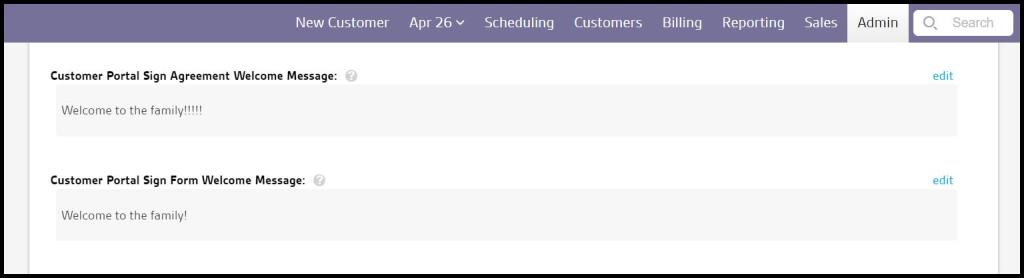
The Customer Portal Sign Agreement Welcome Message appears when a customer logs into the customer portal using the company’s PestPortals URL. The user can customize this field.
When customers are sent a form or document by email, they click on a link to take them to the form or document. The Customer Portal Sign Form Welcome Message appears at the top of that page.
Mobile Sales and Customer Portal
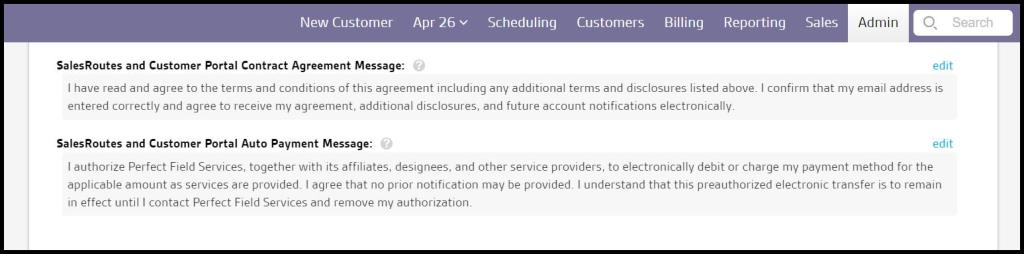
Mobile Sales and Customer Portal Contract Agreement Message. This appears at the bottom of the “Agree” tab on the Mobile Sales apps and the Customer Portal above the Terms & Conditions initial field when signing a contract. If left blank, this field will default to “I have Read and agree to the terms and conditions of this agreement, including any additional terms and disclosures listed above. I confirm that my email address is entered correctly and agree to receive my agreement, additional disclosures, and future account notifications electronically.”
Mobile Sales and Customer Portal Auto Payment Message: This appears at the bottom of the “Agree” tab on the Mobile Sales apps, and the Customer Portal above the auto pay authorization initial field when signing a contract. If left blank, this will default to “I authorize (CompanyName) to automatically apply each charge stipulated in this agreement to my credit/debit account listed above.”
Placeholders for Dynamic Information
Use the Placeholders for Dynamic Information Key at the bottom of the page to input dynamic placeholders within the user customer communications.
These dynamic placeholders will only work within the Customer Communications preference, and the user can only use the placeholders specific to the related communications. For example, all the SMS placeholders can only be used for SMS appointment reminders.
Follow-Up PDF Attachment
The user can attach a Follow-up PDF Attachment to the completed service notifications here.

Reminder Calls Voice Recordings
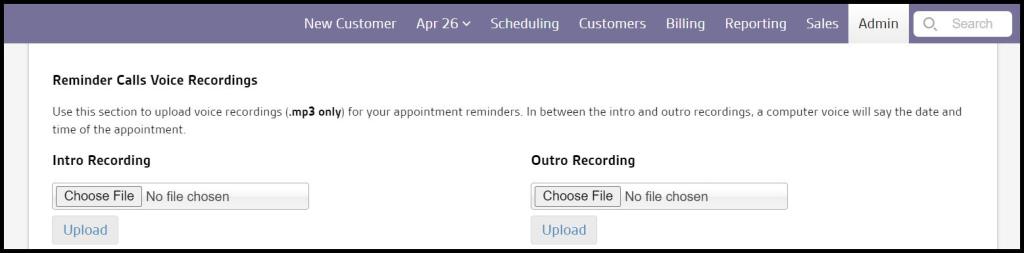
The Reminder Calls Voice Recordings allows the user to upload voice recordings (.mp3 only) for the user’s appointment reminders. If the user does not upload anything here, a robot voice will speak in the voice reminders by default.
If the user would like to upload a voice appointment reminder, the user will have to record an intro and outro. In between the intro and outro recordings, a computer voice will automatically say the date and time of the appointment.
Twilio – FieldRoutes Messaging Partner
As mentioned previously in the Important Points section, Twilio is a messaging partner of FieldRoutes that requires all companies to be registered with them in order to send SMS (text) messages. The following statement is from their website, which can be viewed by clicking here. If you are unable to send SMS messages after the cutoff date, please reach out to your Customer Support Representative for assistance.
Notice: Shutdown of Unregistered 10DLC Messaging
• Effective July 5, 2023, all 10DLC phone numbers used to send SMS and MMS messages to U.S. phone numbers must be fully registered to an approved campaign under your brand. Messages sent using unregistered phone numbers will be subject to a gradual increase of message blocking by Twilio, beginning on July 5, 2023, ultimately leading to a full block of all unregistered U.S.-bound messages sent after August 31, 2023.
 Moxie Pest Control Office Guide