
Customer Access
Summary
The Customer Access Report is used to see any changes made to a customer’s card within a selected date range.
This report shows what kind of changes office users are making to customer accounts in the desktop application. The Admin tab in the customer card will also log these changes, but the Customer Access report makes it easy to view all changes made to multiple customers in one place.
Important Points:
- This report is limited to 20,000 logs at one time.
- Use the search bar to search for a specific keyword.
- Export this report by selecting “Export to CSV”.
Accessing the Customer Access
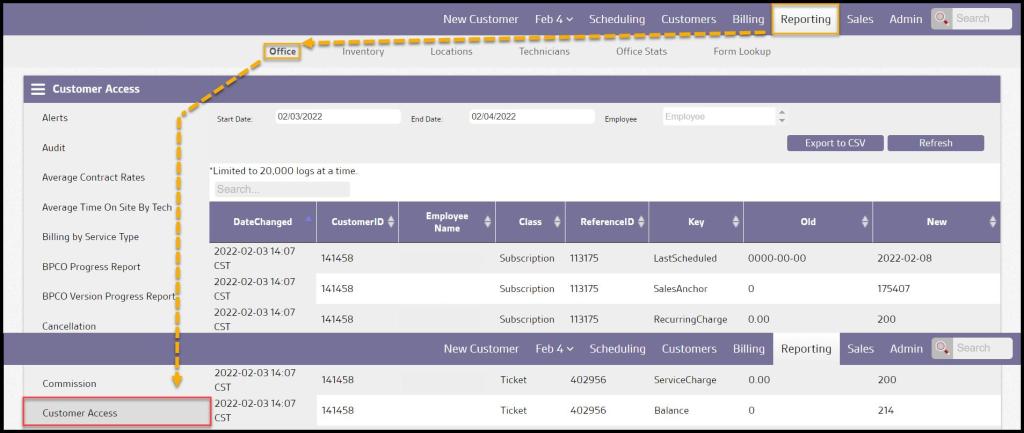
To access Customer Access, go to:
Reporting > Office Reporting > Customer Access.
Filtering the Customer Access Report
To filter the Customer Access Report, toggle these filters.
- Start and End Dates: Limit results between specific dates in the Customer Access Report.
- Note: Since this report logs all customer card activity, including who opened the card, this report can grow quickly over one day, especially in a larger office. It is recommended to search only one or two days at a time.
- Employees: Choose results from certain employees to be included in the Customer Access Report.
Select Refresh to run the Customer Access report.

Viewing the Customer Access’s Report Data Columns
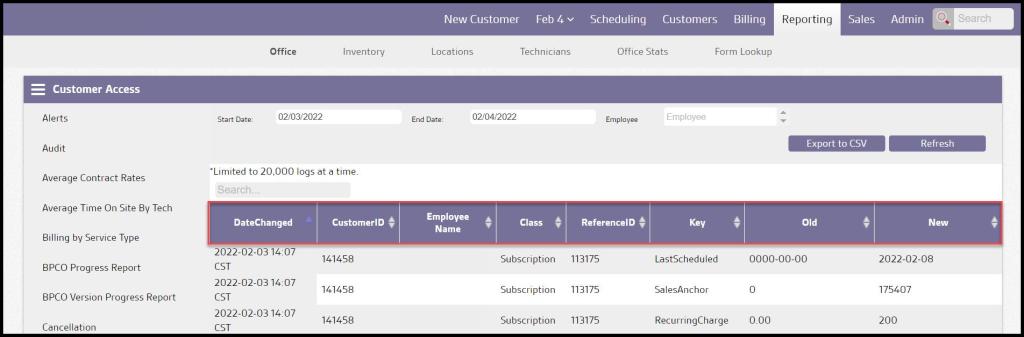
The Customer Access Report can display several data columns.
- Date Changed: Shows the date and time that an employee made changes to the customer card.
- Customer ID: View the customer’s unique identification number.
- Employee Name: See which user made the changes to the customer card.
- Class: Displays the type of information within the customer card that was changed, such as the customer, subscription, or appointment-related information.
- Reference ID: See the unique identification reference number of the changes that were made.
- Key: View the field in the customer card that the employee changed, such as the customer’s billing address, subscription frequency, agreement length, etc.
- Old: Displays the information that was in the customer card before the employee updated it.
- New: Shows new information in the customer card after the employee updated it.
Select Save when finishing editing Customer Access Report.
Exporting a Customer Access Report
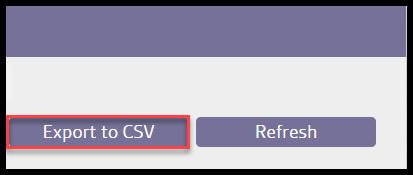
To export a Customer Access Report as a CSV File, select Export to CSV.
 Moxie Pest Control Office Guide