
Credits and Credit Memos
Summary
There are two ways to eliminate a customer’s balance in our software. The balance can be eliminated with either a coupon or a credit memo. This guide will explain the difference between the two and explain how to apply them to customer accounts.
Coupons are essentially a type of payment entitling the customer to a discount for a particular product. In our software, the user can apply coupon payments to outstanding invoices or as a credit on the account towards future services.
A credit memo will reduce the amount that the customer owes to the company. When the user applies a credit memo to an invoice in our software, it will create a negative invoice and reduce the revenue generated at that time.
The main difference between these two are coupons do not reduce the amount of invoice generated, whereas credit memos do. The user will want to use a coupon payment to a customer that received a discount on their service but use a credit memo to a customer that was billed for a service that never happened.
Important Points:
- Coupons are used for a discount towards customer invoices. Credit memos can be used for customers billed for services that never happened.
- Coupons do not reduce the revenue that an invoice generated, but credit memos do.
- If a coupon is applied that is greater than the balance a customer owes, it will generate a credit on the account towards future invoices.
- The sum of the credit memo cannot be greater than the total of the invoice. If the user has multiple invoices that need a credit memo, the credit memo will have to be applied to each one individually.
Adding a Coupon Payment
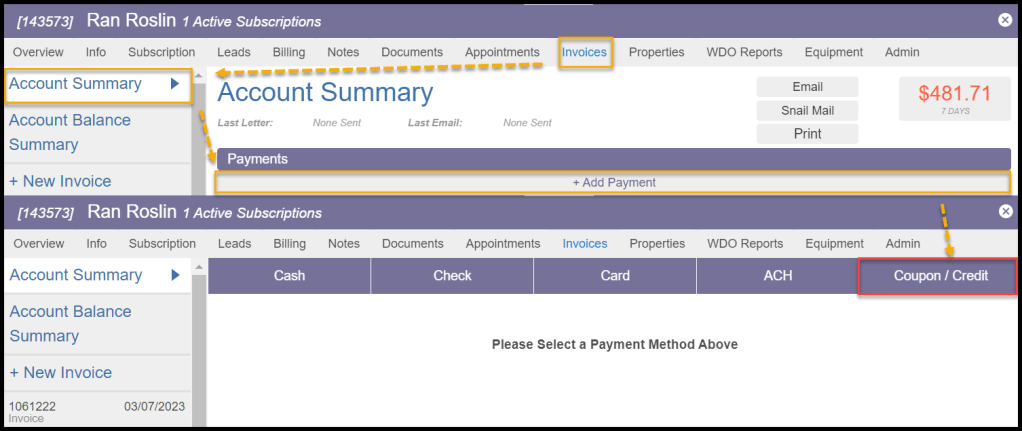
To apply a coupon payment to a customer’s account, go to:
Customer Card > Invoices > Account Summary > Add Payment > Coupon / Credit.
Adding details to a Coupon Payment
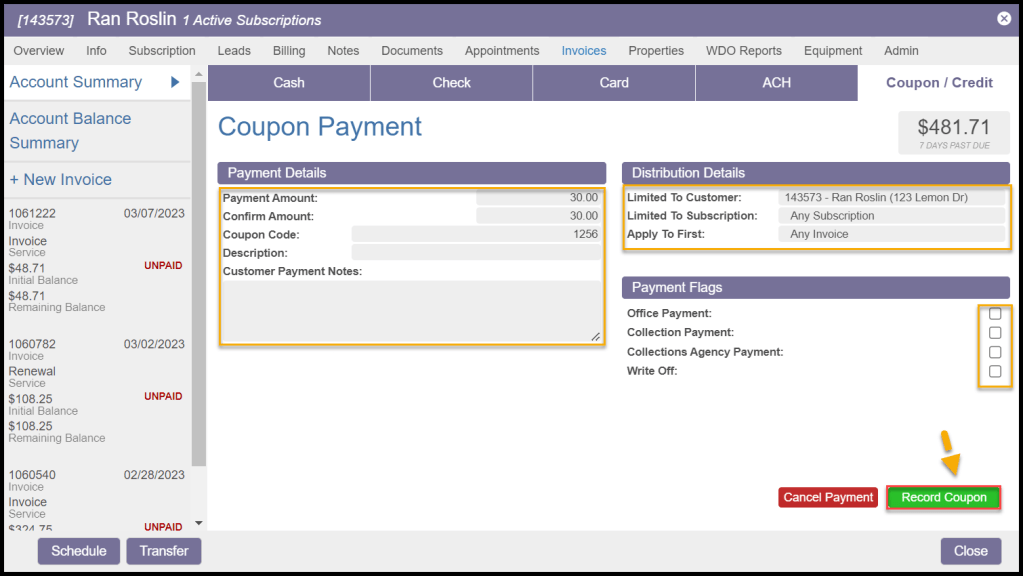
Next, the user can add details about the coupon payment.
Payment Details:
- Payment Amount: This is the amount the coupon is worth. By default, it will put the total amount the customer owes, so make sure the user changes this to how much the discount is supposed to be.
- Confirm Amount: Confirm the amount of the coupon.
- Coupon Code: This is an arbitrary code the user can attach to the coupon.
- Description: Attach a description to the coupon to note why the coupon was applied.
- Customer Payment Notes: Add additional information about this payment.
Distribution Details:
- Limited To Customer: Limit the coupon to a specific customer. This is mainly used if the customer has several linked accounts.
- Limited To Subscription: Limit the coupon to a specific subscription. This is helpful if the customer has several subscriptions.
- Apply To First: Select the specific invoice to apply the coupon to first. If the user selects “Any Invoice” it will apply the coupon to the most recent invoice.
Payment Flags:
- Office Payment: Check this box if the payment was received at the office.
- Collection Payment: Check this box if the account is in collections, and this payment goes toward the collections.
- Collections Agency Payment: Check this box if the payment came from a collections agency.
- Write Off: Check this box if this payment is being made to write off a balance.
Select Record Coupon once finished applying the coupon to the customer’s account.
After Applying a Coupon Payment
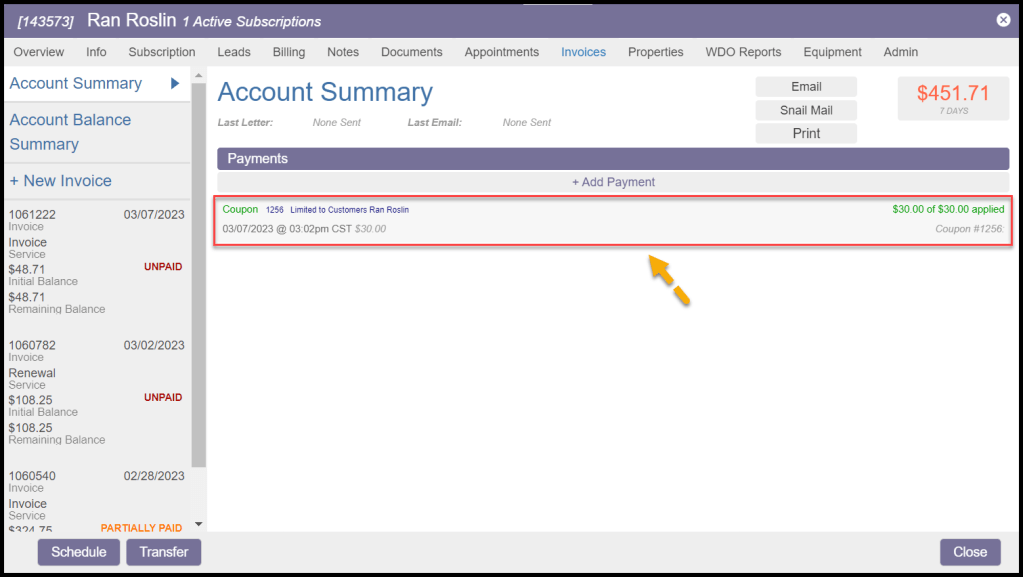
Once the user has selected a Record Coupon, a message will appear on the customer card confirming the coupon was successfully applied to the account.
Select Back to Invoice Overview to see how the coupon payment was applied to the customer’s account.

Applying a Coupon Payment
After returning to the invoice overview, a new coupon payment will be applied to the customer’s account. The customer’s balance should also be reduced as well.
If the user applies a coupon greater than the balance a customer owes, it will generate a credit on the account towards future invoices.
The coupon code will appear to the right of where it says Coupon in green.
Adding a Credit Memo
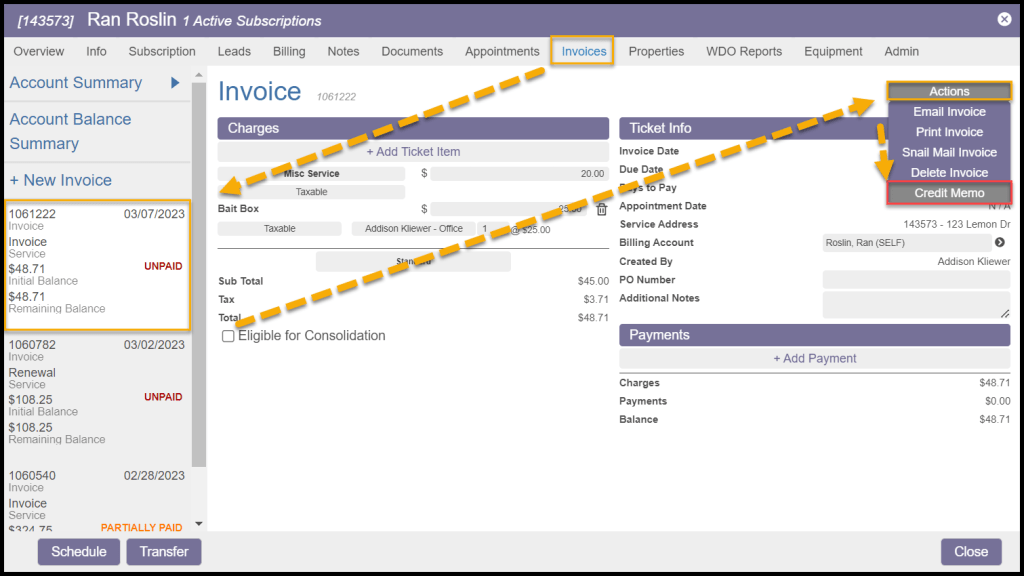
To apply a coupon payment to a customer’s account, go to:
Customer Card > Invoices > Account Summary > and select the desired invoice > Actions > Credit Memo.
Adding details about the Credit Memo
A new window will allow the user to enter details about the credit memo. Verify the date, amount, and subscription for the credit memo.
The sum of the credit memo cannot be greater than the total of the invoice. If the user has multiple invoices that need a credit memo, the user will need to apply it to each one individually.
Select Create to create the credit memo.

Applying a Credit Memo
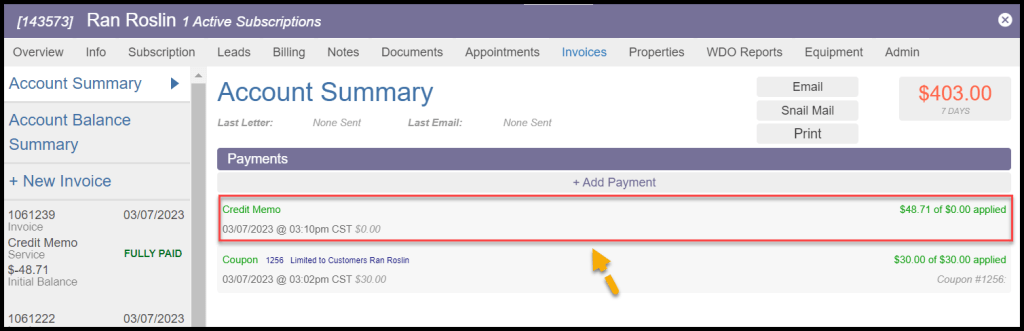
Having returned to the invoice overview, the user will notice a credit memo has been applied to the customer’s payments, and the customer’s balance has been removed.
 Moxie Pest Control Office Guide