
Copy Billing Account
Summary
The Linked Account feature allows one customer to become the responsible payer for another customer or multiple customers. This is often used, for example, for a rental property owner who pays for the services on each of their managed properties.
In such cases, the Master Account’s Billing Information can easily be copied to each linked account to become their Billing Information. To support these Linked Account relationships, a couple of tools on the Customer Card allow information to be copied from one customer to another.
Important Points:
- Ensure all the properties are linked, and billing information is on file with the master property before attempting to copy the billing account.
- Copying the Billing Account from one Customer Card to another will overwrite any existing information on file with the target property.
- The Payment by Subscription feature allows any valid credit card or ACH account to be copied between Linked Properties.
Creating Linked Properties
Before a customer’s Billing Information can be copied to another Customer Card, ensure all the properties are linked.
To link properties together, open the Customer Card for the Master Account and select the Properties tab.

Adding a Linked Property
Once on the Properties tab, enter the secondary property name in the Link a Property search field. Select the desired property, and the two properties will then be linked to facilitate common billing.
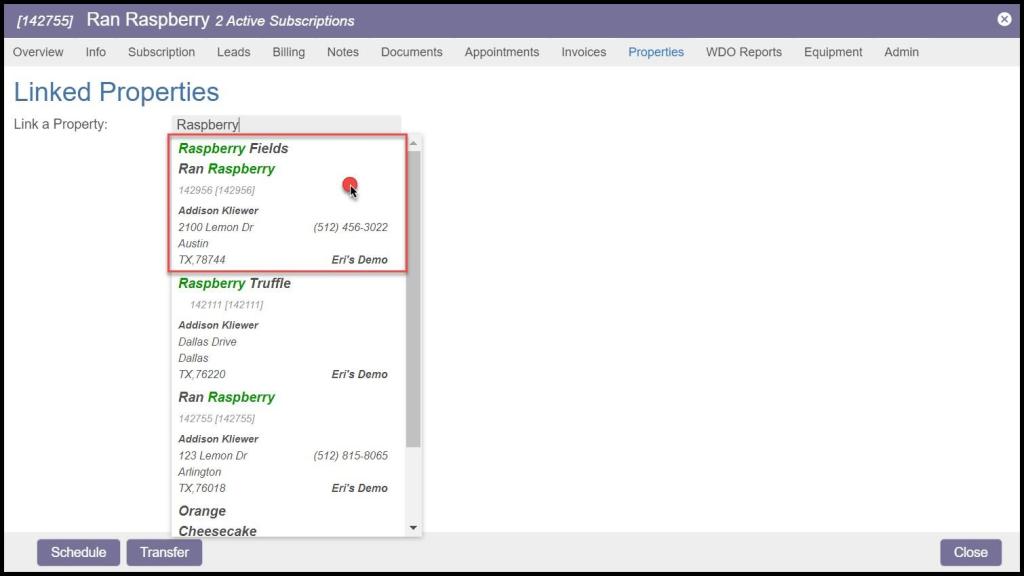
Linked Property Options on the Properties Tab
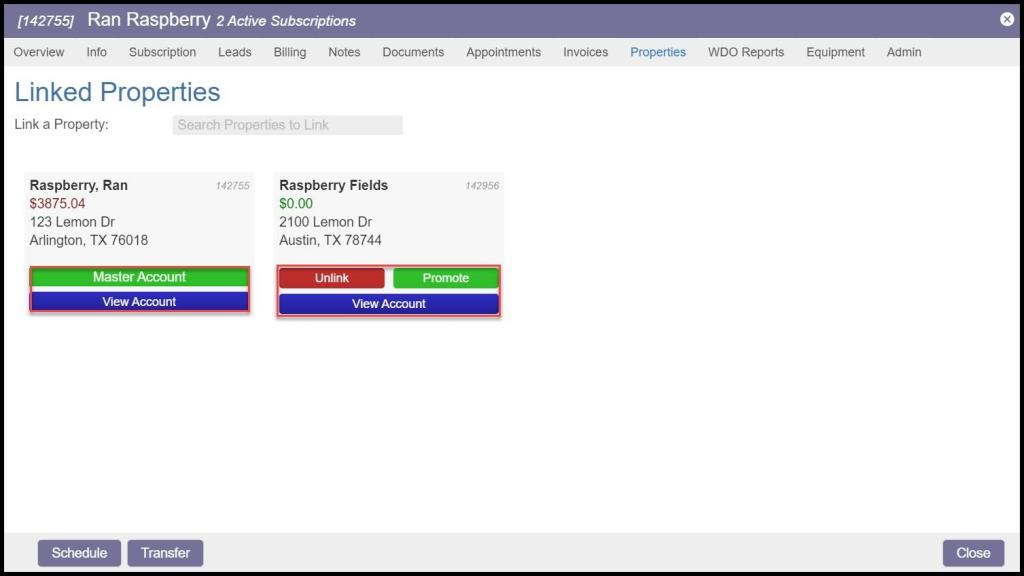
Repeat the steps for each property that needs to be linked. Each of them will then appear on the Properties tab. Various information can then be accessed from this view:
- View Account: Opens the Billing tab of the Customer Card of that property
- Master Account: Indicates which of the Linked Accounts is the default responsible payer
- Unlink: Removes the customer from the Linked Property relationship
- Promote: Makes a subsidiary Linked Property the Master Account over the others
Please see the user guide Merge and Link Properties in the Customer Card for complete details on linking properties.
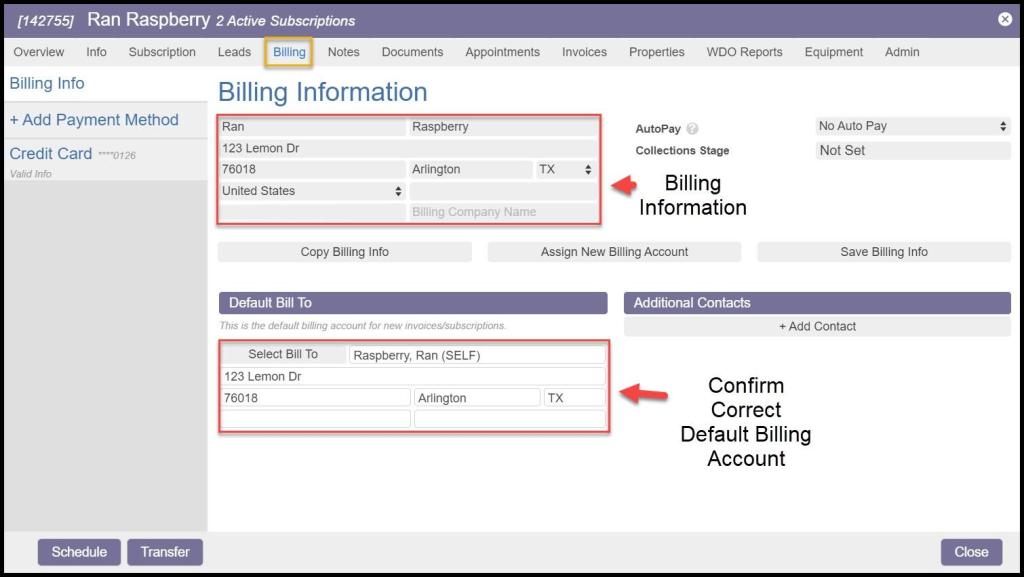
Confirm Responsible Payer Billing Info on Master Account
Once all the properties are linked together, ensure the Billing Information on the Master Account is correct. In this example, Ran Raspberry is the Master Account. Notice that her Billing Information = Default Bill To info. She is the responsible payer for her own property’s services.
Copy Billing Info from Master to Linked Accounts
Now that the properties are linked and the Billing Information on the Master Account is confirmed, this information may be copied and applied to any of the Linked Properties.
To do this, open the Properties tab in the Master Account Customer Card.
Choose one of the Linked Properties to update and select the View Account button associated with that account.

The Copy Billing Info Button
Once the Linked Property’s Customer Card appears, select:
Billing > Billing Info
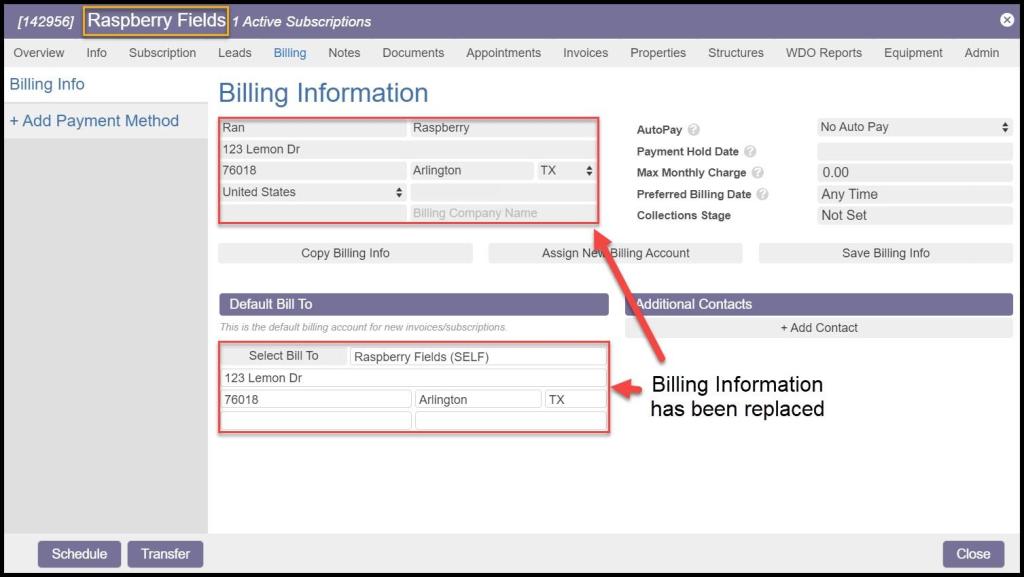
In this view, the general Billing Information is shown at the top, as well as two additional areas below:
- Default Bill To = The responsible payer information for this customer and property to which invoices are addressed and from whom payment is expected. On a Master Account, the Billing Information and Default Bill To are typically the same. On a linked account here, this information will be changed to the Master Account responsible payer.
- Additional Contacts = Any additional contacts, such as spouses, assistants, and bookkeepers who might be important to the billing process
Below the Billing Information, three options are available:
- Copy Billing Info: See below.
- Assign New Billing Account: This will assign the current account to another customer account as the responsible payer, making that new account a Master Account linked to the current one.
- Save Billing Info: Performs a Save on any new data values entered manually into the Billing Information.
Notice that currently, both the Billing Information and Default Bill To for Raspberry Fields are the same as her property address and contact info.

Selecting the Master Account Billing Info
Once Copy Billing Info is selected, the Billing Info from each Linked Property is presented in a list. Any option from the list may be selected as the source from which to copy the Billing Info to the current customer. The Master Account’s Billing Information is the desired account in this example.
A pop-up will appear requesting confirmation. Select OK, and a confirmation message will confirm the Billing Information has been copied.
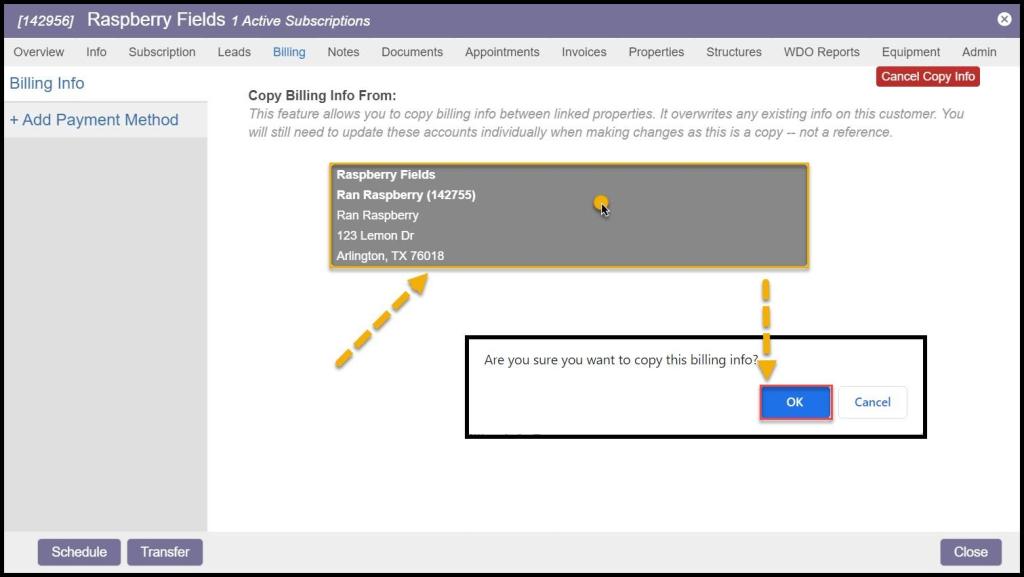
The Billing Info from the Master Account of Ran Rasberry has now replaced the original information for Raspberry Fields. Ran Raspberry has now become the responsible payer for this customer.
NOTE:
This will only copy the billing contact information, not any Payment Method. Please see below for information on copying the Billing Information and Payment Method.
Using Copy Account to Link Another Customer’s Payment Source
Another tool to replicate payment information from one Linked Account to another is the Payment Method Copy Account feature.
Rather than requiring multiple entries of a single payment method for each property, a Copy Account option allows the easy replication of credit card and bank account information from one property to another when adding new payment methods on the Customer Card Billing tab.
On the Linked Property’s Customer Card, go to:
Billing tab > + Add Payment Method
Then select either Credit Card or Bank Account.
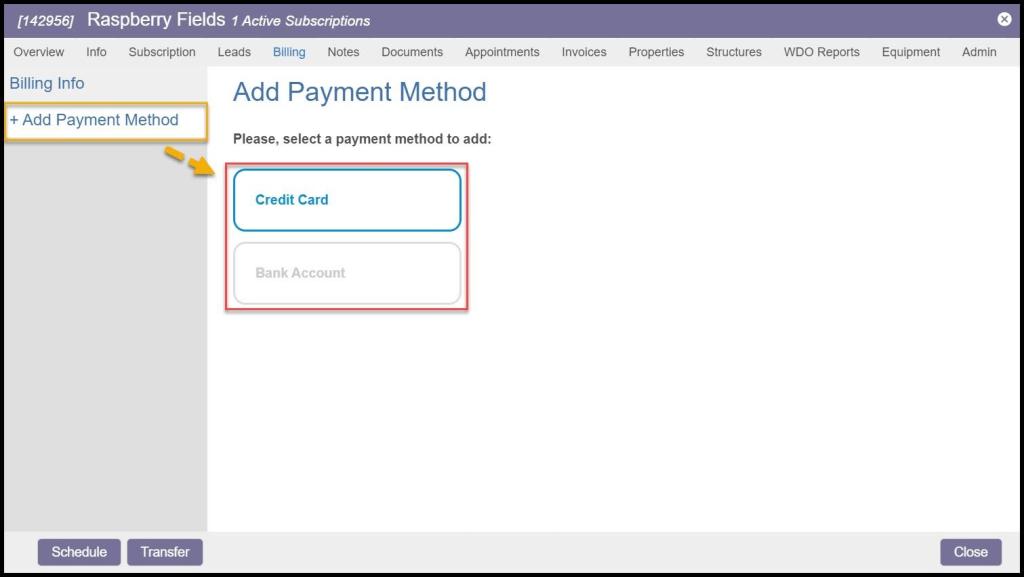
Once the Payment Method tab is selected, select the Copy Account button in the upper right.
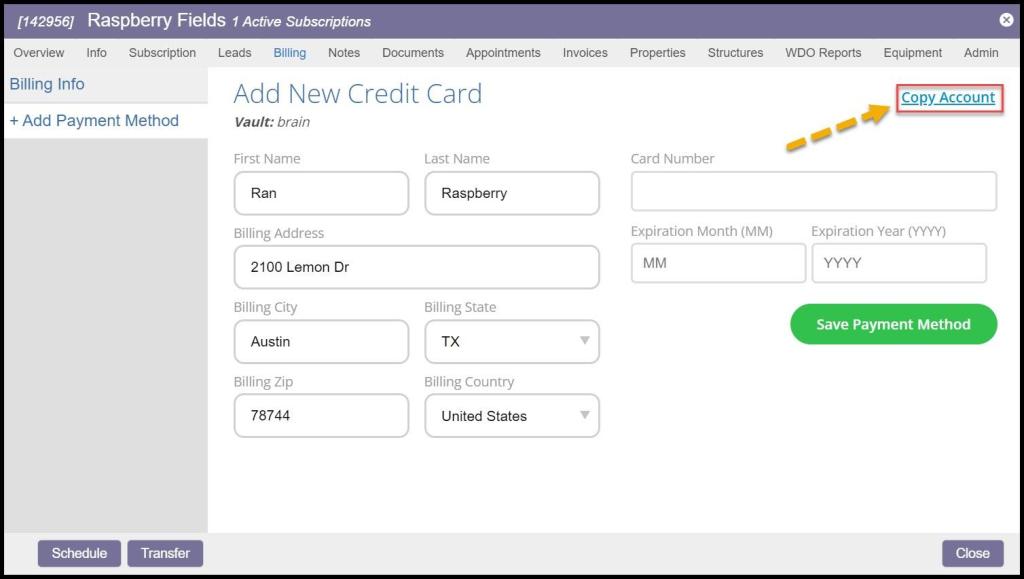
A list of all valid cards/accounts associated with Linked Properties will appear.
Two levels of account information can be copied. By default, each payment source is marked with a green checkbox. This checkbox may be selected and toggled to a red x-box.
- Green Checkbox = BOTH the Payment Method and the Billing Information will be imported
- Red X-box = ONLY the Payment Method will be imported
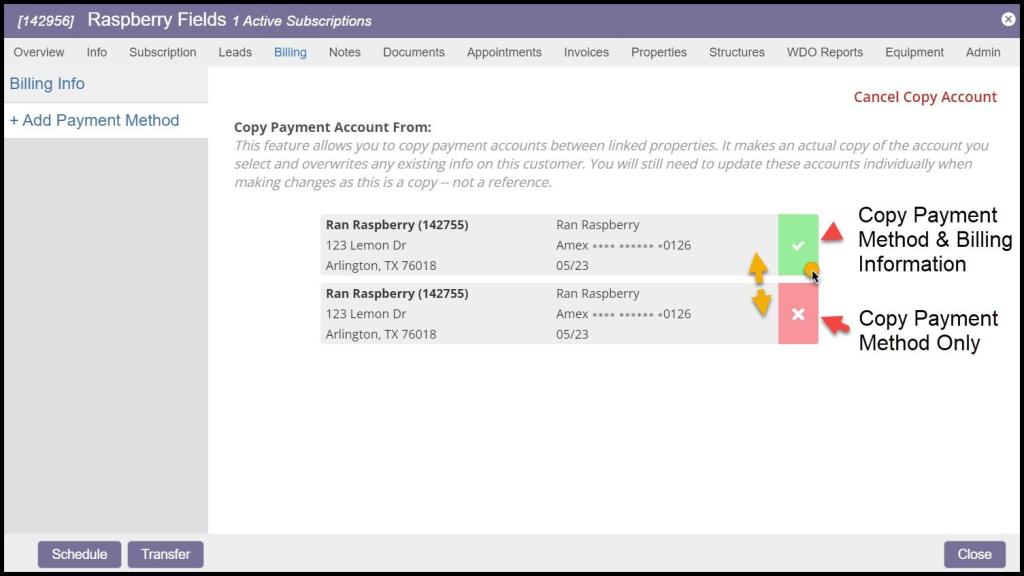
Choose the desired information with the toggle, and then click on the bank account or credit card to copy.
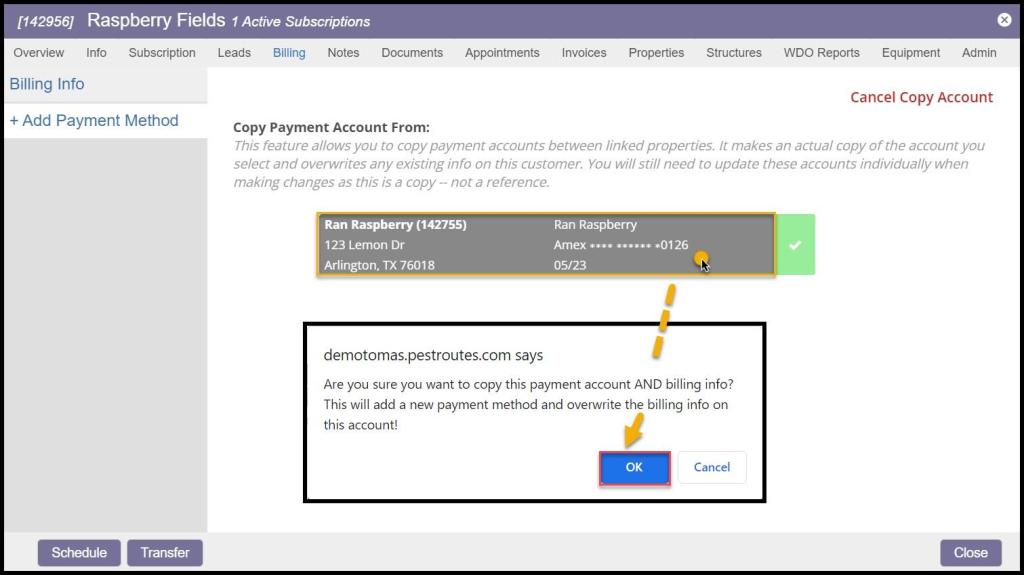
Payment Information and Billing Info are selected for linked Customer Raspberry Fields in this case.
Confirm the copy in the pop-up, and the new Method of Payment is added to the Billing tab. This account may now be assigned to any Subscription for AutoPay if it is enabled or used to pay invoices for Ran Raspberry’s services.

Removing a Payment Method
To remove a Payment Method from Customer Card, return to the Billing tab, select the Payment Method to be removed on the list to the left, and then select Remove Account in the upper right.
Select the Remove Payment Method button that appears to confirm.

Removing a Linked Account
To remove a linked account from the master account, return to the Properties tab, select the linked account to be removed on the list to the left, and then select Unlink on the account.

 Moxie Pest Control Office Guide