
Competitions
Summary
The Competitions feature helps users run sales-related competitions between their sales reps and techs who use sales fuctionality. These events provide opportunities to improve their performances against targets and goals. They help motivate sales reps to put the extra effort to win, improve morale as teams work together, and help administrators identify top performers in their offices, sales team, and individual contributors.
Important Points
- See the Sales Leaderboard Report guide to create Saved Filters in the Sales Leaderboard Report.
- To create Sales Teams, go to Admin > Sales/Departments. For more information, see the Sales Teams/Departments guide.
- To use competitions in mobile, see the FieldRoutes Mobile: Competitions Guide.
Accessing the Competitions
To access the Competitions, go to:
- Sales > Competitions.

Filtering the Competitions
To filter the Competitions, toggle these filters.
- Date Range: Limit results between specific dates in the Competitions.
- Status: Filter Competitions by Ongoing, Cancelled, Completed, or Upcoming.
Select Refresh to run the Competitions.

Adding and Editing Competitions
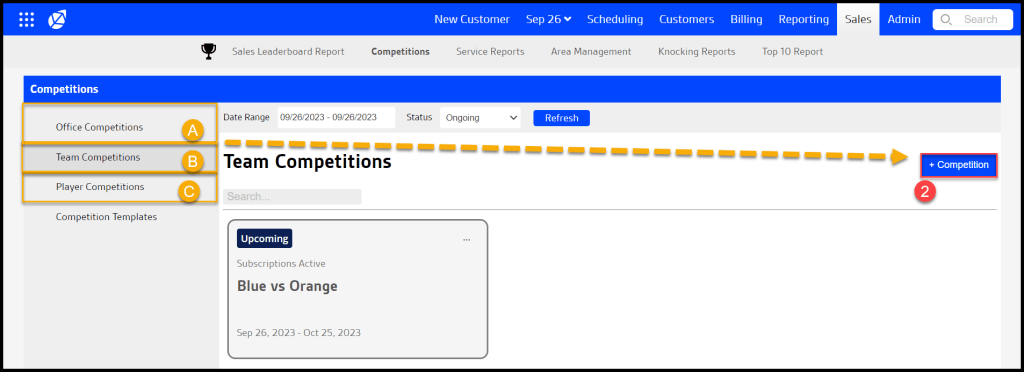
To add a new Competition, choose the type of competition (Office/Team/Player) select + Competition or select Edit to change an existing Competition.
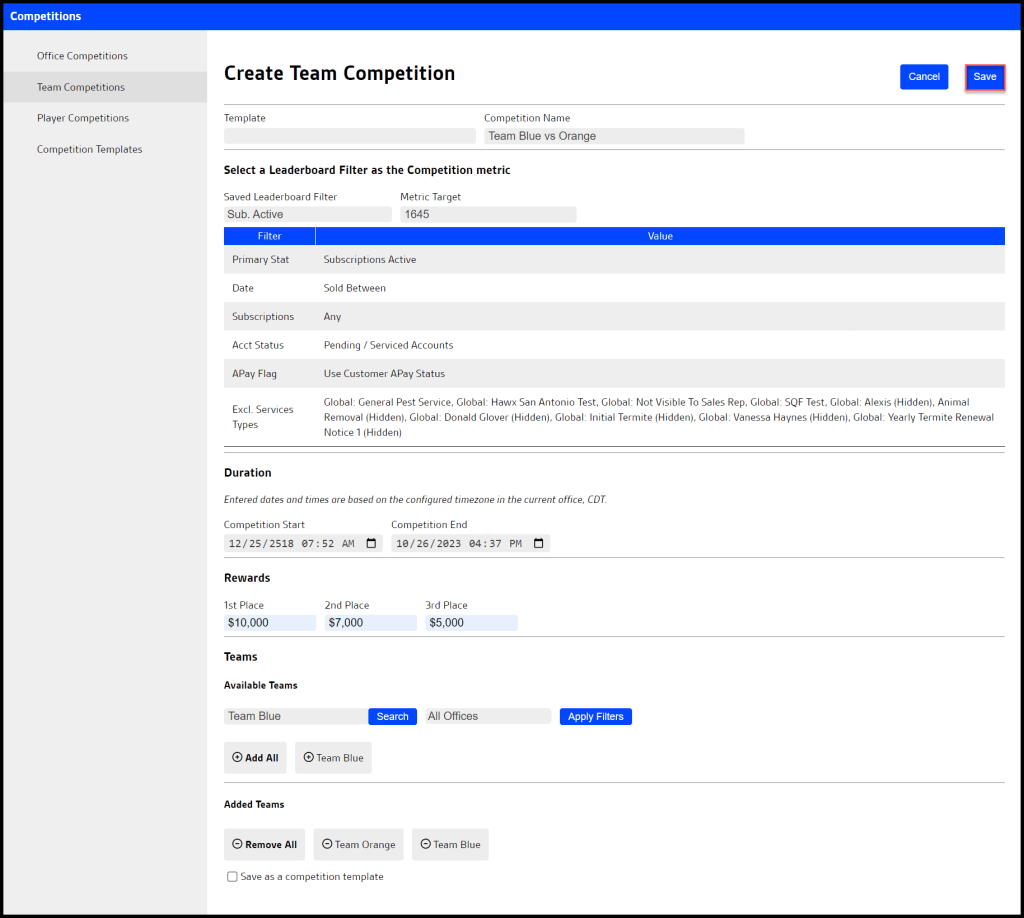
To create a Competition, fill in the fields below.
- Template: Choose a Competitions Template.
- Competition Name: Put the title of the Competition.
- Saved Leaderboard Filter: Choose a saved Leaderboard Filter. Go to Sales Leaderboard Report to created saved Leaderboard filter sets.
- Metric: Choose a metric target number for the Primary Stat. It will display a key below that explains which filters are in the saved Leaderboard Report filter.
- Duration: Enter a start and end date for the competition.
- Rewards: Name the reward for first, second, and third place.
- Teams/Offices: Choose from the available sales teams. Go to Admin > Teams/Departments to add/edit Sales Teams.
- Save as a competition template: Save the leaderboard as a template for future use.
Select Save when finished making changes to the competition.
Finding Competitions
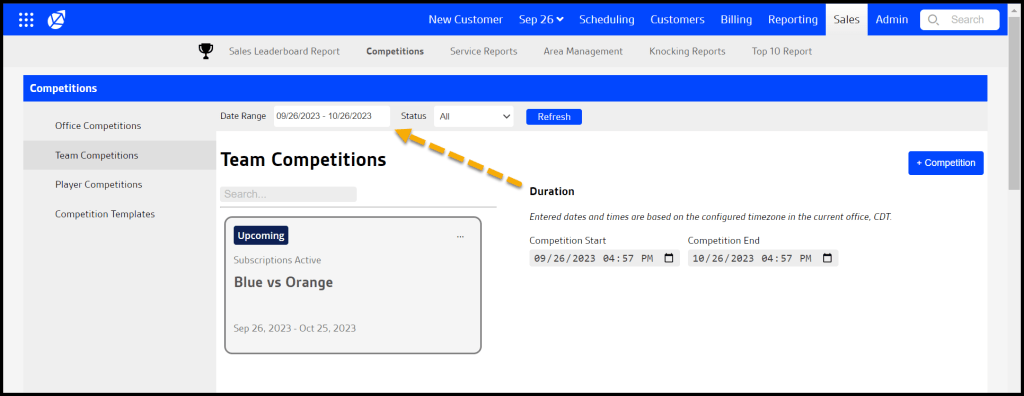
Search for the Competitions using the Date Range that was input for the Duration of the Competition.
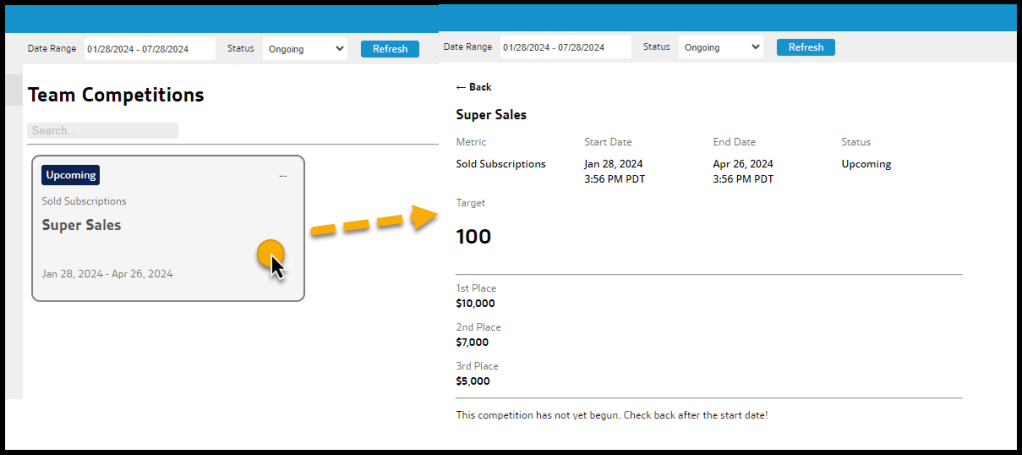
Select the Competitions card for more details.
 Moxie Pest Control Office Guide