
Common Bill Tos
Summary
Common Bill To is a feature that allows customer invoices to be billed to any customer account. This powerful feature is perfect for commercial customers (Apartments and Business Complexes) and landlords who own multiple properties.
Important Points:
- Common Bill Tos allow for powerful ways of charging and invoicing customers
Account vs. Responsible Balance
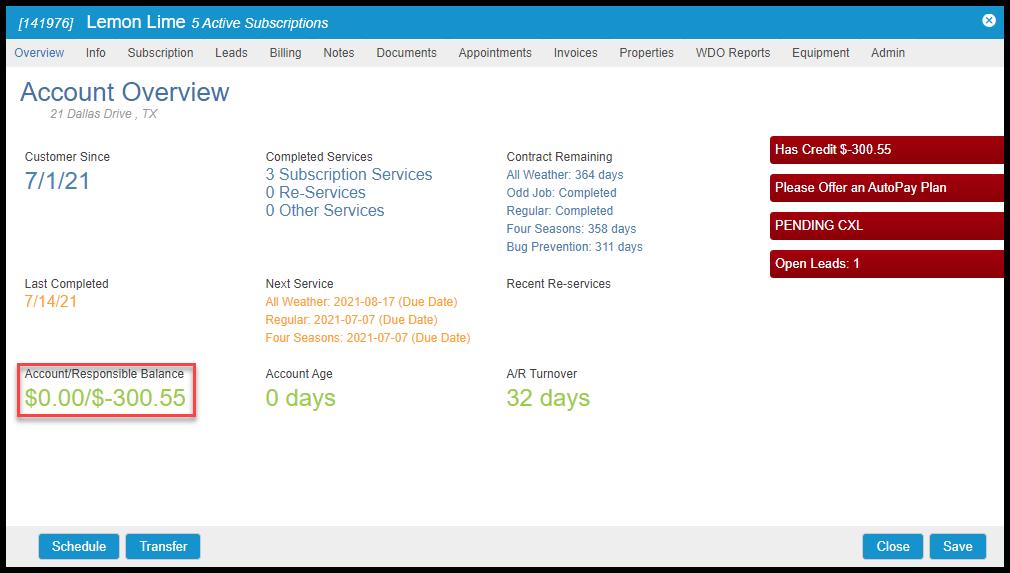
On the customer card, the user will now see two different balances when viewing the Overview or the Invoices tab. Customers now have an “Account Balance,” which is the total amount generated on invoices under the Invoice tab. The second balance is the “Responsible Balance,” which is the total amount the customer is responsible for paying.
The user can assign who is responsible for each invoice. Whichever account this is assigned to will make that invoice amount apply to their overall “Responsible Balance.”
Customer Default Bill To (Billing Account)
This feature allows the user to specify which customer account will be billed and emailed when new invoices are created and when payments are made.
To get to this feature, open a customer card and go to the Billing tab. Once there, click on the Assign New Billing Account button.
After the user has clicked on Assign New Billing Account, the user can search for any customer within their office.
- Press the Select button to choose the customer the user has searched for.
- Press the Cancel button to cancel, selecting an external account for default billing.
Once the user has selected a new billing account, they will see it appear as the Default Bill To account.

Subscription Default Billing Account
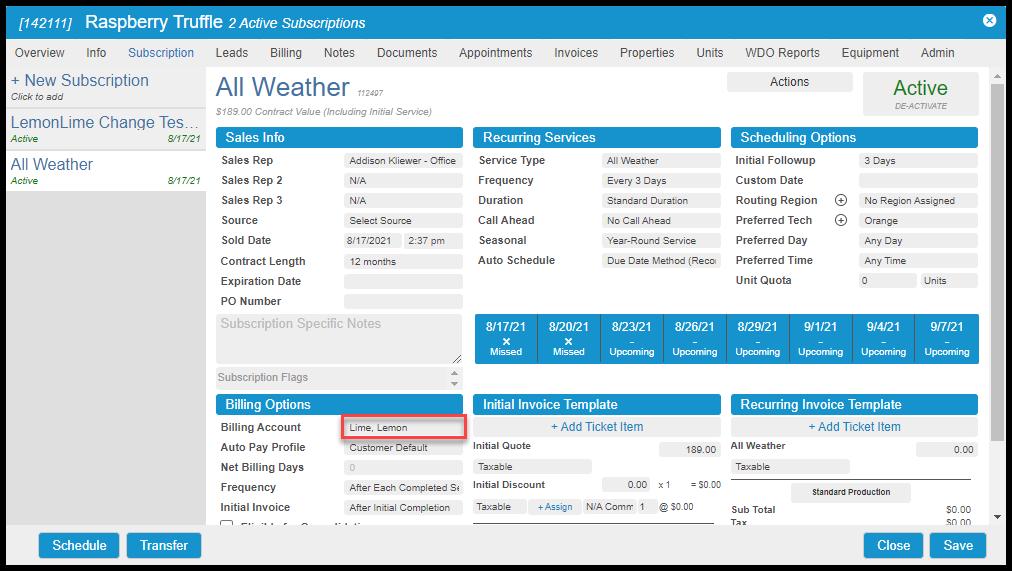
The user can now set the default billing account under the Billing Account options of the subscription. If a customer’s default bill to is already set, this will pre-populate with that default account. The user can set each subscription to a different Billing Account. By default, each invoice created will be linked to and added to the “Responsible Balance” of the “Billing Account” chosen.
Invoice Specific Billing Account
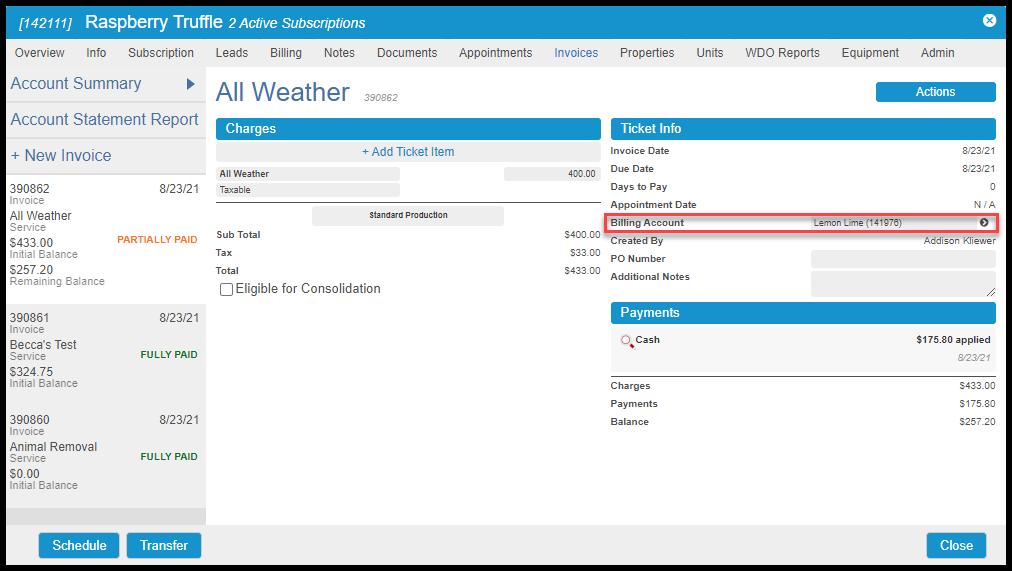
The user can also specify each invoice to be payable to a specific Billing Account. These will default to the subscription Billing Account that is set for invoices generated from a subscription. Invoice “Billing Account”s will default to the customer “Default Bill To” for any other invoices.
Freezing Customers within Collections
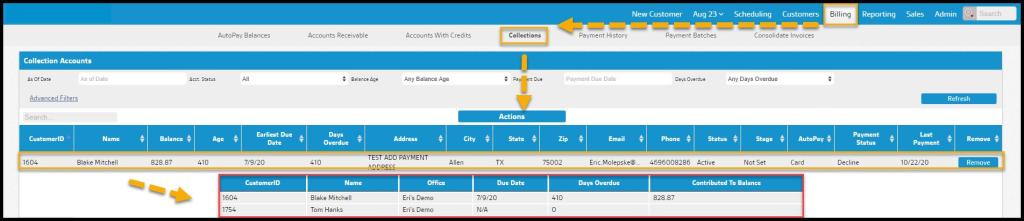
We now freeze subscriptions based on which subscription a customer is responsible for. This is because the user does not want to keep servicing these properties for accounts that are sent to collections.
Click on their name to view which customers/invoices a particular customer is linked to/responsible for. The user will then view all of the accounts that this customer is linked to/responsible for. Any subscriptions listed here will be canceled if this customer if frozen.
Default AutoPay and Billing Preferences
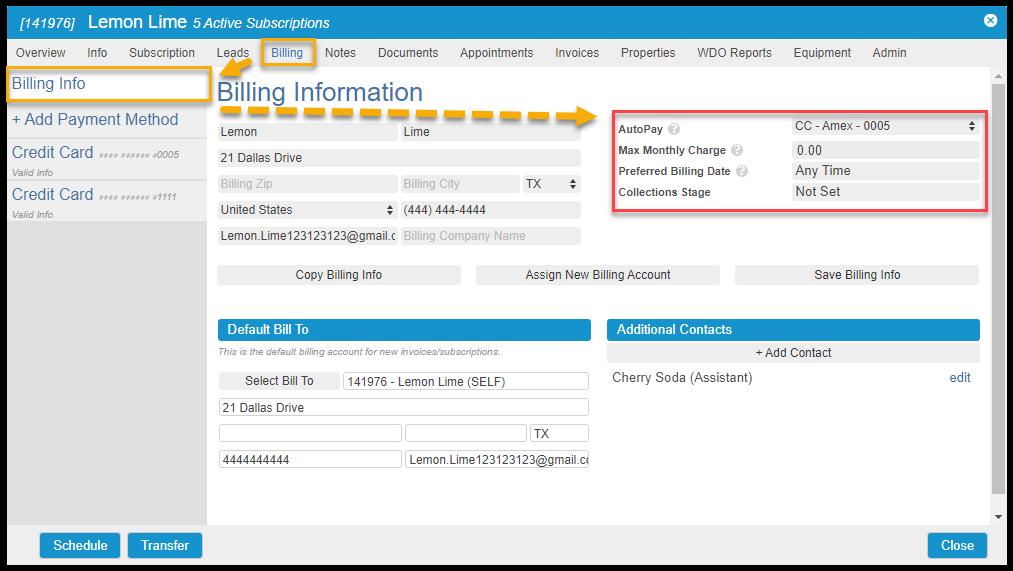
The Default AutoPay and other Billing preferences within the Billing tab all apply to the Responsible Amount on the Customer Card. This includes:
- AutoPay: This is the default source of payment used by AutoPay if no other AutoPay source is designated at the Subscription level.
- Max Monthly Charge: The maximum amount that will be charged to the Default AutoPay source within a single 30-day period
- Preferred Billing Date: The desired day of the month on which the payment source will be charged. A seven-day buffer is applied to this date.
- Collections Stage: The customer’s current collections status, used for collections tracking and reporting:
- Not Set: The default setting for customers in good standing
- Pending: Designates the customer is at risk of being sent into collections
- Sent: The customer’s account has already entered the collections process
Invoices Tab and Consolidated Billing
Account Statements
Common Bill Tos now replaces the “Consolidated Billing” preference previously available within the Properties tab of the customer card. This means that when the user prints account statements within a customer, it will show all invoices the account is linked to/responsible for paying.
Invoices Tab
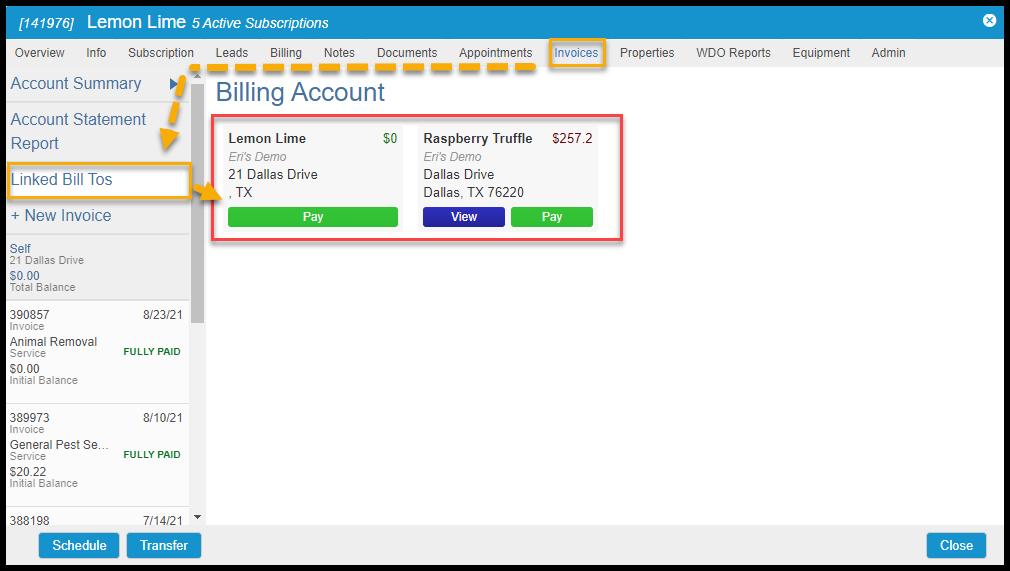
The Invoices tab will also show all the accounts and invoices linked to that customer card. Within the Linked Bill Tos section, the user can also pay or view each account.
Accounts Receivable and Printing All Invoices
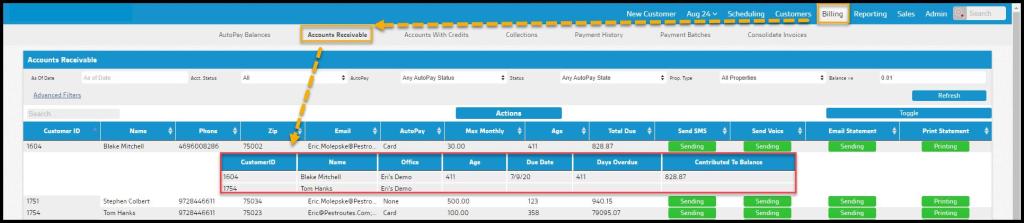
The user can now view all invoices a customer is responsible for from within Accounts Receivable by clicking on the customer name.
When the user uses the advanced filters and chooses Group By > Group By Invoice, the user can get a pdf output of all invoices that an account is linked to/responsible for.
Invoices and Account Statements
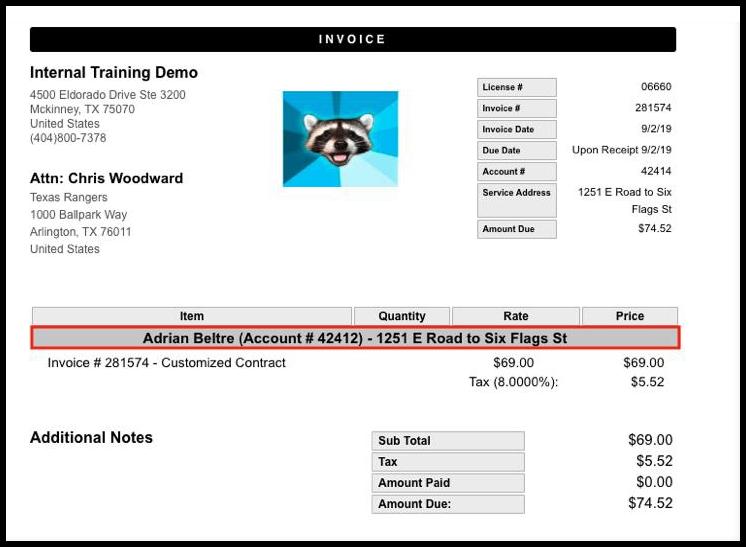
Invoices and account statements will include the property name, account number, and service address associated with the invoice items.
 Moxie Pest Control Office Guide