
Commission Report
Summary
The Commission Report calculates commission for employees based on the Profile selected and the Commission Rates.
Before running this report, ensure Commission Profiles and Commission Rates have been configured.
- To make commission rates specific to the service type, then set up the commission rate under Admin > Preferences > Service Related > Service Types.
- To make commission rates specific to the employee, then configure the commission rate under Admin > Users > Employee Card > Info.
- To highly tailor each commission rate to employees including tiers, seasonal dates, or varying by service type per employee, then use the commission rates under Admin > Users > Employee Card > Commission Rates.
Once the commission profiles and commission rates are established, the user can pull commissions for each of their profiles.
Important Points:
- Ensure the Commission Profiles and Commission Rates are set up in Admin > Preferences > Commission Profiles before running the report.
Accessing the Commission Report
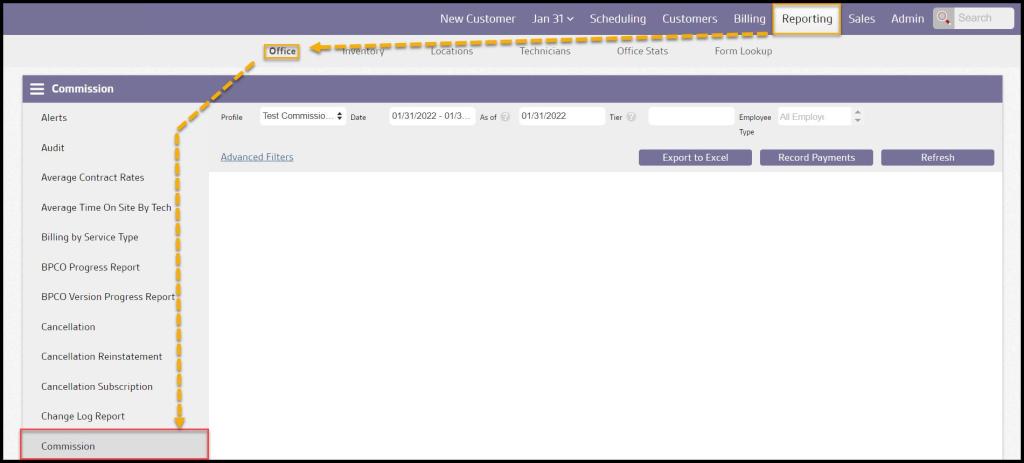
To access the Commission Report, navigate to:
Reporting > Office > Commission
Filtering the Commission Report (Basic)
To filter the Commission Report at the basic level, toggle these filters.
- Profile: Dictates which commission profile to use. Commission profiles can be found under Admin > Preferences > Office Settings > Commission Profiles.
- Date: Specifies the date range. The Date Filter Type rule of the commission profile governs what is being focused on within the date range.
- As Of Date
- Only payments applied on or before the given date are considered.
- When calculating the days to pay an invoice, if the invoice has not been paid the As Of Date is considered.
- The date used for recording employee deductions.
- Only employee deductions recorded on or before the given date are considered.
- Tier: The date to start accumulating revenue for determining the commission rate tier to apply to an invoice or subscription. If left empty, only revenue within the selected date range will be considered.
- Example: A salesperson has tiers for number of sales: 0 – 199 at 10%, 200 – 399 at 15%, and 400 – 600 at 20%. In July, they have 68 sales which qualifies at 10% commission. However, for the whole selling season they have 237 sales which is in a higher tier. Running the report for July only returns a commission rate of 10%. Adding the start of the selling season as the Tier Date changes the commission rate for July to 15%.
- User Type: Choose to report all User Types (default) or limit to a specific group:
- Sales Rep
- Technician
- Office Staff
Select Refresh to run the report or select Advanced Filters to filter further.

Filtering the Commission Report (Advanced)
To filter the Commission Report at the advanced level, use these filters.
- Offices: Chooses the offices to consider in the report’s results.
- Employees: Limits the results of the Commissions Report to a specific employee or group of employees.
- Employee Status: The report pulls active employees by default. This can be toggled to look for inactive employees or any employee regardless of status.
Select Refresh to run the report.

Viewing the Commission Report’s Data Columns
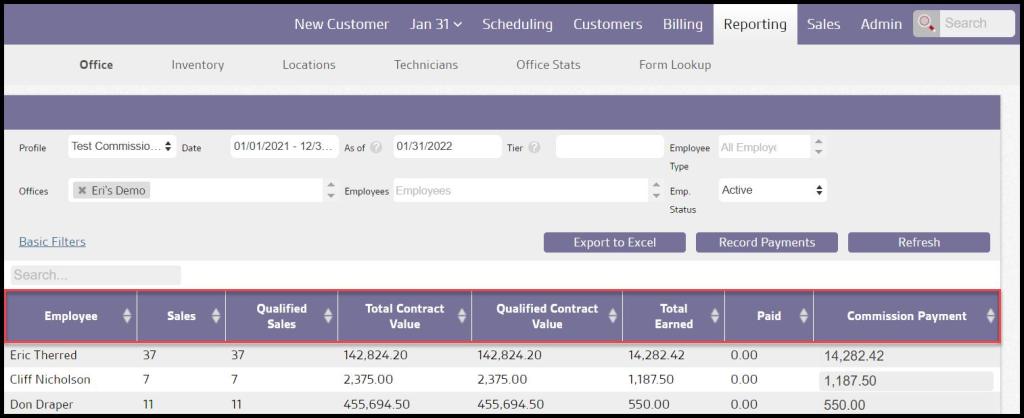
Once the desired filters are selected, click on Refresh to generate the report. A row for each employee is displayed in the report table.
- Services: The number of services completed during the selected date range.
- Qualified Services: The number of services completed during the selected date range which meets all of the criteria set forth by the commission profile.
- Production Value: The total production value for all services completed during the selected date range.
- Qualified Production: The production value for all services completed during the selected date range which meets all of the criteria set forth by the commission profile.
- Bonus: The total amount earned as a bonus from a commission split.
- Sales Earned: The amount of sales commission to be paid for these services.
- Serviced Earned: The amount of service commission to be paid for these services.
- Scheduled Earned: The amount of schedule commission to be paid for these services.
- Paid: Amount already deducted to the employee from the total amount earned.
- Commission Payment: Amount to record as a deduction on the employee card.
Viewing the Commission Report’s Data Columns’ Details
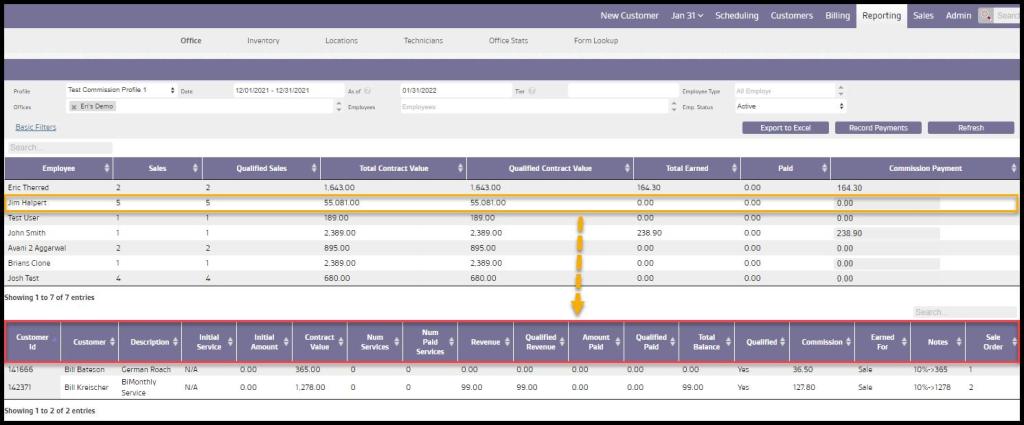
Clicking on a row will display another table below with the details of all the subscriptions or invoices for that employee.
- Description: The service type for the appointment.
- Type: Differentiates between service, initial service, and commission split.
- Date: The date which the service was scheduled on.
- Revenue: The total amount of revenue generated from the services completed within the selected date range.
- Production Value: The total production value attached to services completed within the selected date range.
- Amount Paid: The amount paid toward the invoice for that particular service.
- Qualified Paid: States how much of the amount paid is qualified for profiles where rules such as Require Invoice Paid in Full are in effect.
- Date Paid: When payment was made towards the service’s invoice.
- Qualified: Indicates whether the service was considered for a commission.
- Commission: The total amount of commission earned.
- Bonus: The total amount earned as a bonus from a commission split.
- Total Earned: The combination of what has been earned from commission and bonus.
- Earned For: Details whether the service is earning commission for a sale, servicing, or scheduling.
- Notes: Details the commissionable revenue and the commission rate applied to it.
- Service/Sale Order: For invoice commission profile types, the order in which the services were completed. For subscription commission profile types, the order in which the subscriptions were sold.
Exporting a Commission Report or Recording Payments
There are two additional ways to use a Commission Report.
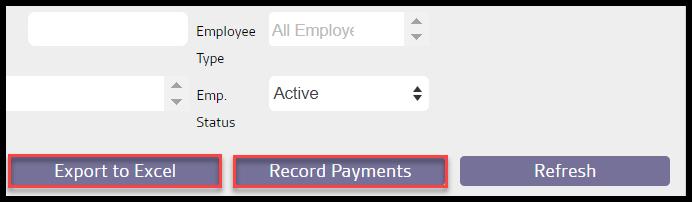
- Export to Excel: Downloads an excel file of the current report results. The spreadsheet will contain a sheet that shows the overall totals for each employee and a separate sheet for each employee with the details of all the subscriptions or invoices.
- Record Payments: Takes the amount in the Commission Payment field and records a deduction in the Employee Card with the specified Deduction Type for the commission profile.
 Moxie Pest Control Office Guide