
Collections Actions
Summary
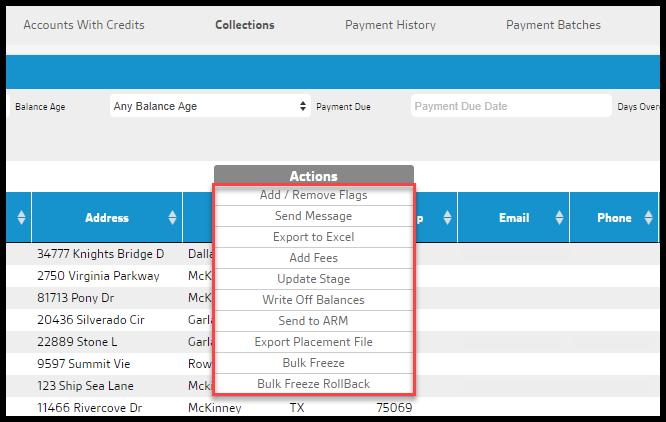
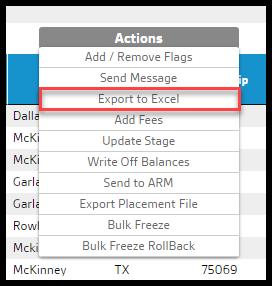
The following bulk actions can be performed on all customers listed in the Collections report by clicking on Actions > [desired action].
- Add/ Remove Flags
- Send Message
- Export to Excel
- Add Fees
- Update Stage
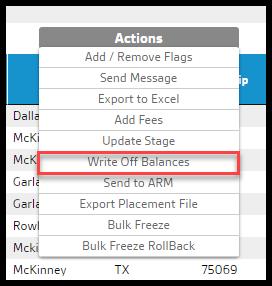
- Write Off Balances
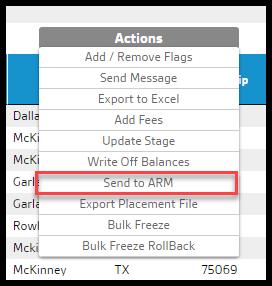
- Send to ARM
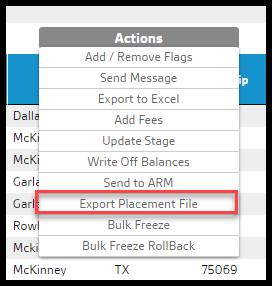
- Export Placement File
- Bulk Freeze
- Bulk Freeze RollBack
This guide is an in-depth explanation of each action.
Important Points:
- Please see the Collections Report user guide for more information about how the Collections Report works in general.
Accessing the Collections Report
To access the Collections Report, go to:
Billing > Collections.
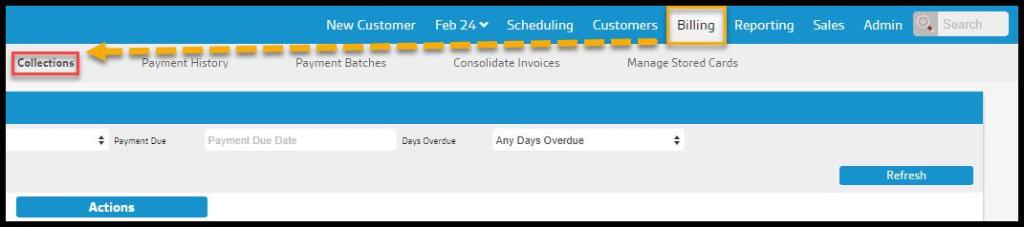
Collections Report: Actions List
The user can perform these bulk actions on all customers listed in the Collections report by clicking on Actions > [desired action].
- Add/ Remove Flags
- Send Message
- Export to Excel
- Add Fees
- Update Stage
- Write Off Balances
- Send to ARM
- Export Placement File
- Bulk Freeze
- Bulk Freeze RollBack
Below is an in-depth explanation of each action.
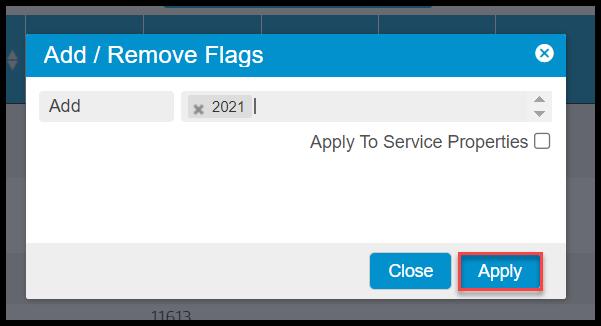
Add / Remove Flags
This action opens a dialog that allows the user to specify any flags they would like to add or remove from the customer accounts listed. The available options are the flags defined in Admin > Preferences > Customer Preferences > Generic Flags with the status set to active.
Send Message
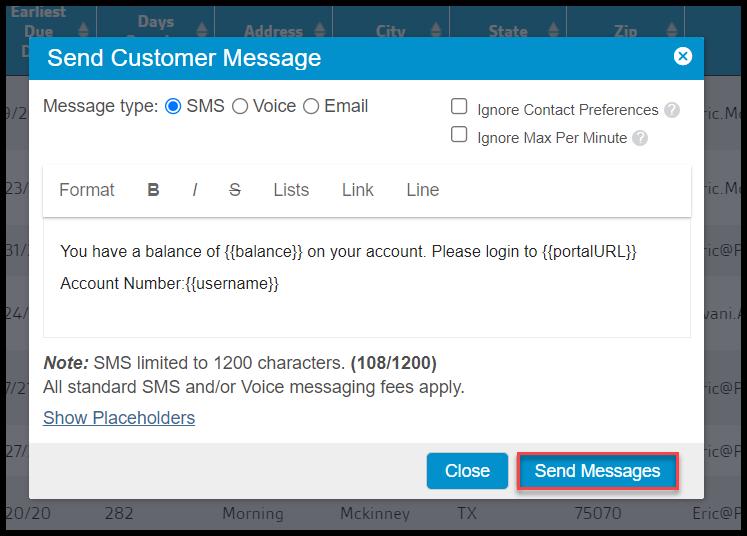
This action will allow the user to send a bulk message to all the customers in the report.
Select the message type at the top of the window. The user can choose between SMS, voice, and email.
Dynamic placeholders are available for the messages to customize each message with the customer’s information. SMS messages are limited to 140 characters, including the placeholders. The user can also Ignore Contact Preferences which will cause the message to ignore a customer’s contact preferences {Customer Card > Info > Reminders} and always send the message.
By Selecting the Ignore Max Per Minute, this message can be sent as soon as possible and ignore the max per minute preferences set for the company’s Office. (Admin > Preferences > Customer Preferences > Customer Communication > Delivery Settings).
Export to Excel
The report can be exported to an Excel file by selecting Export to CSV.
Add Fees
The Add Fees action allows users to add fees to the customers listed in the Collections report. The user will create fees on new invoices, not the existing invoices.
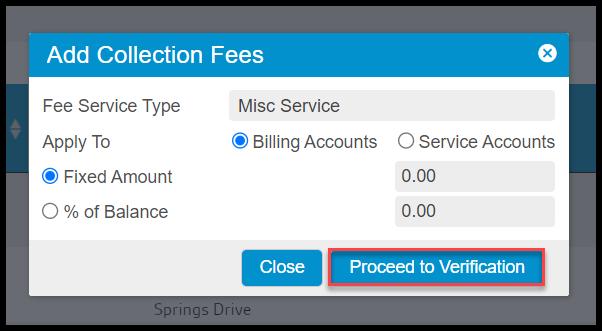
When this action is selected, a new dialog box will open, prompting the user to input information regarding the fee.
- Fee Service Type: The service type that will be applied to the invoice created for the fee. Create the service type for fees under Admin > Preferences > Service Related > Service Types.
This window will allow the fee to be applied to the customer’s account or the customer’s invoice. There will be different options depending on which one is chosen.
If select “Billing Accounts” is selected, fees added will be calculated considering the customer’s account as a whole. The following options will be available:
- Fixed Amount: A fixed dollar amount added to each customer.
- % of Balance: The percentage of the customer balance. Note: The balance considered is the balance displayed in the report. This is the balance as of the date specified in the As of Date filter, which may differ from the current customer balance.
Add Fees (Service Accounts)
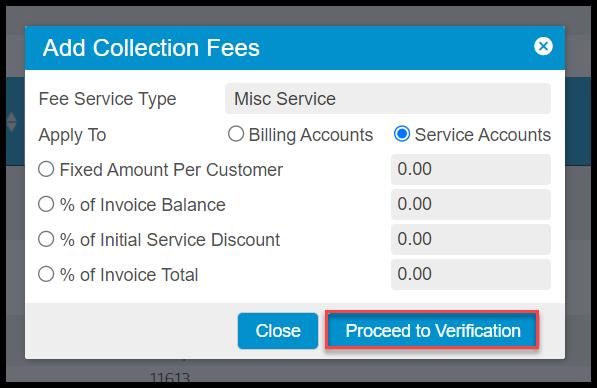
If the user selects Service Accounts, fees added will consider each individual invoice with a balance that is included in the report. The following options are available:
- Fixed Amount Per Customer: A fixed dollar amount added to each customer.
- % of Invoice Balance: The percentage of the Invoice Balance for all invoices with balances. Note: this is considering the balance on the invoice, not the amount charged.
- % of Initial Service Discount: The percentage of the Initial Service Discount specified for the corresponding Service Subscription in the Customer Card > Subscription. The fee will only be applied once per service subscription, regardless of the number of invoices attached to the subscription with outstanding balances. A fee will not be applied if no invoices with balances are attached to a subscription. See below for an explanation of what a fulfilled subscription is to determine whether or not these should be completed.
- % of Invoice Total: The percentage of the total amount charged for all invoices with balances. Note: this is considering the amount charged, NOT the balance.
Once finished, select Proceed to Verification. Clicking this button will close the dialog, update the Fees to Apply column to display the fee amount applied to each customer listed in the report, and show a confirmation button. Once confirmed, the fees will be added to each customer on a new invoice.
Update Stage
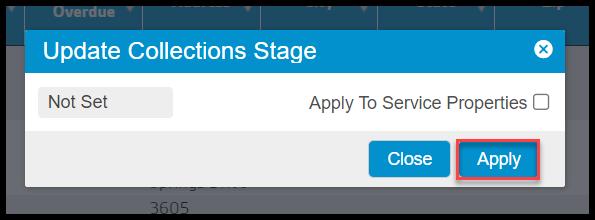
This action opens a dialog that allows the user to specify the Collections Stage they would like all of the customers listed in the Collections Report set to.
Today there are three possible collection stages for a customer; Not Set, Pending, and Sent. The user can always specify or view a customer’s collections stage in the Customer Card > Billing > Billing Info > Collections Stage.
Write Off Balances
This action will eliminate the existing customer balances by adding a coupon to the customer account equal to the customer balance.
NOTE:
The balance considered is the balance displayed in the report. This is the balance as of the date specified in the As of Date filter, which may differ from the customer’s total balance.
Send to ARM
This action sends a file of the report to ARM.
Export Placement File
This action will export the Collections Report to other collection agencies.
Bulk Freeze Accounts
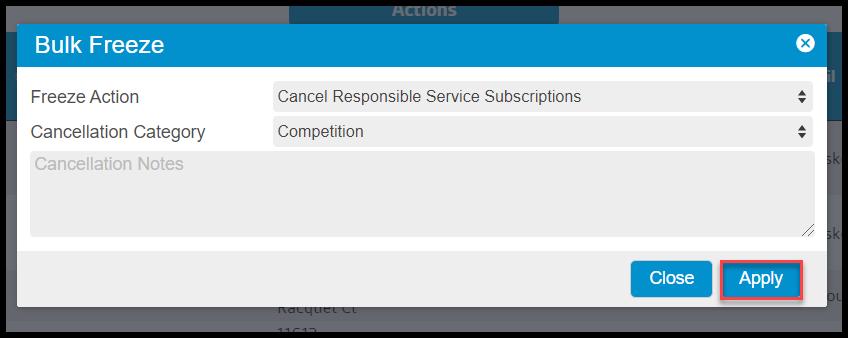
This action sets the status of all the customers listed in the report to frozen. A dialog will open, allowing the user to specify a cancellation reason and any desired notes.
This action will freeze the customer’s account, including all the customer subscriptions.
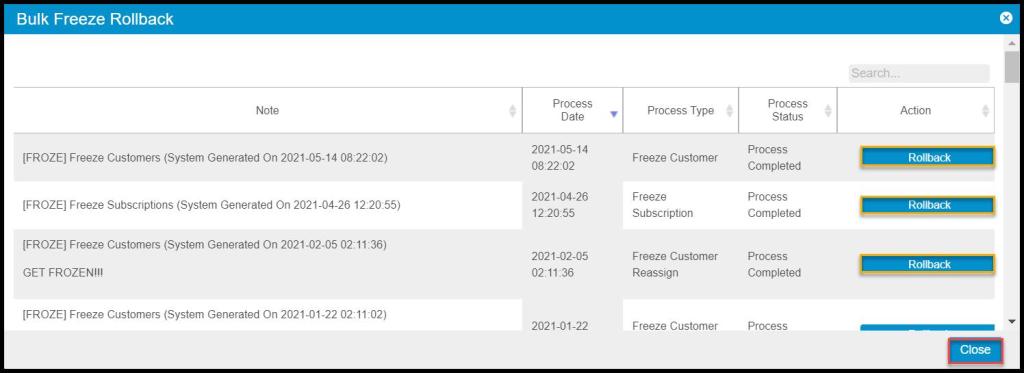
Bulk Freeze Rollback
Using the Bulk Freeze Rollback, users can select customers and subscriptions to roll back to Active. In the Action column, click on the Rollback button to Re-Activate that Customer or Subscription.
 Moxie Pest Control Office Guide