
Change Log Report
Summary
The Change Log Report identifies the time and date system changes occurred and which user or system created the change. This tool provides a method to track problems, identify who made them and when, and correct them quickly.
Important Points:
- The report filters must be completed to return results. They are not limited by the filter choices, but rather the report returns only those items listed in the filters.
- The list may be filtered by system entity, date, office, or employee.
- Note: Employee ID = 0 means the change was a system change, created automatically by a system process such as a Trigger Rule.
Accessing the Change Log Report
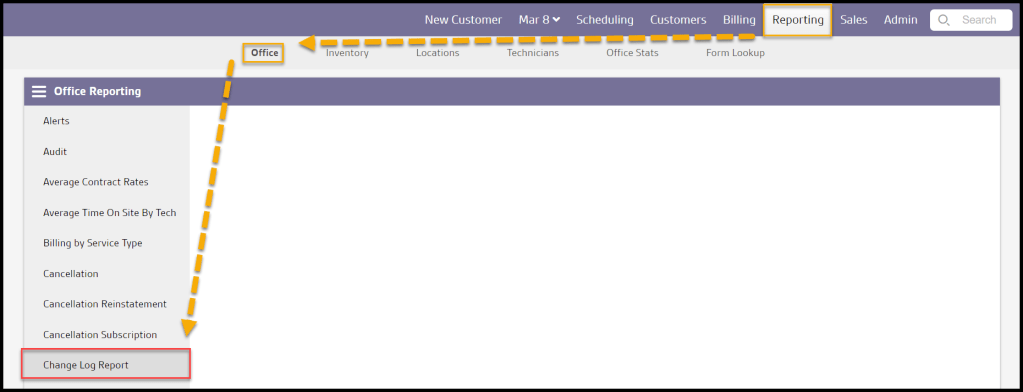
To access the Change Log Report, navigate to:
Reporting > Office > Change Log Report
Filtering the Change Log Report
There are four filters with which to customize the Change Log Report results:
- Date: The time frame in which the desired changes occurred
- Offices: The office or offices to be included in the report
- Changed By: The specific user, if any, to include in the report
- Entities: The system elements that may be checked for changes. Either one or multiple(s) may be selected. The options are:
- Access Control Profiles
- Add-ons
- Additional Contacts
- Appointment
- Billing Letter Templates
- Brain Profile
- Cancellation Reasons
- Card Imports
- Clock Categories
- Commission Rates
- Competitors
- Condition Templates
- Condition Types
- Conditions
- Contract Templates
- Customer
- Customer Communications
- Customer Sources
- Deals
- Deleted ACH Accounts
- Deleted Cards
- Diagram
- Diagram Markers
- Divisions
- Document
- Element Profile
- Email Categories
- Email Templates
- Employee
- Equipment Types
- Exception Types
- Form Templates
- Frequency Options
- Generic Flags
- Group
- Lead Lost Reasons
- Lead Stages
- Merchant Info
- NMI Profile
- Note Categories
- Note Types
- Objections
- Office Info
- Payment
- Payment Profile
- Preferences
- Preferences Body
- Preset Notes
- Products (Chemicals)
- Renewal Notices
- Route
- Route Regions
- Routes Profile
- Sales Aides
- Service Types
- Social Network
- Spray Rigs
- Spreedly Profile
- Structure Templates
- Structures
- Sub-Property Types
- Subscription
- Target Areas (Locations)
- Target Issues (Insects)
- Task
- Termite Area
- Termite Finding Template
- Termite Recommendation Template
- Termite Reports
- Ticket
- Time Clock Entries
- Time Clock Settings
- Vendors
- Visual Routing
- Voice Messages
- WDO Finding (Termite Findings)
- WDO Recommendation (Termite Recommendations)
Once these filters are set as desired, select Refresh to run the report.

Viewing the Data Columns on the Change Log Report
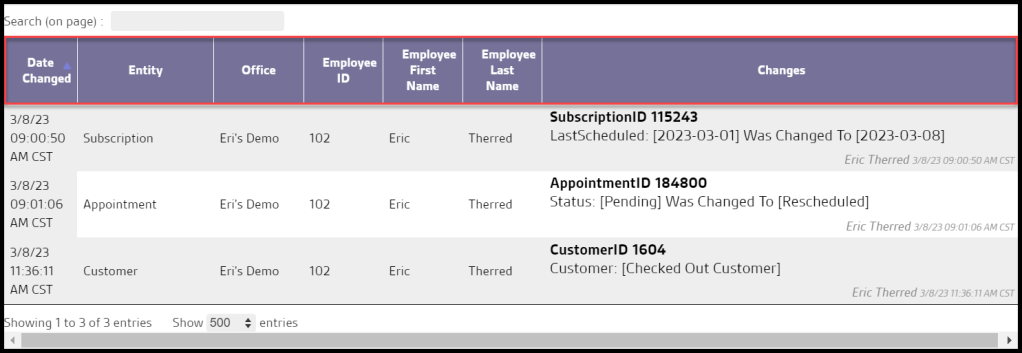
Running the report returns seven columns of data, arranged in ascending order from the oldest to the newest:
- Date Changed: Provides the time and date stamp of the change
- Entity: Displays the type of system element that changed (e.g. Appointment, Customer)
- Office: Designates which office the change involved
- Employee ID: The Employee ID of the logged-in User who performed the change
- Employee First Name: The first name of the logged-in User who performed the change
- Employee Last Name: The last name of the logged-in User who performed the change
- Changes: Information identifying the specific change that was implemented
Exporting the Change Log Report
If desired, the report data may be exported to a CSV file for further analysis.
Once the desired report results have been provided, select the Export to CSV button. A CSV file will be created containing the report results that may be saved and analyzed.
NOTE:
This process will download the entire report results, not just those visible on the current page.

 Moxie Pest Control Office Guide