
Cancellation Subscription
Summary
The Cancellation Subscription Report shows customer subscriptions that have been canceled within a specific date range.
This type of cancellation report does not show customer accounts that have been canceled, only the subscriptions that were canceled. Active customers with multiple subscriptions can still be included in this report. If a customer has multiple canceled subscriptions, they will show up multiple times in this report.
Important Points:
- The difference between the Cancellation report and the Cancellation Subscription report is that the Cancellation report shows customer accounts that have been canceled. In contrast, the Cancellation Subscription report shows customer subscriptions that have been canceled.
- Use the search bar to search for specific information within the report.
- Export this report by selecting “Export to CSV”.
Accessing the Cancellation Subscription Report
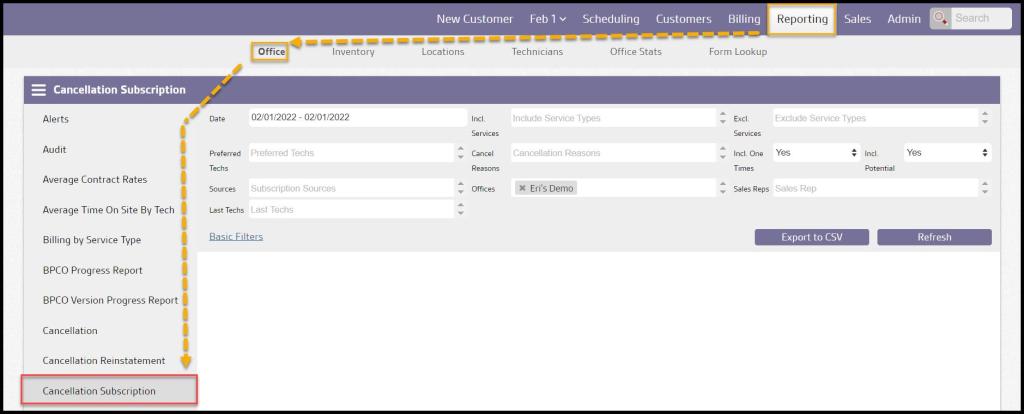
To access the Cancellation Subscription report, go to the
Reporting > Office Reporting > Cancellation Subscription.
Using the Basic Cancellation Subscription Filters
The Cancellation Subscription report can be initially filtered by the following filters:
- Start and End Date: Use this to pull notes within a certain date range.
- Incl. Service: Incl by service type that was canceled.
- Excl. Service: Exclude service types that were canceled.
Select Refresh when finished with the filters to load any changes.

Using the Advanced Cancellation Subscription Filters
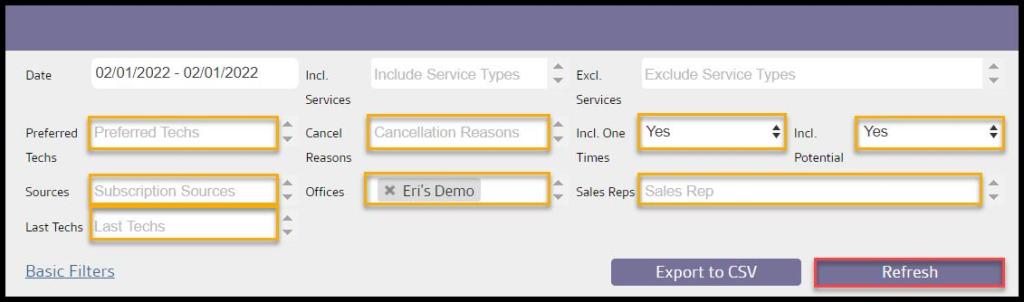
Select Advanced Filters to view more filters.
- Preferred Techs: Filter by preferred techs, if applicable. View if a customer has a preferred tech by going to the Subscription tab in the customer card, clicking a subscription, and look under the “Scheduling Options” column to see the preferred tech.
- Cancel Reason: Filter by Cancellation Reason.
- Incl. One Times: Include or exclude one-time services in the report.
- Incl. Potential: Include or exclude potential customers in the report. A potential customer is an active customer with no completed services.
- Sources: Include results from certain sources for the subscription
- Offices: Include results from offices from the report for users with multiple offices.
- Sales Reps: Include results with certain sales reps.
- Last Techs: Include results with the final technician before cancellation.
Select Refresh when finished with the filters.
Viewing the Cancellation Subscription Data Columns (Part 1)
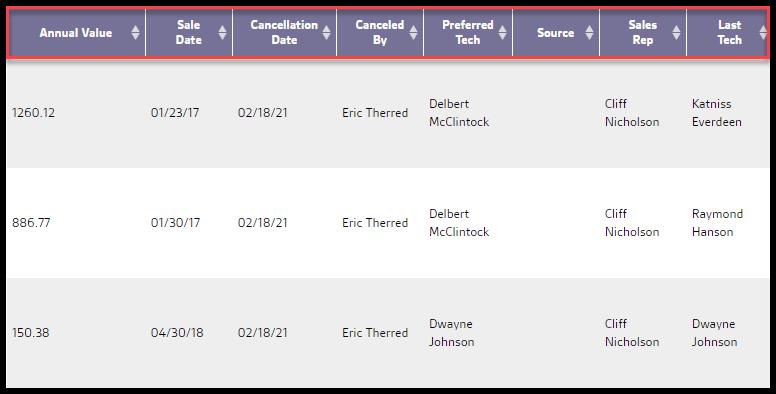
The following columns are displayed for each note included in the report:
- Customer ID: View the customer’s identification number.
- Customer: View the customer’s name.
- Email: View the customer’s email address.
- Service Type: View the service type of the subscription that was canceled.
- Reason: View the reason why the subscription was canceled.
- Cancellation Notes: View any notes made when the subscription was canceled

- Annual Value: View the annual value of the subscription that was canceled.
- Sale Date: View the date the subscription was sold.
- Cancellation Date: View the date the subscription was canceled.
- Canceled By: View the user that canceled the subscription.
- Preferred Tech: View the preferred tech attached to the subscription, if applicable.
- Source: View the source of the subscription.
- Sales Rep: View the sales rep for the canceled subscription.
- Last Tech: View the final technician before the cancellation.
Exporting Cancellation Subscription Report
To export the Cancellation Subscription Report, select Export to CSV.

 Moxie Pest Control Office Guide