
Cancellation Report
Summary
The Cancellation Report allows you to view all of the canceled and pending cancellation customers within a specific date range.
The benefit of using a cancellation report is it displays important details that will help you pinpoint the specific reasons why customers are canceling with the company. You’ll see if there are any trends, and have the ability to make improvements that will decrease cancellation rates in the future and save customers that are pending cancellation.
Important Points:
- The difference between the Cancellation report and the Subscription Cancellation report is that the Cancellation report only shows customer accounts that have been canceled/ frozen, and the Cancellation Subscription report shows customer subscriptions that have been canceled/ frozen.
- Use the search bar to search for specific information within the report.
- Export this report by selecting “Export to CSV”.
Accessing the Cancellation Report
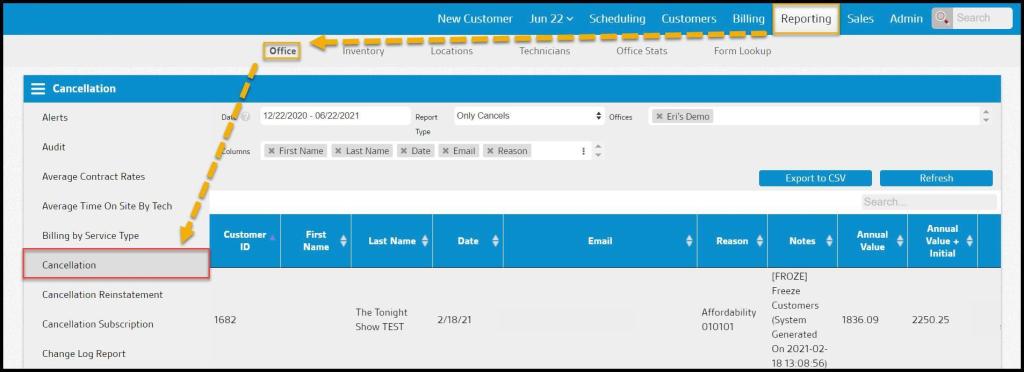
To access the Cancellation Report, go to:
Reporting > Office Reporting > Cancellation
Filtering the Cancellation Report
To filter the Cancellation Report, toggle these filters.
- Date: Limit results between specific dates in the report. This report can only be run for six months at a time.
- Report Type: view Only Cancels, Only Pendings, Cancels and Pendings, and Pending History. Select the desired option from the “Report Type” dropdown.
- Only Cancels: Only customers that have canceled.
- Only Pendings: Only pending cancel customers. To flag a customer as a pending cancel, open the customer card, go to the Flags tab and select “yes” for Pending Cancellation.
- Cancels + Pendings: Customers that have canceled and are pending cancellation.
- Pending History: Customers that were previously flagged as a pending cancel customer, and are no longer flagged as pending cancellation.
- Offices: Limit results to certain offices in the report.
- Columns: Add data columns to the Cancellation Report Report.
Select Refresh to run the report.

Viewing the Cancellation Report’s Report Data Columns
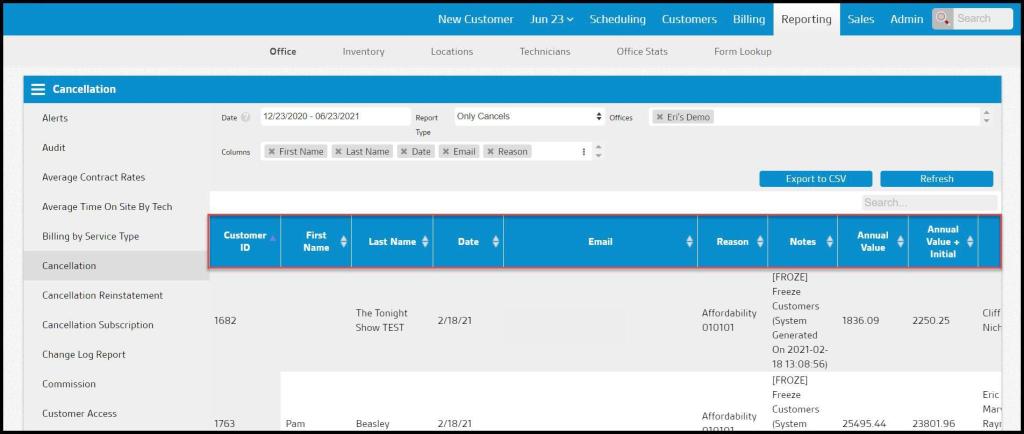
The Cancellation Report Report can display several data columns.
- First Name: The customer’s first name.
- Last Name: The customer’s last name.
- Date: The date of the customer’s cancellation.
- Email: The customer’s email.
- Reason: The reason why the customer canceled. The cancellation reasons can be configured in Admin > Preferences > Cancellation Reasons. The software will not allow users to cancel a customer without selecting a cancellation reason.
- Notes: Any cancellation notes added by an office user when the customer was canceled.
- Annual Value: This column is to let the user know how much the cancellation is worth. This is the sum of the annual contract values for each of the customer’s subscriptions (not including the initial service price). This only includes subscriptions that had an initial service completed.
- Annual Value + Initial: The Annual Value with the initial service prices included.
- Sales Rep: The sales representative that sold the customer.
- Phone 1: The phone number in the phone 1 field.
- Phone 2: The phone number in the phone 2 field.
- Flagged By: The user that flagged the customer as pending cancellation, if applicable.
- Address: The customer’s street address.
- City: The customer’s city.
- State: The customer’s state.
- Zip: The customer’s zip code.
- Status: If the customer has already canceled or is pending cancellation.
- Map Code: The customer’s map code, if applicable.
- Office Name: The name of the office the customer canceled with, if the company has multiple offices.
- Date Sold: The date the customer was sold.
- Canceled By: The user that canceled the customer.
- Service Type: The service types the customer had. If the customer has multiple service types, they will appear in that column.
- Source: The customer source. To configure the customer sources, go to Admin > Preferences > Customer Preferences > Customer Sources. See the guide on customer sources for more information.
- # of Reservices: The number of reservices the customer had.
- # of Services: The number of completed services for the customer.
- Last Serviced: The last time the customer was serviced before canceling.
Exporting a Cancellation Report
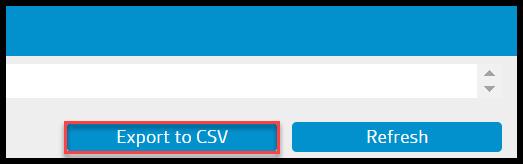
To export a Cancellation Report as a CSV File, select Export to CSV.
 Moxie Pest Control Office Guide