
Calendar
Summary
The Calendar shows how many routes are available on each day of the month. The number of serviced and scheduled customers on these days can also be viewed.
Important Points:
- The Calendar view is useful for seeing the month at a glance.
Accessing the Calendar
To access Calendar, go to:
Scheduling > Calendar

Toggling the Calendar’s Month on the Routing Schedule
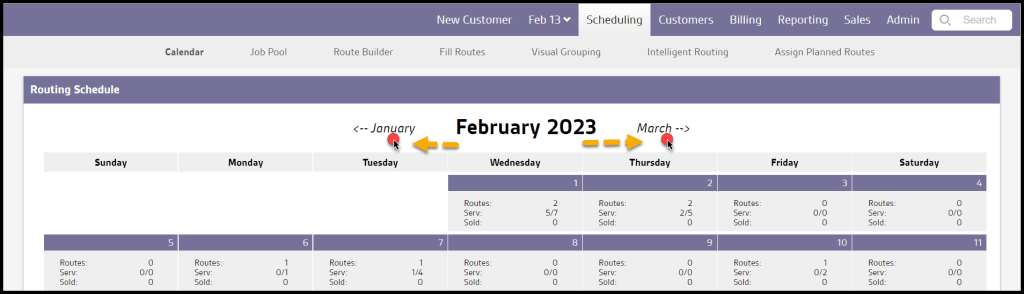
Above the calendar, the current month will be displayed. To view future and past months, select the month name to the left and right of the current month.
Individual Calendar Days & Stats
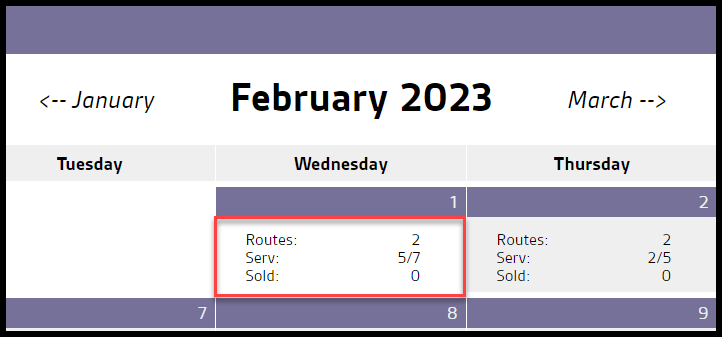
Each day on the calendar will display useful information about the routes on that day.
- Routes: This number will represent how many routes are available on that specific day.
- Serv: This pair of numbers represents the number of Completed services for the day compared to the number of currently Scheduled appointments. Each appointment Completed increments the first number (e.g. 0/4 -> 1/4), and each additional appointment Scheduled increments the second number (0/4 -> 0/5). If a scheduled appointment is then Canceled, Rescheduled, or marked as No Show, then the total of Scheduled appointments will be decreased by one. For example, the daily numbers will be updated as follows:
- A day begins with seven Pending appointments scheduled (Serv: 0/7),
- an additional one is Scheduled (Serv: 0/8)
- five are Completed (Serv: 5/8)
- one is Canceled (Serv: 5/7)
- one is a No Show (Serv: 5/6)
- and one is Rescheduled, then the day will end with (Serv: 5/5)
- Sold: This shows the number of subscriptions sold by Sales Reps on this day.
 Moxie Pest Control Office Guide