
Business Contacts
Summary
Business Contacts allows a space to store non-customer, business-related information. It is perfect for contacts who refer multiple customers, i.e. realtors, construction firms, etc.
Important Points:
- Remember, Business Contacts do not show up in your Customer list.
- Editing an existing Business Contact will not affect what has already been established in the individual Customer Card. Similarly, editing a customer’s Additional Contacts will not alter what is listed in Admin > Preferences > Business Contacts.
Accessing the Business Contacts
To access Business Contacts, go to
Admin > Business Contacts
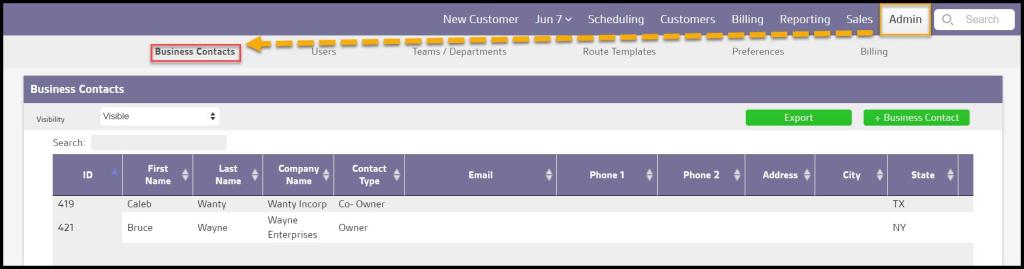
Filtering the Business Contacts
To filter the Business Contacts, toggle these filters.
- Visibility: Determines whether the business contact can be seen and added to a Customer Card.
- Export: Downloads a CSV file of the existing Business Contacts
- + Business Contact: Create a brand new Business Contact.
- Search: Filter the Business Contacts by keywords.

Adding a Business Contact
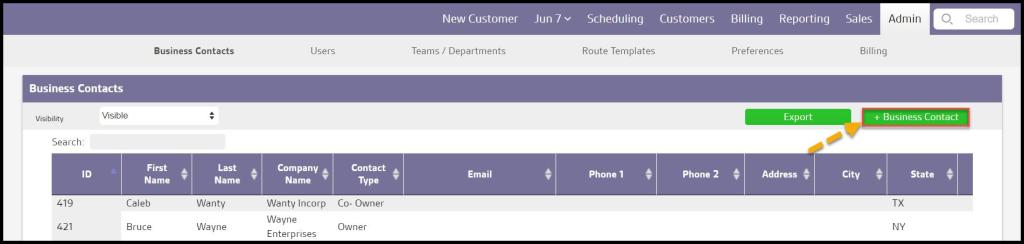
To add a new business contact, click on the green + Business Contact button in the top right corner.
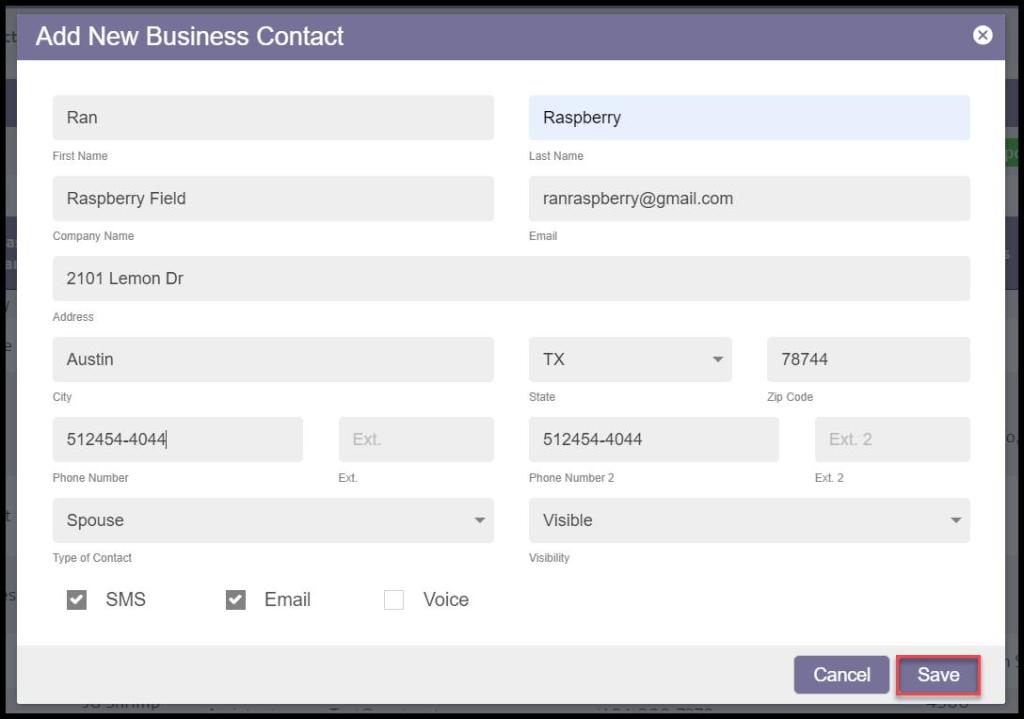
The user can add the following details to the business contact.
- First/Last Name
- Company Name
- Address
- City
- State
- Zip Code
- Phone Number
- Type of Contact
- Note: Contact types can be created and edited under Admin > Preferences > Customer Preferences > Additional Contact Types.
- Visibility
- Contact Preferences
Select Save when finished.
Adding Business Contacts in the Customer Card
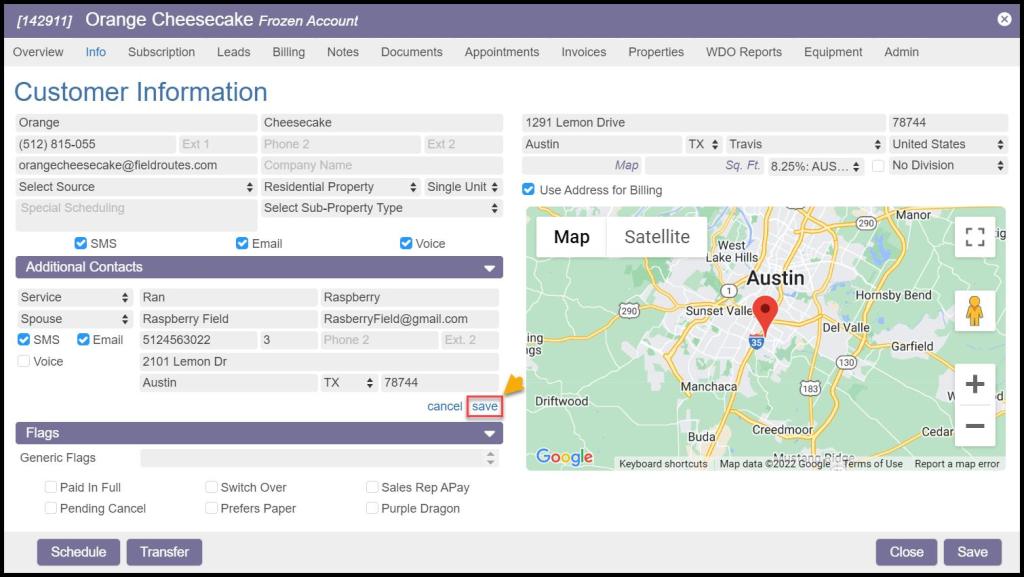
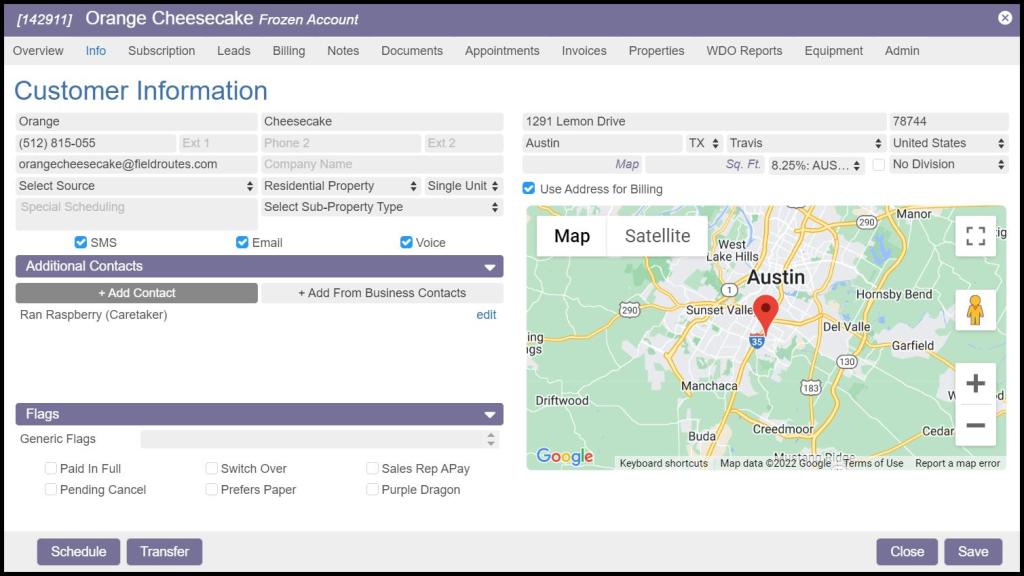
Within the Customer Card, the Info tab has the ability to add an existing Business Contact through the Additional Contacts section.

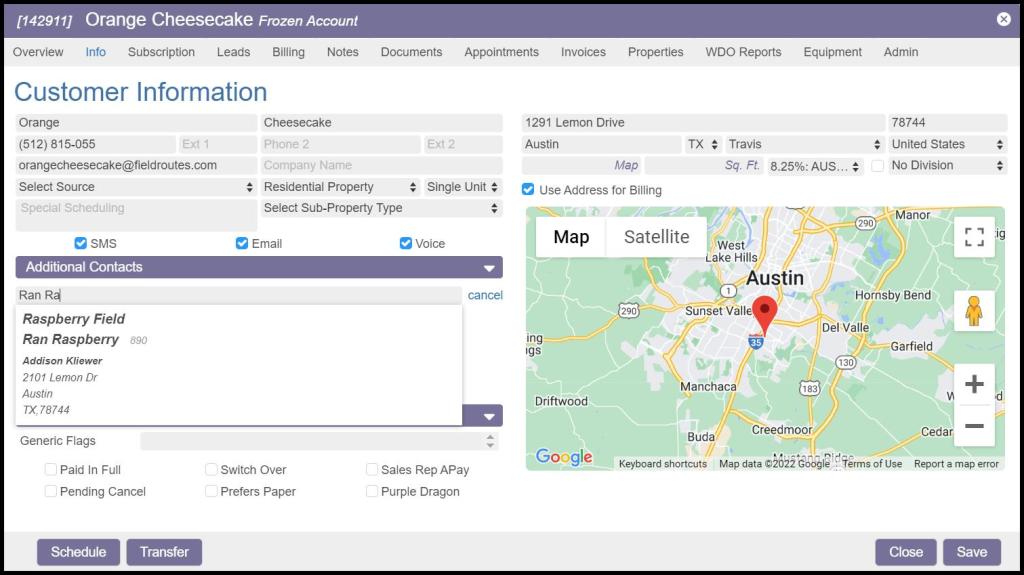
Select Save after choosing the correct business contact.
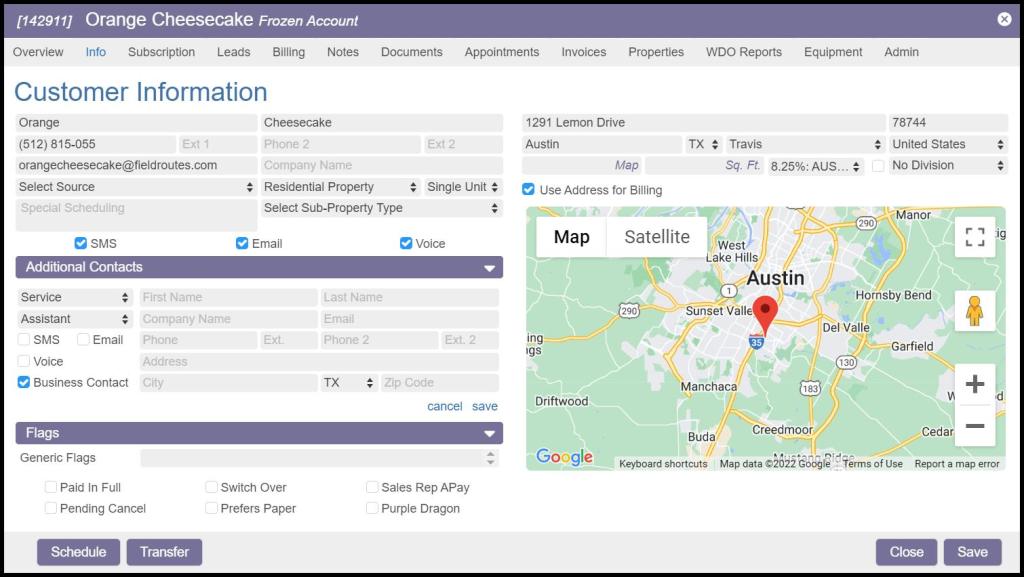
Turning a Contact into a Business Contact in the Customer Card
When the user selects + Add Contact, checking the box next to the Business Contact option saves it as a brand new Business Contact.
 Moxie Pest Control Office Guide