
Billing Letter Templates
Summary
Use the Billing Letter Templates preference to customize billing invoices based on the criteria of the customer’s account.
These templates are inserted into the customer account statements based on the account age range selected and AutoPay status. This is a way to customize reminders for past-due customers based on their account age range.
The Billing Letter Template will appear on all customer billing statements and billing emails.
Important Points:
- A Purple Dragon refers to a customer marked as AutoPay, but their payment card failed to be charged.
- This helps you customize the billing letter based on whether a customer had a valid payment card on file or not. The flag must be manually set under the customer card’s flags tab.
Accessing the Billing Letter Templates
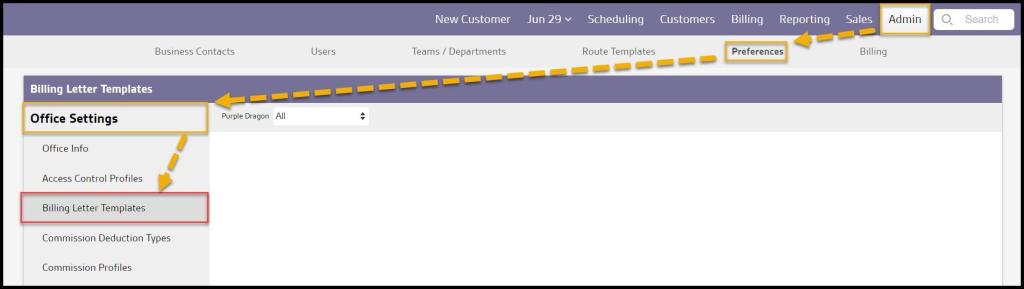
To access Billing Letter Templates, go to:
Admin > Preferences > Office Settings > Billing Letter Templates.
Filtering the Billing Letter Template
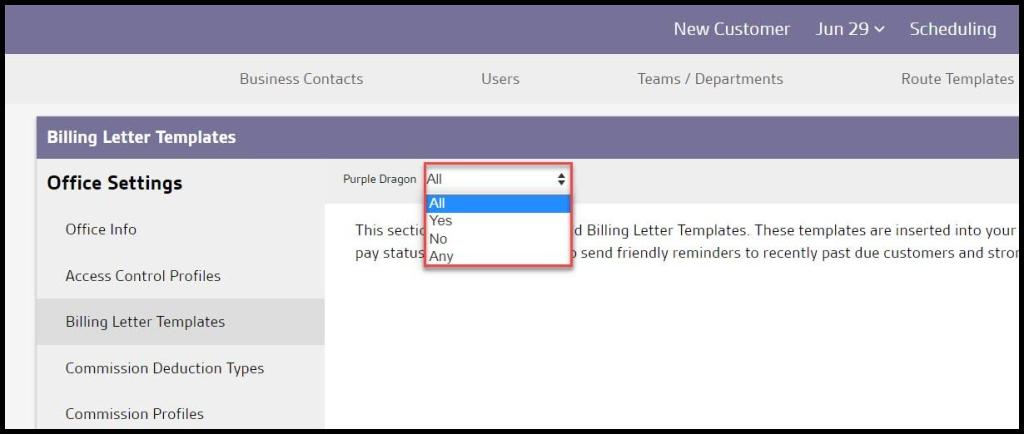
To filter the Billing Letter Template, toggle this filter.
- Purple Dragons
- All and Any: Show all Billing Letter Templates regardless of Purple Dragon Status.
- Yes: Show only Billing Letter Templates with the Purple Dragon Status
- No: Show Billing Letter Templates without the Purple Dragon Status
The Billing Letter Templates will refresh after different filters are selected.
Adding or Editing a Billing Letter Template
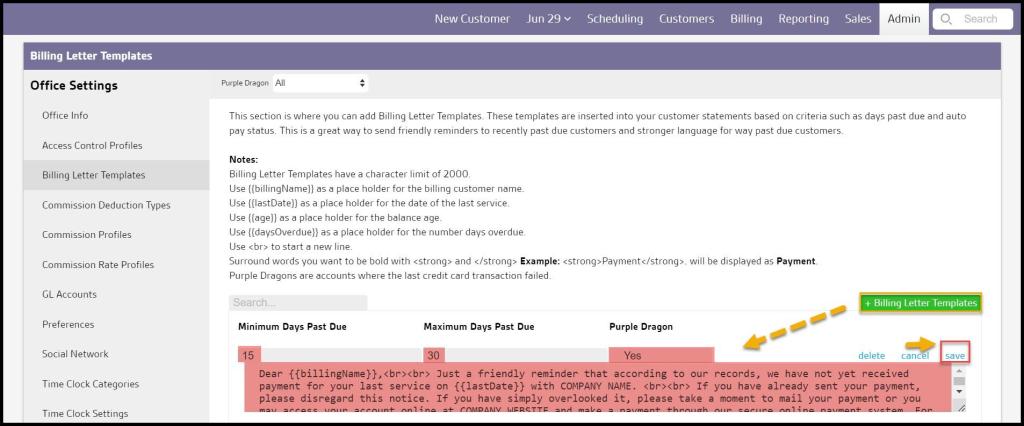
To add a new Billing Letter Template, select + Billing Letter Template or select edit to make changes to an existing Billing Letter Template.
- Minimum Days Past Due and Maximum Days Past Due: Specify the age range that the billing template will be created. For example, a customer overdue by 0-30 days might require different wording for an account 31-60 days overdue. This feature allows the option of creating different templates for different ranges of account ages.
- Purple Dragon: Determine whether the template will be sent to purple dragon accounts. If yes, this option will send the invoice to purple dragon accounts within the age range specified.
- Letter Field: Fill in the text of the letter, making sure to follow the notes provided at the top of the page for formatting. Use the dynamic placeholders provided to further customize these billing templates with the customer’s name and last service date.
Select Save when finished editing the Billing Letter Template.
Printing an Account Statement (Individually)
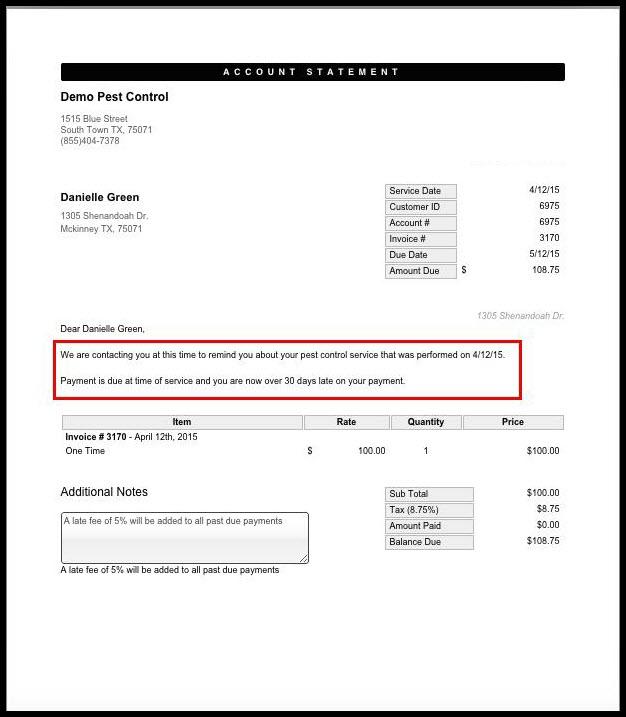
This is an example of the billing template on a customer’s account statement when printed via the customer card or Accounts Receivable report.
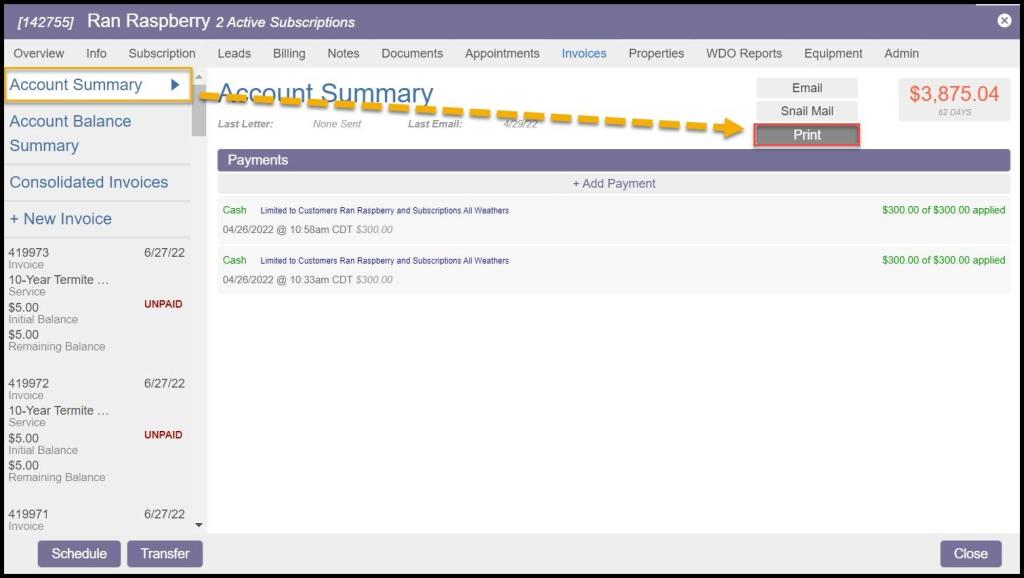
To view and print the statement for an individual customer, go to:
Customer Card > Invoices > Account Summary > Print.
Printing an Account Statement (Individually) continued.
This will open a new tab allowing the account statement to be viewed and printed.
The text in the box is what is generated by the Billing Template.
Printing an Account Statement (Bulk)
These invoices can also be printed in bulk:
Billing > Accounts Receivable > Actions > Print Statements.
Please see the guide on the Accounts Receivable report for more information on sending customer’s account statements in bulk.

Emailing an Account Statement (Individually)
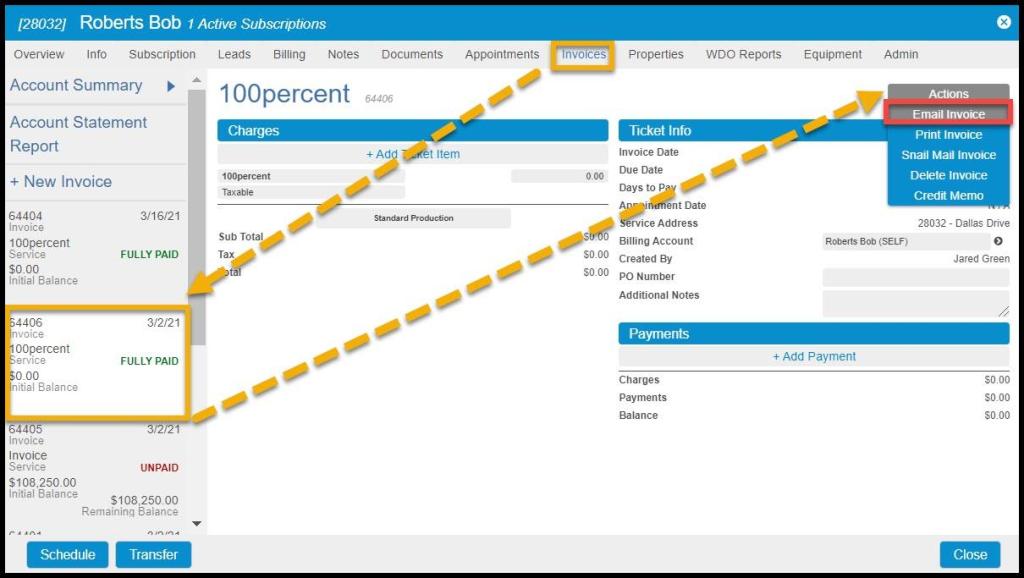
These invoices can be emailed individually:
Customer Card > Invoices > Select the preferred Invoice > Actions > Email Invoice.
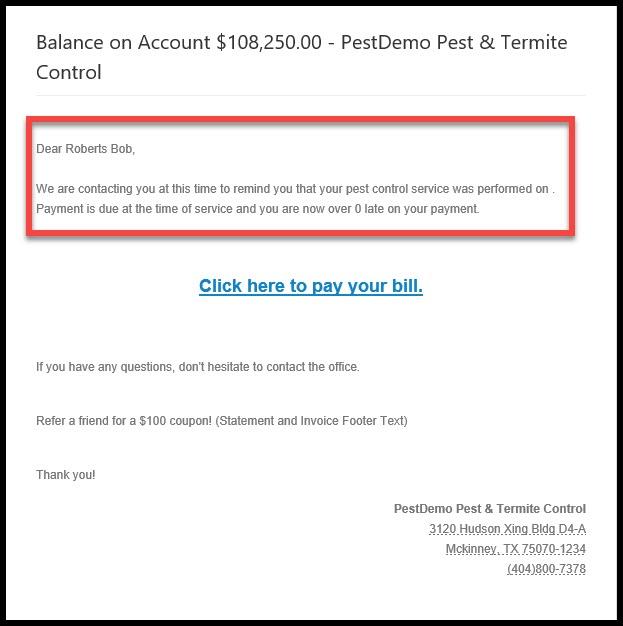
This is an example of what the emailed billing template will look like. The billing letter template is included in the body of the email the customer receives.
Emailing an Account Statement (Bulk)
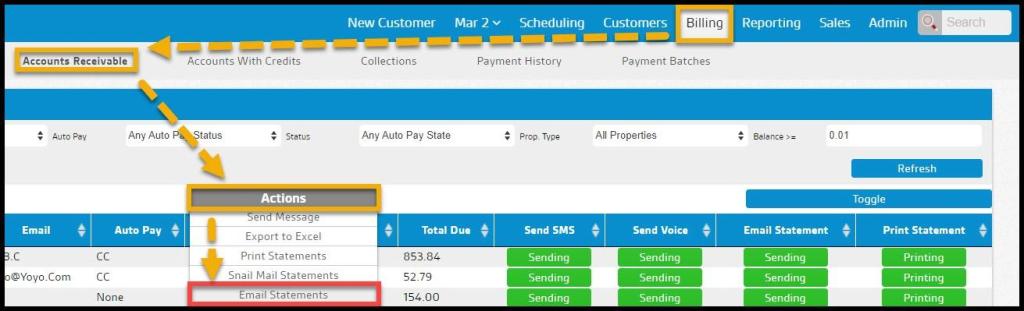
These invoices can also be emailed in bulk:
Billing > Accounts Receivable > Actions > Email Statements.
Please see the Accounts Receivable report guide for more information on bulk-sending customers’ account statements.
 Moxie Pest Control Office Guide