
Billing by Service Type
Summary
The Billing by Service Type Report is a great tool to see the revenue generated from each service type performed. It can also show great insights about revenue – like how much revenue the company generates in each city? How much revenue did a specific sales representative produce? Or, how much revenue was produced as a result of different marketing efforts?
This report uses an accrual-based method of accounting. This means it shows the total amounts of what was invoiced during a period, not the total amount of what was collected. For example, if a tech performed a service for a customer in June, and they paid for that service in July, an accrual-based report would report that income in June, while a cash-based report would show that payment in July.
The benefit of an accrual-based report is that it helps the user see the amount of revenue that they were able to generate during a period of time – regardless of the money was collected or not.
Important Points:
- The difference between the Billing by Service Type report and the Payments by Service Type report is that Billing by Service Type is based on the invoices generated. The Payments by Service Type report is based on any actual payments collected within that date range.
- The Collections %, Receivables Aging, Revenue by month, and Revenue by Service widgets on the desktop dashboard all use accrual-based accounting methods and will match up with the Billing by Service Type report as long as the same filters are applied.
- If a specific invoice’s value changes, then this report will retroactively update to reflect the new invoice value.
- If a specific invoice’s value changes, then this report will retroactively update to reflect the new invoice value.
- Users can see sales tax grouped by tax code by using the Group By Filter and selecting the appropriate tax code from the list.
Accessing the Billing by Service Type Report
To access the Billing by Service Type report, go to
Reporting > Office > Billing by Service Type.

Filtering the Billing by Service Type Report (Basic Filters)
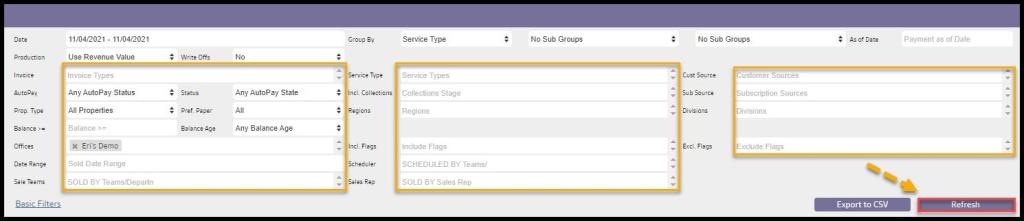
There are several different ways to filter the Billing by Service Type report. To quickly filter the report, use the basic filters:
- Invoice Date: Filter the report by a specific date range. Select the date field to choose preselected dates such as today, yesterday, last week, etc. Or select “Custom Range” to enter in a custom date range.
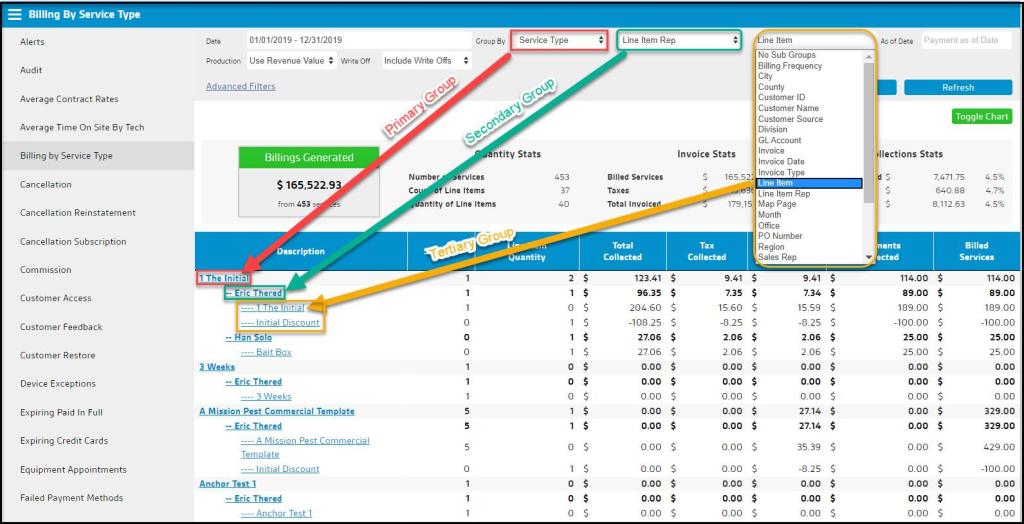
- Group By: Determines how the data will be primarily grouped.
- Sub Group: Choose a subgroup within the main group. The user can choose “No Sub Groups” to use only the primary group.
- NOTE: A tertiary sub-group can also be applied.
- As of Date: This allows The user to see what customer balances and balances ages were in the past as of a specified date.
- Production: If the user selects “Use Revenue Value”, the report will only report the revenue value of the invoice. If the user selects “Use Production Value”, the report will report the production value of the invoices generated. Please see below for a description of the difference between the revenue and production values.
- Write Off: Options include the ability to include, exclude, or only pull Write Offs.
To filter the report with more options, select the Advanced Filters button. See below for detailed information on the advanced filters.

Filtering the Billing by Service Type Report (Advanced Filters)
Once the user selects advanced filters, there are many more options to filter the Billing by Service Type report.
- Invoice: Filter by specific invoice types. Service Invoices will include only invoices generated via a completed service, Recurring Billing Invoices are invoices automatically generated from a recurring monthly billing frequency, and Stand-Alone Invoices will include invoices that are not connected to an appointment or recurring billing frequency.
- Service Type: Filter the data by specific service types.
- Cust. Source: Filter the data by Source listed on the Info tab of the customer card.
- Auto Pay Status: Filter by customer’s AutoPay preferences.
- Auto Pay State: Filter the report by successful transactions, soft or hard declines, and invalid/missing AutoPay attempts.
- Incl. Collections: Filter by customer’s collection stages.
- Sub. Source: Filter the data by the Source listed on the Subscription tab of the customer card.
- Prop. Type: Filter the report by all properties, residential properties or just commercial properties.
- Pref. Paper: Filter the report by customers flagged as preferred paper or not.
- Regions: Filter the data by specific regions.
- Divisions: Filter the data by divisions.
- Balance >= : Filter the report by customers with balances greater than or equal to a specific value.
- Balance Age: Filter the report by the customer’s account balance age.
- Offices: Filter the report by specific offices.
- Incl. Flags: Include specific customer flags.
- Excl. Flags: Exclude specific customer flags.
- Date Range: Filter the report by the customer’s sold by date.
- Scheduler: Filter by appointments scheduled by specific teams/departments.
- Sale Teams: Filter the report by the team that sold the service type.
- Sales Rep: Filter the report by the sales representative the service type was sold by.
To apply desired filters, select Refresh. To export the report, select Export to CSV.
How to use the Group By Options
One of the most powerful aspects of the Billing by Service Type report is that there are many possibilities for grouping (and sub-grouping) the data. For example:
- Grouping the report first by service type, and the secondary group is by customer, will cause the report to display the revenue generated by service type and below that, the customers that have had that service within the given date range. Click on a Customer ID to see more details about the customers that have had that service type completed such as, the date the appointment was completed, the revenue generated from that service, and the revenue actually collected from that service.
- To see how much revenue was generated by city, per sales representative, select City for the main group and Sales Rep as the secondary group.
When grouping the report by Service Type, an “unspecified” category is any invoices generated that are not applied to a Service Type.
Viewing the Data Table on the Billing by Service Type Report
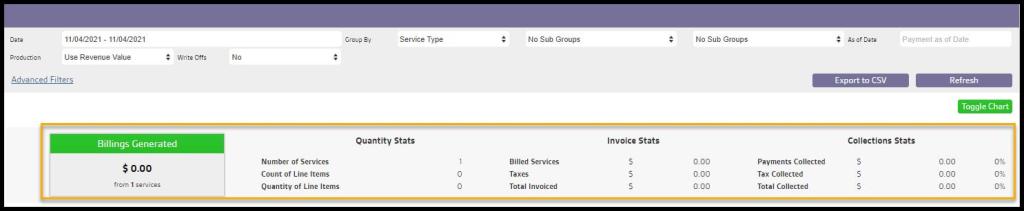
The Billing by Service Type report includes a data table at the top of the report to make it easy to see important data at a glance.
- Quantity Stats: This section will show the total number of services invoiced within the given date range. The count of line items will reflect how many different line items were invoiced, and the quantity of line items will reflect the total number of line items invoiced.
- Invoice Stats: These stats will display the invoiced amount, taxes, and total amount invoiced within a specific date range.
- Collections Stats: The Collections stats display the payments collected, tax collected, and the total amount collected within the given date range.
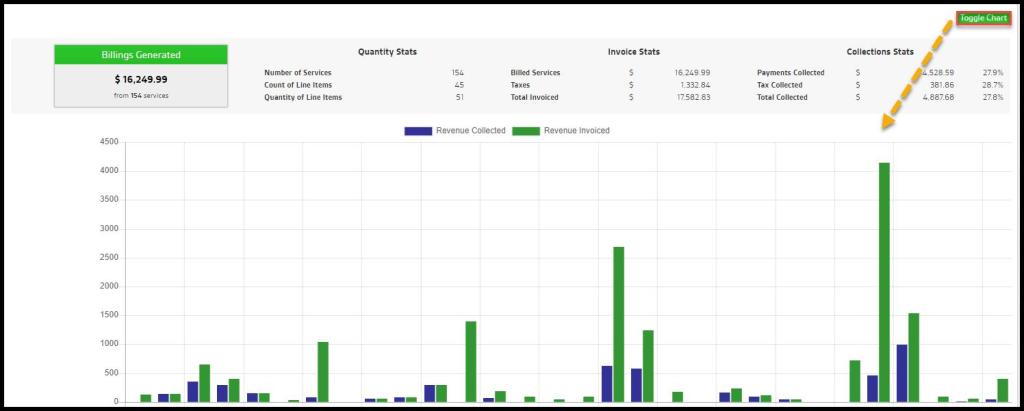
Click on Toggle Chart to view the chart.
Viewing the Revenue Chart on the Billing by Service Type Report
Select Toggle Chart to make a chart that will appear in the report.
This chart will allow the user to have a better visual understanding of the data provided in this report.
What is the difference between production value and revenue value?
Revenue value is the total value of the income generated from an invoice.
Production value is an arbitrary value that the user can assign to an invoice. Typically the production value matches the revenue value, however, it makes sense in several scenarios to make these different. For example:
- What about providing services for a friend? For instance, the user wants to give their friend a free service, however, they want to make sure that their tech gets paid commission based on the value of that service. Set the production value to be what the service is worth, so the tech can get credited correctly.
- Customers set up on recurring billing. If the user has a Quarterly customer, that is billed monthly for their services, the monthly bill will be 1/3 of the service price. However, setting up a custom production allows the user to link the full price to the service. If the user’s company technicians are paid a commission for the services they perform, setting a custom production will allow the technician to get paid based on the full value of the service versus the partial amount charged for the recurring billing.
- Any special incentives for technicians.
Which other reports should mirror this report?
The Revenue by Month and Revenue by Service dashboard widgets are accrual-based methods of accounting and will match this report as long as the same filters are applied.
How does this affect sales tax?
Tax is calculated by the cash-based method of accounting, not the accrual-based method. View the Payments by Service Type report and guide for more information.
 Moxie Pest Control Office Guide