
Audit
Summary
The Audit Report is a tool to detect common data entry errors within the platform. It helps effectively catch mistakes and quickly fix them.
An Audit report is important because it provides a means of evaluating and maintaining common data entry mistakes. This report helps correct some common manual data entry errors that can be very costly to the company.
Important Points:
- This Audit report has been updated to only show issues related to customers entered during the dates selected so that you have a more manageable report.
- Past Monthly Billing results are calculated by the Billing Date and not the Service Date.
Accessing the Audit Report
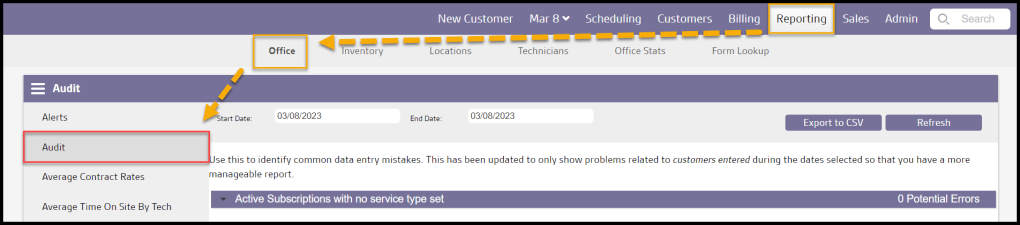
To access the Audit report, go to:
Reporting > Office > Audit
Audit Report Filtering
The only filter available for this report involves setting a date span for results:
- Start Date
- End Date
Once the date span is set, select the Refresh button to return the report results.

Audit Report Categories
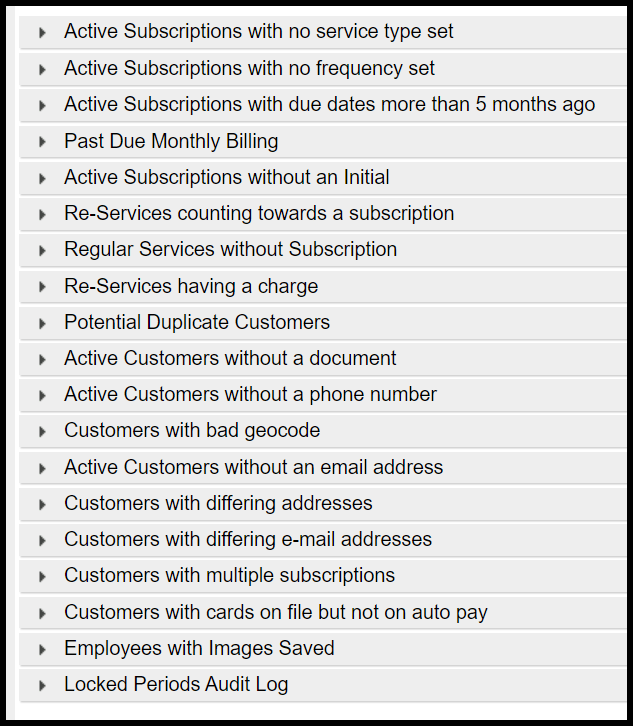
The Audit report is actually an aggregate of a number of lists that allow various items or customers to be tracked and corrected. Click on the triangular toggle next to the title to select a list to review. The tabs available are as follows:
- Active Subscriptions with no service type set
- Active Subscriptions with no frequency set
- Active Subscriptions with due dates more than 5 months ago
- Past Due Monthly Billing
- Active Subscription without an Initial
- Re-Services counting towards a subscription
- Regular Services without a Subscription
- Re-Services having a charge
- Potential Duplicate Customers
- Active Customers without a Document
- Active Customers without a phone number
- Customers with bad geocode
- Active Customers without an email address
- Customers with differing addresses
- Customers with differing e-mail addresses
- Customers with multiple subscriptions
- Customers with card on file but not on auto pay
- Employees with Images Saved
- Locked Period Audit Log
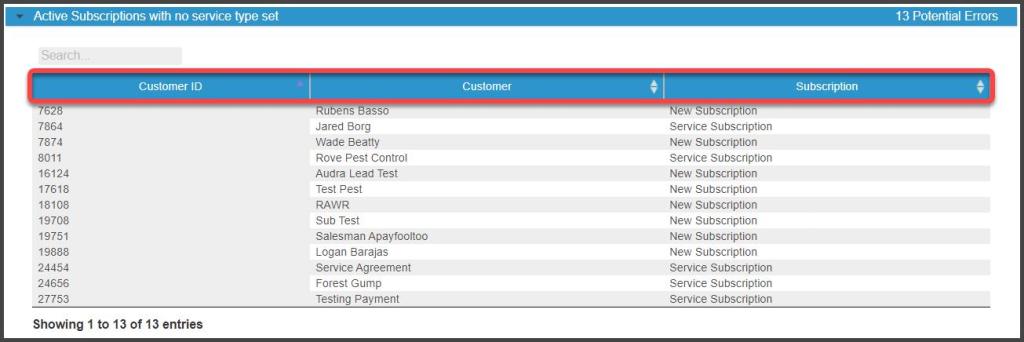
Active Subscriptions with No Service Type Set
This section detects customers with active subscriptions that have no Service Type selected for that subscription. To correct this issue, select the customer’s name on the report to open the customer card and go to the Subscriptions tab, select the proper service type under the Recurring Services column, and save the Customer Card.
This section returns the following data columns:
- Customer ID
- Customer
- Subscription
Active Subscriptions with No Frequency Set
This detects all active subscriptions that do not have a Frequency selected in the Recurring Services column of the Customer Card. Subscriptions with one time and as needed frequencies will also be considered in this section, so not all results may be considered data entry errors. To correct this, select the customer’s name on the report to open the Customer Card > Subscriptions tab, select the proper Frequency under the Recurring Services column, and Save.
This section returns the following data columns:
- Customer ID
- Customer
- Subscription

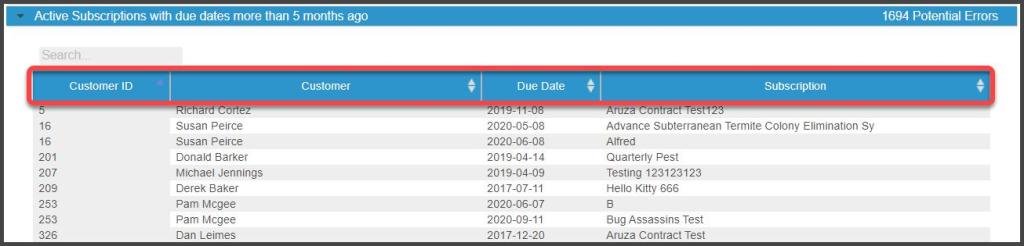
Active Subscriptions with Due Dates More than 5 Months Ago
This section displays services that are overdue by five months or more. By default, the Job Pool and Intelligent Routing display a Due Date as much as six months prior to the current date to prevent customers from being missed.
This section returns the following data columns:
- Customer ID
- Customer
- Due Date
- Subscription
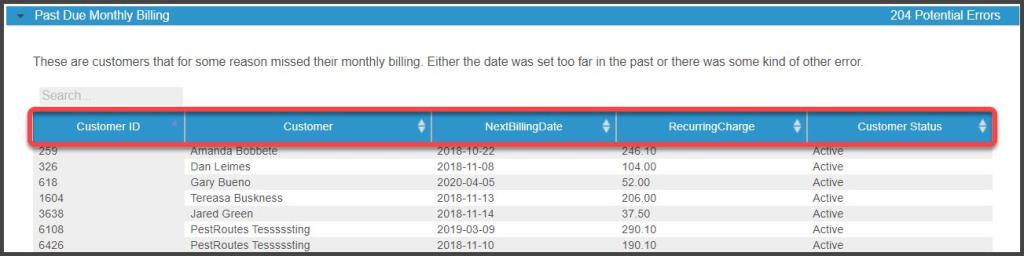
Past Due Monthly Billing
This section displays customers that missed the payment on their monthly billing. This can happen if their next Billing Date was set in the past, or there was some other kind of error. To correct this error, set the Billing Date to a current date or a date in the future. Remember, the actual service dates are not factored into this, the system will only take into account the monthly Billing Date.
This section returns the following data columns:
- Customer ID
- Customer
- NextBillingDate: The next Due Date for a payment
- RecurringCharge: The next charge based on contract value and Frequency
- Customer Status: Whether the customer is Active or Frozen
Active Subscriptions Without an Initial
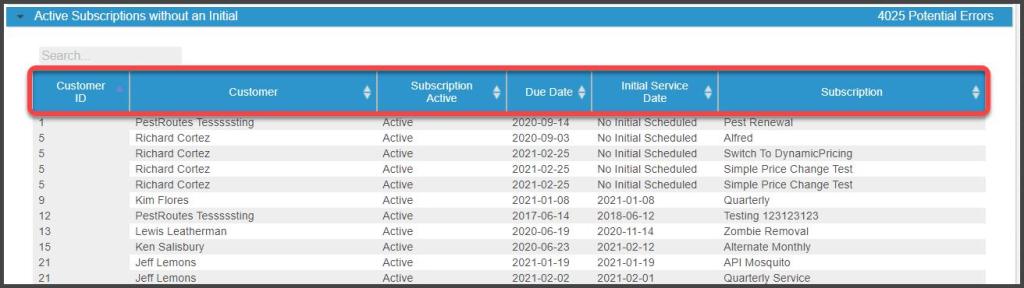
This section displays active Subscriptions that had no Initial Service performed. To correct this, schedule and complete an Initial Service for the Subscription.
This section returns the following data columns:
- Customer ID
- Customer
- Subscription Active: The status of the Subscription
- Due Date
- Initial Service Date: Scheduled date of the Initial Service
- Subscription: Service Type of the customer’s subscription
Re-Services Counting Towards a Subscription
When re-services are attached to a subscription, they often cause issues with the frequency of the subscription, so it is important to schedule re-services as stand-alone services. To correct this issue, open the Customer Card > Appointments tab, select the re-service that is counting towards a subscription, and under Appointment Info, change the subscription to Stand-alone or reservice.
This section returns the following data columns:
- Customer ID
- Customer
- Appointment Date
- Account Status

Regular Services without Subscription
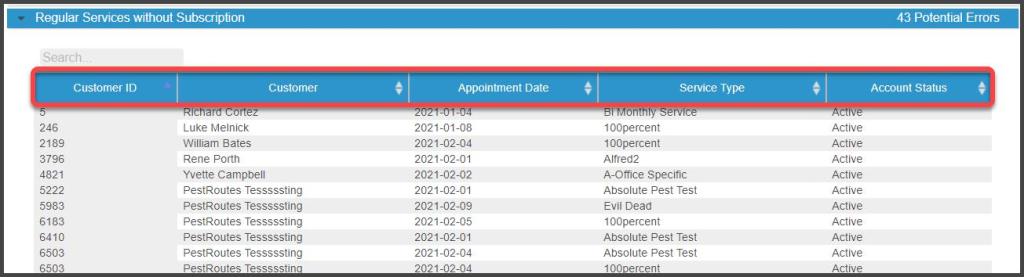
This section displays any regular services that were scheduled as a stand-alone instead of being attached to a subscription. To correct this issue, open the customer card, go to the Customer Card > Appointments tab, select the regular service that is not counting towards a subscription, and under Appointment Info, change the subscription to whatever the corresponding subscription is.
This section returns the following data columns:
- Customer ID
- Customer
- Appointment Date
- Service Type
- Account Status
Re-Services Having a Charge
This section will display any re-services that have a charge attached to the appointment.
This section returns the following data columns:
- Customer ID
- Customer
- Total: Value charged for the re-service
- Date: The date the re-service was Completed and the charge/invoice generated Account Status

Potential Duplicate Customers
This section displays potential duplicate customers. If two customers have the same name and address, it will display here. To correct true duplicates, use the Customer Card > Admin > Merge function, or delete one of the duplicate accounts. Please view the user guides Merge and Link Properties in the Customer Card and How to Freeze a Customer’s Account for specifics.
This section returns the following data columns:
- Customer ID
- Customer
- Address

Active Customers Without a Document
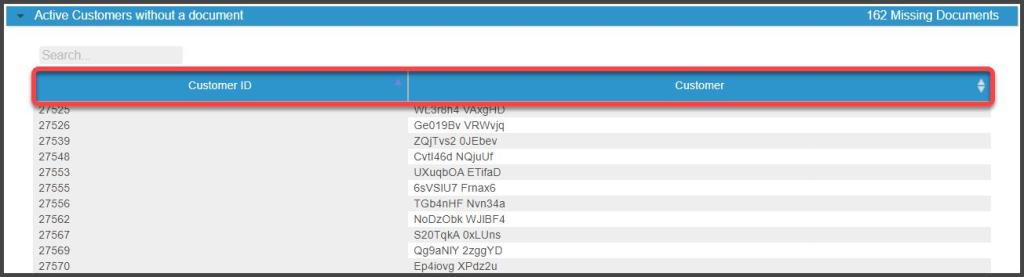
This shows all active customers with no documents or attachments on their Customer Card. Companies that do not use contract agreements for services will see nearly all customers appear on this list. Companies that do use agreements will only see customers without one appear.
Note
Only customers with at least one active subscription and one appointment will be eligible for inclusion.
This section returns the following data columns:
- Customer ID
- Customer
Active Customers without a Phone Number
This highlights all active customers with no phone number on file. To correct this, add a phone number to the Customer Card > Info tab.
This section returns the following data columns:
- Customer ID
- Customer

Customers with Bad Geocode
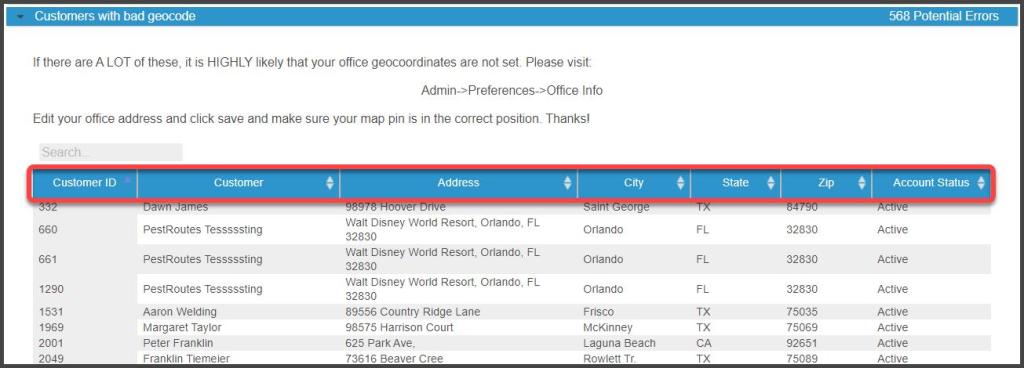
Customers with “bad geocodes” have something wrong with their address, causing mapping software to struggle or fail to find it on their map. It could be that the address is non-existent, misspelled, missing the correct zip code, etc. First, make sure that the customer’s address is typed correctly in the Customer Card, then make sure the office has been geolocated correctly. If the geocode for the office is off, then this will affect the customers.
This section returns the following data columns:
- Customer ID
- Customer
- Address
- City
- State
- Zip
- Account Status
Active Customers Without an Email Address
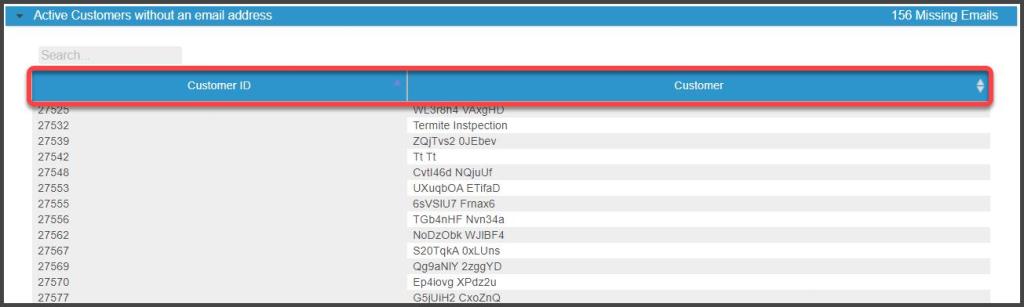
This highlights all active customers who lack a primary email address on the Customer Card > Info tab.
This section returns the following data columns:
- Customer ID
- Customer
Customers with Differing Addresses
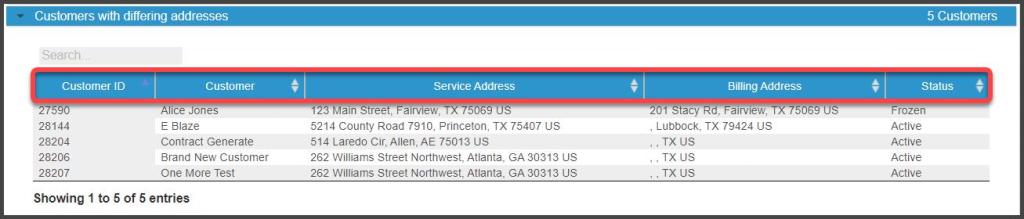
This section displays customers with different addresses under the Info and Billing tab of the Customer Card.
This section returns the following data columns:
- Customer ID
- Customer
- Service Address: The address listed on the Customer Card > Info tab
- Billing Address: The address listed on the Customer Card > Billing tab
- Status: The Active/Frozen status of the Customer account
Customers with Differing Email Addresses
This section will display customers that have different email addresses under the Info and Billing tab of the Customer Card.
This section returns the following data columns:
- Customer ID: Displays the Customer’s unique identification number.
- Customer: Displays the Customer’s name.
- E-Mail: The primary email address on the Customer Card > Info tab
- Billing E-Mail: The email address listed on the Customer Card > Billing tab
- Status: The status of the customer’s account, whether Active or Frozen

Customers with Multiple Subscriptions
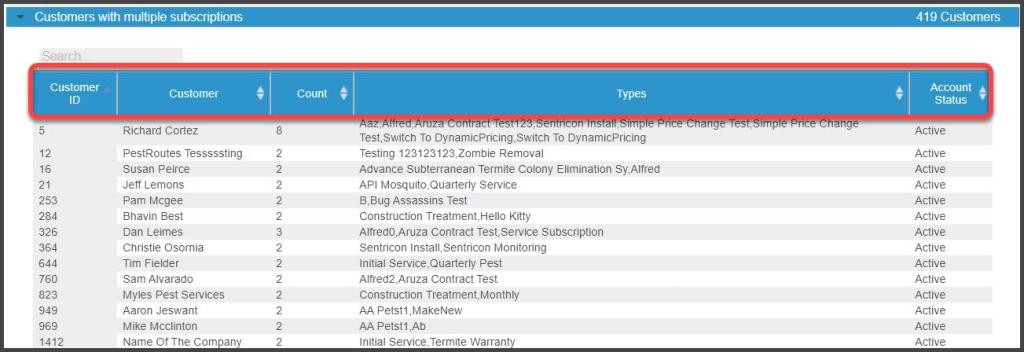
This section displays customers with more than one subscription on their account. It shows the number of subscriptions and the subscription type listed individually. This allows customers with duplicate subscriptions to be identified.
This section returns the following data columns:
- Customer ID
- Customer
- Count: The number of subscriptions on the Customer’s account
- Types: Service Type of the subscriptions
- Account Status: Active or Frozen status of the Customer’s account
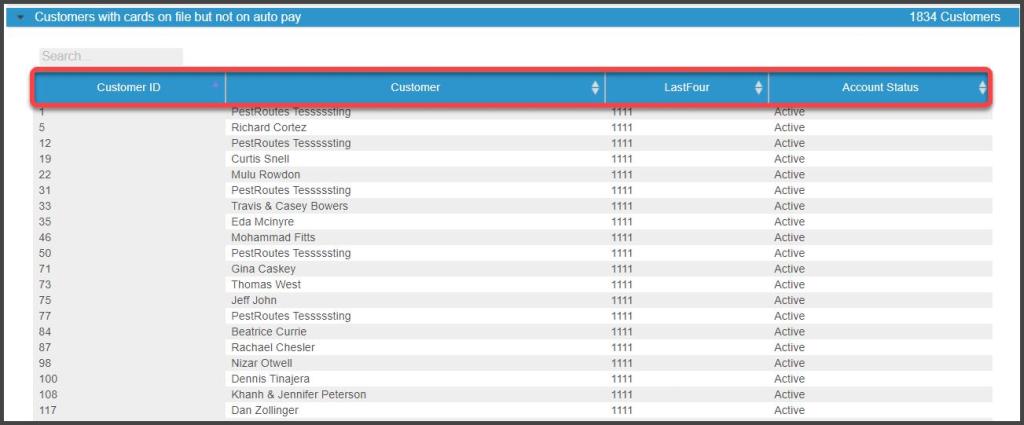
Customers with Cards on File but Not on Auto Pay
This section shows customers with a payment card on file but not on AutoPay. To fix this, open the Customer Card and go to the Billing tab and turn AutoPay on.
This section returns the following data columns:
- Customer ID
- Customer
- LastFour: Last four digits of the payment card in question
- Account Status: Whether or not the account is Active or Frozen
Employees with Images Saved
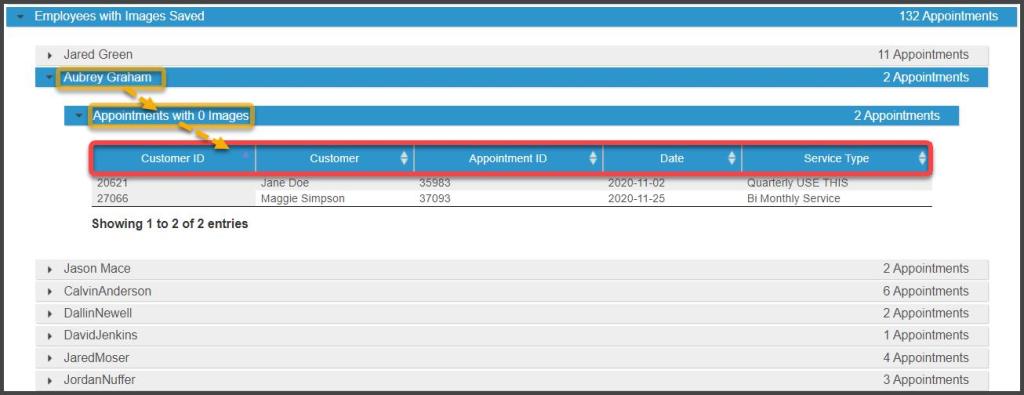
This section shows the number of images saved on the Appointment record by each employee for each appointment serviced in the date period.
This section returns the following data columns:
- Customer ID
- Customer
- Appointment ID
- Date
- Service Type
Locked Periods Audit Log
This section shows a date/time stamp and employee record for each case of the accounting period being locked or unlocked in the Admin > Preferences > Office Settings > Preferences > Month Closing section.
- Employee Name: Employee’s account used to Close or Reopen the month.
- Timestamp: Date and time of the closing or re-opening of the period.
- Date Month Closed: Date of the Month Close or Reopen.
- Action: Identified whether the incident was a closing or re-opening of a period.

Exporting Audit Report Results to CSV File
All the data returned on the Audit report may be exported to CSV file by selecting the Export to CSV button. This will export all the data from each tab into a single file, which may then be filtered and analyzed as desired.

 Moxie Pest Control Office Guide