
Apt Commission Split
Summary
The Tech Commission Split Report is designed to allow offices to see commissions earned by each of their technicians. Primary techs can receive a percentage of the production value. Secondary techs can receive a percentage of the commissions deducted from the primary tech’s pay or as a flat bonus amount.
Important Points:
- Quickly and conveniently export this report to a CSV file.
- Primary techs can receive a percentage of the production value.
- Secondary techs can receive a percentage of the commissions deducted from the primary tech’s pay or as a flat bonus amount.
- This guide assumes the default Commission profiles.
Select Commission Rates Based On User or Based on Service Type
There are two different ways to set up commissions for Technicians and Sales Reps. Either all of the techs/Sales Reps can get a commission based upon the rates set inside each user card, or the commissions are based on each service type. Both are not possible at the same time, so consider the best way to pay commissions before making a decision.
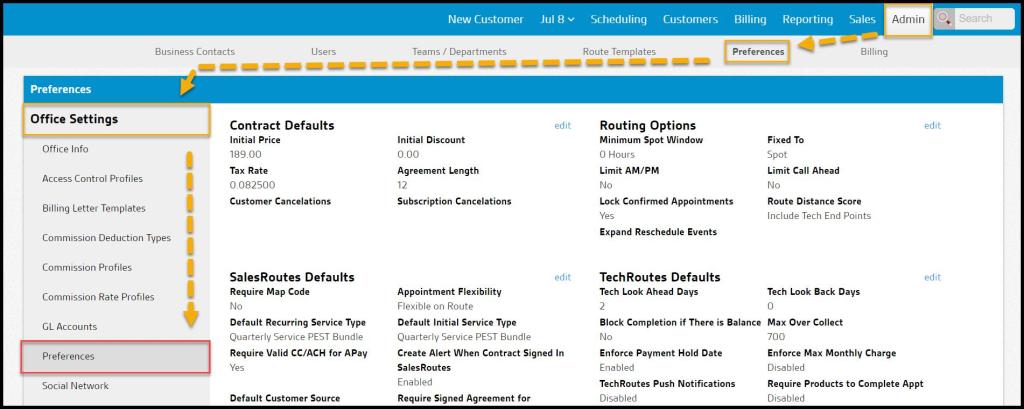
Go to Admin > Preferences > Office Settings > Preferences.
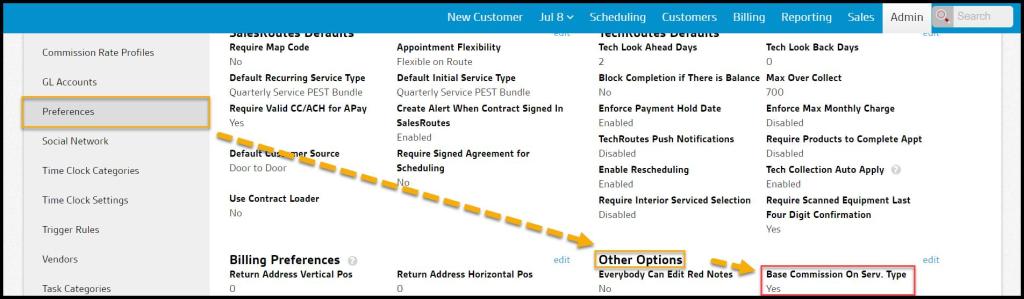
Go to Preferences > Other Options > Base Commissions on Serv. Type.
- Change the Commission Based On Service Type preference to Yes to set the commission rate based on the service type percentages, or
- Change it to No to set commission rates for each individual tech/Sales Rep.
Set Up Commission Rates (Based on User Card)
If the Commission Based On Service Type preference is set to No, please ensure the commission rates are configured for all Technicians/Sales Reps.
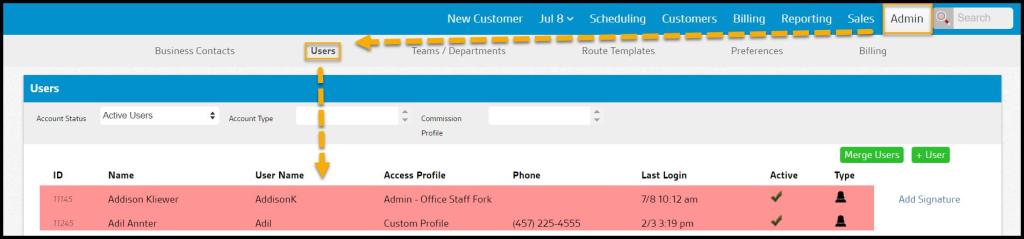
Go to Admin > Users, and select a technician to open the Edit User box.
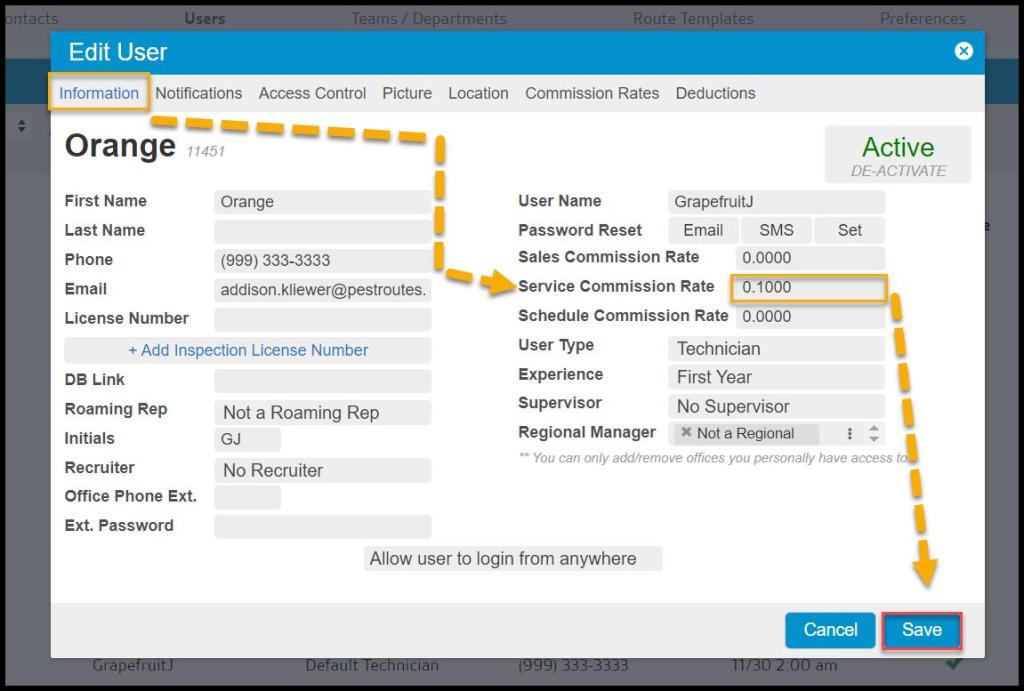
Next to the Service Commission Rate field, enter the commission rate for the technician. Each Tech/Sales Rep that is receiving commissions will need the commission rate entered.
To set a commission rate of 10%, enter 0.10. For a 100% commission, enter 1.00. Select save when finished.
Set Up Commission Rates (Based on Service Type)
If the Commission Based On Service Type preference is set to Yes, please ensure the commission rates are configured for each service type.
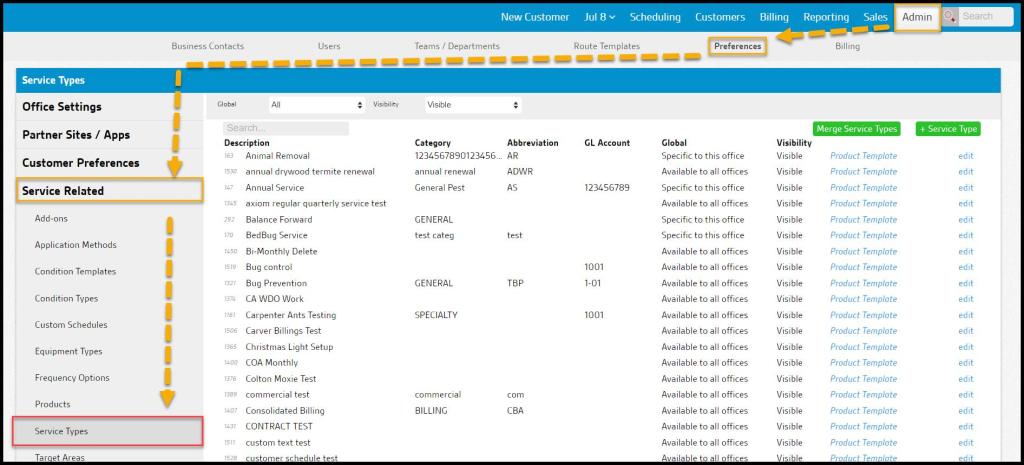
Go to Admin > Preferences > Service Related > Service Types.
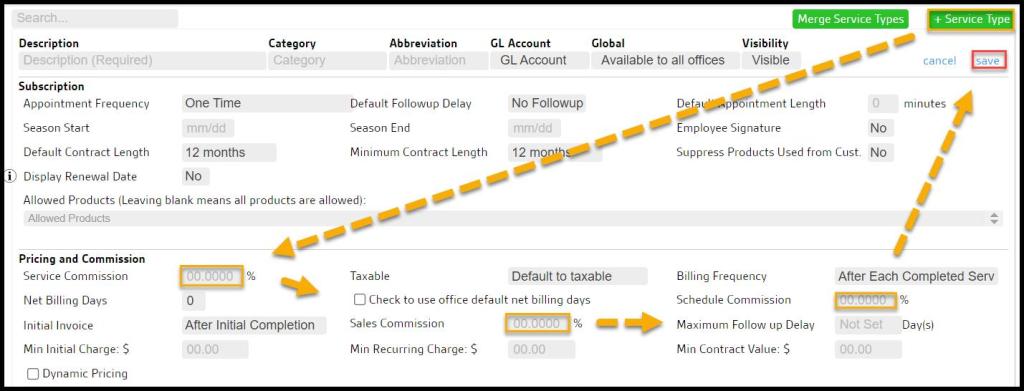
Then set a Service Commission Rate and Sales Commission Rate for each service type that needs a corresponding commission rate.
To set a commission rate of 10%, enter 0.10. For a 100% commission, enter 1.00. Select Save when finished.
Tech Commission Split
To split the commission on one service between multiple technicians, go to the specific appointment and select the customer’s name on the route. In the menu that appears below, click on Apt Commission Split.

Appointment Commission Split
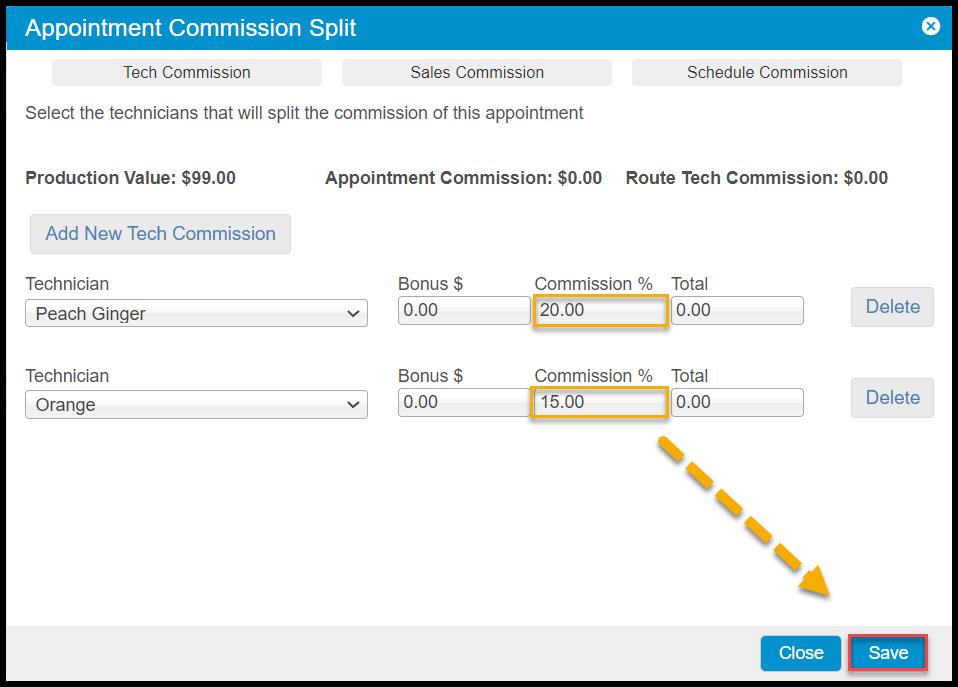
A new window titled Appointment Commission Split will appear, and this allows another technician, salesperson, or office member to be selected to split the commission on that appointment. This window is primarily used to edit individual appointments or special cases. Select Add New Technician to add a technician to the appointment commission split for this example.

To select a technician, select the field below Technician, and a drop-down menu will appear with a list of users to choose from.
First, configure the rates in the user card. If the commissions are set to 0.00 in the user card, the user cannot split the commission.
- Technical/Salesperson: The user that is receiving the current part of the commission. This designation will also determine which profile that the commission will show up in via the Commission report.
- Bonus $: Any additional bonus amount earned by the user on top of the commission.
- Commission %: The percentage of the appointment’s production that the user is receiving as a commission.
The Commission % field for the secondary technician is a percentage of the commission earned by the primary technician. It is not an additional percentage of the production value.
For example, if the production value of the service is $99 and the primary tech is set up to receive 20% commission, the commission earned for that service will be $19.80. When a secondary tech is added at a rate of 15% commission, they will earn 15% of the $19.80, which is $2.97. The primary technician will earn a $16.83 commission and the secondary technician $2.97.
After saving the split, return to the Commission Report. The commission will appear once it has been paid. If it is not showing up, ensure that the service has been paid in full in the Invoices tab of the Customer Card, and check that the corresponding profile filter is being used on the Commission Report.
 Moxie Pest Control Office Guide