
Appointment Reservice Reasons
Summary
By creating Reasons for reserviced appointments, the user can track why customers are often reservicing their appointment. This guide explains how to use this preference to create Appointment Reservice Reasons.
Important Points:
- These Appointment Reservice Reasons are used when marking an appointment as a reservice.
- To disable Appointment Reservice Reasons, set the visibility to all reasons as hidden.
Accessing the Appointment Reservice Reasons
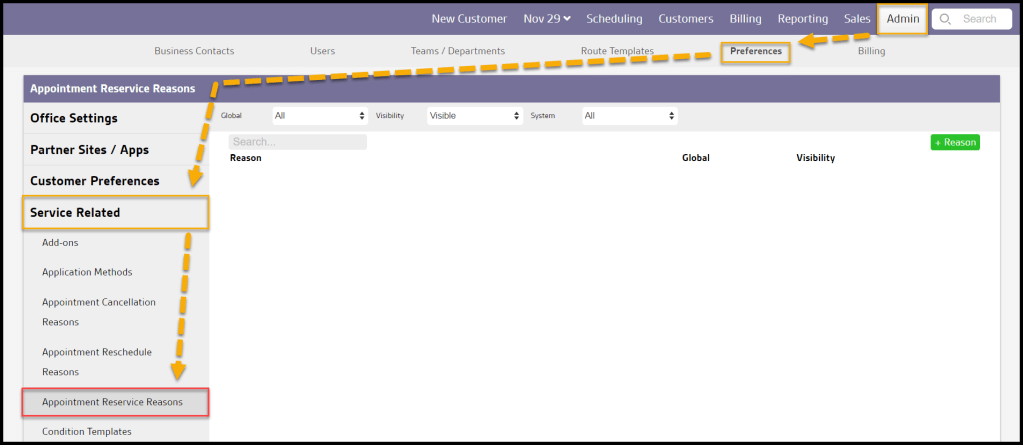
To access the Appointment Reservice Reasons, go to:
Admin > Preferences > Service Related > Appointment Reservice Reasons.
Filtering the Appointment Reservice Reasons
To filter the Appointment Reservice Reasons, toggle these filters.
- Global
- All: Display all Appointment Reservice Reasons.
- Specific to Office: Display only Appointment Reservice Reasons flagged to be specific to the user’s office.
- Available to all offices: Display only Appointment Reservice Reasons flagged as open to all offices.
- Visibility
- All: Show all Appointment Reservice Reasons.
- Visible: Show only visible Appointment Reservice Reasons.
- Hidden: Show only hidden Appointment Reservice Reasons.
- System
- All: Display All Appointment Reservice Reasons.
- Yes: Display only Appointment Reservice Reasons that are system Appointment Reservice Reasons.
- No: Display only Appointment Reservice Reasons that are not system Appointment Reservice Reasons.
The Appointment Reservice Reasons will refresh after different filters are selected.

Adding/Editing an Appointment Reservice Reason in Preferences (Continued)
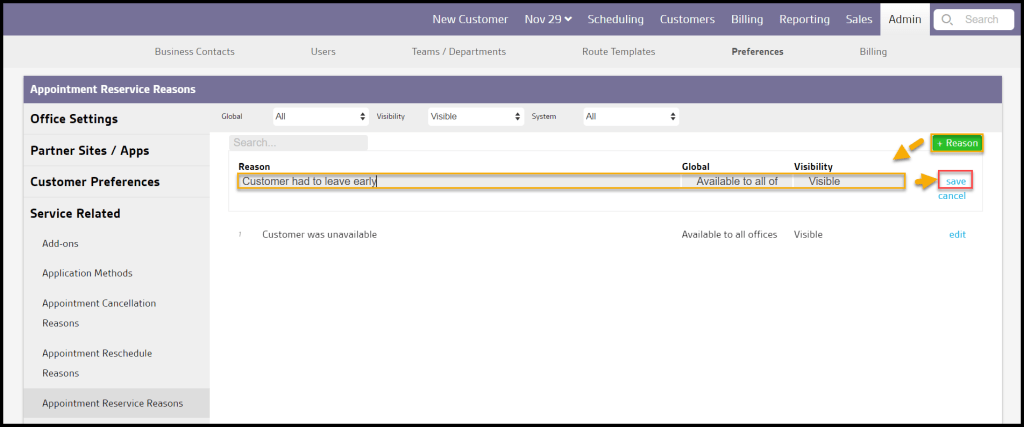
To add a new Appointment Reservice Reason, select + Reason or select Edit to change an existing Appointment Reservice Reason.
- Reason: Add or edit the reason why the customer reserviced their appointment.
- Visibility: Set the visibility to either Visible or Hidden. Note that if a reason is hidden, it cannot be selected as an option presented when canceling a customer.
- Global: Set the visibility to be office-specific or global, which means all branches can see the new Appointment Reservice Reason.
- System: Shows if the reason is system-defined. This cannot be edited.
Select Save when finished editing the Appointment Reservice Reason.
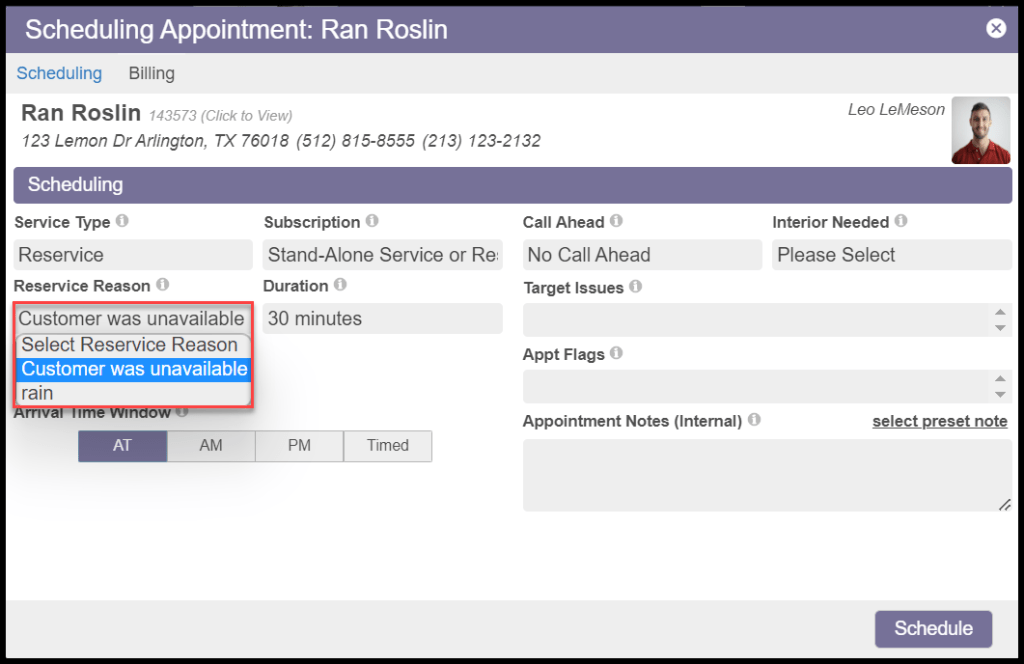
Where are Appointment Reservice Reasons used?
Appointment Reservice Reasons are used when an appointment is marked as a Reservice.
The Reason will also show up when hovering over the appointment.
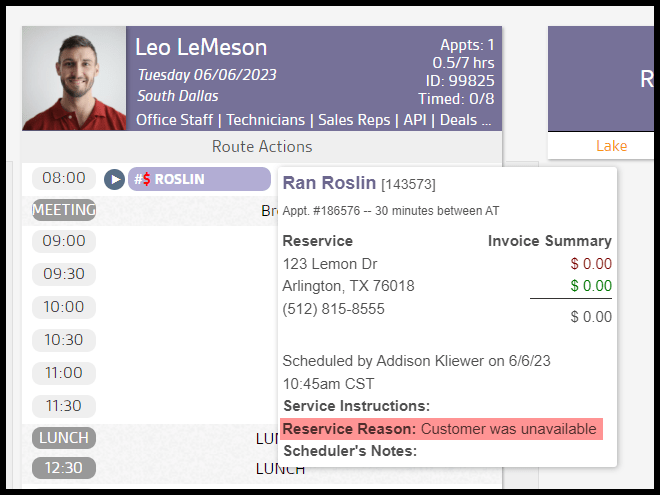
The Reason and other details will show up when re-opening the appointment card.

The reason will also show up on the Customer Card under the Recent Reservices section, along with the date of the Reservice Reason.
 Moxie Pest Control Office Guide