
Appointment Checklists
Summary
The Appointment Checklists allow users to create custom checklists that field technicians can use before or during an on-site appointment. This will enable businesses to ensure that their field technicians are properly equipped and prepared for each appointment and will provide a more consistent and efficient service to customers. Some benefits include:
- Ensure that all areas of a property are properly inspected and treated. This is especially important for large properties or properties with multiple units.
- To help technicians stay organized and on track. Checklists can help technicians remember all of the steps involved in a pest control treatment and the specific products and dosages to use.
- To improve communication between technicians and customers. Checklists can help technicians document their findings and recommendations, which can be helpful for customers who want to understand the company’s field process.
- To improve the quality of field services. Checklists can help technicians consistently provide high-quality services, which can lead to satisfied customers and repeat business.
Important Points:
- To disable Appointment Checklists, set the visibility to all reasons as hidden.
- Some examples of Checklists include a Final Checklist, New Customer Checklists, and Technician acknowledgment checklists.
- Make sure that the checklists are up-to-date. As new products and techniques are developed, the checklists should be updated to reflect these changes.
Accessing the Appointment Checklists
To access the Appointment Checklists, go to:
Admin > Preferences > Service Related > Appointment Checklists.

Filtering the Appointment Checklists
To filter the Appointment Checklists, toggle these filters.
- Filter by Name: Filter the checklists by name.
- Global
- All: Display all Appointment Checklists.
- Specific to Office: Display only Appointment Checklists flagged as specific to the user’s office.
- Available to all offices: Display only Appointment Checklists flagged as open to all offices.
The Appointment Checklists will refresh after different filters are selected.

Adding/Editing an Appointment Checklist
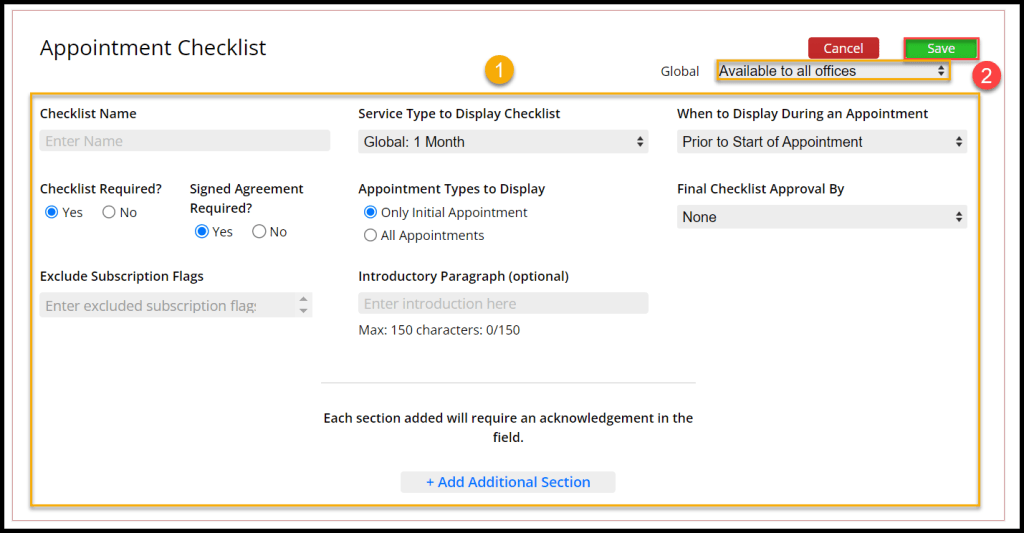
To add a new Appointment Checklist, select + Add New Checklist or select Edit to change an existing Appointment Checklist.
- Checklist Name: Name the checklist.
- Service Type to Display Checklist: Choose which Service Type will use the checklist.
- When to Display During an Appointment: Choose if the appointment checklist will display before the start of the appointment or before the technician can complete the appointment.
- Global: Choose whether the checklist will be available to the office or all offices.
- Checklist Required?: Determine if the checklist must be completed during the appointment.
- Signed Agreement Required?: Determine if the checklist needs a signed agreement.
- Appointment Types to Display: Determine if the checklist will be displayed on only Initial Appointments or all appointments.
- Final Checklist Approval By: Determine if the checklist needs initials, signature, or neither to be completed.
- Exclude Subscription Flags: Exclude any subscription flags.
- Introductory Paragraph (optional): Add an introductory paragraph to explain what to do during the checklist.
- + Add additional Section: Add additional sections to the checklists. See below.
Select Save when finished editing the Appointment Checklists.
Adding/Editing Additional Sections to the Checklists
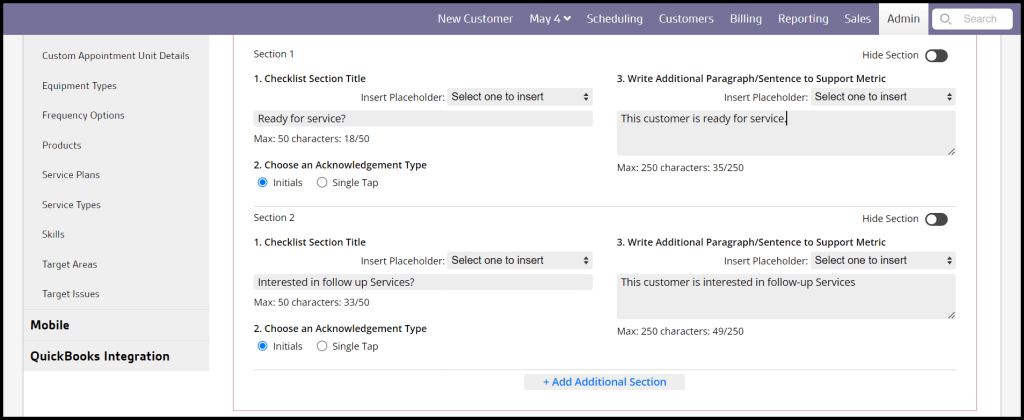
To add an additional section to an Appointment Checklist, select + Add Additional Section.
- Checklist Section Title: Add a placeholder or custom title to the section.
- Choose an Acknowledgement Type: Choose if the user/customer has to acknowledge the section with initials or a single tap.
- Write Additional Paragraph/Sentence to Support Metric: Add a placeholder or custom paragraph to explain the metric for the section.
Where Will the Checklist Appear in FieldRoutes Mobile?
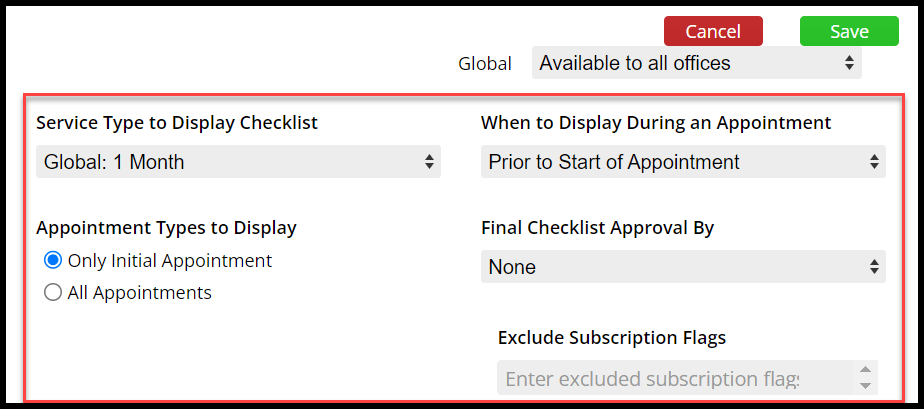
Pay attention to these details to determine where the checklist will occur in FieldRoutes Mobile.
- Service Type to Display Checklist: Determine which Service Type will use the checklist.
- When to Display During an Appointment: Choose if the appointment checklist will display before the start of the appointment or before the technician can complete the appointment.
- Appointment Types to Display: Determine if the checklist will be displayed on only Initial Appointments or all appointments.
- Final Checklist Approval By: Determine if the checklist needs initials, signature, or neither to be completed.
- Exclude Subscription Flags: Exclude any subscription flags.
Where are Appointment Checklists Used?
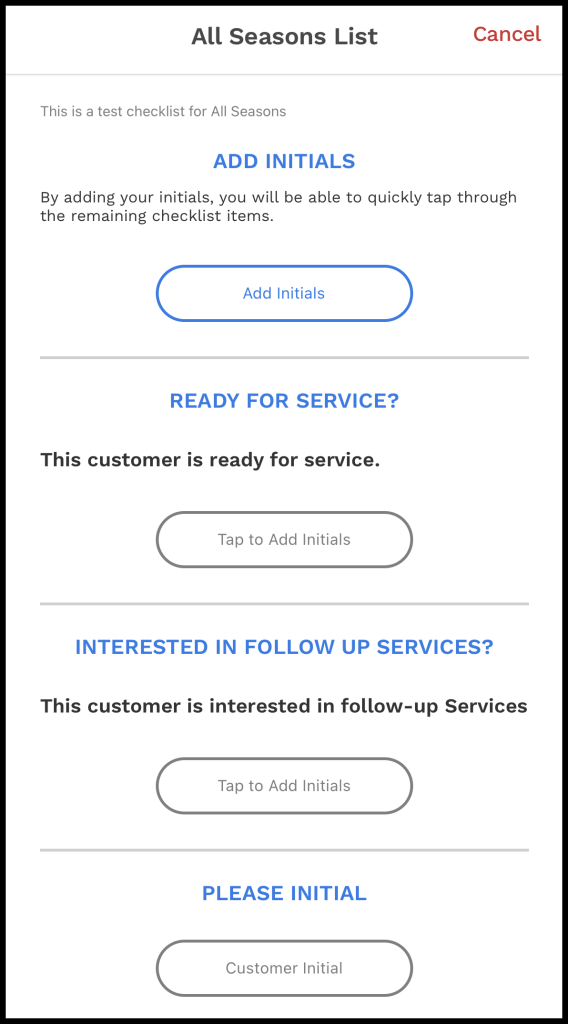
Appointment Checklists will appear in FieldRoutes Mobile for appointments with the checklists are enabled for the service type.
Where Do Completed Appointment Checklists Show Up After an Appointment?
The Completed Appointment Checklists show up in the Customer Card under the Documents tab as a PDF.

 Moxie Pest Control Office Guide