
Applying a Payment to a Customer Account
Summary
Payments may be applied in various ways according to a customer’s wishes. A specific payment may be applied to the customer’s total account balance or a specific invoice or subscription.
This allows the customer to pay their entire account balance with a single payment or apply a payment to a particular invoice, subscription, or customer.
This guide also covers transactions made using different payment methods (cash, check, credit card, and ACH) and how they apply to the customer’s account.
Important Points:
- If the payment exceeds the outstanding balance on the invoice, the remaining amount will be applied to the oldest unpaid invoice or credited as a prepayment to the customer’s account.
- The Apply to First setting takes precedence over any Limit to Subscription or Limit to Customer settings for that transaction.
- For more information about applying coupons/credits to customer accounts, please see our guide titled “Credits and Credit Memos.”
Accessing +Add Payment
To apply a payment to a customer’s account, find the invoice under:
Customer > Customer Card > Invoices > Account Summary > + Add Payment.
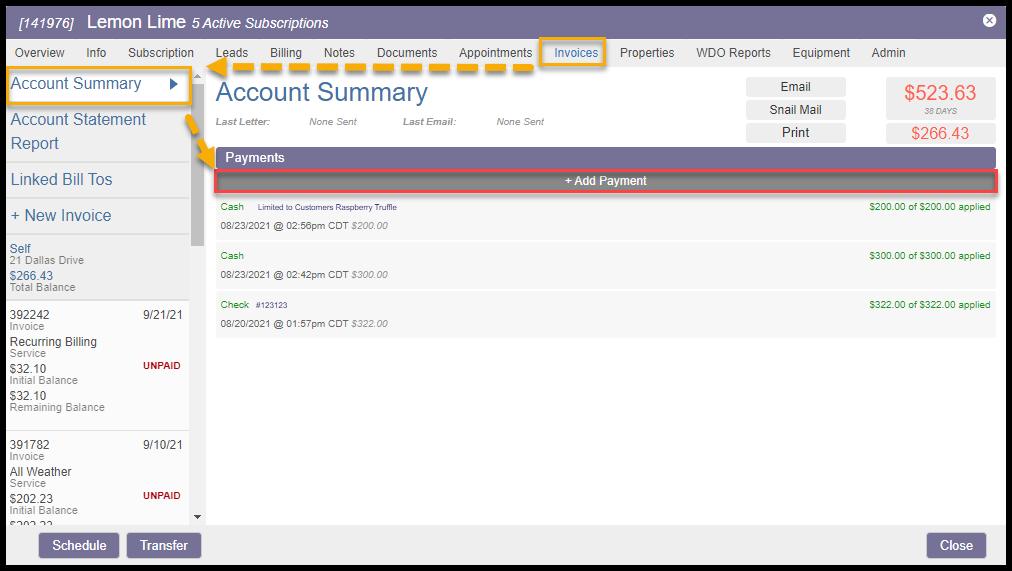
Applying a Payment to a Customer’s Account
Once the user selects + Add Payment, choose the applicable payment method.
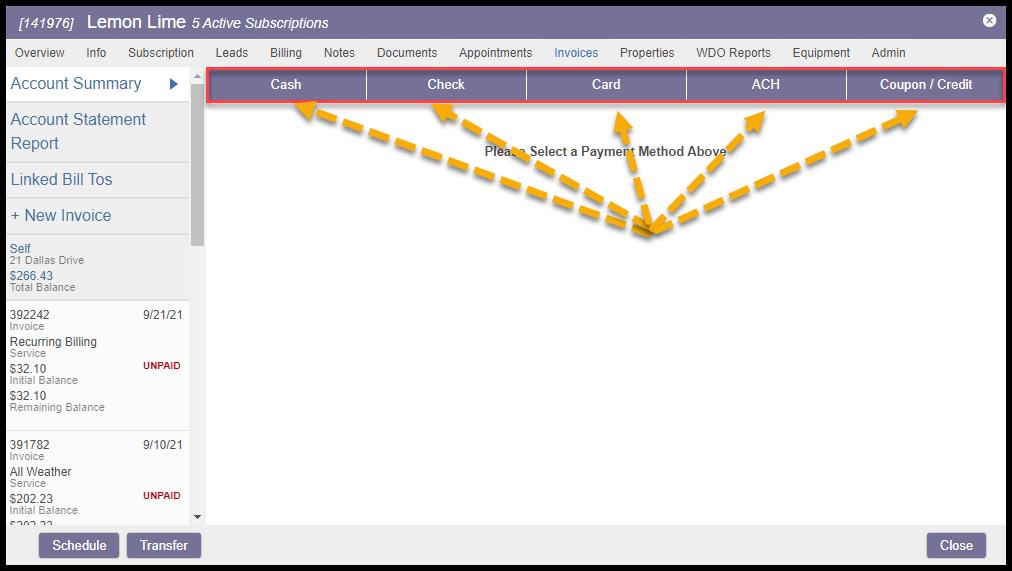
Applying a Credit Card Payment
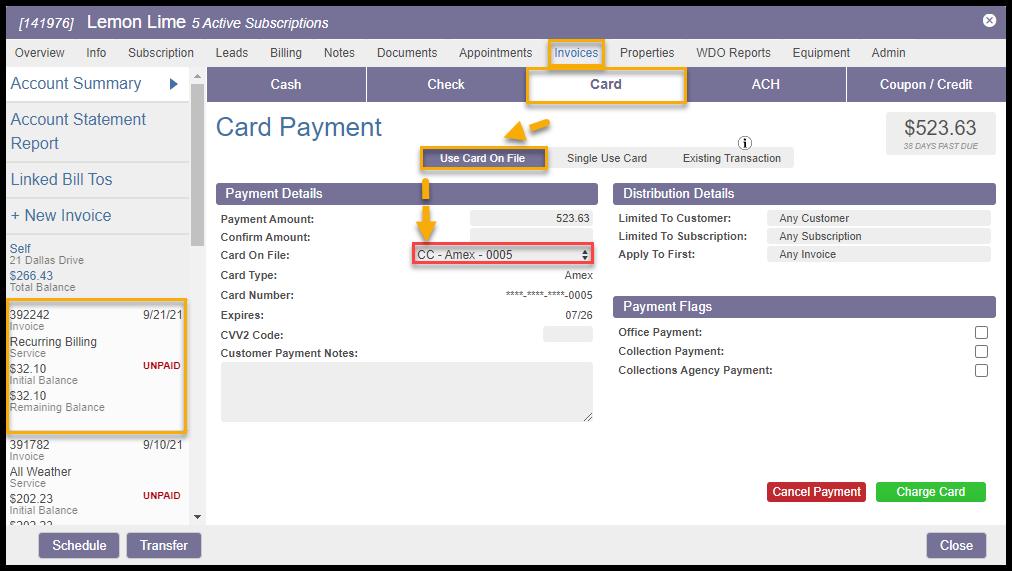
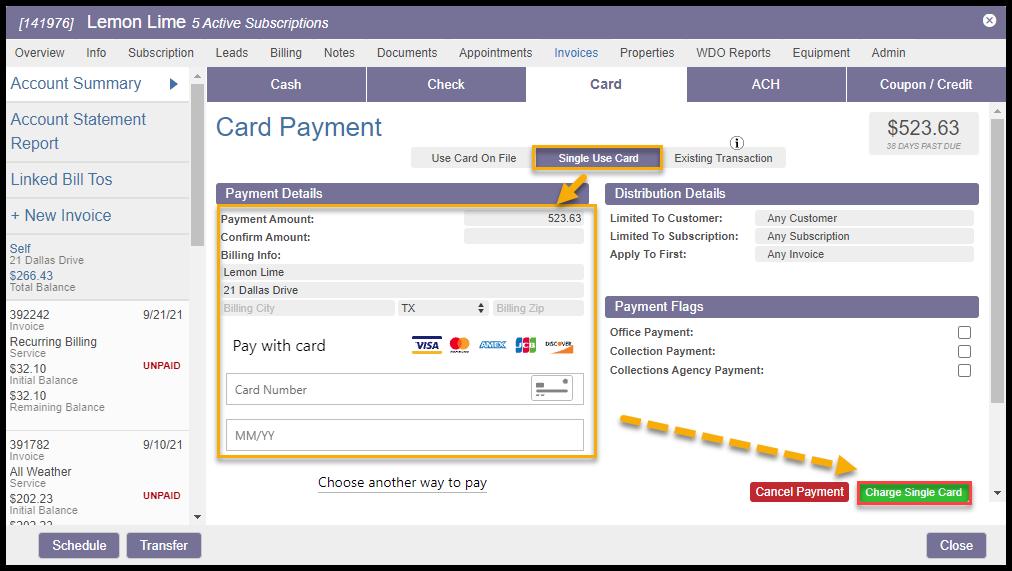
When a Credit Card Payment is chosen, the user may select a credit card saved on file or an one-time card payment.
When Use Card on File is chosen, ensure there is at least one valid credit card under the Billing tab of the Customer Card. The system will choose the Default credit card if there is one, but this may be updated to any valid card with the Card On File drop-down menu.
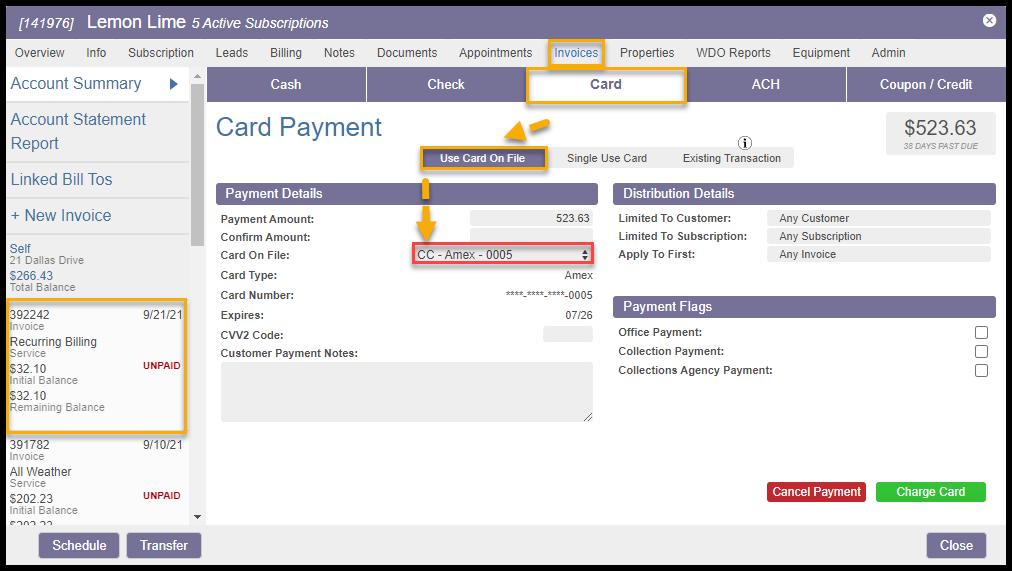
If a Single Use Card is chosen, enter a card number and expiration date.
When Single Use Card is selected, verify the Billing Address, then select Charge Single Card to securely enter the card number and expiration date.
NOTE:
This will not save the credit card information to the customer’s account.
Select Charge Single Card to submit the card payment.
Applying an ACH Draft Payment
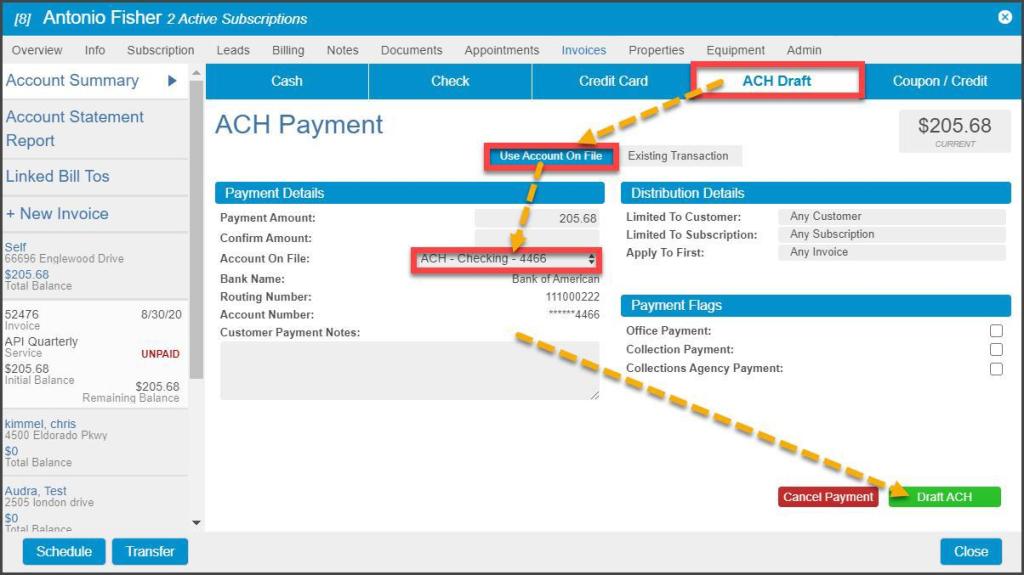
When applying an ACH payment to the customer’s account, ensure at least one valid bank account is already on file under the Billing tab of the Customer Card. If there is a Default ACH account, this will be pre-populated, but the user may choose an alternate account from the Account On File drop-down menu.
Once the account is selected and any Customer Payment Notes are added, select Draft ACH to submit the Payment.
Updating an Existing Card or ACH Transaction
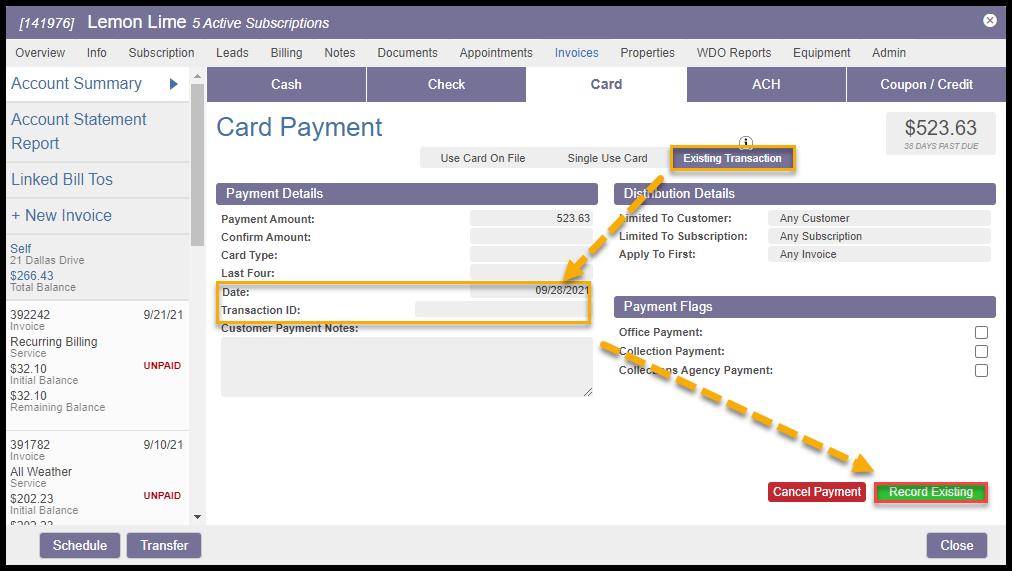
Customers sometimes find that a transaction’s details in the platform are in error or don’t reflect their bank or accounting records. Perhaps a card payment was made but applied to the wrong customer. Or an incorrect date is attached to the Payment and needs to be corrected. There is an Existing Transaction option for Card and ACH payments in these cases.
Begin with + Add Payment for the customer, select Card or ACH, then select the Existing Transaction option. Enter the amount, the correct date, and the Transaction ID#. Select Record Existing to save the updated details.
Applying a Payment to the Account Summary
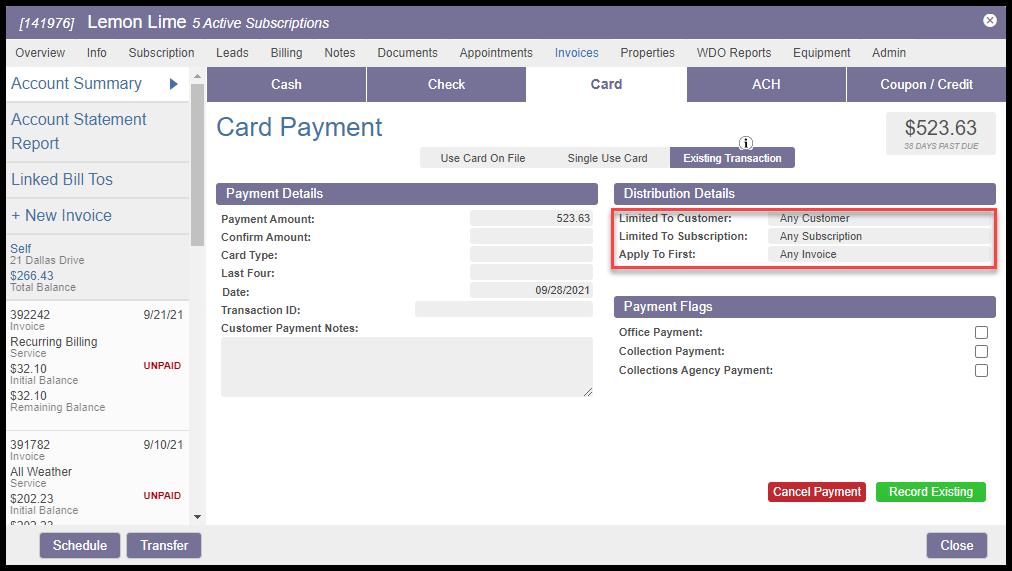
To apply the Payment toward the current customer’s overall account balance, designate this by leaving the Distribution Detail settings to their default values:
- Limited to Customer: Any Customer
- Limited to Subscription: Any Subscription
- Apply to First: Any Invoice
In this case, the Payment will be applied to the oldest unpaid invoice first and continue paying unpaid invoices according to age. After the account is current, any remainder will be applied to the overall account as a prepayment credit.
Applying a Payment To a Specific Customer, Subscription, or Invoice
However, a payment may be distributed in a more specific manner using three different settings under the Distribution Details area of the Payment dialogue:
- Limited to Customer: The default value is Any Customer, but if the payer has linked accounts, a specific Customer account may be designated
- Limited to Subscription: Default value is Any Subscription, but the payer may designate a specific Subscription for any of the Customers for which they make payments
- Apply to First: The default value is Any Invoice, but the payer may choose a specific invoice or invoices from a drop-down list.
Any or all three settings may specify a value. If the Apply to First field lists an invoice or invoices, this takes precedence, and the Payment will first be applied to the oldest of the selected invoices, paying it in full, then apply the remainder of the Payment to the next oldest invoice, and so on. Once the designated invoices are paid, if any of the Payment remains, it is then applied to the Customer and/or Subscription designated in the first two settings.
If both fields have values, the remainder will be divided equally between them, either in Payment of outstanding balances or by applying prepayment credits to them.

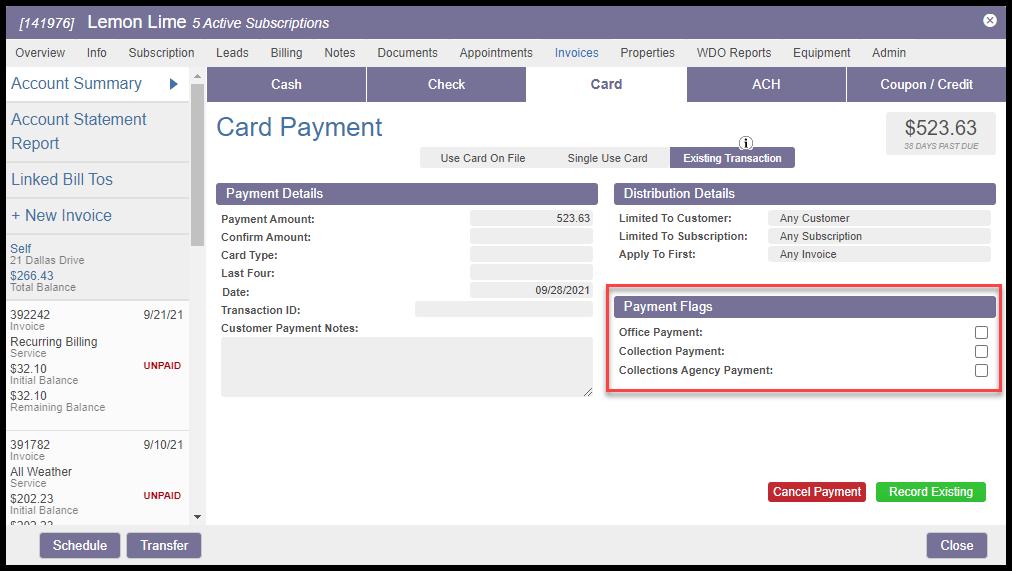
Office Payment and Collection Payment Flags
Selecting Payment Flags allows the payments to be filtered within the Payments History report located under Billing. This may assist in creating commission reports for customers with internal collections programs.
- Office Payment: Check this box if the Payment was received in the office.
- Collection Payment: Check this box if the Payment was for an account in collections.
- Collections Agency Payment: Check this box if the Payment was received from a collections agency.
Select Record Existing to record the payment if finished with the payment details.
Invalid Payment Cards
If a stored payment method – card or ACH account – becomes invalid due to expiration, theft, or account closing, an attempted payment using that method will fail. When this happens, several alerts are created.
Customer Card Billing Tab Alert
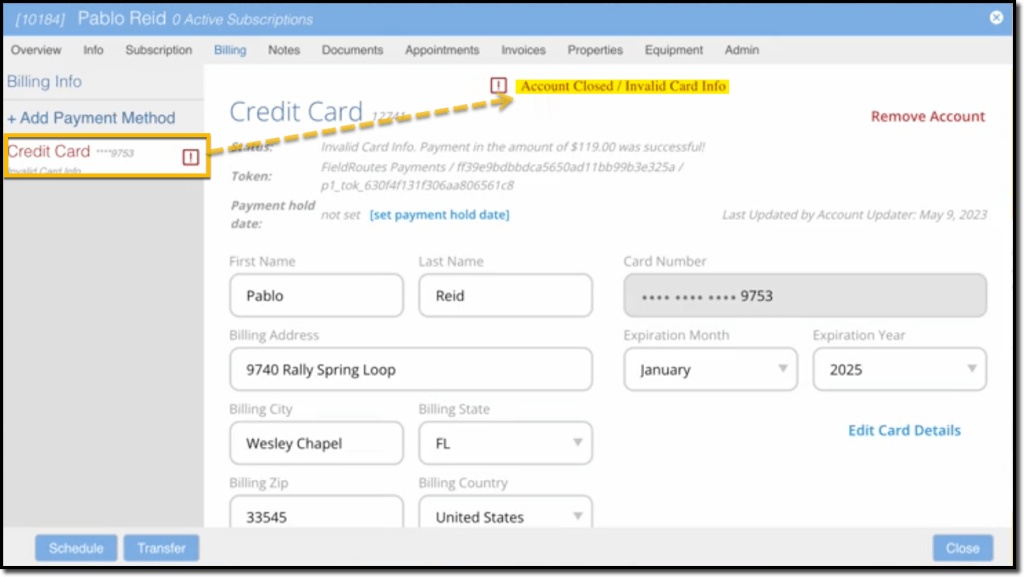
On the Billing tab of the Customer Card, the payment method will turn read and have a small exclamation point symbol appear beside it. Selecting the details will show the message Account Closed / Invalid Card Info at the top. The card may be manually edited using updated information (e.g. new expiration date) here in the tab.
Automated Email or SMS to the Customer
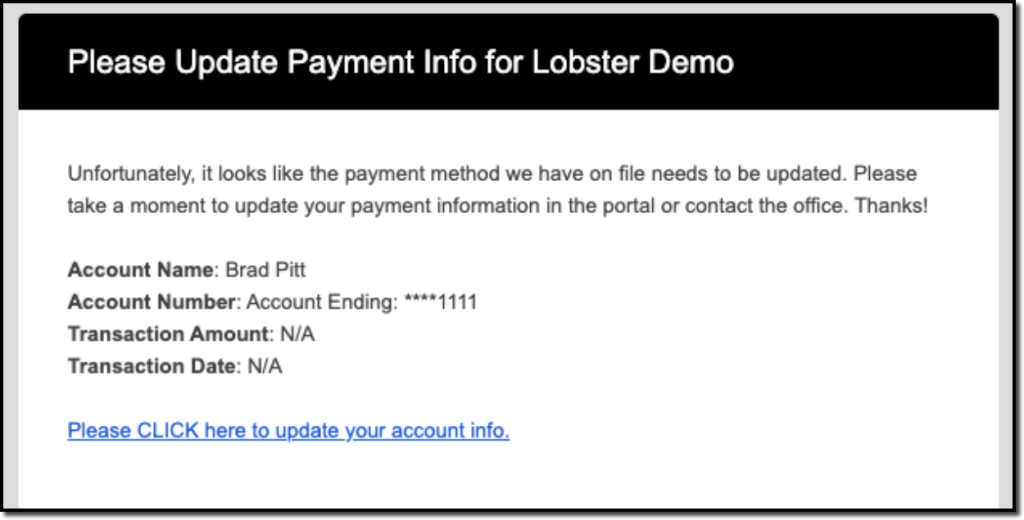
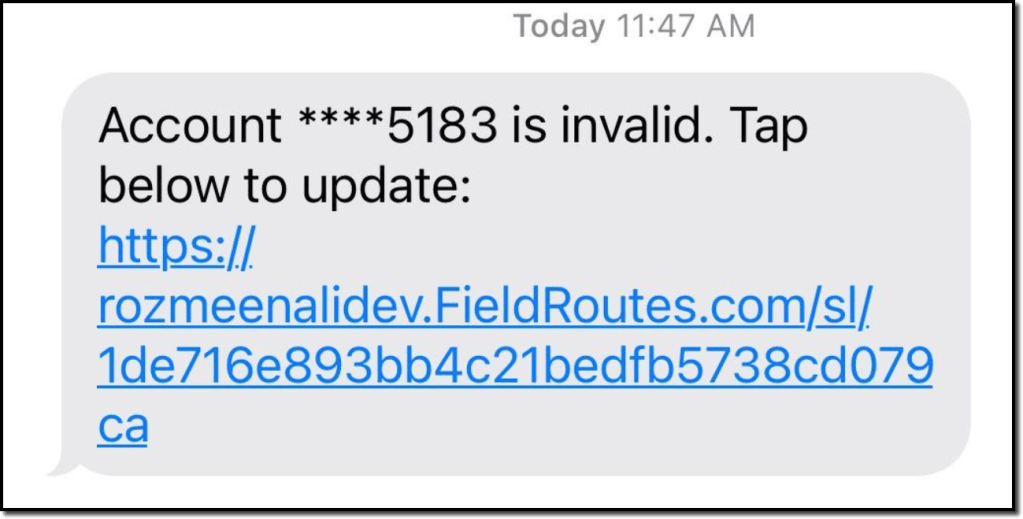
Under the Customer Communications preference, automated alerts can be configured for sending update requests to the affected customer via email, SMS message, or both.
Navigate to Admin > Preferences > Customer Preferences > Send Bad Payment Method Notifications and select the desired communication methods. Choices are:
- Yes (SMS & Email)
- Yes (SMS Only)
- Yes (Email Only)
- No

The following messages will then be automatically sent to customers when their payment methods fail:
Customer Portal Banner and Wallet Tab Alerts
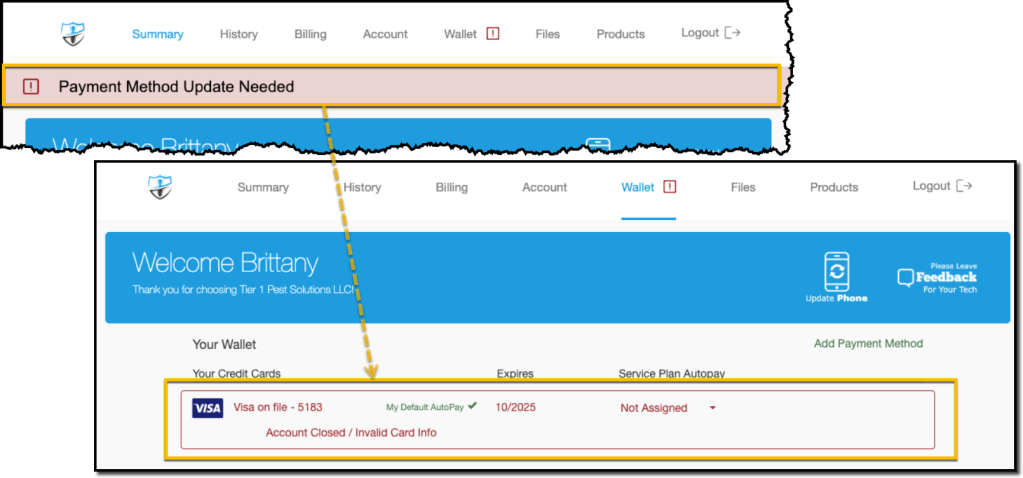
On the Customer Portal, a banner will appear alerting the customer to the invalid payment method that requires updating on the Wallet tab.
Once the Wallet tab is opened, the invalid card will be indicated via a red outline
 Moxie Pest Control Office Guide