
Application Methods
Summary
The Application Methods describe the different methods of how the tool, equipment, or chemical will be applied to the worksite.
Important Points:
- Application Methods are used in the Customer Card and the mobile applications in the respective equipment tabs
Accessing the Application Methods in Preferences
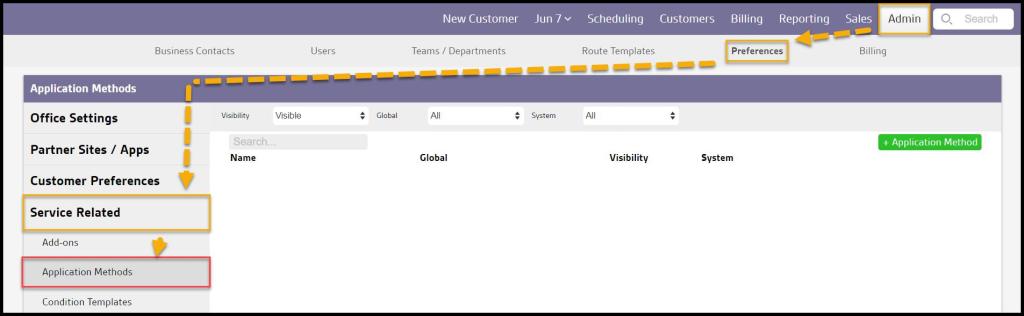
To access application methods, go to:
Admin > Preferences > Service Related > Application Methods.
Filtering the Application Methods in Preferences
To filter the application methods in Preferences, toggle these filters.
- Visibility
- All: Show all application methods.
- Visible: Show only visible application methods.
- Hidden: Show only hidden application methods.
- Global
- All: Display all application methods.
- Specific to Office: Show only application methods flagged to be specific to the user’s office.
- Available to all offices: Show only application methods flagged as open to all offices.
- System
- All: Display All application methods.
- Yes: Display only application methods that are system application methods.
- No: Display only application methods that are not system application methods.
The application methods will refresh after different filters are selected.

Adding or Editing an Application Method
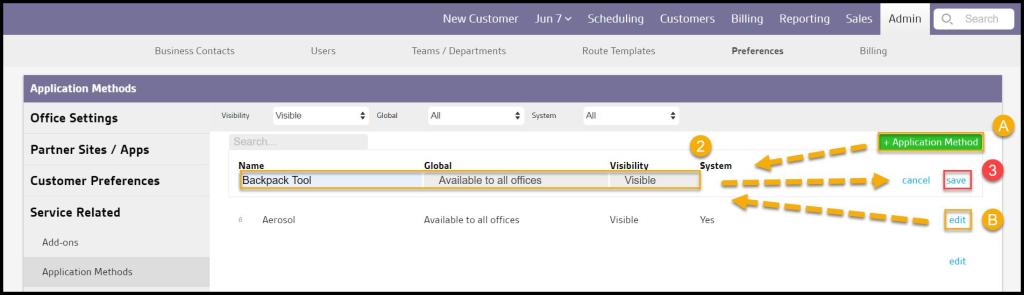
To add a new application method, select + Application Method or select Edit to change an existing application method.
- Name: Name the method of how the tool will be applied to the worksite.
- Global: Determine if the application method will be shown to specific or all offices.
- Visibility: Hide or show application methods. The user cannot delete application methods, only hidden from being selected.
- System: Shows if the application method is a system-defined application method, or if a user created the application method.
Select Save when finished editing the application method.
Where are Application Methods Used?
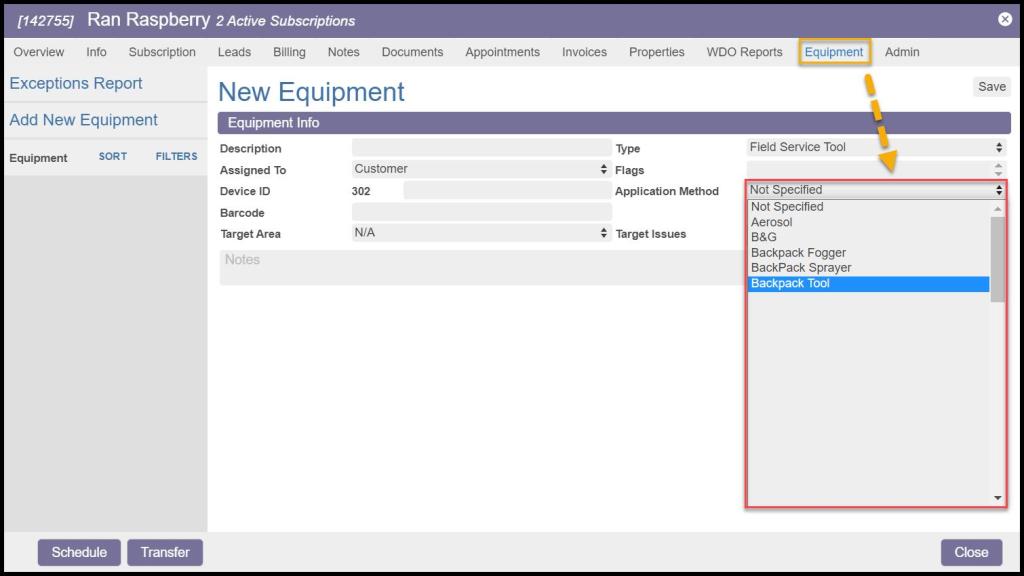
Application methods are used in the equipment tab in the Customer Card and the mobile applications to describe the method of how the tool, equipment, or chemical will be applied to the worksite.
 Moxie Pest Control Office Guide