
Alerts Report
Summary
Alerts help keep track of incoming information regarding customers. There are six different types of alerts: Customer Feedback, Technician Flags, Scheduling, Follow Up, Reminder Reply, and SMS Reply. The Alerts report is an easy way to view all office alerts within a specific date range.
Important Points:
- Alerts will be visible in the report whether they are completed or not.
- Alerts that have been converted to a task will not appear in the Alerts report.
- Export this report by selecting “Export to CSV”.
Accessing Alerts Report
To access the Alerts report, go to:
Reporting > Office Reporting > Alerts.

Filtering the Alerts Report
If no results or the search bar are visible, enter the desired date range for the report in the start date and end date fields, and then select Refresh.

Searching Alerts Report
The Alerts report can be searched for specific alerts by using the search bar.

Viewing the Alerts Report Data Columns
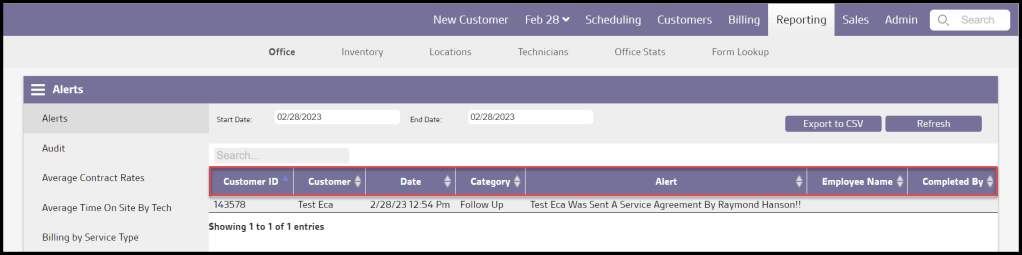
There are multiple columns that present different information about office alerts. These are determined by the preferences set in the trigger rules.
- Customer ID: Displays the unique identification number of the customer.
- Customer: Shows the first and last name of the customer.
- Date: View the date and time of day of the alert.
- Category: See the category of the alert.
- Alert: View the message entered for the alert.
- Completed by: Displays the name of the employee who set the alert.
Exporting the Alerts Report
Export the Alerts Report as a CSV file by selecting Export to CSV.
 Moxie Pest Control Office Guide