
Alerts List
Summary
Alerts are a tool used for office management. Alerts help the office staff keep track of incoming information regarding customers. Alerts can be converted to tasks for the office staff.
Important Points:
- Use the task categories to make changes to the Alerts categories.
- There are several different category types of alerts: Appt Status, Billing, Customer Care, Customer Status, Feedback, Follow Up, Office, Reminder Reply, Sales, Scheduling, Service, SMS Reply, Subscription Status, Tech Flag, and Voicemail.
- An alert is created when a customer uploads a file.
Accessing Alerts
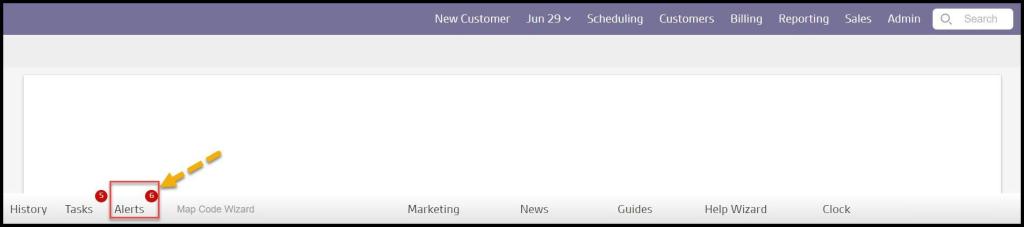
To access Alerts, go to the bottom navigation bar and select Alerts.
What does the number of alerts mean?
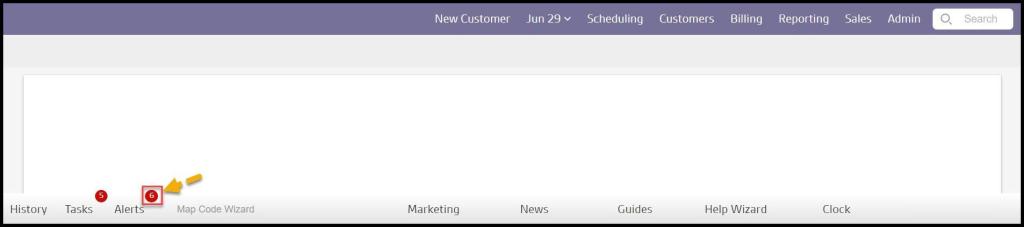
The red bubble next to Alerts shows the number of unread alerts within the past three months.
Filtering Alerts
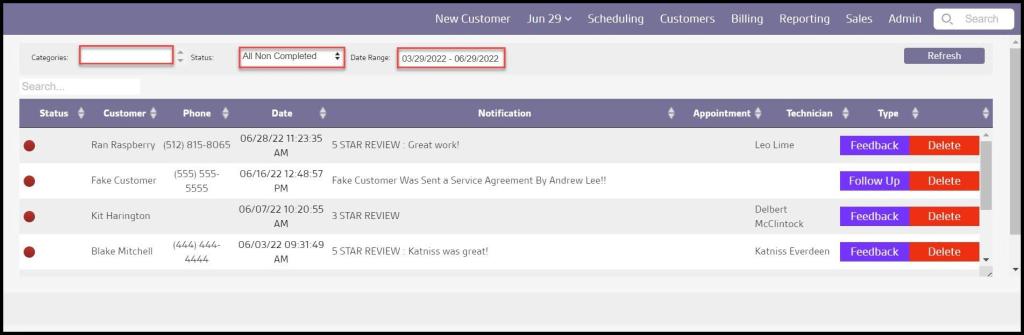
Alerts can be filtered using the following options:
- Categories: Filters the Alerts by category. These are the same as the task categories. Please see the Task Category guide for more information on changing the categories.
- Status: This will filter the alerts by their status.
- Date Range: Limit the date range for the Alerts. The date range by default will be the 3 months leading up to the current day. To see alerts older than three months ago, change the date filters to any 3 months, and then click Refresh.
Select Refresh to cancel the Alerts, once filtered.
Viewing the Alerts’ Data Columns
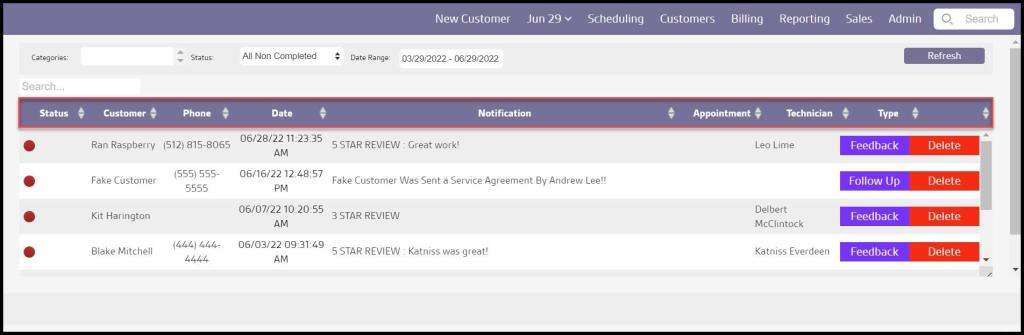
The Alerts display multiple date columns:
- Status: This will display the status of the alert.
- Unread: The Alert has not been read.
- In Review: The Alert is being reviewed.
- Completed: The Alert is being completed.
- Convert to Tasks: Converts the Alert into a Task. Please see the guide on tasks for more information on using tasks.
- Customer: The name of the customer with the alert.
- Phone: The phone number of the customer with the alert.
- Date: This will display the date that the alert occurred.
- Notification: Shows the Alerts description.
- Appointment: Shows the related appointment, if applicable.
- Technician: Shows the technician for the alert, if applicable.
- Type: Displays the category of Alert. These share the task categories. Please see the Task Category guide for more information.
- To remove the Alert completely, select Delete.
NOTE:
Deleting an SMS Reply Alert will also erase the entry in the Notes tab of their Customer Card.
Select Alerts to close the Alerts Panel when finished.
Changing the Status of Alerts
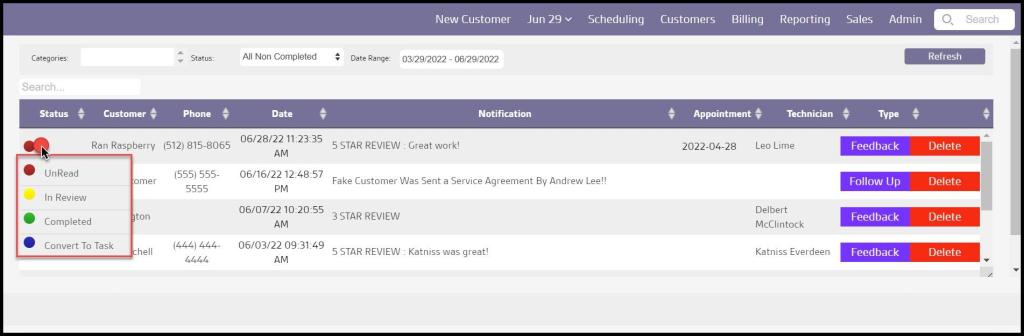
Once an Alert has been read, change the status by selecting the red dot to the far left of the task. A new menu will give the option to complete the task, or assign another status to it.
- In Review (yellow): Shows other office staff users that the alert is being processed.
- Completed (green): Shows an office staff user has finished the alert. Once an alert is marked as complete, the red number above the alerts will change to reflect the completed task and once the page is refreshed, the completed alert will disappear from the list.
- Convert to Task (blue): Converts the alert into an unassigned task.
Giving office admin permission to delete or edit alerts
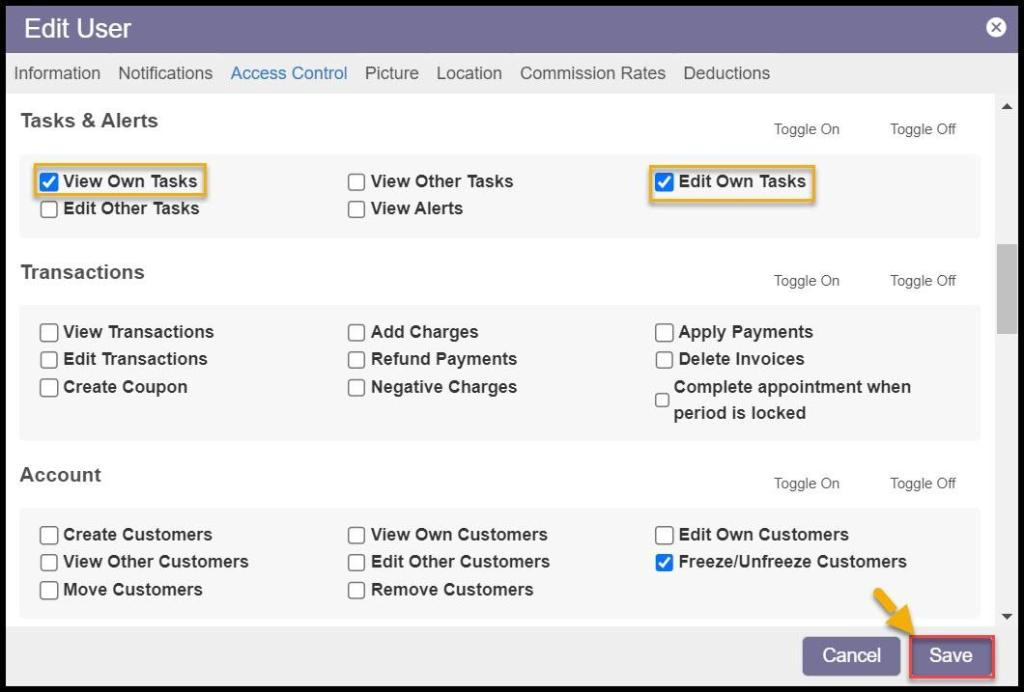
The ability to edit and delete alerts is controlled by user access controls. Go to:
Admin > Users > select a User > Access Controls > Tasks & Alerts > Enable the user to Edit Own Tasks and Edit Others Tasks (If desired).
 Moxie Pest Control Office Guide