
Access Control Profiles
Summary
Access Control Profiles save time when setting up multiple similar new system users. Access Controls provide system permissions for each user to determine which features are visible or editable for that user.
By creating a complete set of Access Controls for a specific team role, such as Technician or Billing Processor, a system administrator can select the profile on each User Card > Access Control tab and assign the entire group to a user rather than building it manually for each one.
Important Points:
- Consider that when making changes to a profile, it affects all users currently attached to the profile.
- Default profiles can be set for all new employees added based on user type.
Accessing the Access Control Profiles in Preferences
To access the Access Control Profiles, go to:
Admin > Preferences > Office Settings > Access Control Profiles.

Filtering the Access Control Profiles
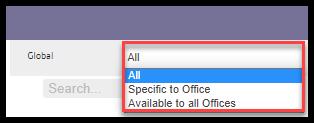
To filter the Access Control Profiles, toggle these filters. If the desired result is not showing up, check the filters.
- Global
- All: Display all Access Control Profiles.
- Specific to Office: Display only Access Control Profiles flagged to be particular to the user’s office.
- Available to all offices: Display only Access Control Profiles flagged as open to all offices.
The Access Control Profiles will refresh after different filters are selected.
Adding and Editing Access Control Profiles
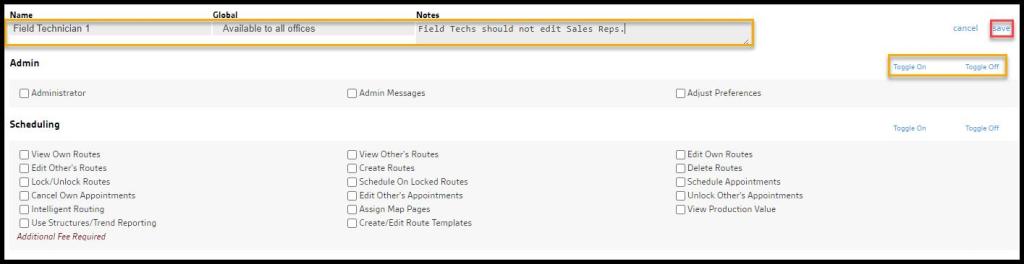
To add a new Access Control Profile, select + Access Control Profiles or Edit to change an existing Access Control Profile. See the Access Control Reference Sheet guide for more information on which access controls to toggle.
- Name: Put the name or employee type for the access controls set.
- Global: Determine if the Access Control Profile will be shown to the specific office, it was created in or all offices for users with multiple offices/branches.
- Notes: Input any necessary notes regarding the profile.
- Toggle On / Off: Selecting “toggle on” or “toggle off” while editing the access controls will enable the user to toggle all the access controls within a particular section on or off at once.
Select the checkbox to the left of every access control desired for this profile. Access Control Profiles can also be deleted by selecting Remove.
Select Save when finished editing the Access Control Profiles.
Applying Profiles to Users
To apply these profiles to users on the desktop application, go to Admin > Users and select the desired user.
Once the user has the user card open, select the Access Control tab. At the top, the user will notice a drop-down that will allow the user to select the desired Access Control Profiles for the user card.
If the user has a user that needs access controls but doesn’t need a profile created, select Custom Profile in the dropdown here.
Once the user assigns an access control profile, the user cannot change individual permissions without changing the profile for all users attached. The user can also toggle a specific back to a custom profile to adjust individual permissions.

 Moxie Pest Control Office Guide